Create a Custom LLM
- Sign in to AI for Service.
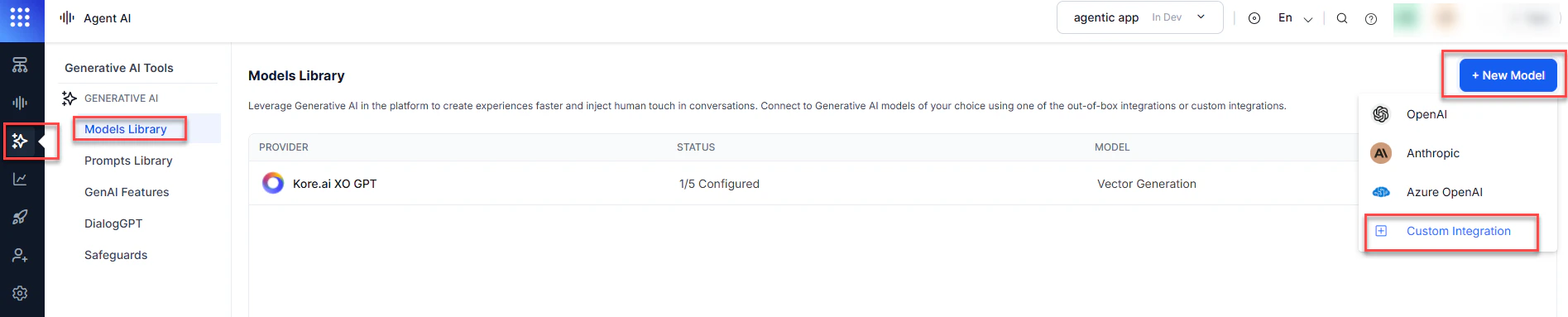
- Go to Agent AI > Generative AI Tools from the left navigation.
-
Select Models Library > New Model > Custom Integration.
-
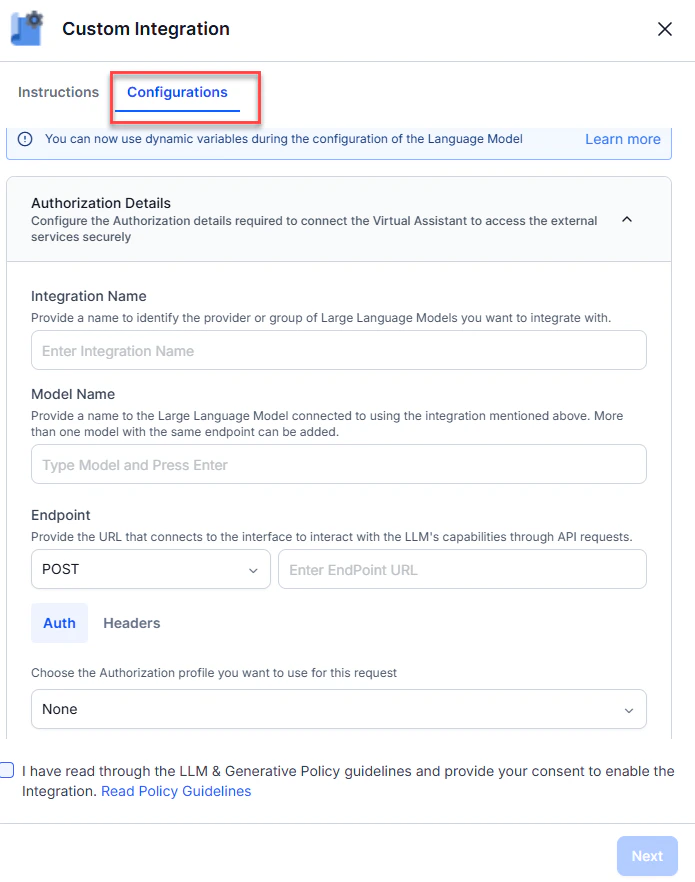
Select Configurations on the Custom Integration page.
-
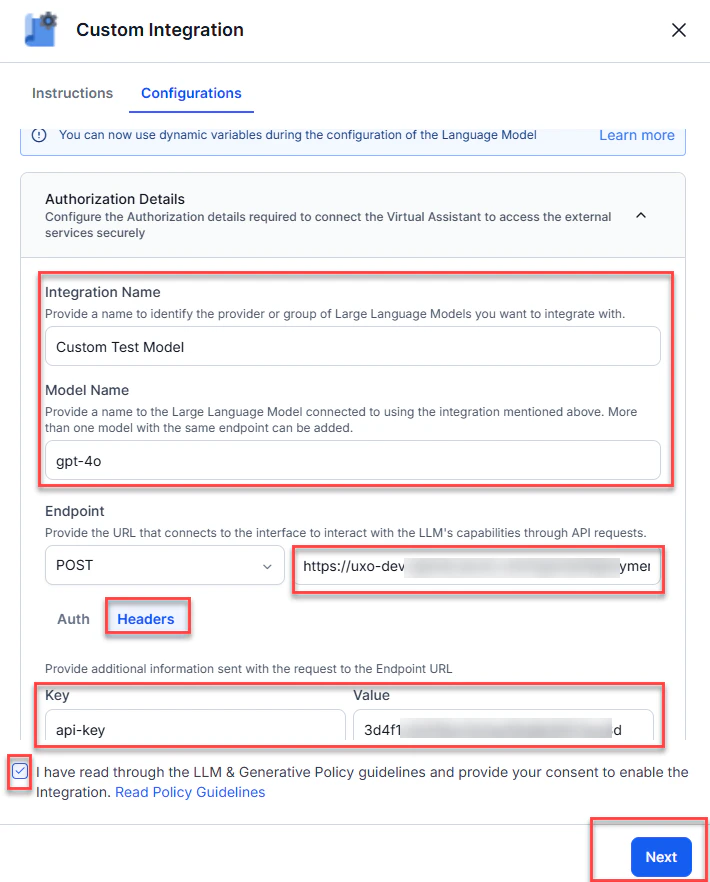
Enter the following details:
Field Description Integration Name A name identifying the provider or LLM Models group. Model Name The LLM name for this integration. Multiple models can use the same endpoint. Endpoint (POST) The URL to connect to the LLM via API requests. -
Select Headers and enter the key-value credentials:
- Key: For example,
api-key. - Value: For example,
3d4f1cOdxxxxxxxxxxxxxxx.
- Key: For example,
- Select the LLM and Generative Policy guidelines checkbox.
-
Select Next.
-
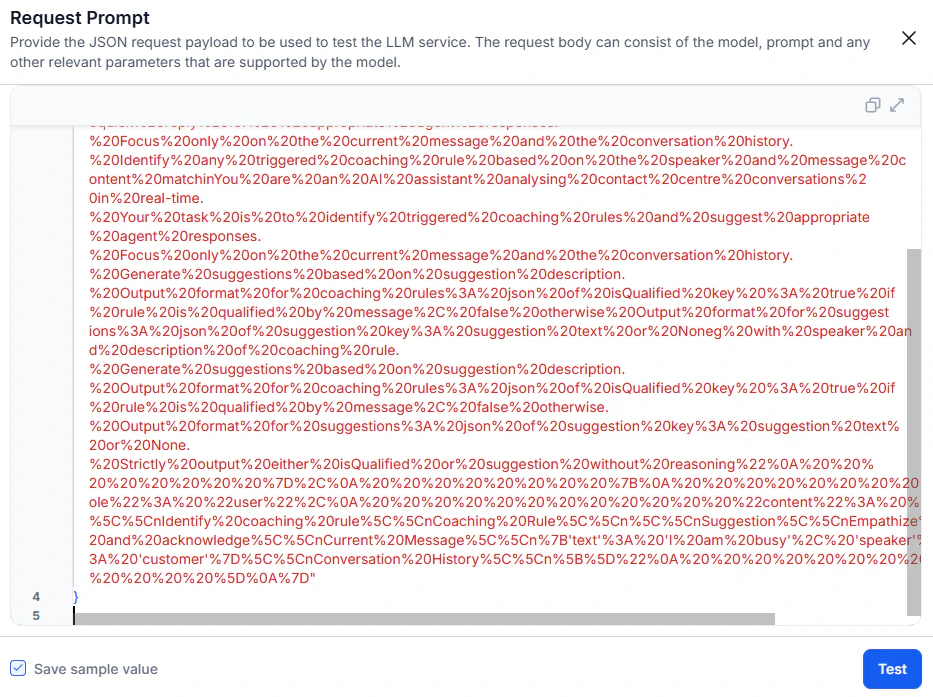
Enter a JSON request body (model, prompt, or other parameters) and select Test.
-
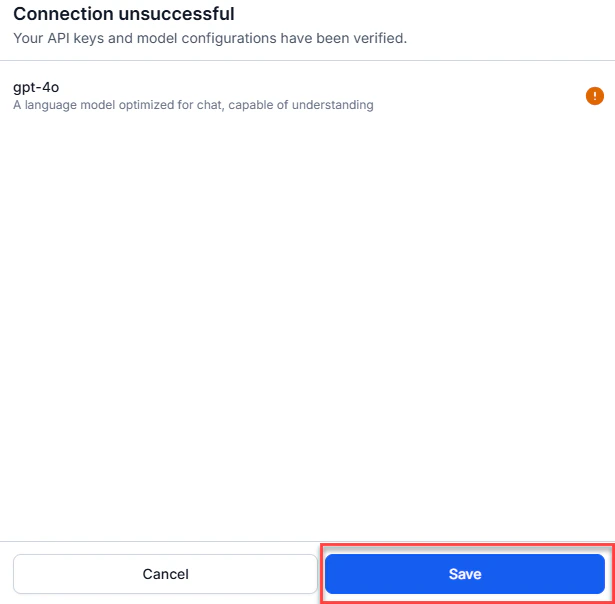
Select Save.
-
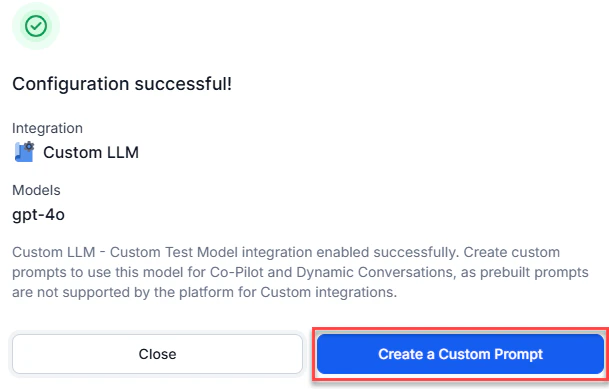
Select Create a Custom Prompt.
-
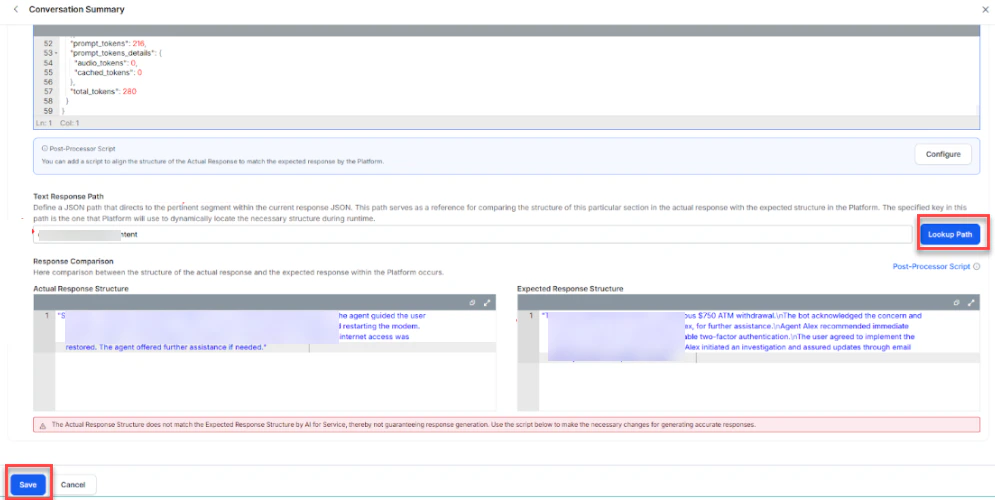
On the Conversation Summary page, fill in the following:
Field Description Name A name for the prompt. For example, Summary Prompt. Feature Select Conversation Summary. Choose Model Select the custom model you created. For example, Custom test mode - gpt-4o. JSON Enter your JSON content. 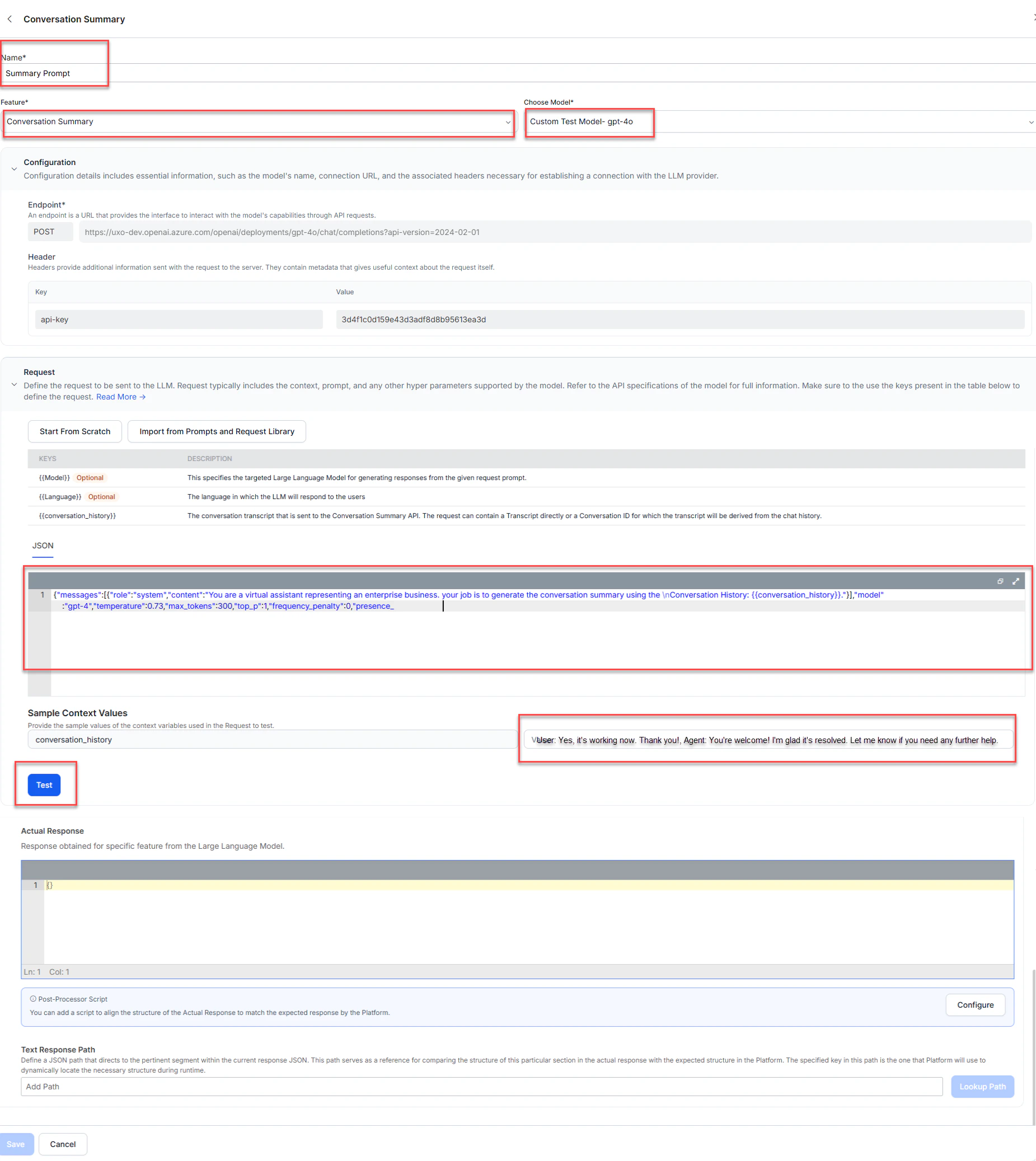
- Select Test.
- Enter the response path in Text Response Path. For example,
choices[0].message.content. - Select Lookup Path. The summary is generated.
- Select Save.
Select the Custom Model
- Sign in to AI for Service.
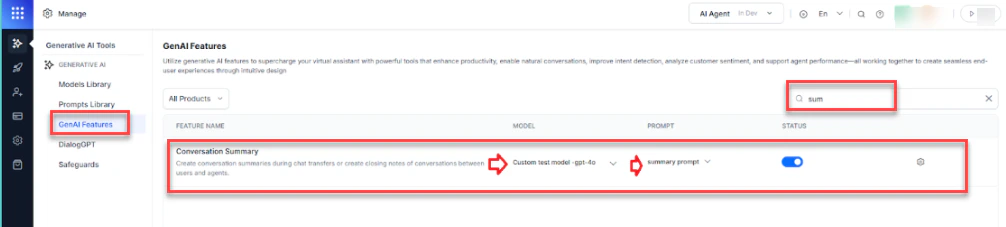
- Go to Agent AI > Generative AI Tools > GenAI Features.
-
Search for
conversation summaryin the search box. -
Select your model and prompt from the MODEL and PROMPT dropdowns.