
| Section | Description |
|---|---|
| Flows Live Board | View and manage all flows from a central list with search and sort. |
| Flow Types | Start Flows handle inbound voice and chat; Exit Flows run post-call cleanup. Default welcome flows ship with every account as fallbacks. |
| Creating Flows | Step-by-step instructions for creating Start and Exit Flows, with channel-specific settings for Voice (ASR/TTS, bot no-input handling, AMD, streaming), Chat, and SMS. |
| Flow Designer | Navigate the canvas, toolbar, nodes panel, index panel, and mini map. All changes are auto-saved. |
| Managing Flows | Edit and delete Start and Exit Flows, with notes on default flows and campaign-linked flows. |
| Publishing | Make a flow available to end users. |
| Flow Nodes | A reference table of all node types and channel support, plus instructions for adding, configuring, connecting, and removing nodes. |
| Automation Routing | Manage routing modes, automation node settings, and linked apps across all flows. |
Flows Live Board
Navigate to Automation AI / Contact Center AI / Agent AI > Flows & Channels > FLOWS to access all flows.
| Field | Description |
|---|---|
| Flow | Name of the Start Flow entry. |
| Actions (⋮) | View (default flows): see Name and Description. Update: edit Name, Description, and Channel. Delete: remove the entry. |
| Description | Flow description. |
| Channels | Attached channels and flow type (call or chat). |
| Status | Published or In Development. |
Flow Types
| Type | Channels | Description |
|---|---|---|
| Start Flow | Voice, Chat | Entry point for inbound calls and chats. Supports all node types. Two default start flows (Chat-Welcome, Voice-Welcome) are auto-created per account as fallbacks. |
| Exit Flow | Voice | Runs when a call disconnects. Used for post-call analytics, system cleanup, or external updates. Conversational context from the main flow can be passed in. |
Default Welcome Flows
Default flows ship with every new account and act as fallbacks when no intent is matched.| Flow | Test Channel | Purpose |
|---|---|---|
| Chat-Welcome | RTM (Real-Time Messaging) | Handles inbound chat when the user’s intent is unclear. |
| Voice-Welcome | SBC simulation channel | Handles inbound voice calls with no predefined intent match. |
Create a Start Flow
- Go to Flows & Channels > FLOWS.
- Click + New Start Flow.
- Enter a Start Flow Name and Description.
- Select a channel under Attach a Channel — see channel-specific settings below.
- Click Update & Continue to Flow Design to open the Flow Designer.

Voice Channel
Phone Number
Select an existing phone number from your account, or click Purchase a phone number to acquire one.- Click Get New Phone Number, then select: Country, Local or Toll-Free, State, and Area Code. Monthly fee and per-minute charge are displayed before confirmation.
- After purchase, set the number for Inbound, Outbound, or both calls, then click Done.
Note: Phone number purchase requires a Twilio account. Not supported for SIP trunk setups.
ASR and TTS
| Setting | Options |
|---|---|
| ASR Speech Recognition Engine | Microsoft Azure, Google Cloud Speech-to-Text, Amazon Transcribe |
| English Dialect | Select the applicable dialect. |
| TTS Engine | Microsoft Azure, Google Cloud Text-to-Speech, AWS Amazon Polly, ElevenLabs, Whisper, PlayHT, Deepgram |
| Language / Voice | Set TTS language and voice. Use Voice Preview > Sample Text > Play to audition. |
Bot No Input
Prevents dead air when the bot doesn’t respond due to backend delays or failures. When disabled, the call disconnects after a 30-second default give-up timeout.| Option | Description |
|---|---|
| Bot No Input Timeout | Seconds before triggering an action if the bot hasn’t responded. Repeats until the bot responds, retries are exhausted, or the give-up timeout is reached. |
| Interaction Type | Bot No Input Speech: bot speaks a message. Bot No Input URL: bot plays audio from a URL. (Realtime TTS supports URL input only and does not accept speech input.) |
| Bot No Input Retries | Number of retry attempts. |
| Bot No Input Give Up Timeout | Total seconds before executing the give-up action. |
| Give-Up Action | End the Call: bot speaks a message then disconnects. Transfer the Call: bot speaks a message then transfers via SIP REFER to a redirect URL (with optional SIP headers). |
| Parameter | Value |
|---|---|
| Enabled | true |
| Bot No Input Timeout | 10 s |
| Bot No Input Speech | ”Please wait while the bot responds.” |
| Bot No Input Retries | 15 |
| Bot No Input Give Up Timeout | 120 s |
| Give-Up Action | End Call: “Bot not responding ending the call” |
Answering Machine Detection (AMD)
Detects whether a human or answering machine answered the call. The result is stored incontext.session.UserSession. Enable Disconnect the call after detecting a machine to auto-terminate on detection.
When AMD triggers a disconnection, the interaction is recorded as follows:
| View | Status | Mode |
|---|---|---|
| Interactions Dashboard | Completed | Machine Detected |
| Insights to Log | Completed (Closed) | Machine Detected; Disconnecting Event: System; Smart Status: Closed |
Note: Applicable to voice flows only.
TTS Streaming
Streams the TTS response, reducing TTS connection latency by ~200 ms. Supported only for Deepgram and ElevenLabs.Continuous Gather
Available when TTS Streaming is enabled. Captures user responses concurrently to further reduce latency. Use only for Agentic App use cases.Optional Flow Attachments (Voice)
Note: Only published flows appear in these dropdowns.
| Optional Flow | Trigger |
|---|---|
| Exit Flow | Executes the published version when the call disconnects. |
| No Agents Available Flow | Executes when agent transfer is triggered but no agents are available, or the queue wait time is exceeded. |
| Out-of-Hours Flow | Executes when agent transfer is triggered outside the queue’s configured working hours. |
Chat Channel
| Setting | Description |
|---|---|
| All | Selects Web/Mobile Client and all other configured chat channels. |
| Web/Mobile Client | Browser or mobile front end that communicates with the server. |
| Prompt Overrides at Input Nodes (Advanced) | Passes unprocessed user input to the first input node instead of replaying its stored prompt. Useful when a conversation ends and restarts — the user skips the welcome message and gets a contextual reply instead. |
| No Agents Available Flow (optional) | Same trigger as Voice. |
| Out-of-Hours Flow (optional) | Same trigger as Voice. |
SMS Channel
- Select a configured phone number.
- Optionally attach a No Agents Available Flow and/or Out-of-Hours Flow.
- Click Update & Continue to Flow Design.
Create an Exit Flow
- Go to Flows & Channels > FLOWS.
- Click + New Exit Flow.
- Enter an Exit Flow Name and Description.
- Under Attach a Channel, select Voice or Chat.
- Click Update & Continue to Flow Design.
Navigate the Flow Designer
Once you enter the Flow Designer, the default Start node is already on the canvas.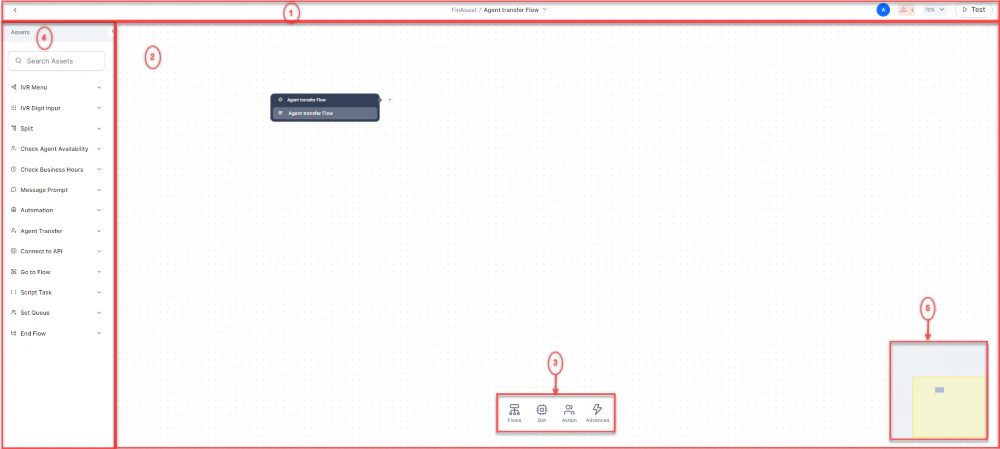
| Area | Description |
|---|---|
| Toolbar | Close Flow button, flow name, creation timestamp dropdown, Test button, Error status indicator. |
| Canvas | The drag-and-drop work surface. Contains the Start node and any nodes you add. |
| Nodes Panel | Nodes grouped by category for easy browsing. |
| Index Panel | Full alphabetical list of all nodes with a search bar. |
| Mini Map | Miniature canvas overview — useful for navigating large flows. |
Toolbar Details
| Element | Behavior |
|---|---|
| Close Flow | Exits the designer and returns to the Flows list. |
| Flow Name | Displays the name assigned at creation. |
| ˅ Dropdown | Shows the timestamp of the last save. |
| Test | Opens a chat window (chat channel) or softphone dialer pad (voice channel) for flow testing. |
| Error Status | Displays the error count; click to view error details. |
Manage Flows
Edit a Start Flow
- On the Flows Live Board, click ⋮ next to the flow.
- Click Update, edit the fields (Name, Description, Channel), and click Update.
Note: The Channel field of default Start Flows cannot be edited.
Delete a Start Flow
- Click ⋮ next to the flow and click Delete.
- Confirm deletion.
Notes:
- Deleted flows cannot be restored.
- Default start flows cannot be deleted.
- A flow linked to an active campaign must be removed from that campaign before it can be deleted.
Edit an Exit Flow
- Click ⋮ next to the exit flow and click Update.
- Make changes and click Update.
Delete an Exit Flow
- Click ⋮ next to the exit flow and click Delete.
- Confirm deletion.
Publish a Flow
Publishing makes the flow available to end users. See Publishing Components.Flow Nodes and Node Types
Nodes are the building blocks of a flow. Drag them onto the canvas and connect them to define the customer journey.Node Reference
| Node | Channel | Description |
|---|---|---|
| IVR Menu | Voice | Present callers with menu options selectable by phone keypress. |
| IVR Digit Input | Voice | Collect numeric input (e.g., phone number, last 4 card digits). |
| Split | Voice, Chat | Branch the flow based on defined conditions. |
| Check Agent Availability | Voice, Chat | Route based on agent availability filtered by skill set. (Experimental — may be deprecated.) |
| Check Business Hours | Voice, Chat | Route based on whether the query arrives within configured working hours. |
| Message Prompt | Voice, Chat | Deliver a message to the customer via voice or chat. |
| Automation | Voice, Chat | Execute a specific dialog task defined in your XO Platform Bot. |
| Agent Transfer | Voice, Chat | Transfer the conversation to a live agent based on defined triggers. |
| Connect to API | Voice, Chat | Make synchronous or asynchronous REST or SOAP API calls. |
| Go To Flow | Voice, Chat | Jump from the current flow to a target flow in Contact Center AI. |
| Script Task | Voice, Chat | Run a script to process or set context and flow variables. |
| Set Queue | Voice, Chat | Define or modify queue settings, messages, and behavior. |
| End Flow | Voice, Chat | Define the message played to the customer when the flow ends. |
| Deflection Flow | Voice | Transfer a call to chat, providing the customer a link to continue via chat with a bot or human agent. |
| Script Nodes & Flow Utils | Voice, Chat | Reference for context variables, call flow variable helpers (setCallFlowVariable / getCallFlowVariable), agentUtils, and userSessionUtils. |
Working with Nodes
Add a Node
- Method 1: Click + on the canvas → select a node from the pop-up → click + New Node.
- Method 2: Drag a node from the Nodes Panel onto the canvas.
Configure a Node
Click any node on the canvas to open its configuration panel, then fill in the required fields.Rearrange Nodes
Drag and drop nodes to new positions. Connected nodes stay in place regardless of drag direction.Connect Nodes
- Click + on the source node.
- Drag to the target node. An arrowed line appears indicating the connection direction.
Edit or Delete a Node Connection
Click the connector line between two nodes to reveal options:| Option | Action |
|---|---|
| Bend line connector | Converts the line to a curved path. |
| Straight line connector | Converts the line to a straight path. |
| Change line color | Opens a color picker. |
| Delete connector | Removes the connection; nodes remain on the canvas but are disconnected. |
Edit or Delete a Node
Right-click a node to access:| Option | Action |
|---|---|
| Rename | Change the node’s display name. |
| Mark as Flow Starting Point | Designates the node as the flow entry point. |
| Sequence Color | Change the node’s color for visual grouping. |
| Delete | Remove the node (requires confirmation). |
Notes:
- Deleted nodes cannot be restored unless a previously saved version contains them. Restoring a version may overwrite other changes — proceed with caution. See Restore Versions.
- The Start node cannot be deleted.
Automation Routing
Path: Flows & Channels > Automation Routing > Routing Modes The Routing Modes page lists all Chat and Voice flows with their automation routing configuration. Use it to manage automation app connections and routing behavior. The integrated search bar filters results across all displayed fields.| Column | Description |
|---|---|
| Flow Name | Name of the flow entry. |
| Automation Node | The automation node configured in the flow. |
| Routing Mode | The routing mode applied to the flow. |
| Channel | The associated channel (Chat or Voice). |
| Option | Description |
|---|---|
| Automation Settings | Configure the Automation Node: autonomy level for Automation AI, Automation AI options, Agentic App Configurations, connection rules, and error prompts. Learn more. |
| Manage Linked Apps | View all linked apps. Click + Link Apps to add an app; click the unlink icon next to an app to remove it. Learn more. |