Configure the Node
General Settings
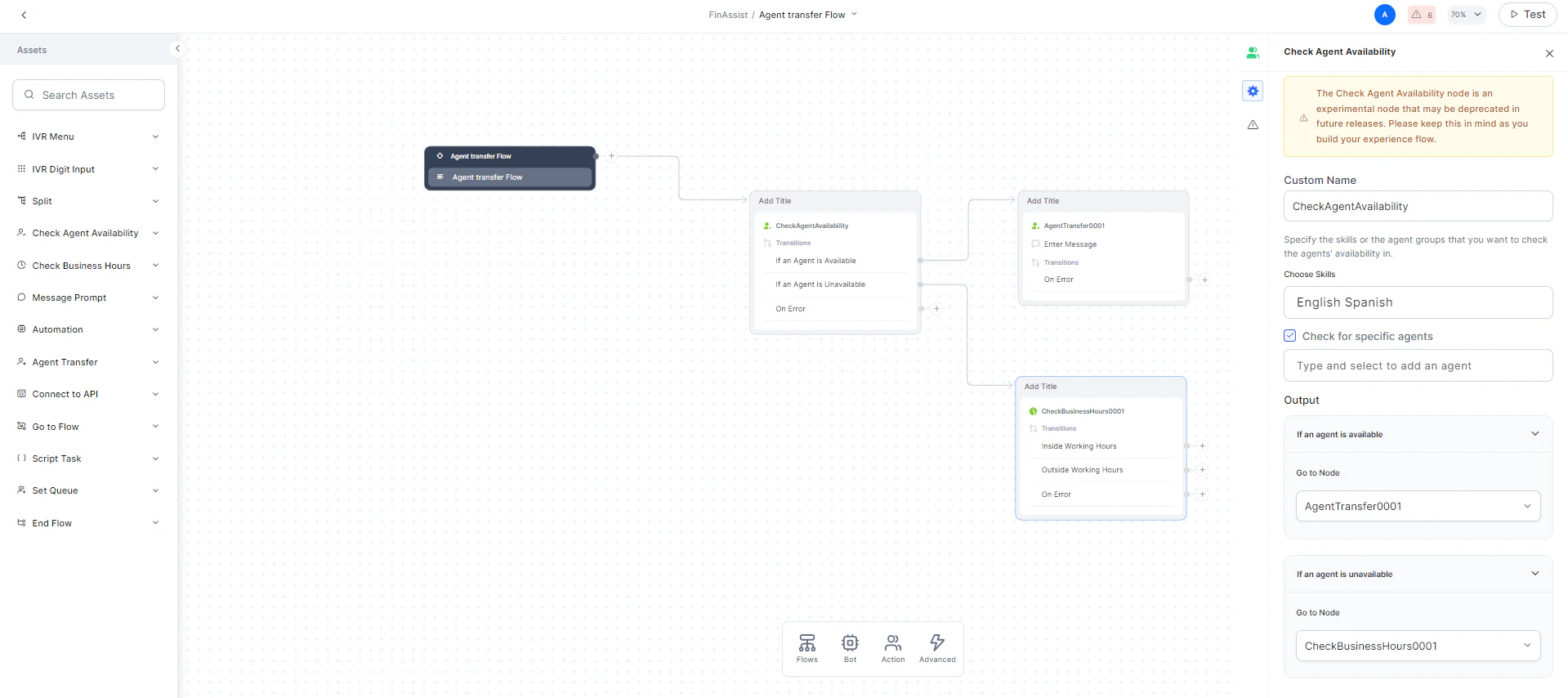
In General Settings, configure the following: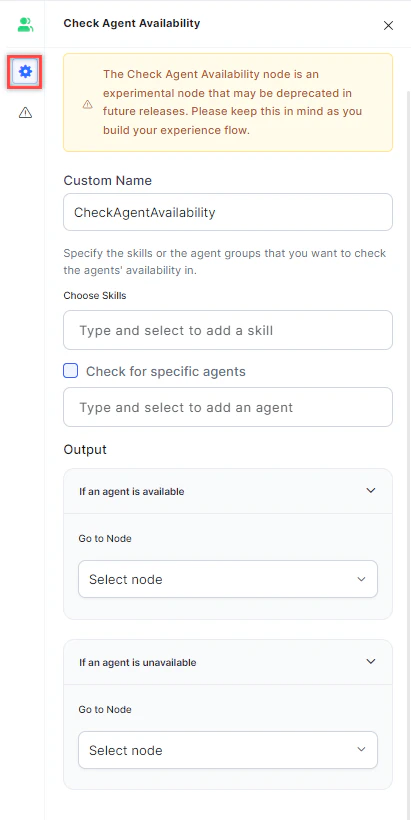
- Custom Name: Enter a name to identify the node.
- Choose Skills: Select the skills or skill groups to check availability for.
- Check for specific agents: Enable this option to restrict the check to selected agents only. !!! Note You can check availability by skills or by specific agents, but not both at the same time.
-
Output: Define the routing paths based on availability:
- If an agent is available: The flow routes to this node when an available agent is found.
- If no agent is available: The flow routes to this node when no available agent is found.
Error Handling
Use this section to handle system errors during customer interactions.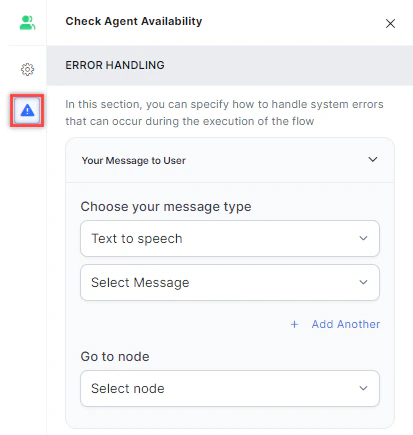
-
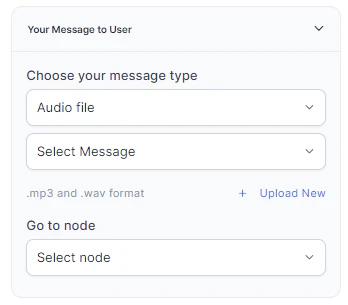
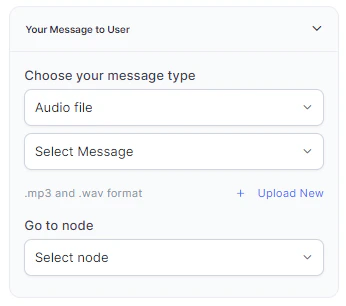
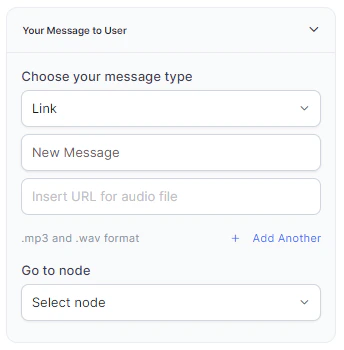
Your Message to User: Select a message type under Choose your message type:
-
Text to Speech: Type or select a message to convert to speech. Click + Create New to add a new prompt, or + Add Another to define multiple messages (one is randomly selected at runtime).

-
Audio File: Type a message or click + Upload New to upload an .mp3 or .wav file.
-
Link: Click + Create New to add message text and an audio file URL (.mp3 or .wav). Click + Add Another for additional URLs.
-
Text to Speech: Type or select a message to convert to speech. Click + Create New to add a new prompt, or + Add Another to define multiple messages (one is randomly selected at runtime).
- Go to node: Select the node to direct the error handling flow. You can create a new node or select an existing one.