Configure the Node
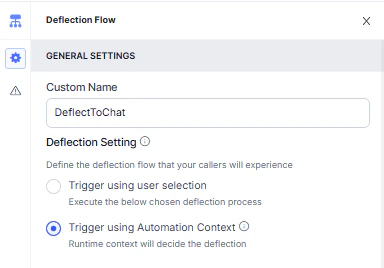
- Custom Name: Enter a name to identify the node.
-
Deflection Setting: Define the deflection flow. Select one of the following trigger options:
-
Trigger using user selection: Let the customer choose between:
- Chat Automation — routes to an automated chat agent.
- Live Chat Agent — connects to a human agent.
-
Trigger using Automation Context
-
Trigger using user selection: Let the customer choose between:
-
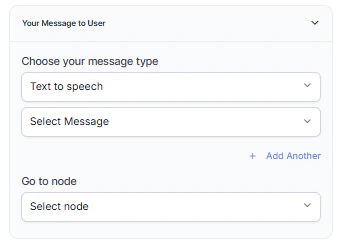
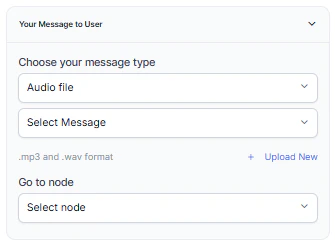
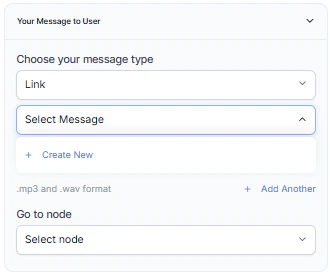
Your Message to User: In the General Settings (Chat Automation and Live Chat Agent) and Error Handling sections, select a message type under Choose your message type:
-
Text to Speech: Type or select a message to convert to speech. Click + Create New to add a prompt and select the language, or + Add Another to define multiple messages (one is randomly selected at runtime).
-
Audio File: Type a message or click + Upload New to upload an .mp3 or .wav file.
-
Link: Click + Create New to add message text and an audio file URL (.mp3 or .wav). Click + Add Another for additional URLs.
-
Text to Speech: Type or select a message to convert to speech. Click + Create New to add a prompt and select the language, or + Add Another to define multiple messages (one is randomly selected at runtime).
-
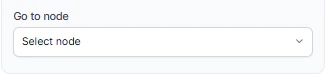
Go to Node: Select the node to trigger after call deflection occurs. For example, Automation.