Configure the Node
General Settings
In General Settings, configure the following: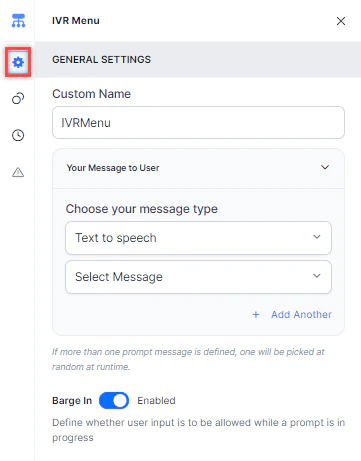
- Custom Name: Enter a name to identify the node.
-
Your Message to User: Select a message type under Choose your message type:
-
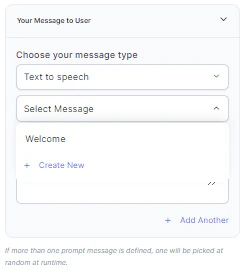
Text to Speech: Type or select a message to convert to speech. Click + Create New to add a new prompt, or + Add Another to define multiple messages (one is randomly selected at runtime).
-
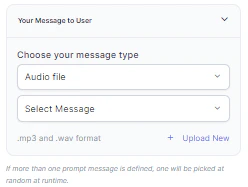
Audio File: Type a message or click + Upload New to upload an .mp3 or .wav file.
-
Link: Click + Create New to add message text and an audio file URL (.mp3 or .wav). Click + Add Another for additional URLs.
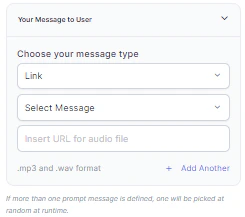
-
Text to Speech: Type or select a message to convert to speech. Click + Create New to add a new prompt, or + Add Another to define multiple messages (one is randomly selected at runtime).
-
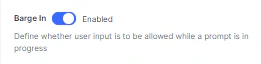
Barge In: Enable to let callers key in input before the prompt finishes playing. Disable to require callers to wait for the prompt to complete.
Custom Exits
Click the Custom Exits icon to map digit inputs to specific nodes. For each exit, select the digit/key and the node to link it to:- Selecting a node type creates a new node of that type linked to this IVR Menu node.
- Selecting an existing node connects it to this node directly.
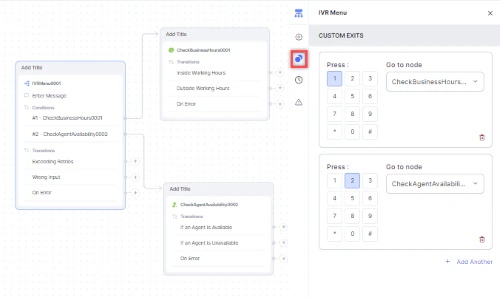
- Click + Add Another to add more exits.
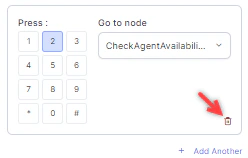
- Click the Delete (bin) icon to remove an exit.
Timeout
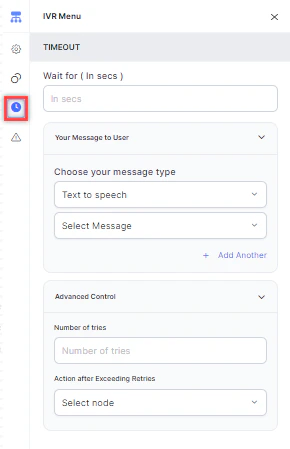
Click the Timeout icon and configure the following:- Timeout: Enter the wait time in seconds before a timeout event occurs.
- Your Message to User: Select a message type (Text to Speech, Link, or Audio) to play when a timeout occurs. See General Settings for details.
- Advanced Control > Number of Tries: Enter the maximum number of retries allowed.
- Advanced Control > Action after Exceeding Retries: Select the node to route to after retries are exhausted.
Wrong Input
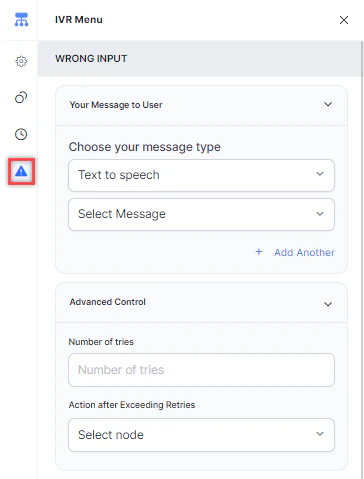
Use this tab to configure the flow when a caller provides invalid input.- Advanced Control > Number of Tries: Enter the maximum number of retries for correct input.
- Advanced Control > Action after Exceeding Retries: Select the node to route to after retries are exhausted. You can create a new node or select an existing one.
Error Handling
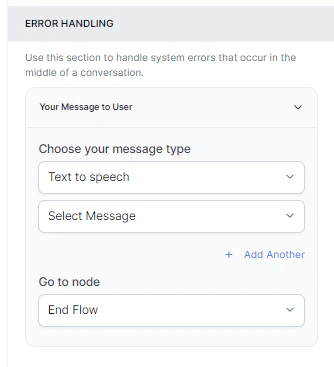
Error handling is available under the Wrong Input tab. Use it to define how system errors are handled during a call.- Your Message to User: Select a message type (Text to Speech, Link, or Audio) to play when a system error occurs. See General Settings for details.
- Go to node: Select the node for error handling. You can create a new node or select an existing one.