
Configure the Node
General Settings
In General Settings, configure the following: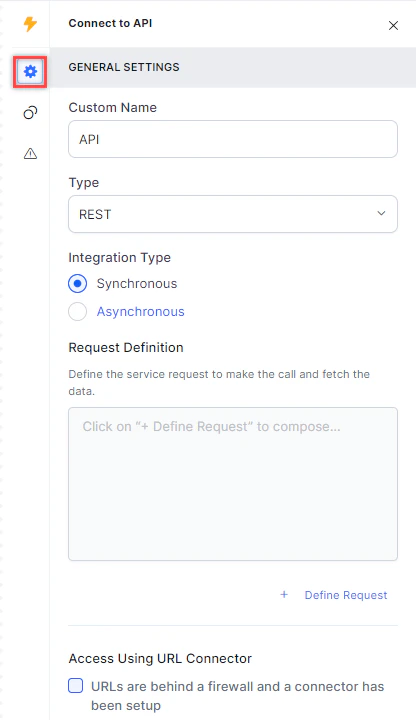
- Custom Name: Enter a name to identify the node.
-
Type: Select the API type:
- REST: Interacts with RESTful web services following REST architecture standards.
- SOAP: Uses the Simple Object Access Protocol for exchanging data in distributed environments.
-
Integration Type: Select the execution model:
- Synchronous: The API returns data immediately.
-
Asynchronous: The API returns data after a defined delay (default: 20s; range: 8s–20s).
Enable Handle API Failure Responses (4xx/5xx) to treat all 4xx and 5xx responses as failures and trigger the configured
onFailurepath.
-
Request Definition: Define the API request (
GET,PUT,POST, orDELETE), the API URL, and the parameters to pass. Click + Define Request to create a new request.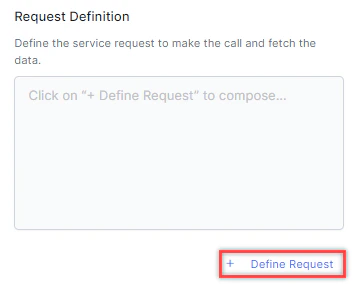
-
Access Using URL Connector: If the API is behind a firewall with a configured URL connector, select
URLs are behind a firewall and a connector has been set up.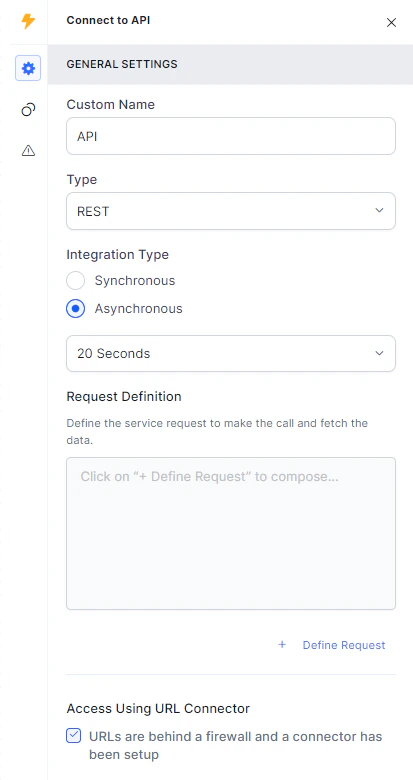
Define and Test an API Request
-
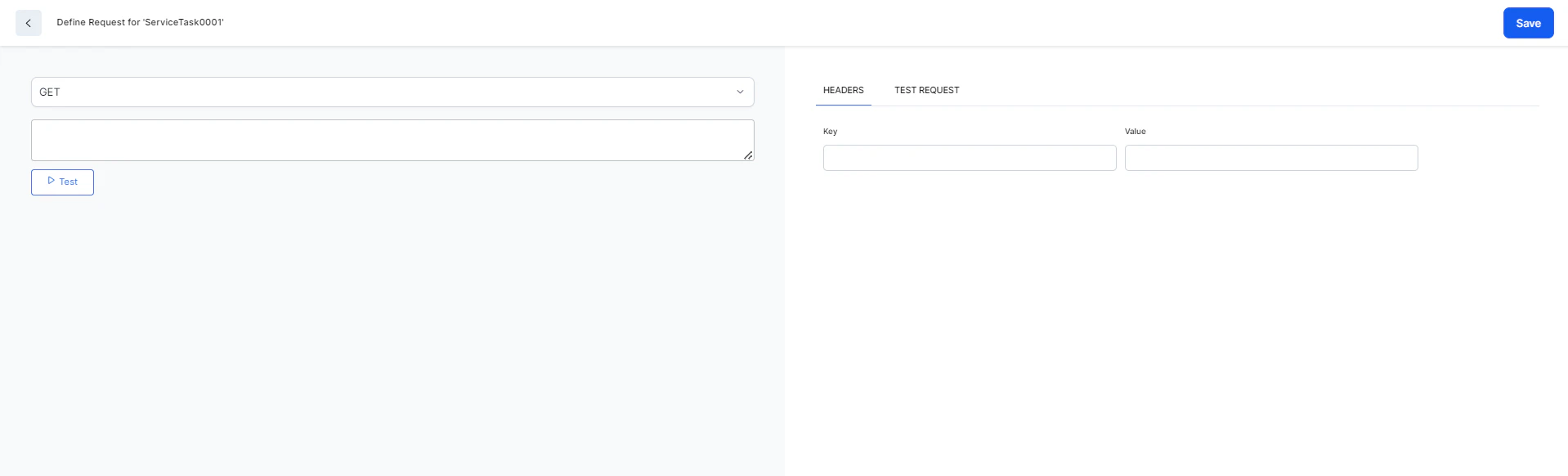
In Request Definition, click + Define Request. The Define Request window opens.
-
Select the HTTP method:
GET,PUT,POST,PATCH, orDELETE.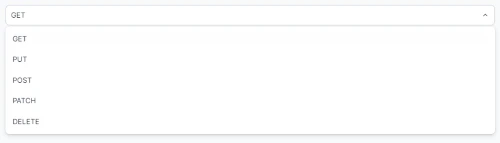
-
Paste the API URL in the text field and click Test.

-
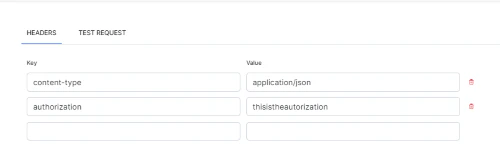
Provide Header Key and Value pairs. Click the Delete icon to remove a pair.
-
Click Test Request and paste the request body. The editor supports these options:
- Format JSON with indentation
- Compact JSON by removing whitespace
- Sort contents
- Filter, sort, or transform contents
- Repair JSON
- Undo / Redo
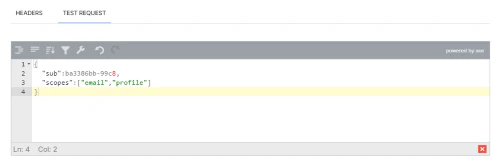
- Click Save after a successful test.
Connection Rules
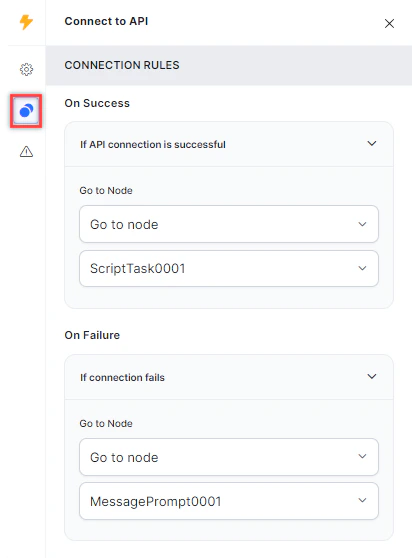
Click the Connection Rules icon and select the target node for each API outcome:- On Success: Routes the flow when the API call succeeds.
- On Failure: Routes the flow when the API call fails.
Error Handling
Use this section to handle system errors during customer interactions.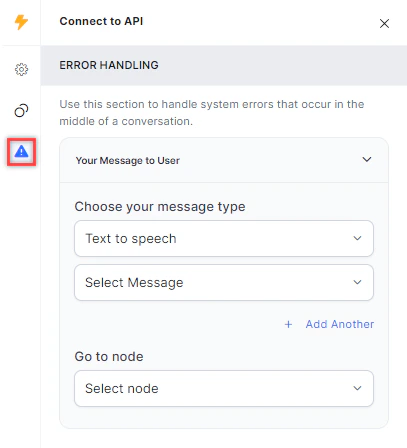
-
Your Message to User: Select a message type under Choose your message type:
-
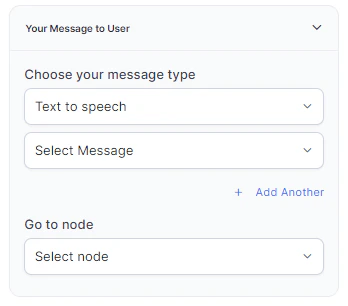
Text to Speech: Type or select a message to convert to speech. Click + Create New to add a new prompt, or + Add Another to define multiple messages (one is randomly selected at runtime).
-
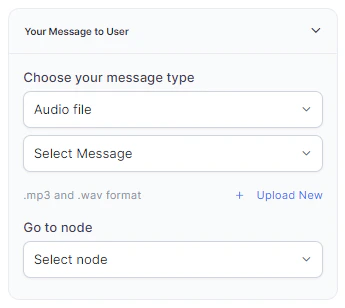
Audio File: Type a message or click + Upload New to upload an .mp3 or .wav file.
-
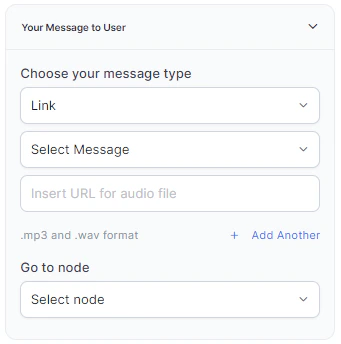
Link: Click + Create New to add message text and an audio file URL (.mp3 or .wav). Click + Add Another for additional URLs.
-
Text to Speech: Type or select a message to convert to speech. Click + Create New to add a new prompt, or + Add Another to define multiple messages (one is randomly selected at runtime).
- Go to node: Select the node to direct the error handling flow. You can create a new node or select an existing one.