Kore Agent AI with Salesforce NICE CX-CTI
This document provides an overview of the setup and configuration process of the Agent AI widget with NICE CX Telephony using the Salesforce NICE CX CTI package. Use Case: Show voice transcripts and provide next-best actions from a configured AI Agent, on the Agent AI widget, to agents when they receive a phone call from a customer. When a customer calls a NICE CX phone number, the call is received on the Salesforce NICE CTI interface. Based on the customer’s phone number, the CTI rule matches the corresponding Salesforce object (such as Account/Contact/Case) and displays it to the agents. The incoming voice stream is shared with Voice Gateway, which in turn generates transcripts of the voice stream and displays them in the Agent AI widget embedded in the matched Salesforce object.Prerequisites
- The NICE CX Salesforce package installed in your Salesforce org.
- NICE CX account set up and can receive calls on the Salesforce Service Console softphone.
- NICE CX Studio installed on your device.
- Agent Assist Hub enabled for your NICE CX account.
- AgentAssist for Salesforce installed on your Salesforce account. (Salesforce AppExchange > Search for “Agent AI By Kore.ai, Inc.”)
- Have the AI Agent credentials saved separately. You need the Widget URL, Bot ID, Client ID, Client Secret, Account ID, and SIP URI. Read Voice Gateway and Chat for a walkthrough.
- Ensure that Voice Interaction Streams are enabled via NICE.
Shared Responsibilities
| Activity | CXOne Customer | Kore.ai |
|---|---|---|
| NICE One Platform | ||
| ACD Configuration | Skills creation and mapping Hours of Operation Points of Contact Campaign Customization of Scripts and attaching to Number/Chat PoC | |
| CXOne Studio Script | Import the voice script and customize (only if needed). Edit the Nodes and provide the Customized AI Agent details in the script. | Provisioning the studio script template |
| Signal API Auth (only for chat) | Configure CXOne Authentication for accessing the CXOne Signal API from the AI Agent. Need signaling API key and secret. | |
| Agent Assist Hub | Configure NICE Studio Agent Assist | |
| AI Agent Configuration | AI Agent creation AI Agent Credentials generation | |
| Salesforce Org | ||
| Voice/Chat Configuration | Enabling NICE Calls/Chats on Salesforce with proper screen pop settings | |
| Installing the Agent AI Package | Installing the package | Providing the package URL |
| Configuring the Agent AI Package | Validate prerequisite licenses Configure AI Agent Details Add NICE Signal Credentials (Only for Chat) | |
| NICE CX | Configure Salesforce Agent Settings, select Salesforce Object to embed the Agent AI widget. |
Definitions
| Section | Key | Definition | Reference |
|---|---|---|---|
| Set up NICE AgentAssist Hub to stream voice to Agent AI | Agent AI URL | The domain of the Agent AI. | If it is legacy Agent AI, the URL is https://agentassist.kore.ai. If it is UXO, URL is https://platform.kore.ai. If it is on-prem, the URL is the origin where your Agent AI is hosted. |
| Agent AI package setup and configuration | AgentAssist Widget URL | URL that points to the Agent AI widget. For example, https://agentassist.kore.ai/koreagentassist-sdk-v3/UI/agentassist-iframe.html | Channels > Chat section of the Agent AI configuration portal. |
| Agent AI package setup and configuration | BotId | A unique identifier assigned to an AI Agent. | Channels > Chat section of the Agent AI configuration portal. |
| Agent AI package setup and configuration | ClientId | An identifier provided to a client application. | Channels > Chat section of the Agent AI configuration portal. |
| Agent AI package setup and configuration | ClientSecret | A secret key or password associated with the ClientId. | Channels > Chat section of the Agent AI configuration portal. |
| Set up NICE AgentAssist Hub to stream voice to Agent AI | AccountID | A unique identifier assigned to an account. | Channels > Chat section of the Agent AI configuration portal. |
| Set up NICE AgentAssist Hub to stream voice to Agent AI | Voice Gateway(VG) | For Saas in the US region, the value is savg-webserver.kore.ai For on-prem, refer to the corresponding host. |
| Region | Agent AI URL | UXO URL | WSS URL | DNS |
|---|---|---|---|---|
| US | https://agentassist.kore.ai | https://platform.kore.ai | wss://savg-webserver.kore.ai | @savg-us-prod-sbc-in-nlb-0d9a4c651955ff47.elb.us-east-1.amazonaws.com |
| JP | https://agentassist-jp.kore.ai | https://jp-platform.kore.ai | wss://jp-savg-audiosocket.kore.ai | @savg-jp-prod-int-nlb-3989d946fc1ced3b.elb.ap-northeast-1.amazonaws.com |
Architecture Diagrams
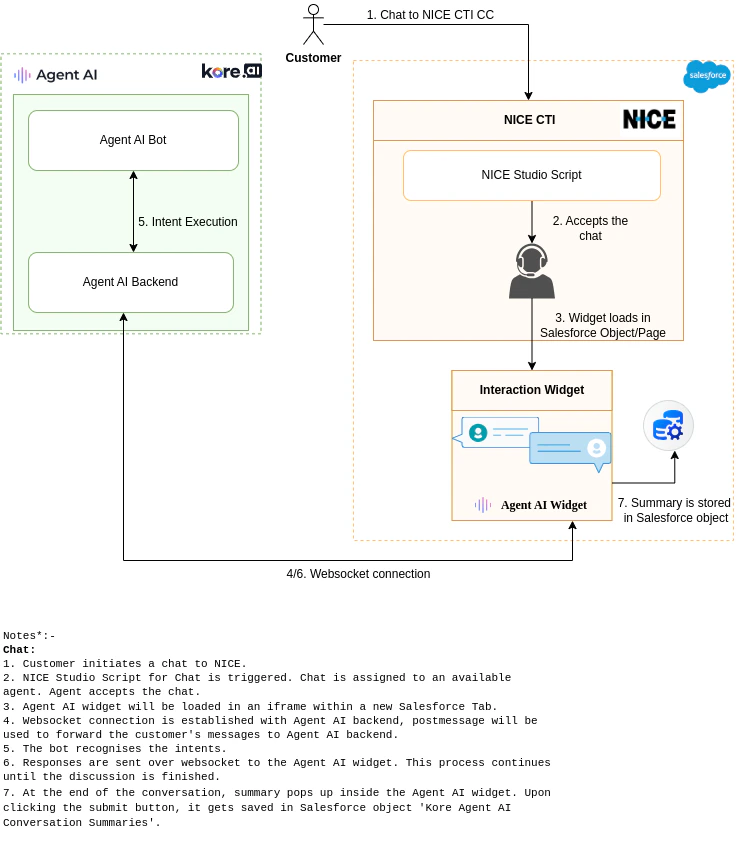
Chat
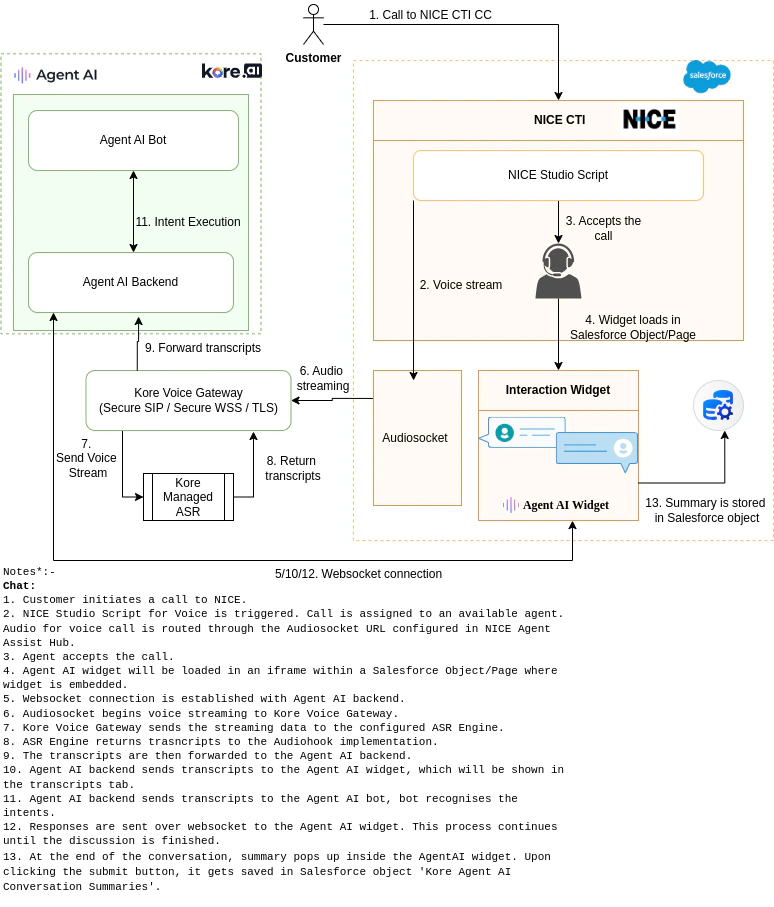
Voice
Set up Salesforce-NICE CTI package
Follow this article to install and configure the NICE CTI package on your Salesforce account. Topics included in the above article:- Install Salesforce Agent
- Install the Salesforce Agent Package
- Assign Users to Your License
- Enable Salesforce Agent in Lightning Experience
- Configure Permission Sets For a Single User
- Configure Permission Sets For Multiple Users
- Configure the NICE CXone Call Center
- Assign Users to the NICE CXone Call Center
- Configure Softphone Layout
- Assign Profiles to the Softphone Layout
- Enable Click2Jack
Set up NICE AgentAssist Hub to stream voice to Agent AI
This app will be used in the studio script.- Sign in to your NICE account with the username and password provided by NICE customer support.
-
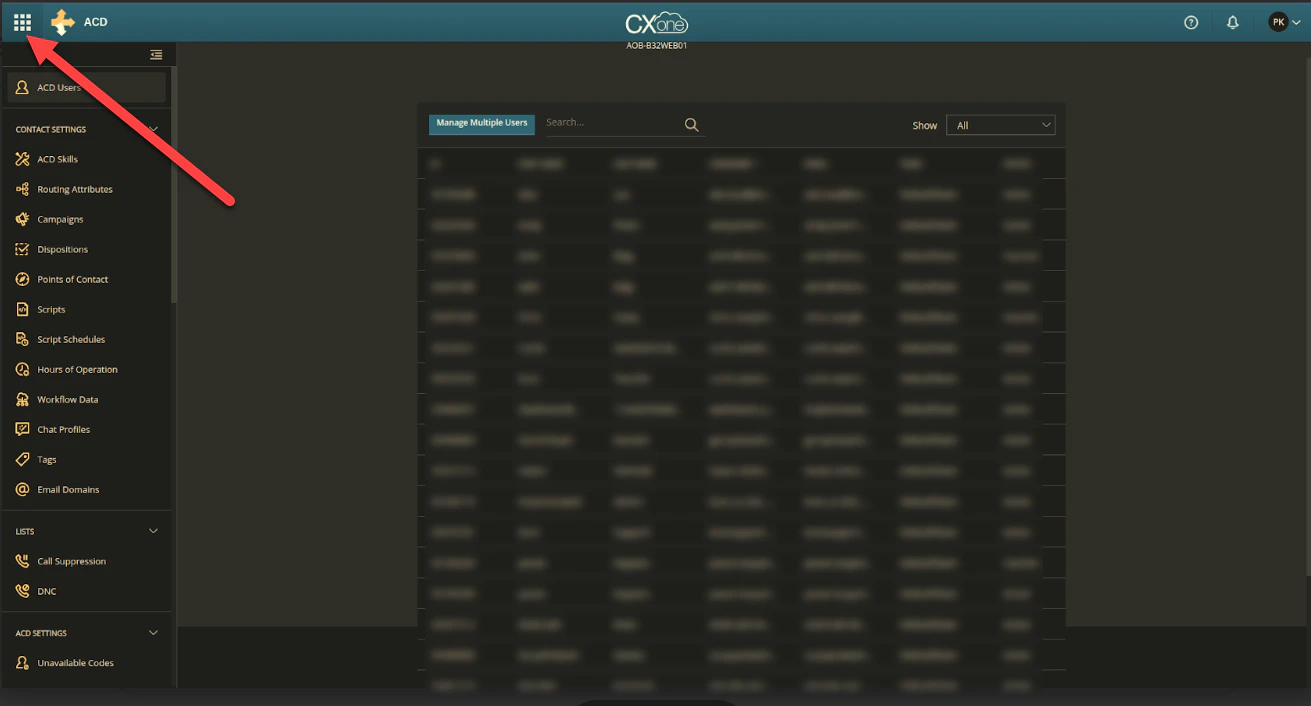
Click the applications launcher button. A menu opens from the left side of the page.
-
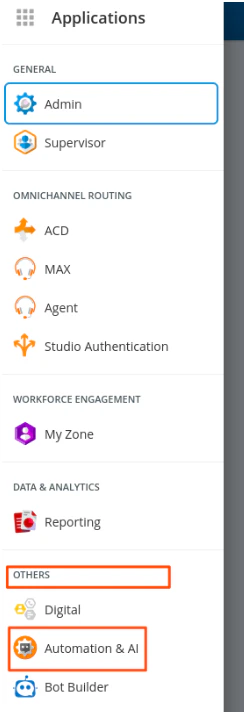
Click OTHERS > Automation & AI.
-
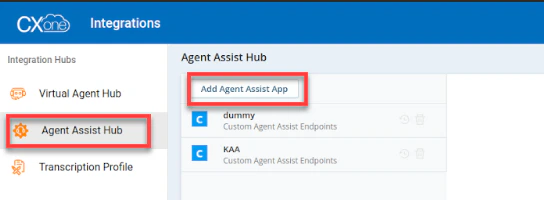
Click Agent Assist Hub > Add Agent Assist App.
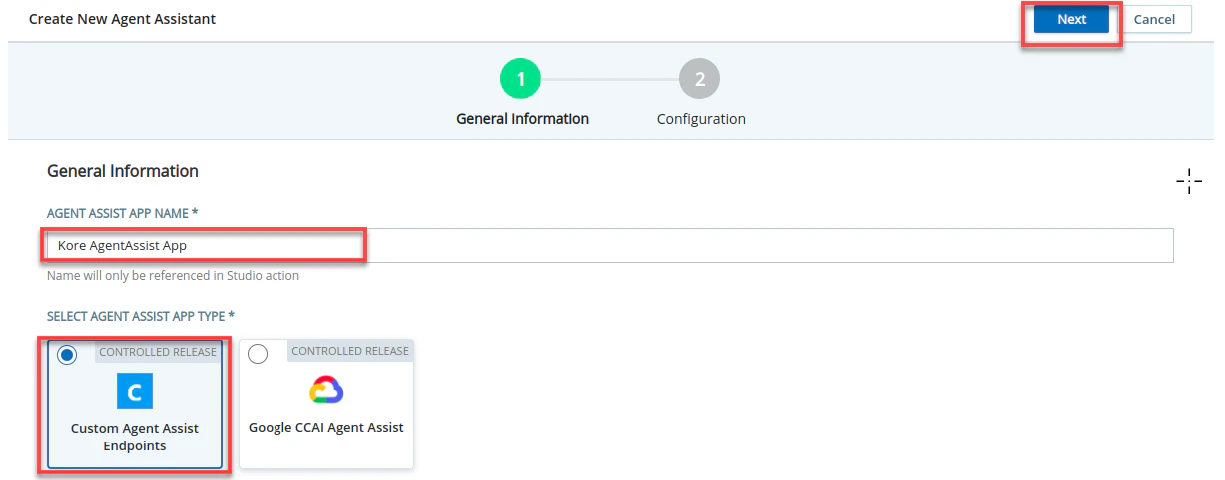
- Enter the name of the Agent Assist App in the AGENT ASSIST APP NAME field.
- Select Custom Agent Assist Endpoints.
-
Click Next.
-
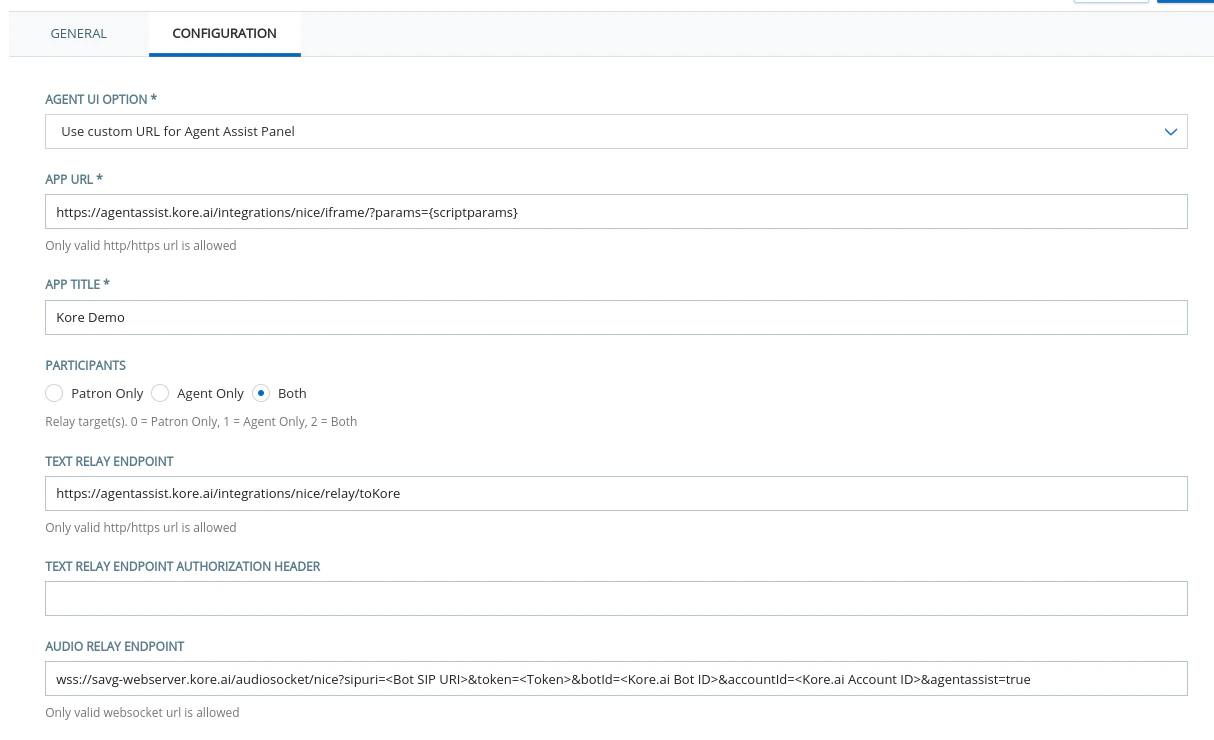
Add the following settings with config parameters provided by the Support team:
- Agent UI Option: Available by default
- App URL: {Agent AI URL}/integrations/nice/iframe/?params={scriptparams}
- App Title: Kore Agent AI (change as needed)
- Participants: Both
-
Text Relay Endpoint: (only for chat) {Agent AI URL}/integrations/nice/relay/toKore
-
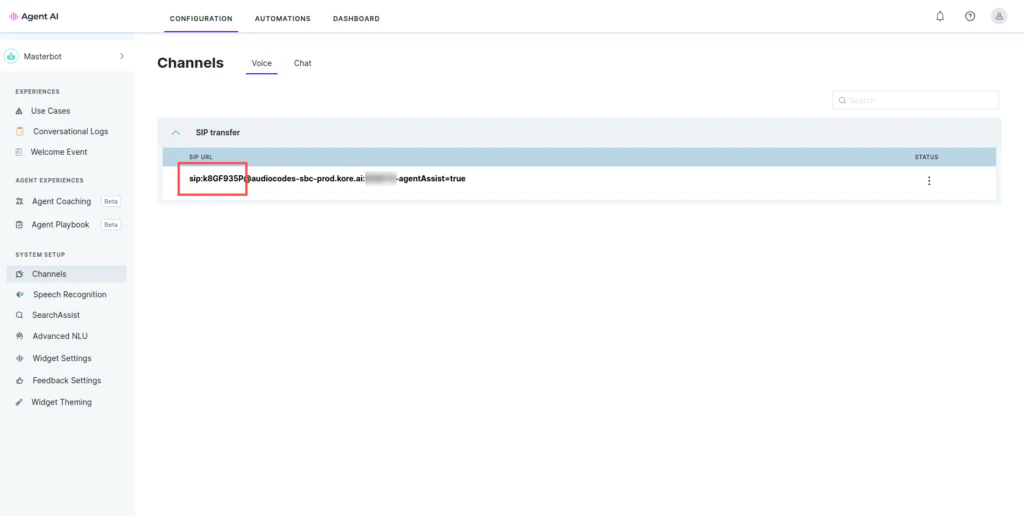
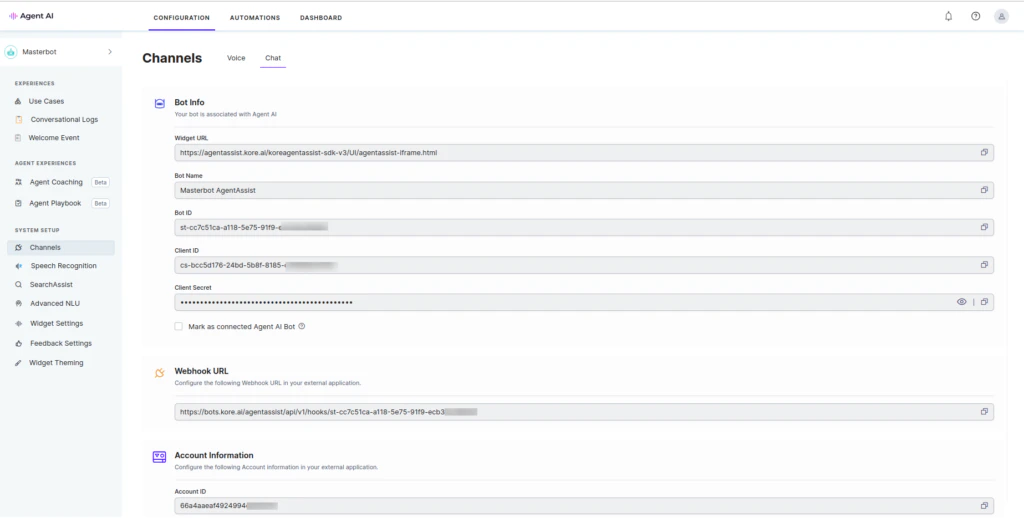
Audio Relay Endpoint: {Voice Gateway(VG)}/audiosocket/nice?sipuri=<Bot SIP URI>&token=<Token>&botId=<Bot ID>&accountId=<Account ID>&agentassist=true
- Bot SIP URI: Channels > Voice section of the Agent AI configuration portal.
- Bot ID and Account ID: Channels > Chat section of the Agent AI configuration portal.
- Token: Create a JSON Web Token on jwt.io with the following details.
- Payload: {“appId”: <Bot Client ID>}
- Header: {“alg”: “HS256”,“typ”: “JWT”}
- Secret: Your Kore.ai Client Secret.
- Bot SIP URI: Channels > Voice section of the Agent AI configuration portal.
-
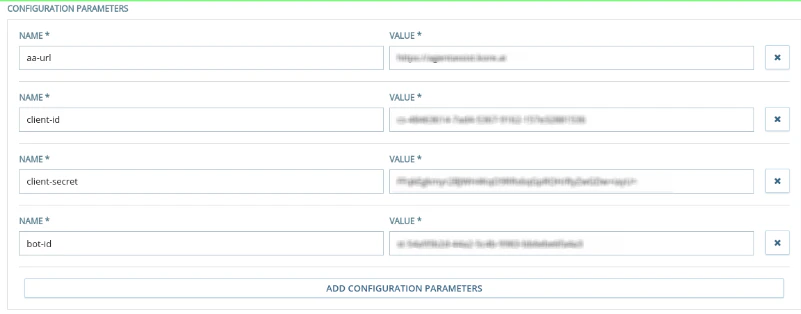
Scroll down and add the following Configuration Parameters. (Only for Chat).
- Click Create
Agent AI package setup and configuration
- Install Agent AI on your Salesforce account.
Set up the AgentAssist feature
-
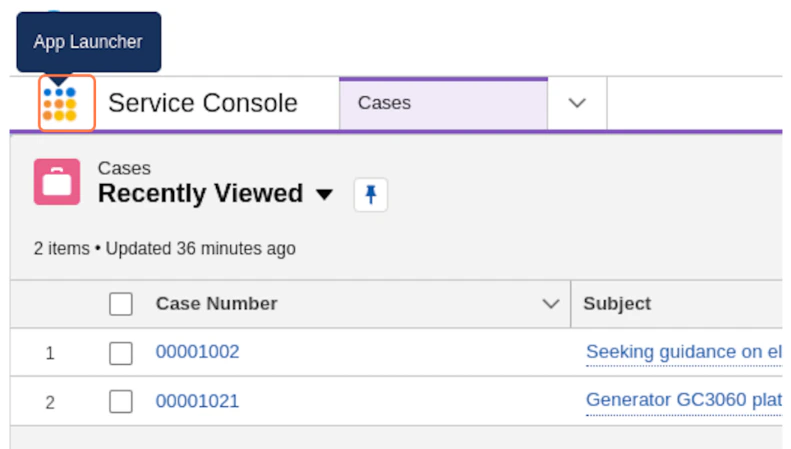
Click the app launcher.
-
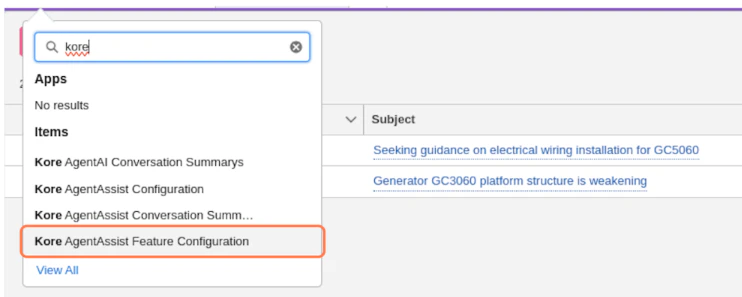
Type kore in the search box and select Kore AgentAssist Feature Configuration from the displayed list.
-
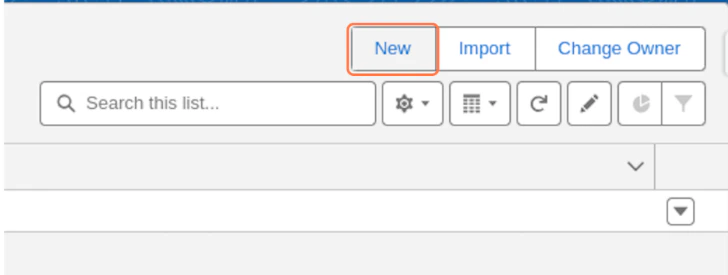
Click New from the top-right corner of the page.
-
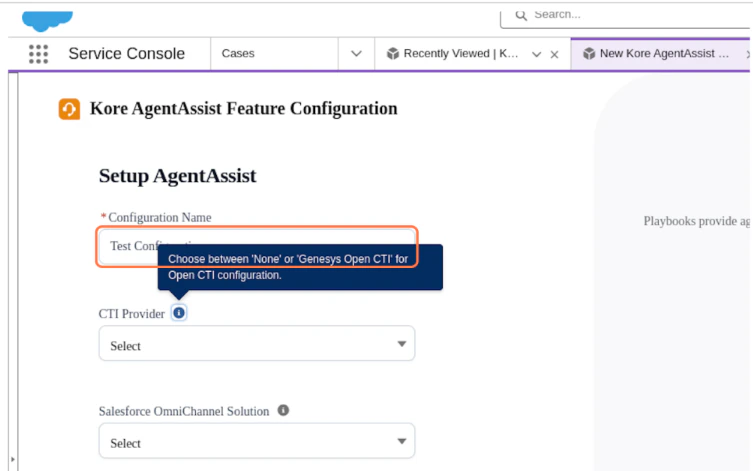
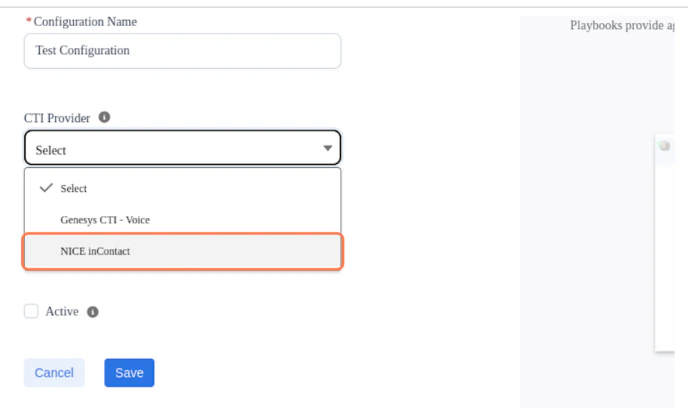
Type Test Configuration in the Configuration Name field.
-
Select NICE inContact in the CTI Provider list.
-
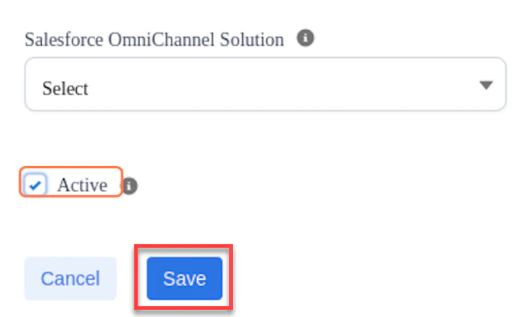
Select Active, and click Save.
Set up the AgentAssist Configuration
- Click the app launcher.
-
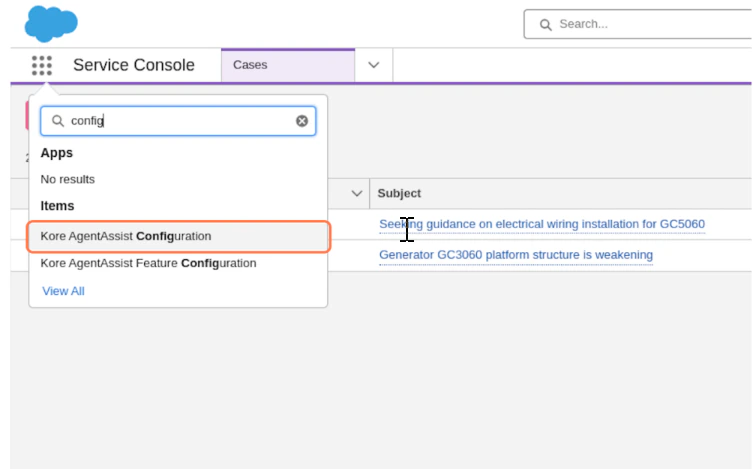
Type config in the search box, and select Kore AgentAssist Configuration from the displayed list.
- Click New from the top-right corner of the page.
-
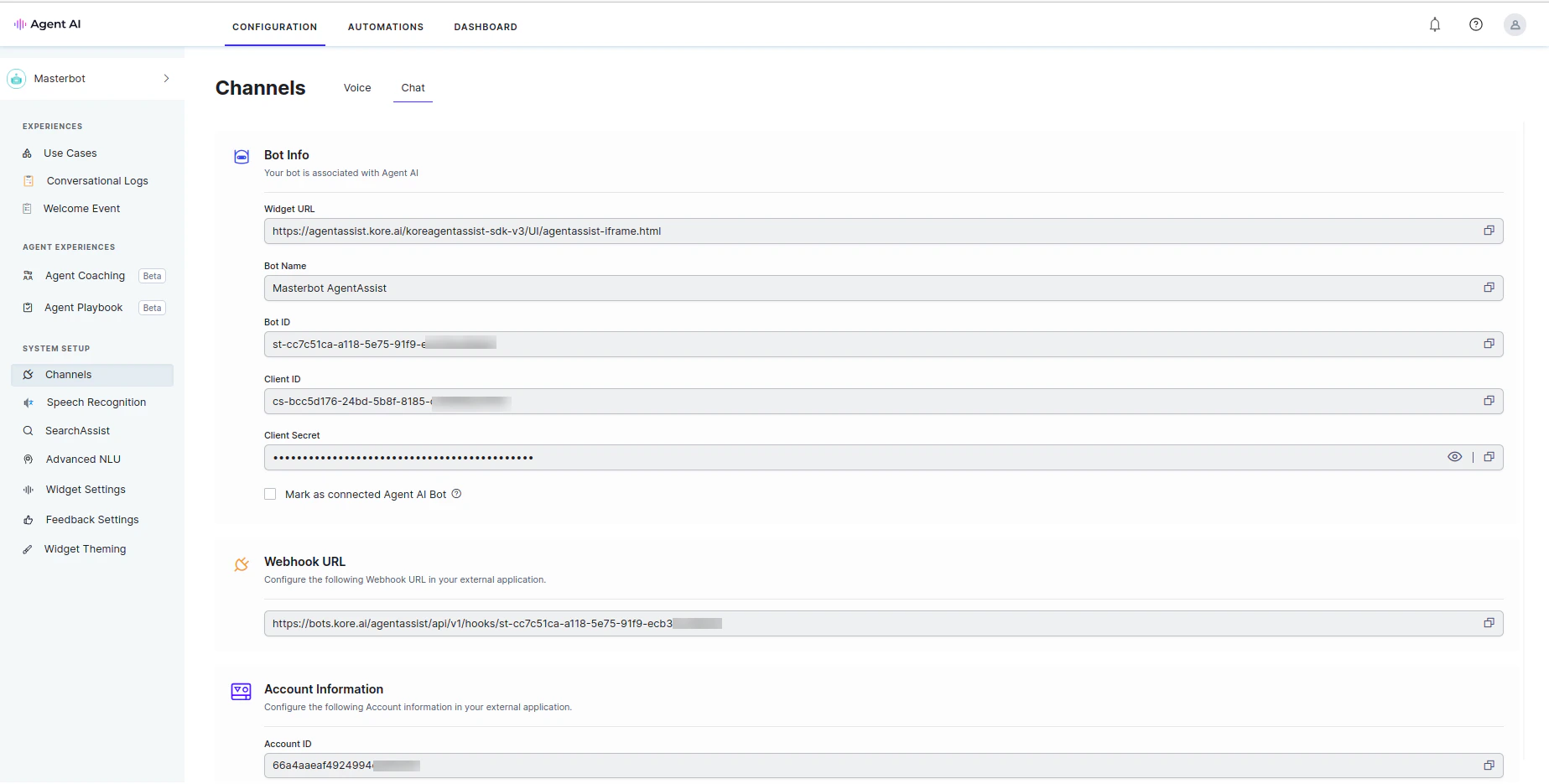
Enter the required details. You can fetch the AgentAssist URL, Bot ID, Client ID, and Client Secret details from the Agent AI configuration portal.
-
Select a language in the Language dropdown list. The selected language corresponds to the language configured in the AI Agent.
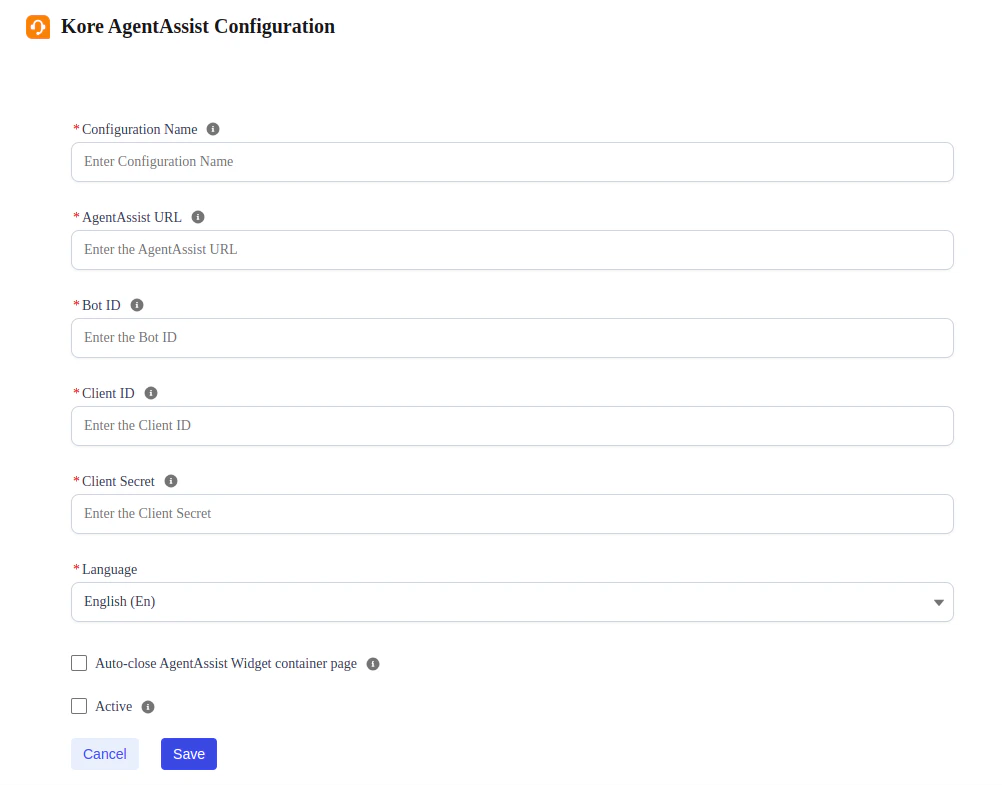
-
Select a language in the Language dropdown list. The selected language corresponds to the language configured in the AI Agent.
- Select Active and click Save.
Configure NICE CTI Data in Salesforce
- Click the app launcher in Salesforce, and then go to Salesforce Agent Settings.
- Sign in to your NICE CX account.
- Ensure the Store Salesforce Agent Script Variables setting is enabled in the Data Storage section.
- In the dropdown list, select a Salesforce object against which the Agent AI widget needs to be configured in its page layout.
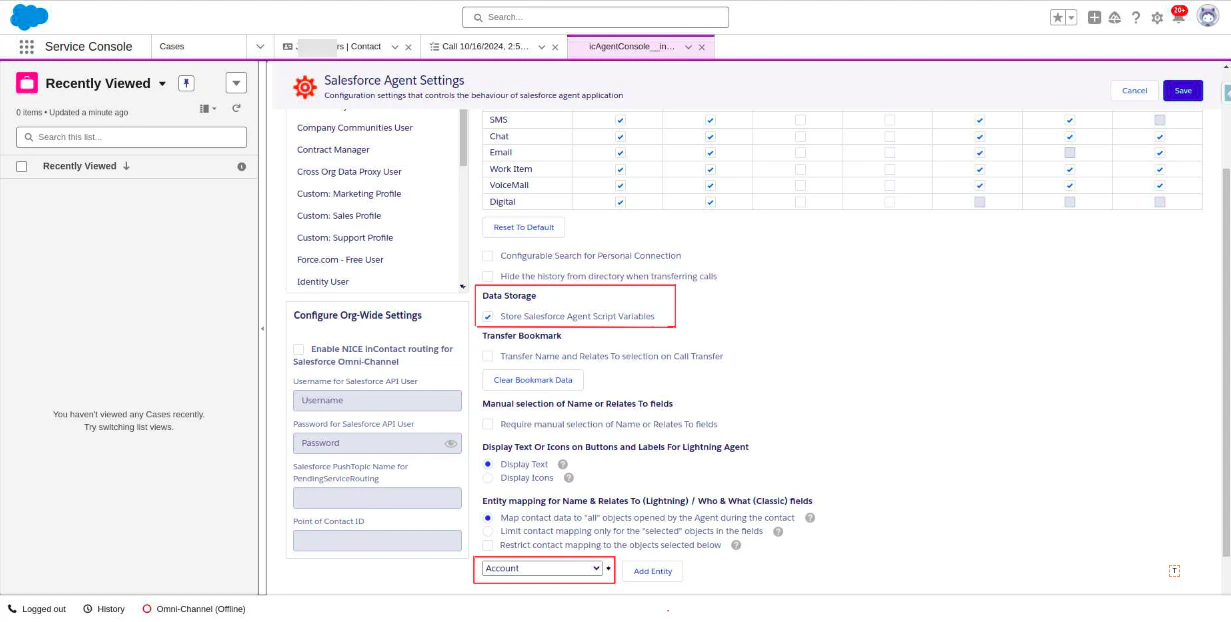
Configure Page layout to embed the Agent AI Widget to Salesforce object
Assuming the Account Object is mapped above, open the page layout for Account Object. In the filter field, type NiceCTI and drag and drop the object onto the Account Object layout page.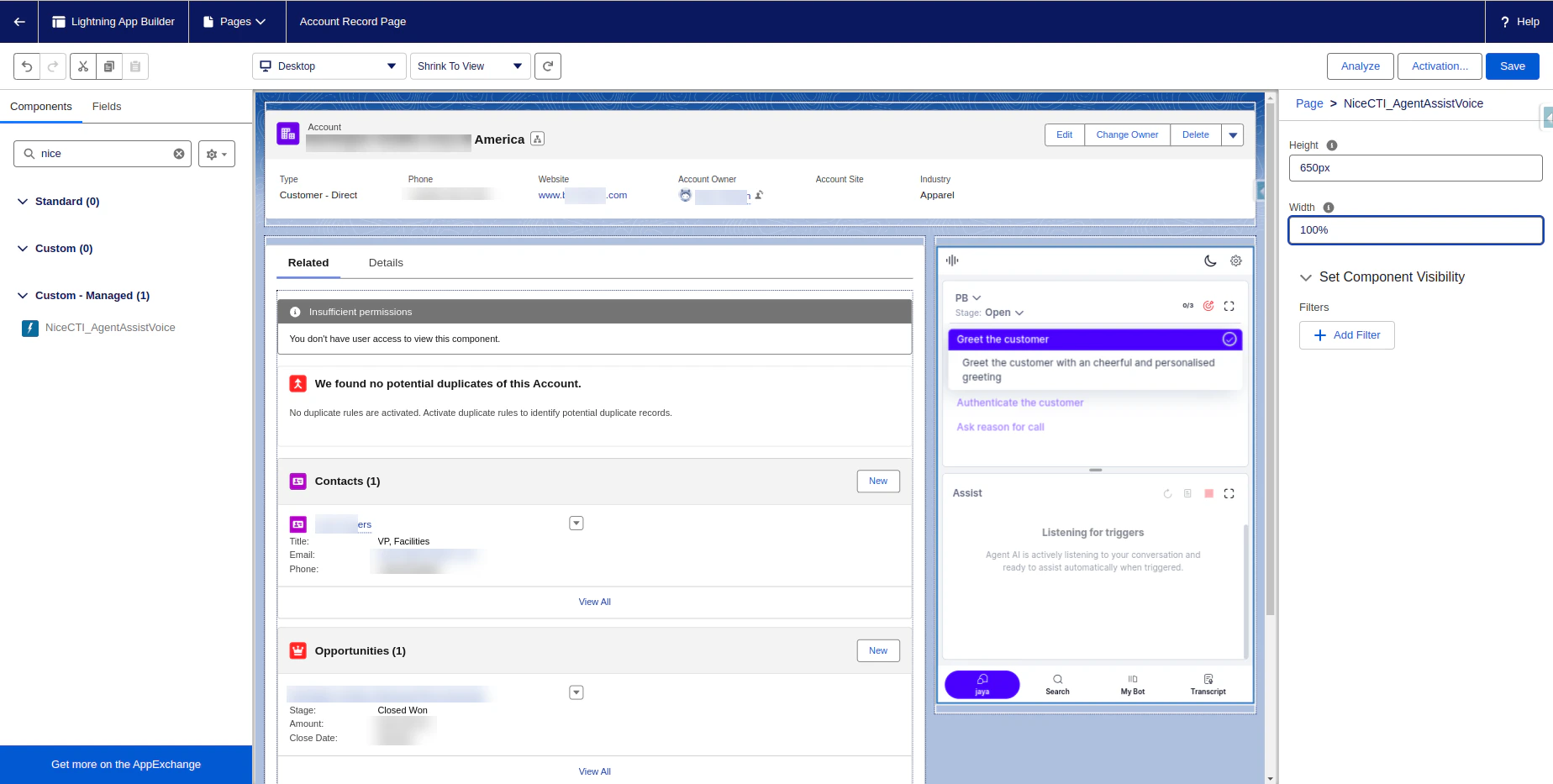
Configure a Visualforce Page to embed the Agent AI Widget (If Applicable)
Step-1: Create a Lightning Out App
Create a Lightning Out app, a special type of standalone Aura app:- Open the Developer Console from your Salesforce org.
- Navigate to File > New > Lightning Application.
- Fill in the Name and Description fields, and then click Submit.
- Paste the following code into the editor, and save the Lightning Application:
Step-2: Create/Edit Visualforce Page
- Either create a new Visualforce Page or open an existing one.
- To create a new Visualforce Page, navigate to the Setup page > Visualforce Pages, and click New.
-
In the Visualforce Markup code editor, add
<apex:includeLightning />at the beginning of your Visualforce page. This component loads the JavaScript file that Lightning Components for Visualforce uses. -
Paste the following code into the Visualforce Markup code editor at the desired location where you want the Agent AI widget to appear:
Note: Replace LightningApplication with the name of the Lightning Out app you created in Step-1. Modify the height and width of the niceCTIAgentAssistVoice component according to your preference - these are the height and width of the Agent AI widget.
- Click Save.
Configure an Aura Component to embed the Agent AI widget (If Applicable)
- Either create a new Aura Component or open an existing one.
- To create a new Aura Component, open Developer Console from your Salesforce org.
- In the Developer Console, navigate to File > New > LightningComponent.
- Fill in the Name and Description fields, and then click Submit.
-
Paste the following code into the editor at the desired location where you want the Agent AI widget to appear, and save the Lightning Application:
Note: Modify the height and width of the niceCTIAgentAssistVoice component according to your preference–these are the height and width of the Agent AI widget.
Enabling OAuth
-
Go to Setup > OAuth and OpenID Connect Settings and enable Allow OAuth Username-Password Flows.
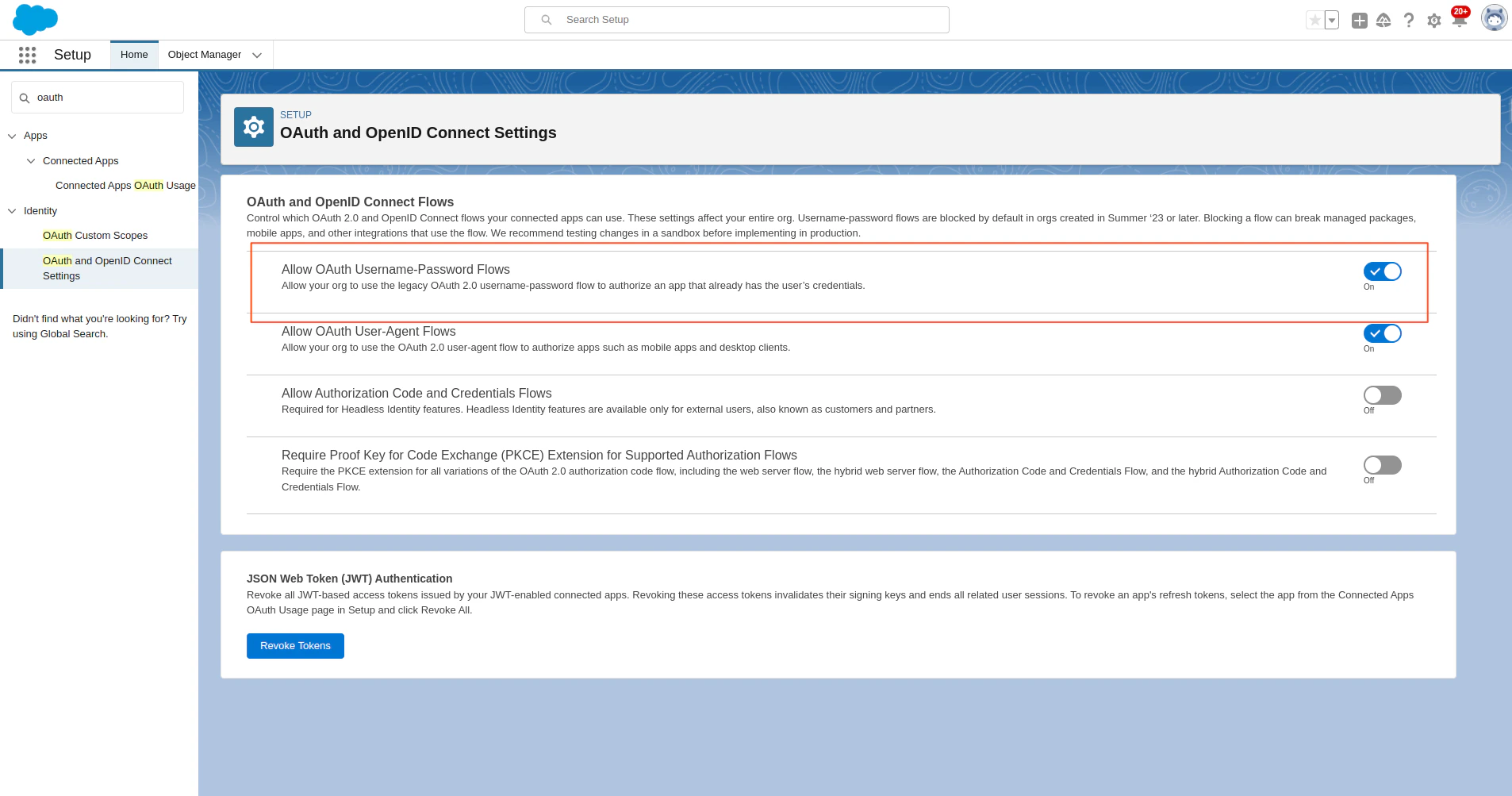
- Create a connected Salesforce app and get the Access Key and Access Token. Follow this guide for help.
Additional Setup Steps for Chat
In addition to all the previous steps, two more steps are required for the Chat setup:NICE API credentials to be configured for Signaling API (Only for Chat)
Refer to Manage Access Keys to create access keys to use for signaling APIs. The Access Key Manager page allows you to view all the access keys in your system.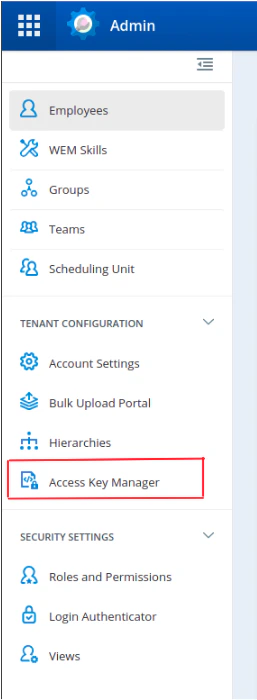
Configure NICE API Credentials (Only for Chat)
- Click the app launcher.
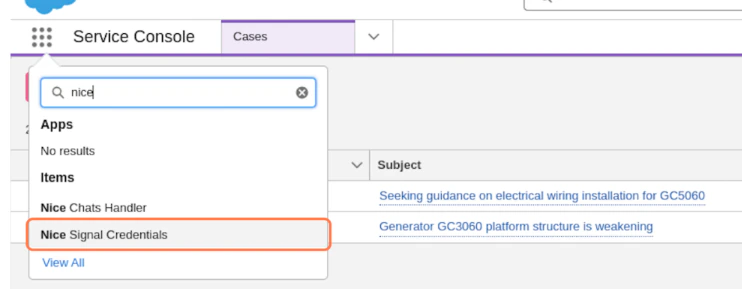
-
Type nice in the search box, and select Nice Signal Credentials from the displayed list.
- Click New from the top-right corner of the page.
-
Add the required parameters:
- Credentials Set Name: NICE CX credentials (change as needed)
- Proxy Tunnel Endpoint: {Agent AI URL}/integrations/nice/relay/toNice
-
NICE CX Credentials:
- Nice Token Base URL: NICE Token Base URL is the Host URL of the login page.
- Nice API URL: If the URL for ACD is
https://home-abc.nice-incontact.com, then the API URL would behttps://api-abc.nice-incontact.com. Use the URL without the trailing slash. - NiceCX Signal API Access Key (generated in the above step)
- NiceCX Signal API Access Key Secret (generated in the above step)
- Click Save.
NICE CTI Studio Script for Salesforce
For Voice
Import and configure the NICE Studio Script for Salesforce Integration. Download Script For Voice: kore.ai_nicecti_sf_voice.XML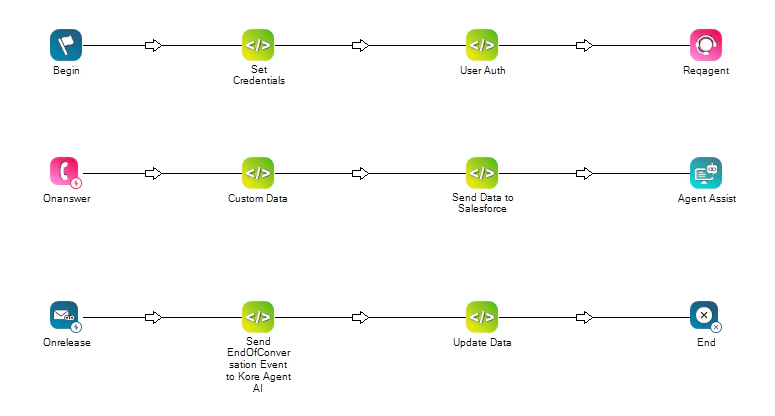
| Node | Activity | Fields Updated |
|---|---|---|
| Set Credentials | Update the credentials to connect to the Salesforce Org | Salesforce_key (created in the Enabling OAuth step) Salesforce_secret (created in the Enabling OAuth step) Salesforce_username Salesforce_password AI Agent credentials (botid, clientid, clientsecret, baseurl, language) Note: The password is your Salesforce password appended with your Security Token. Refer to this guide for help. |
| User Auth | Configure Salesforce org credentials and generate Oauth Token | salesforceBaseURI Note: You can get it by running the following curl: curl –location –request POST 'https://login.salesforce.com/services/oauth2/token?grant_type=password&client_id=<Salesforce Client ID>&client_secret=<Salesforce Client_Secret>&username=<Salesforce_Username>&password=<Salesforce Password + Salesforce Security Token>' |
| ReqAgent | Update Skill for Agent Routing | Skill and other attributes as needed |
| Custom Data | The customdata object in the script can be used to pass information to the AI Agent. During runtime, this custom data will be accessible in the UserContext of the AI Agent. Refer to Access Custom Data in Kore AI Agent for instructions on how to access custom data in the AI Agent. | Include your data in the customdata object (one key-value pair per line). For example:customdata.agentName="Agent"customdata.agentID="{agentid}" |
| AgentAssist | Map the AgentAssist Hub Instance | Select the AgentAssist Hub app created in the above step. |
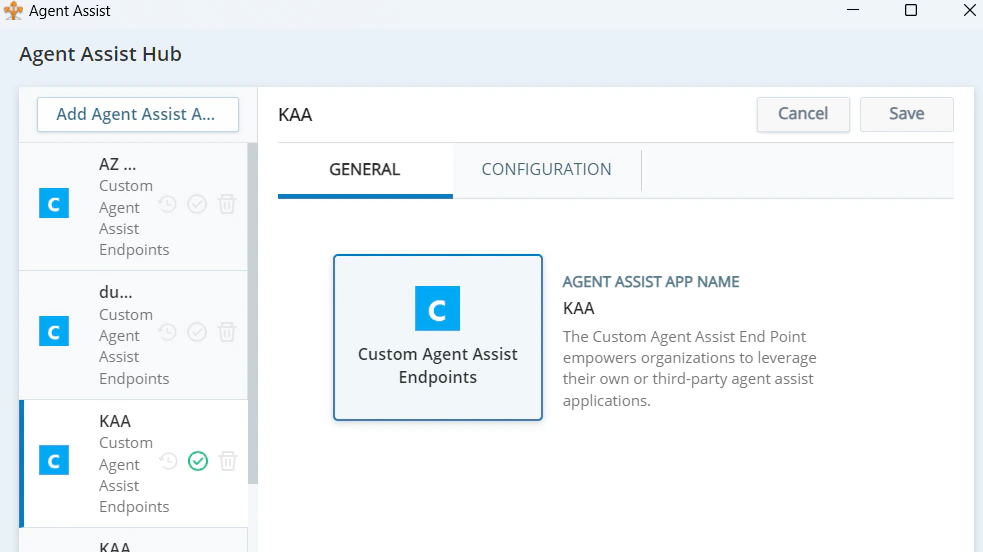
Note: Do not click the X button to close the window, as this will not save the changes.Save the Studio Script and make sure there are no errors on Save.
For Chat
Import and configure the NICE Studio Script for Salesforce Integration. Download Script For Chat: kore.ai_nicecti_sf_chat.XML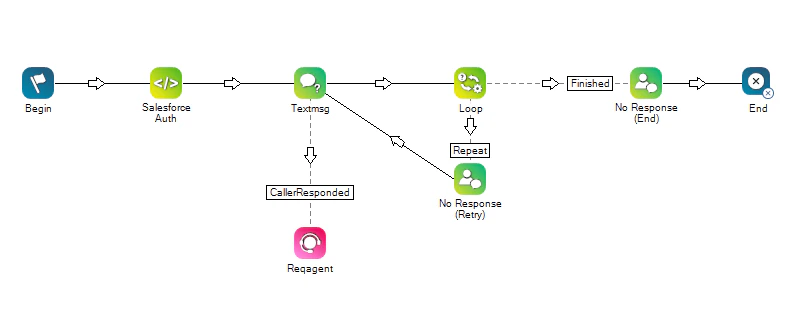
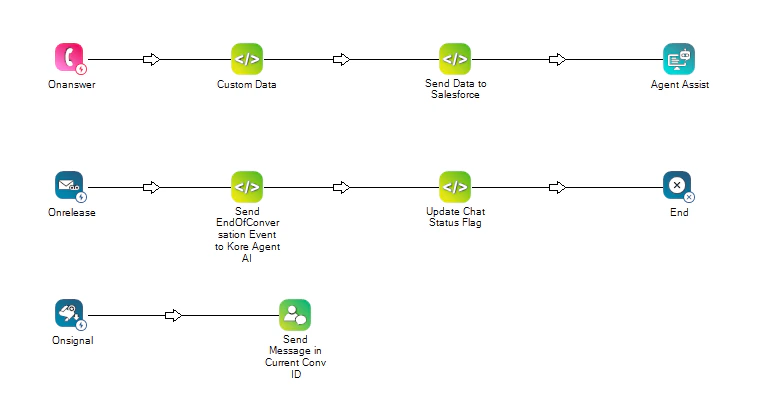
| Node | Activity | Fields Updated |
|---|---|---|
| Salesforce Auth | Update the credentials to connect to the Salesforce Org | - salesforceBaseURI Note: You can get it by running the following curl: curl –location –request POST 'https://login.salesforce.com/services/oauth2/token?grant_type=password&client_id=<Salesforce Client ID>&client_secret=<Salesforce Client_Secret>&username=<Salesforce_Username>&password=<Salesforce Password + Salesforce Security Token>'- salesforcekey (created in the step “Enabling OAuth”) - salesforcesecret (created in the step “Enabling OAuth”) - salesforceusername - salesforcepassword - AI Agent credentials (botid, clientid, clientsecret, baseurl, language) Note: The password is your Salesforce password appended with your Security Token. Refer to this guide for help. |
| ReqAgent | Update Skill for Agent Routing | Skill and other attributes as needed |
| Custom Data | The customdata object in the script can be used to pass information to the AI Agent. During runtime, this customdata will be accessible in the UserContext of the AI Agent. Refer to Access Custom Data in Kore AI Agent for instructions on how to access custom data in the AI Agent. | Include your data in the customdata object (one key-value pair per line). For example:customdata.agentName="Agent"customdata.agentID="{agentid}" |
| AgentAssist | Map the AgentAssist Hub Instance | Select the AgentAssist Hub App created in the above step. |
NICE Account setup for Incoming Phone Call/Chat
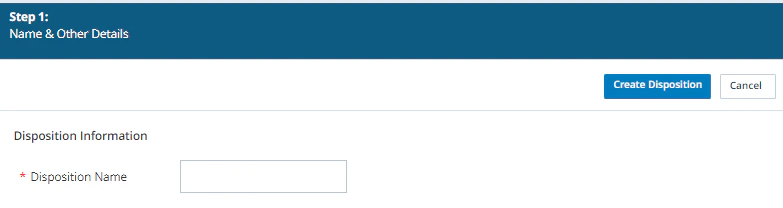
On the NICE Incontact home page, click the application launcher button and select ACD. Create a Campaign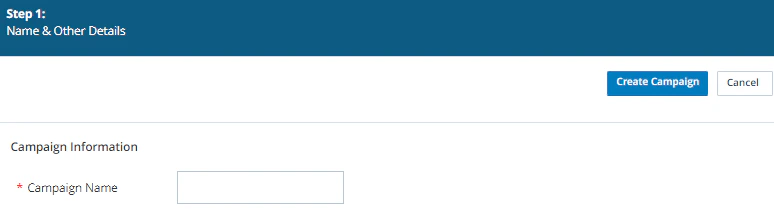
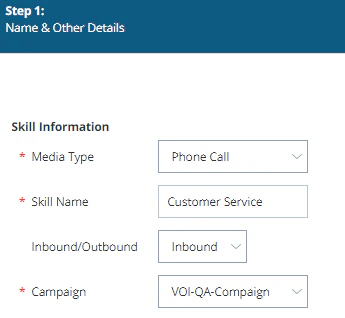
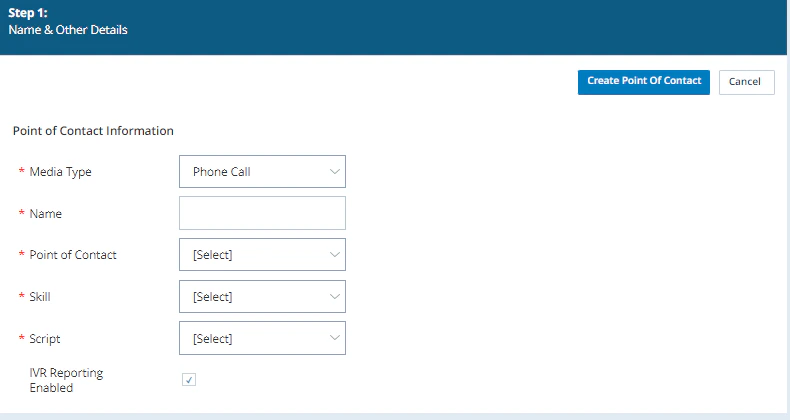
- Media Type - Phone Call
- Name - <Provide a name for the contact>
- Point of Contact - Select a provisioned NICE phone number.
- Skill - Select a predefined skill, else create one and select here.
- Script - From the dropdown list, select the studio script created for Salesforce-NICE CTI above.
- IVR Reporting Enabled - Select the checkbox.
- Click the Create Point of Contact button to save it.
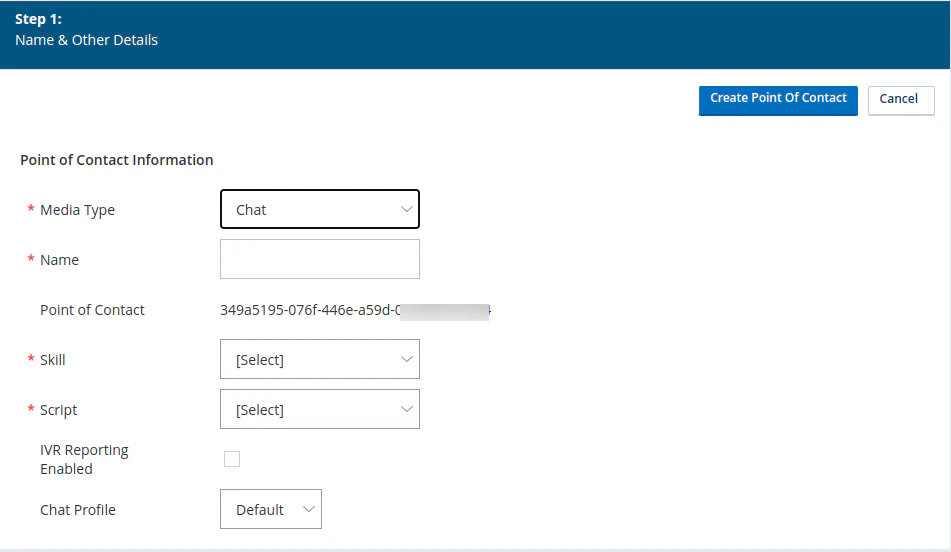
- Media Type - Chat
- Name - <Provide a name for the contact>
- Skill - Select a predefined skill, else create one and select here.
- Script - From the dropdown list, select the studio script created for Salesforce-NICE CTI above.
- IVR Reporting Enabled - Select the checkbox.
- Click the Create Point of Contact button to save it.
Make a Test Call / Chat
- Sign in to the Agent AI account and prepare an AI Agent to handle agents’ queries.
- Validate the AI Agent credentials are correctly mapped in the above settings.
- Validate the AgentAssist URL is correctly mapped in the above settings.
- Sign in to the NICE-InContact account, and check if the point of contact is properly configured.
- Sign in to your Salesforce org.
- From the app launcher, select Service Console.
- Sign in with NICE CX credentials for the agent.
-
Install the softphone: https://help.nice-incontact.com/content/agent/cxoneagent/addcxawebrtcext.htm
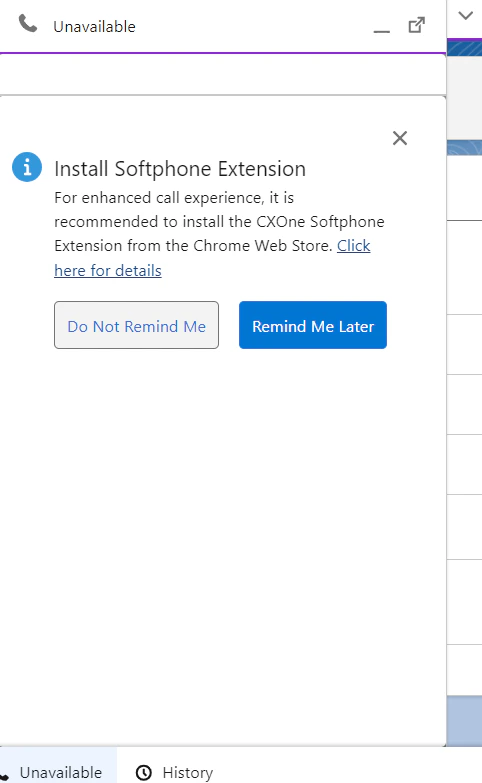
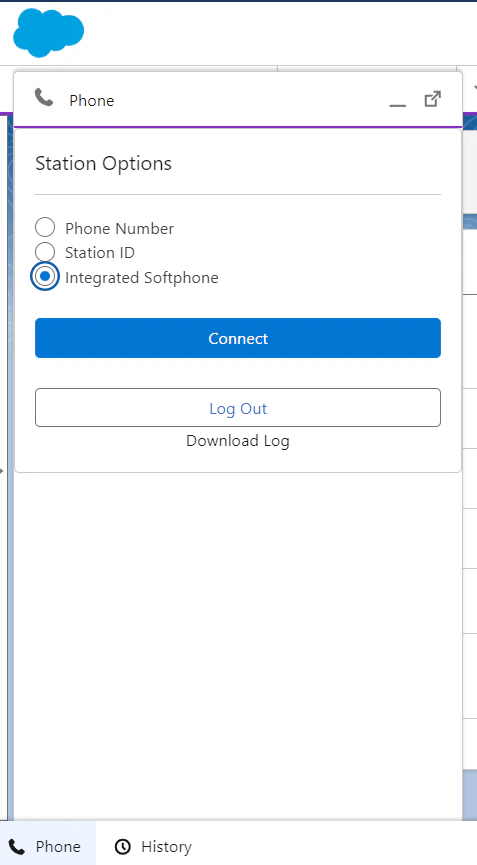
- Refresh the screen, and click the phone icon on the status bar.
-
Select Integrated Softphone, and click Connect.
-
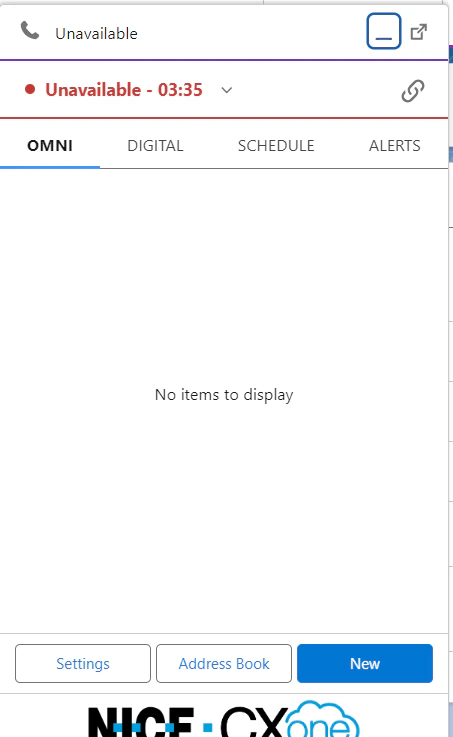
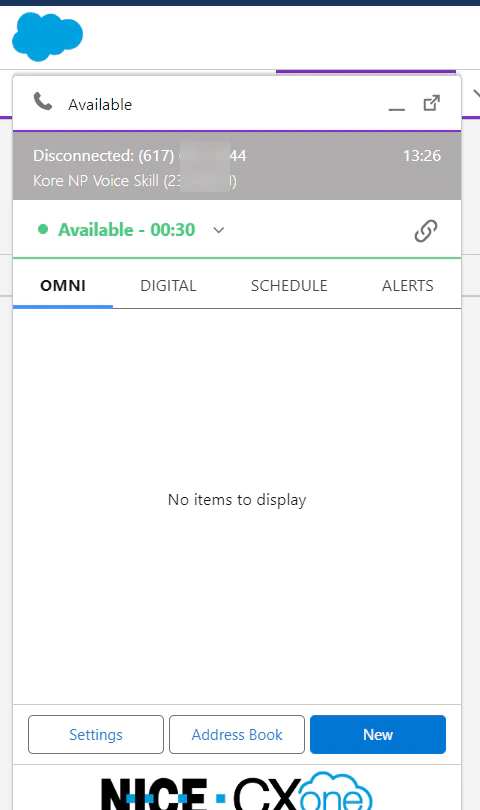
Change the status to Available.
- Dial the Point of Contact phone number.
-
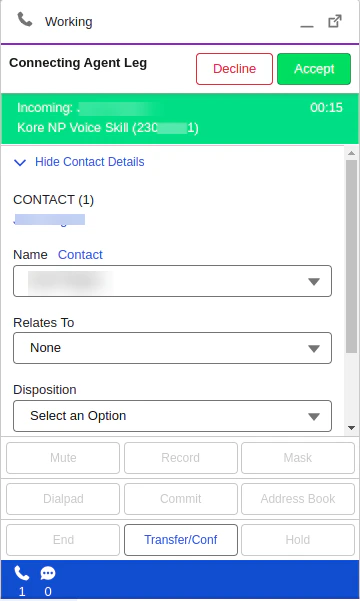
Accept the call.
- The Contact page appears.
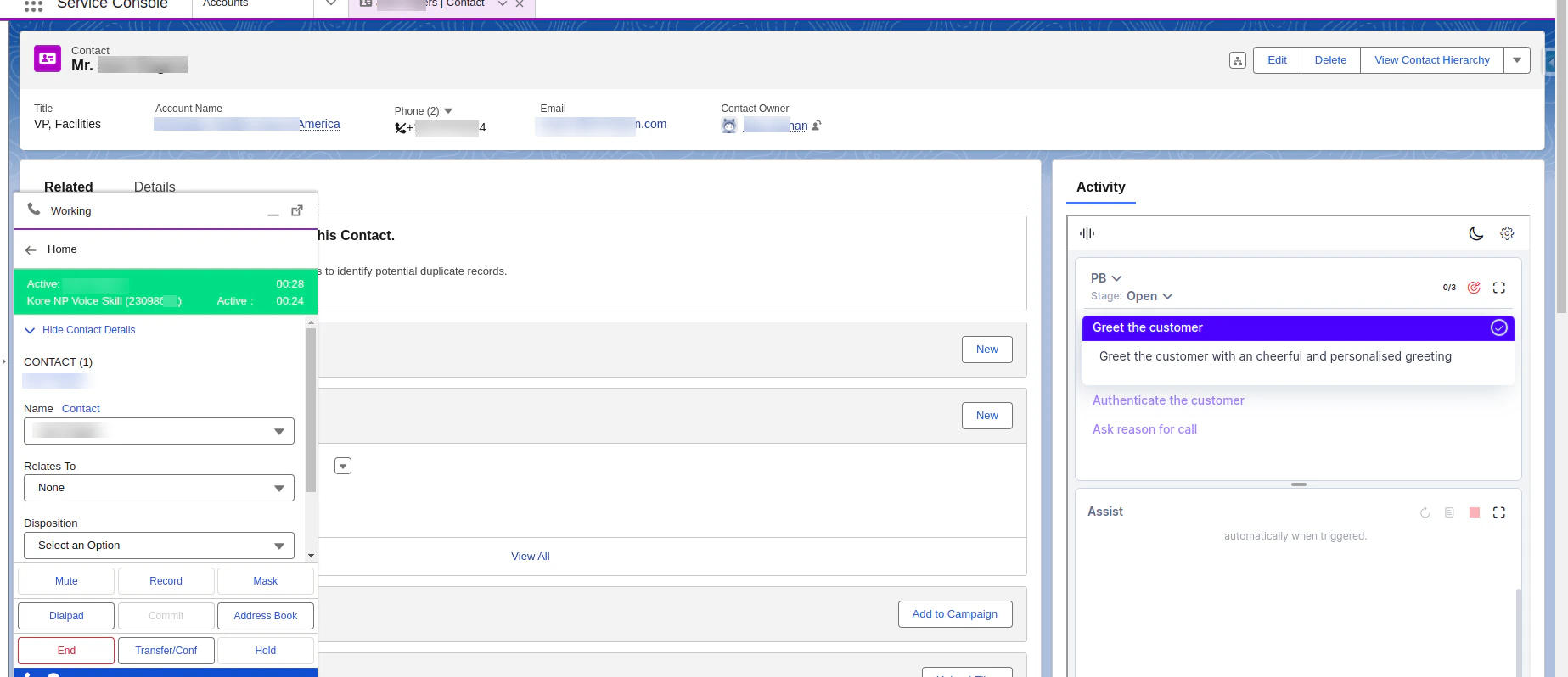
- The Contact page appears.
-
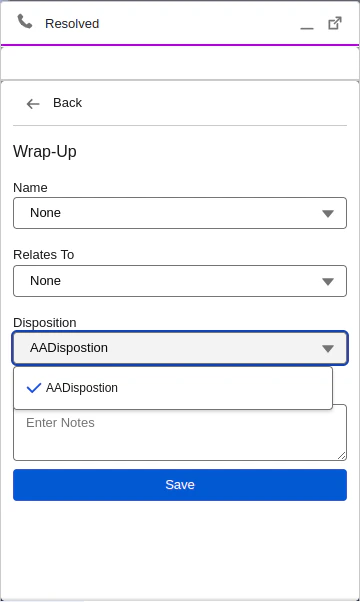
When the End button is clicked, the Summary is generated and displayed on the Agent AI widget.
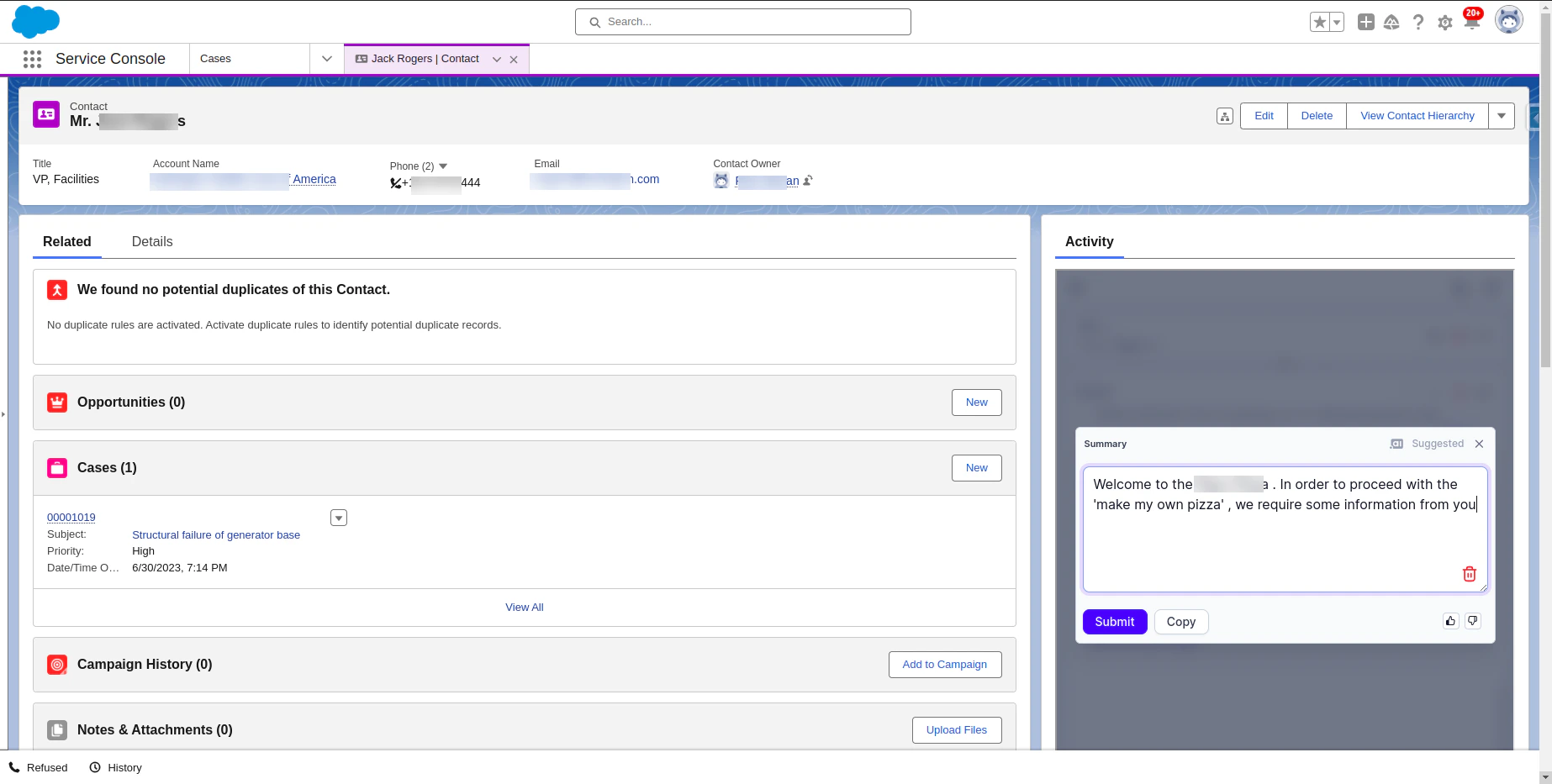
-
Upon clicking the Submit button on the Agent AI widget, the Summary is stored in the Agent AI Conversation Summaries.
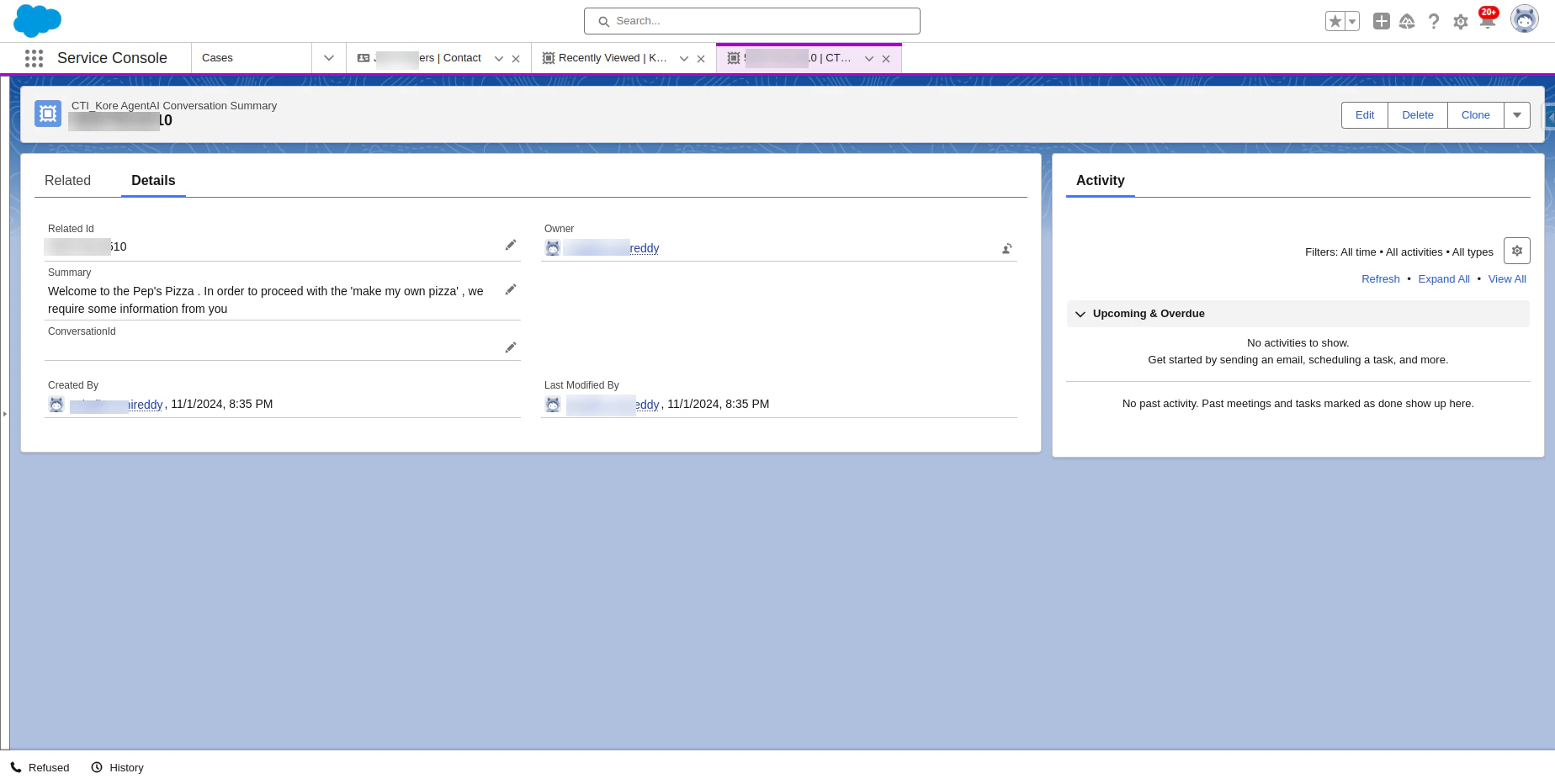
-
In the Salesforce App Launcher, search for Nice Chats Handler and select it.
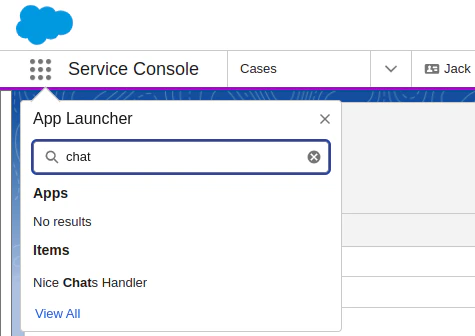
- The following page opens and monitors active chats. It remains open for the Agent AI widget to render when an agent accepts a chat request.
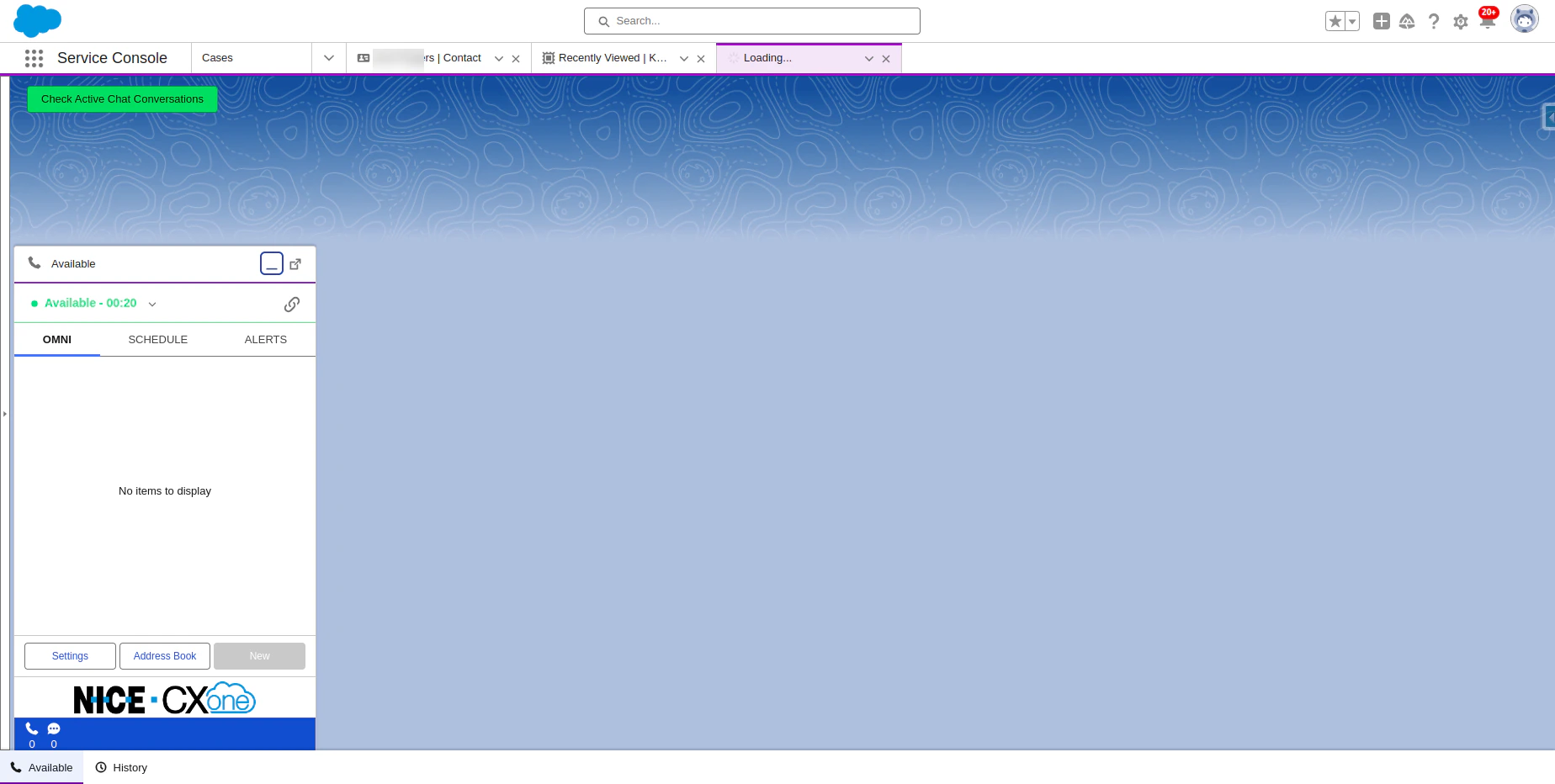
- The following page opens and monitors active chats. It remains open for the Agent AI widget to render when an agent accepts a chat request.
-
Make a chat request by opening the Point of Contact link in the browser.
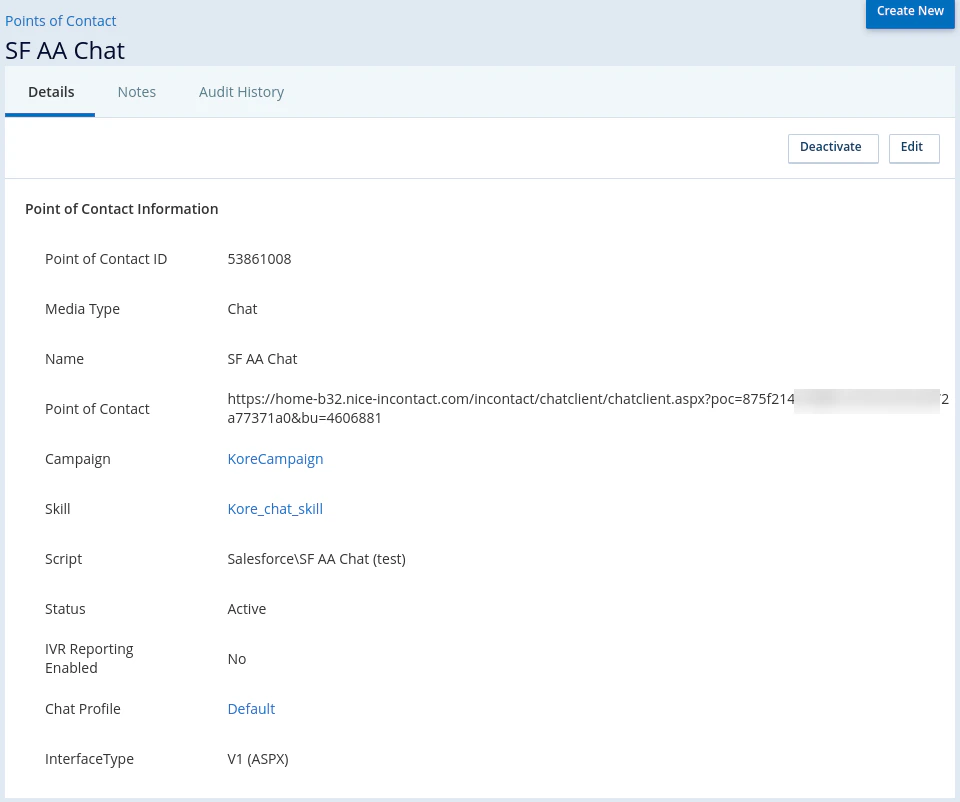
-
Send a message, and the chat request is sent to the agent.
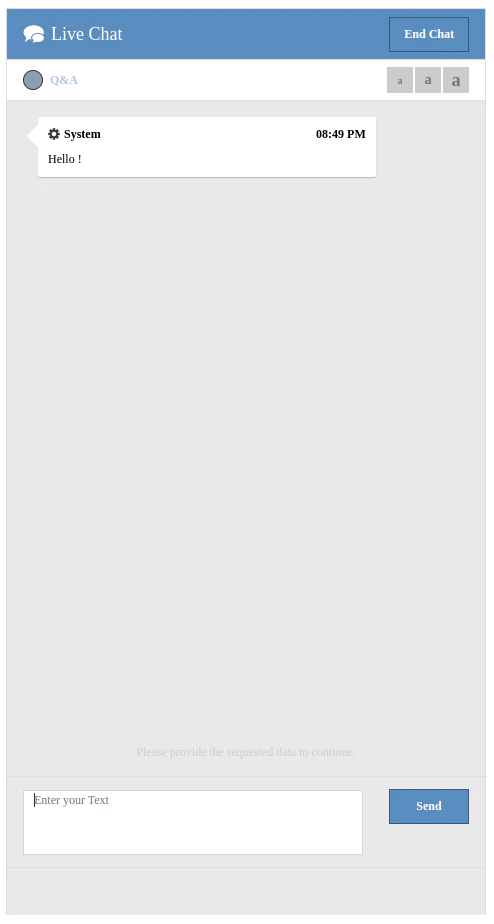
-
Click Accept.
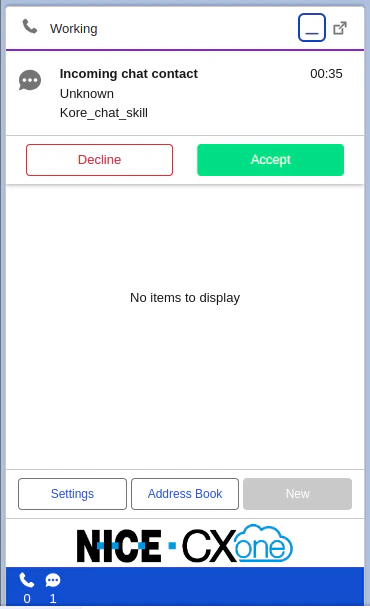
-
The Agent AI widget opens for the ongoing chat conversation.
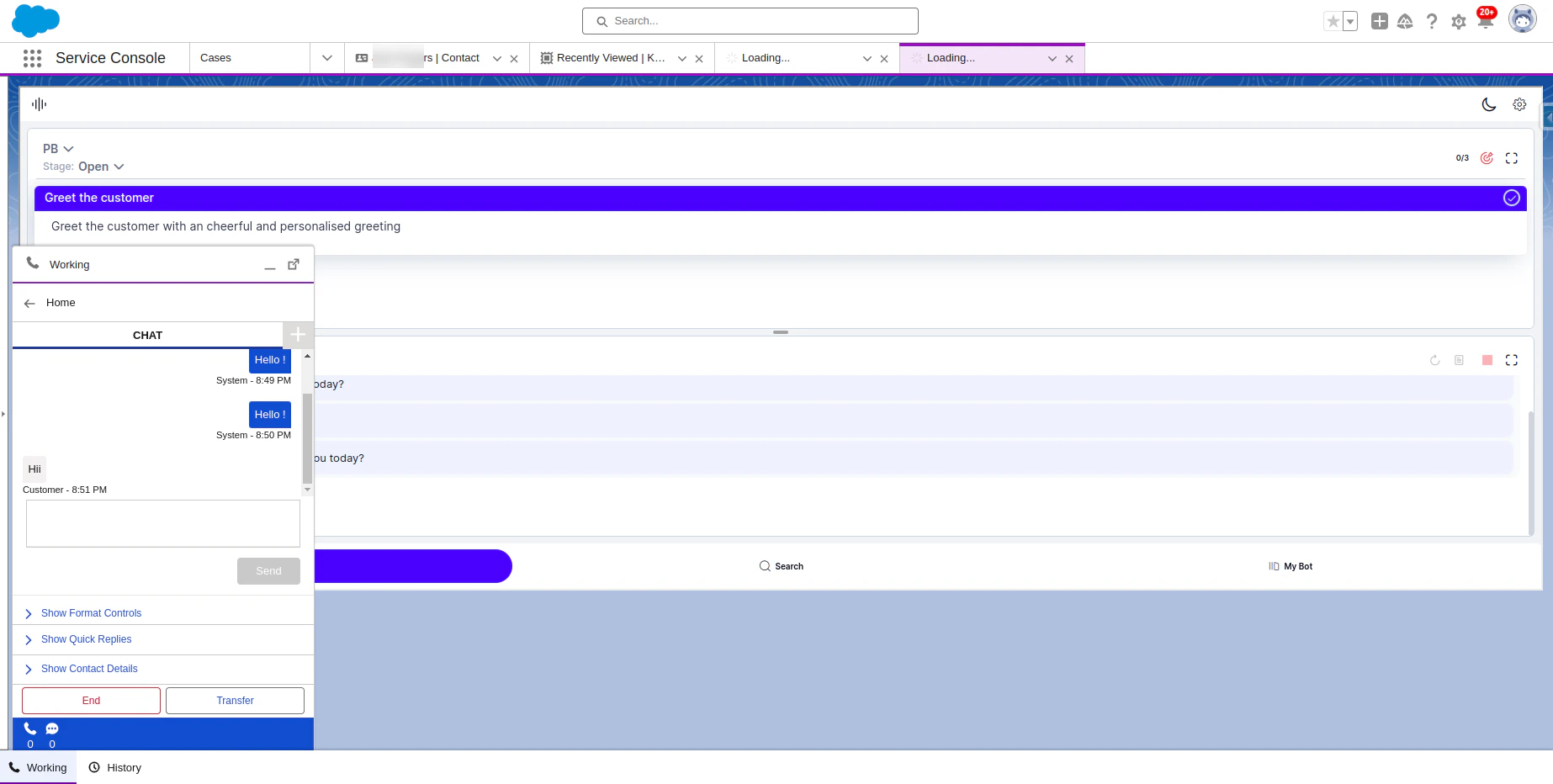
-
When the End button is clicked, the Summary is generated and displayed on the Agent AI widget.
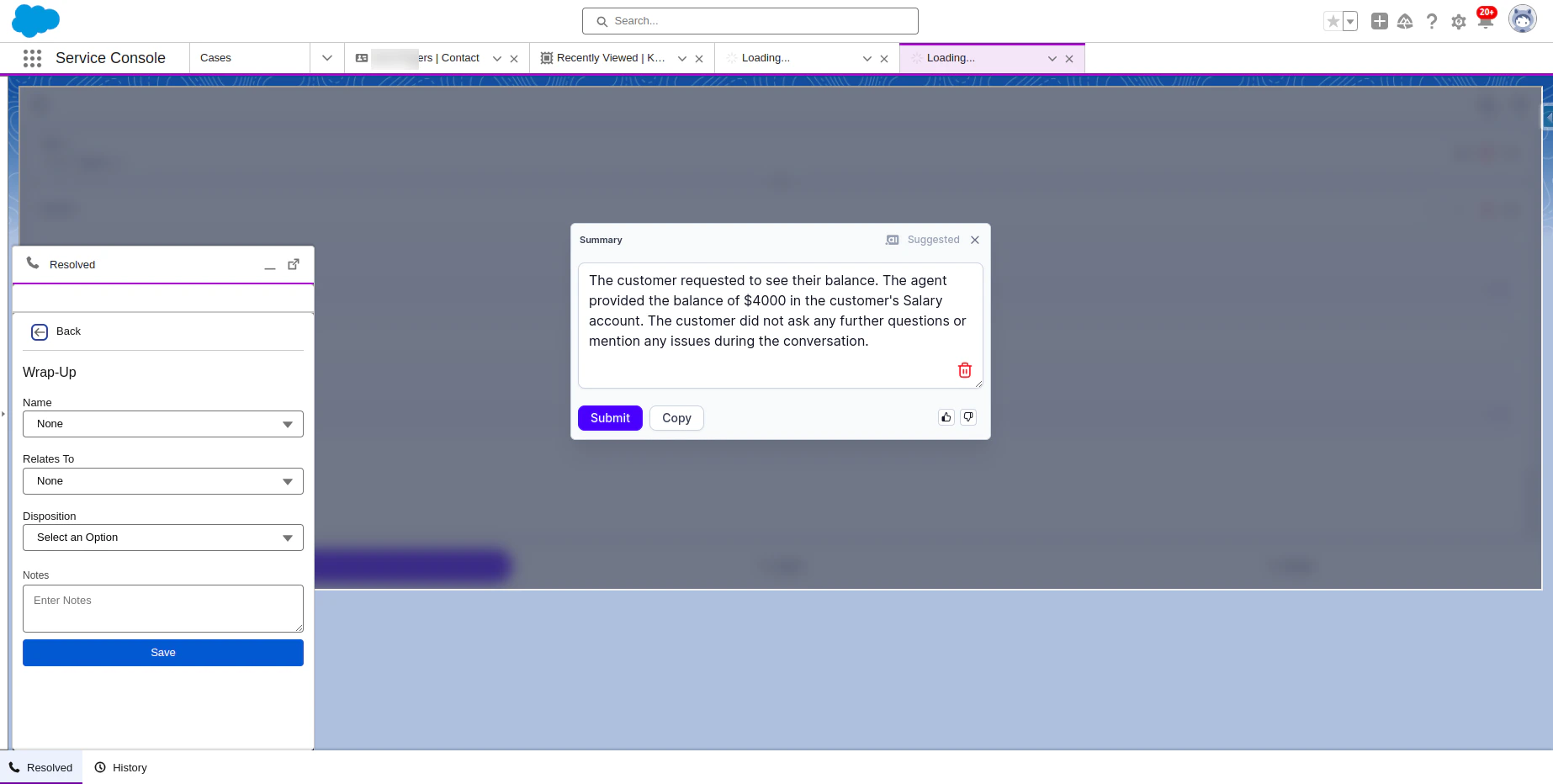
-
Upon clicking the Submit button in the Agent AI widget, the Summary is stored in the Agent AI Conversation Summaries.
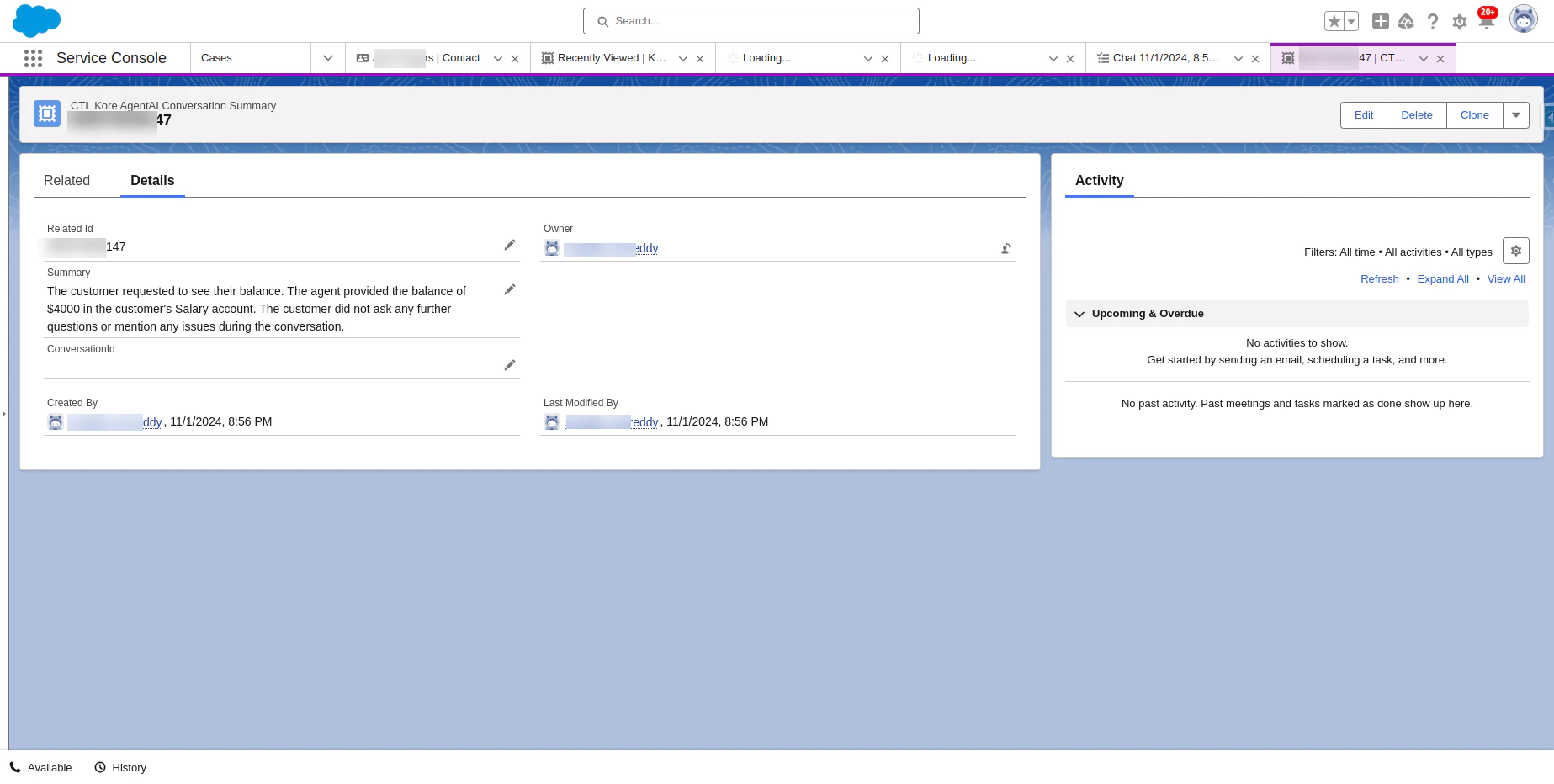
-
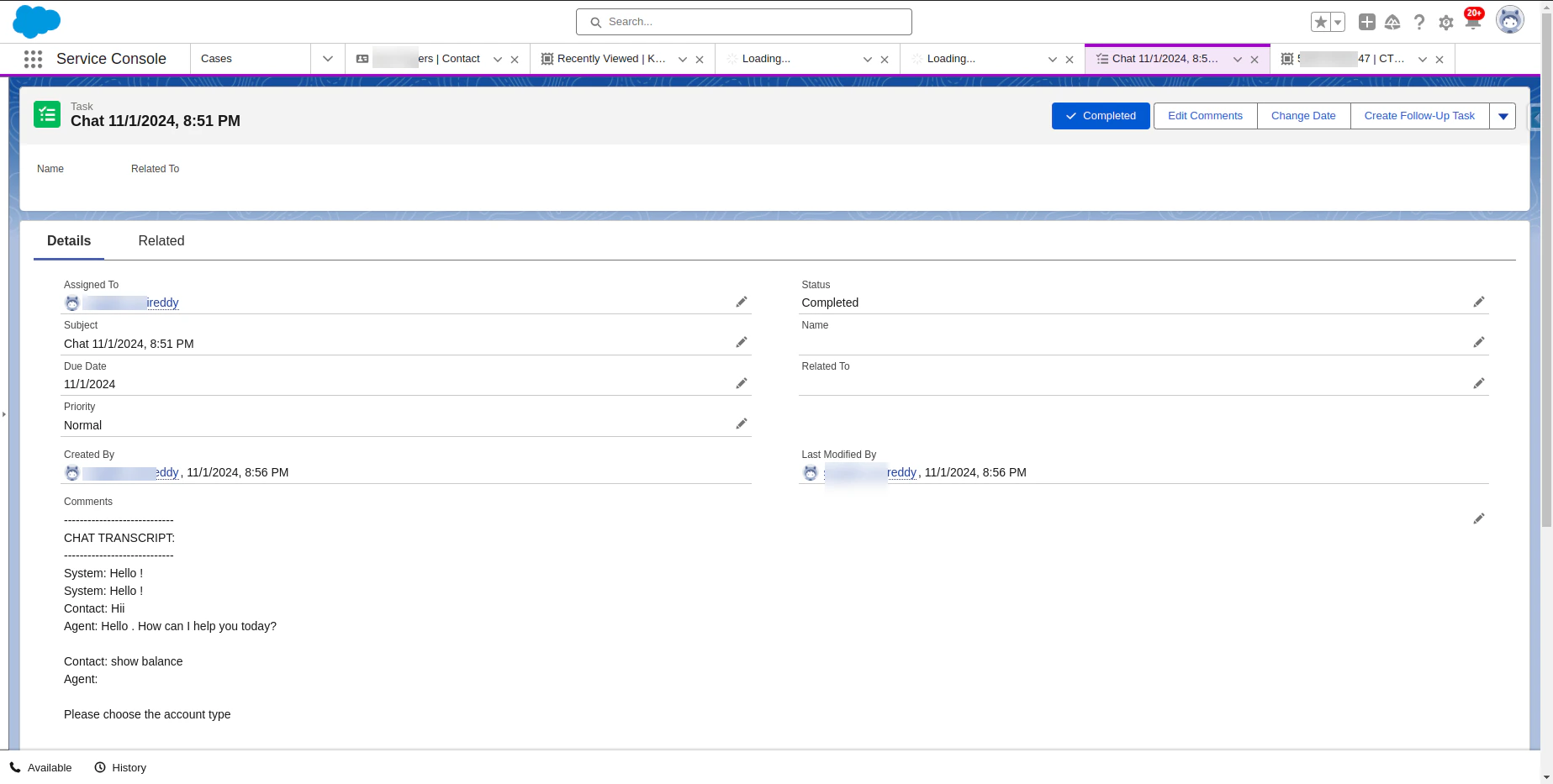
When Disposition is selected and clicked Save, the Chat transcript is stored in Salesforce.