Use Cases
| Use Case | Example |
|---|---|
| Priority handling | Pass customer tier or status for routing. |
| Channel-specific responses | Share channel type information. |
| Personalization | Transfer user preferences. |
| Session continuity | Include session context for ongoing conversations. |
Prerequisites
- A variable defined in AI for Service. See Using Variables.
- An Agentic app created in Agent Platform. See Create an Agentic App.
- The Agentic app integrated with AI for Service via the Automation node. See Full Autonomy.
Setup
Step 1: Create or Identify Variables
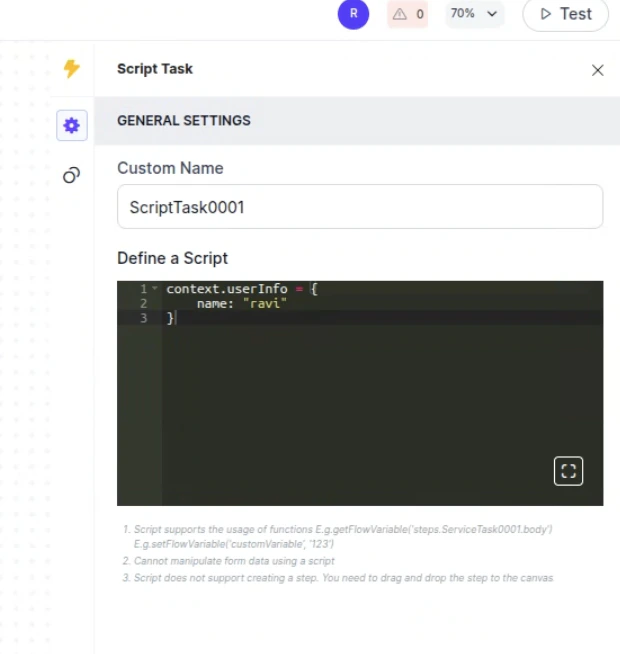
In AI for Service, create or use existing variables in the context object (for example,context.userInfo.name or context.channel.type). These capture runtime data to pass as metadata.
Step 2: Configure Metadata in the Automation Node
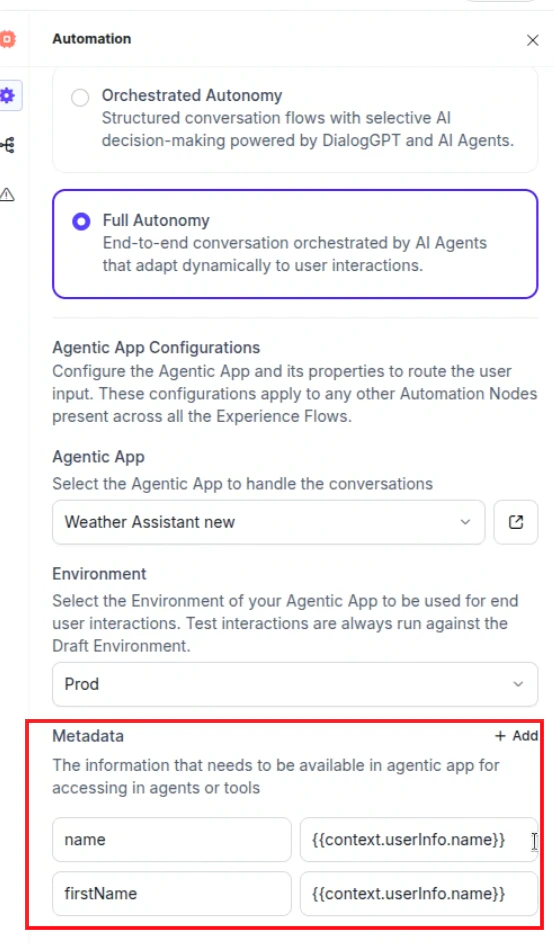
- Go to Flow & Channels > Automation Routing > Routing Modes.
- For any welcome flow, select More options (…) > Automation Settings.
- Confirm that Full Autonomy, the Agentic app, and the environment are selected.
-
In the Metadata section, click + Add and enter key-value pairs:
- Key: A logical name (for example,
name). - Value: The XO variable path (for example,
context.userInfo.name).
- Key: A logical name (for example,
Step 3: Access Metadata in Agent Platform
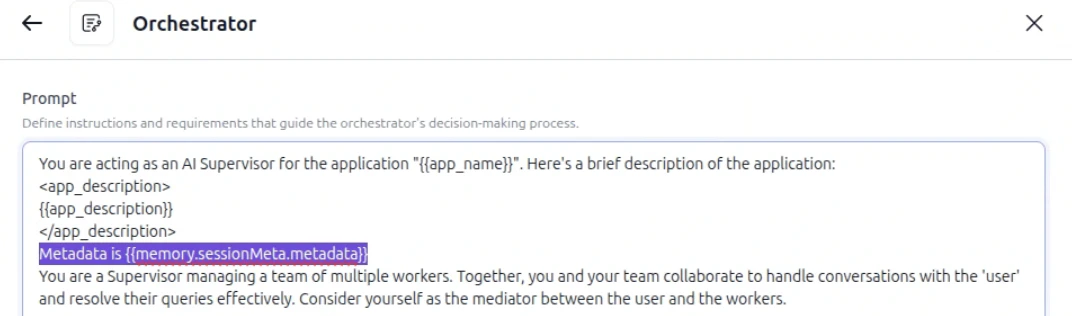
The metadata is automatically stored in the agent’s memory undersessionMeta.metadata. Access it in agent prompts, supervisor prompts, or code tools:
| Location | Example |
|---|---|
| Agent Prompt | The customer's current order is {{memory.sessionMeta.metadata.ordernumber}}. |
| Supervisor Prompt | Assist the agent based on customer tier: {{memory.sessionMeta.metadata.customerTier}}. |
Debug Metadata
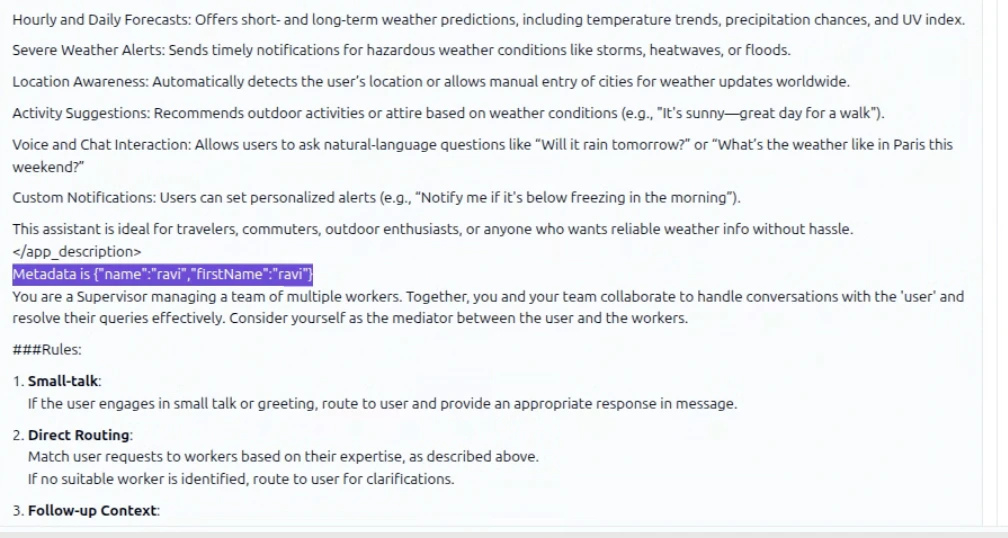
During execution, metadata variables are injected into the memory store and visible in the Traces tab.- Start a test conversation from AI for Service with metadata.
- Navigate to the relevant session or trace in Agent Platform.
- Verify that memory variables are resolved and values are correct.