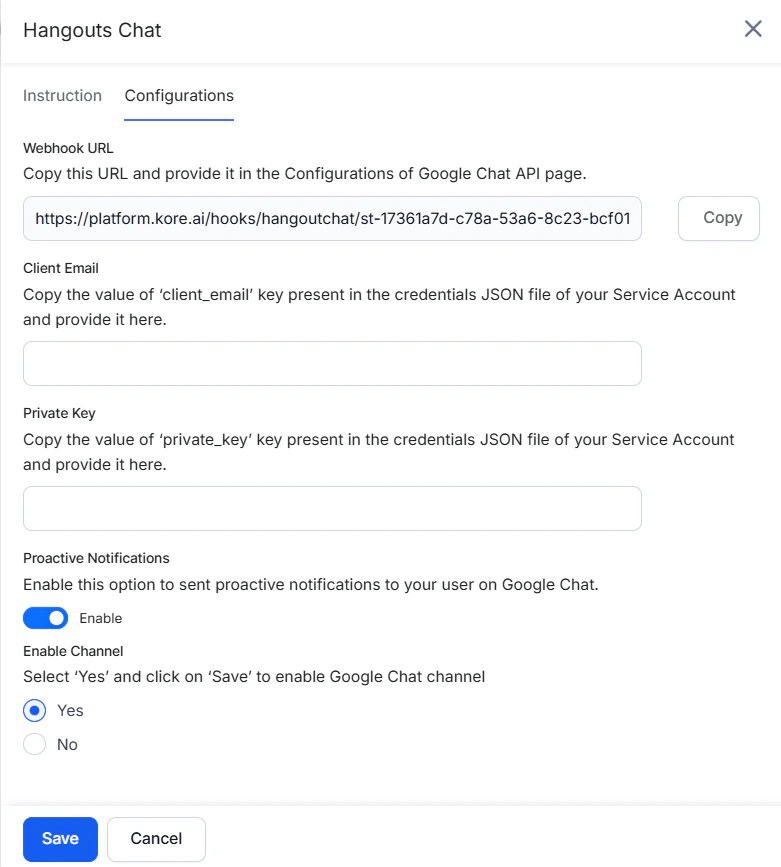
Step 1: Enable the Google Chat API
- Log into Google Cloud.
-
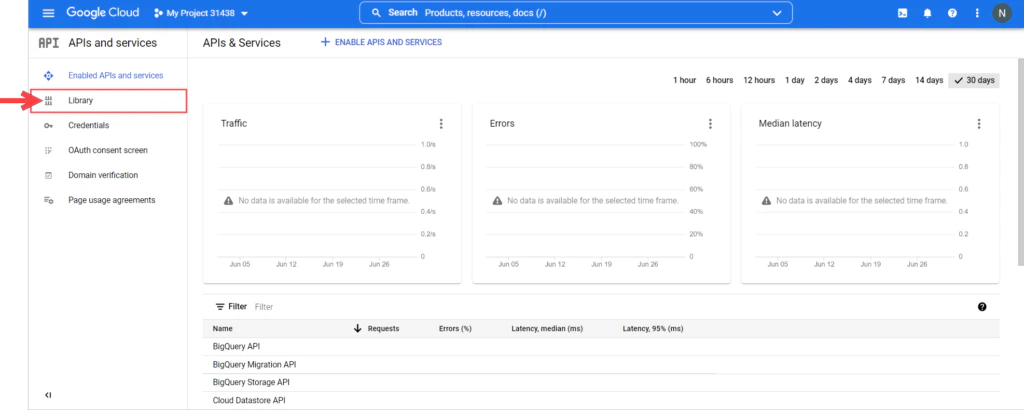
Click Library, in the left side menu.
-
Search and select the Google Chat API.
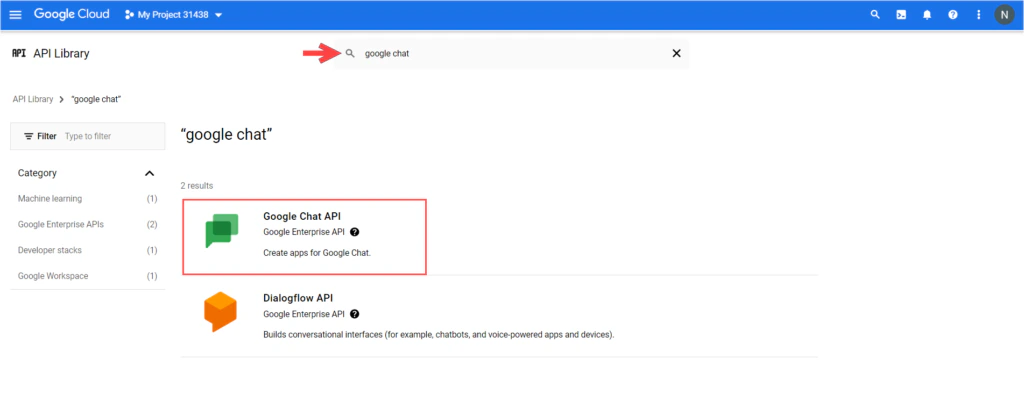
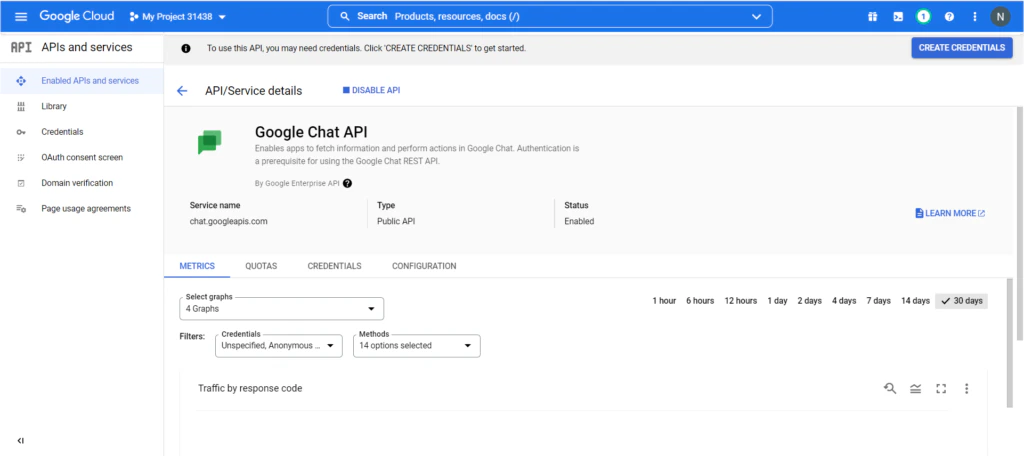
- Click Enable.
-
On enabling the API, you are redirected to the Overview page of the Google Chat API.
Step 2: Set Up the API in Google Cloud
To set up the Google Chat API, you need to create credentials first, then configure its details and functionality, as follows:-
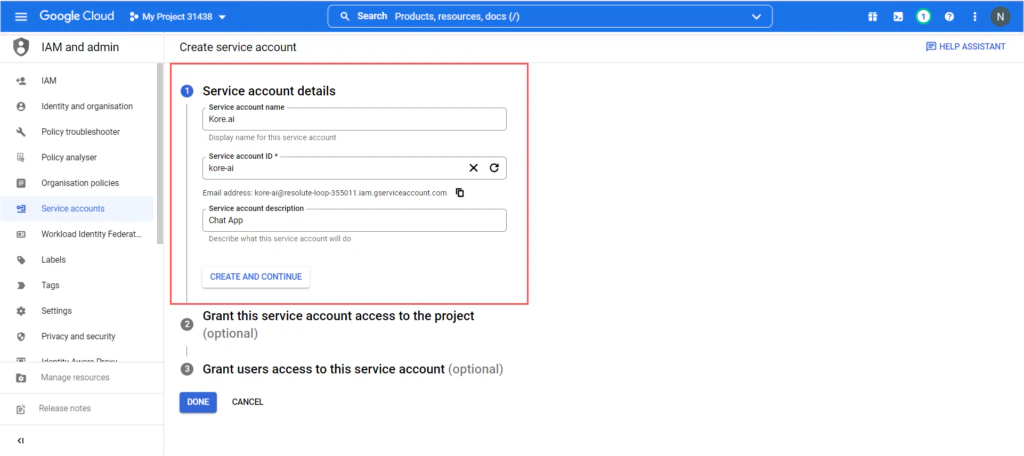
From the Credentials page, click Create credentials and select Service account.
-
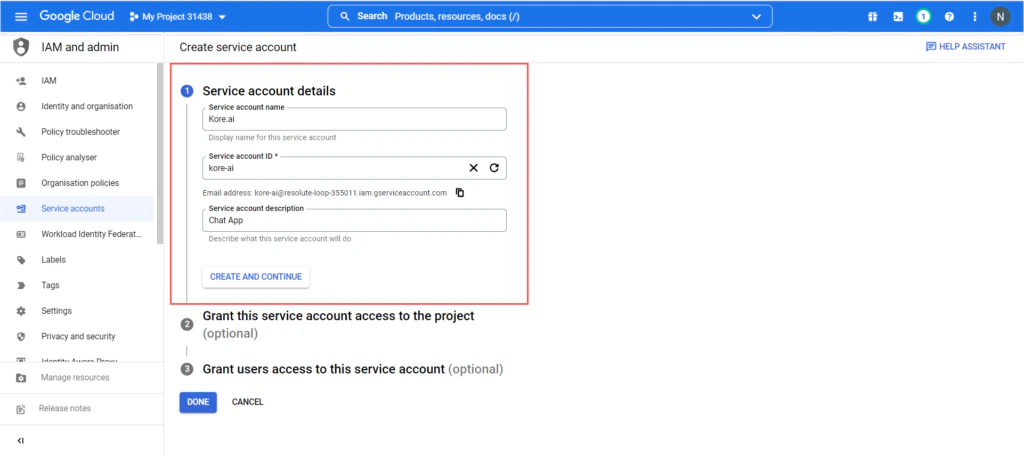
Provide a name for your service account, service account description, and click Create and Continue.
-
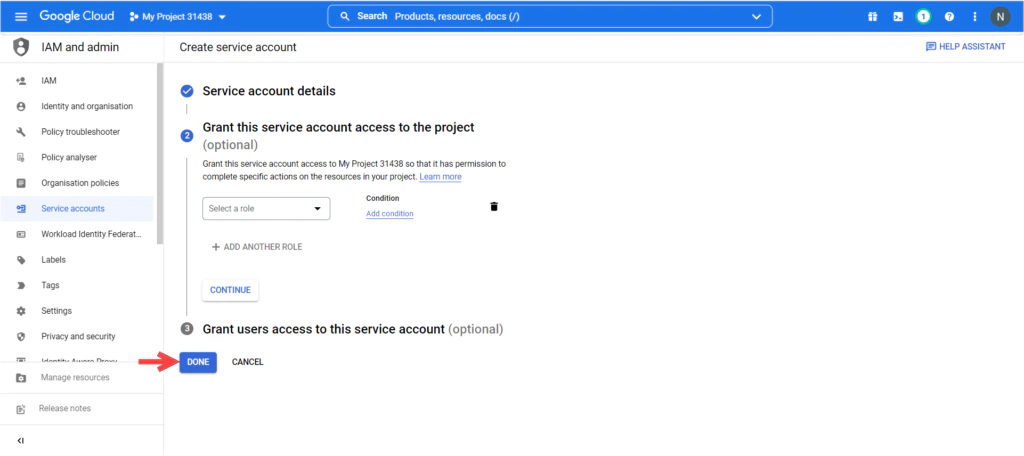
Once the service account is created there are 2 optional steps:
- Grant this service account access to project
- Grant users access to this service account
-
Click on the Done button.
-
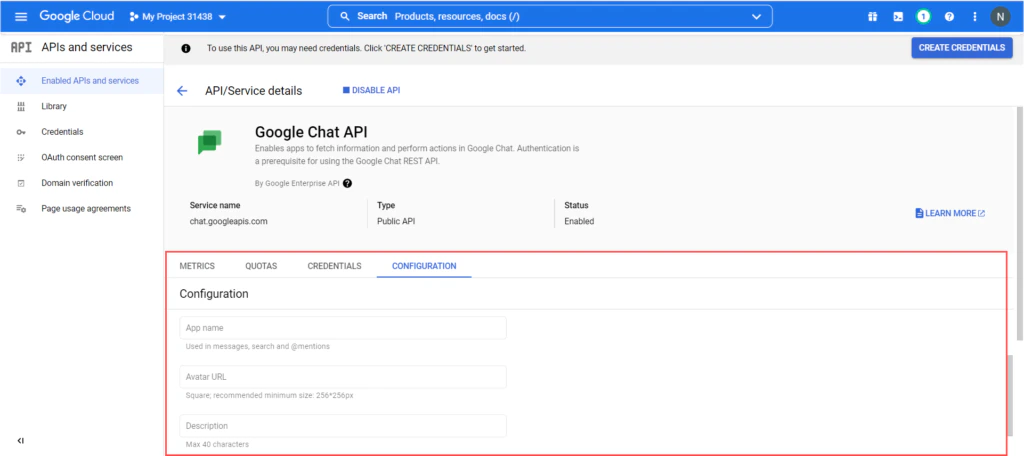
Go to the Configurations section and provide all the required details like:
- App name
- Avatar URL
- Description
-
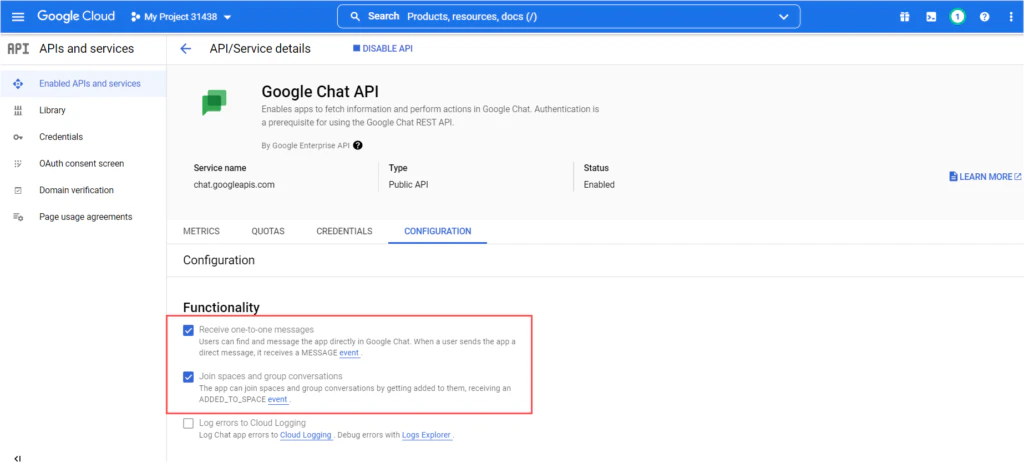
Under Functionality choose both Receive one-to-one messages and Join spaces and group conversations options.
-
Under Connection Settings:
- Select the App URL option.
- Go to the Kore.ai Channels & Flows > Channels > Digital > All > Google Chat > Configurations and copy the Webhook URL.
- Go back to Connections Settings in Google Cloud and paste the Webhook URL
-
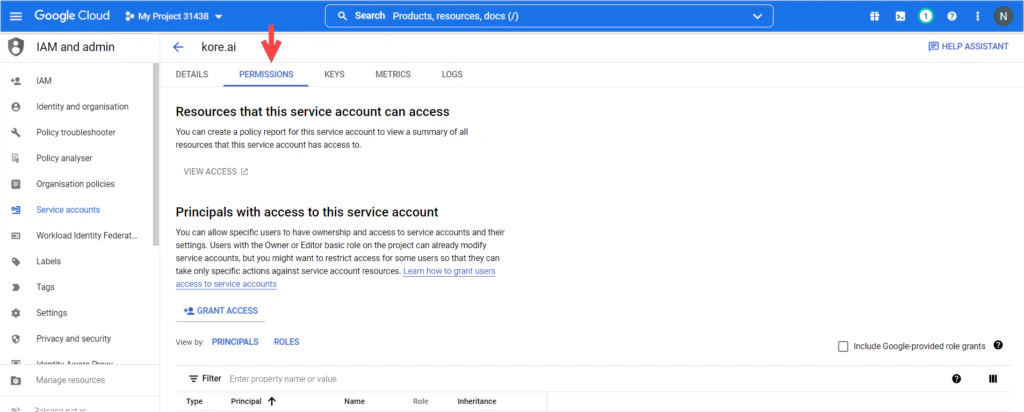
Select the appropriate option under Permissions.
Step 3: Create API Keys
Once your service account has been created, you need to manage the keys corresponding to your API, as follows:-
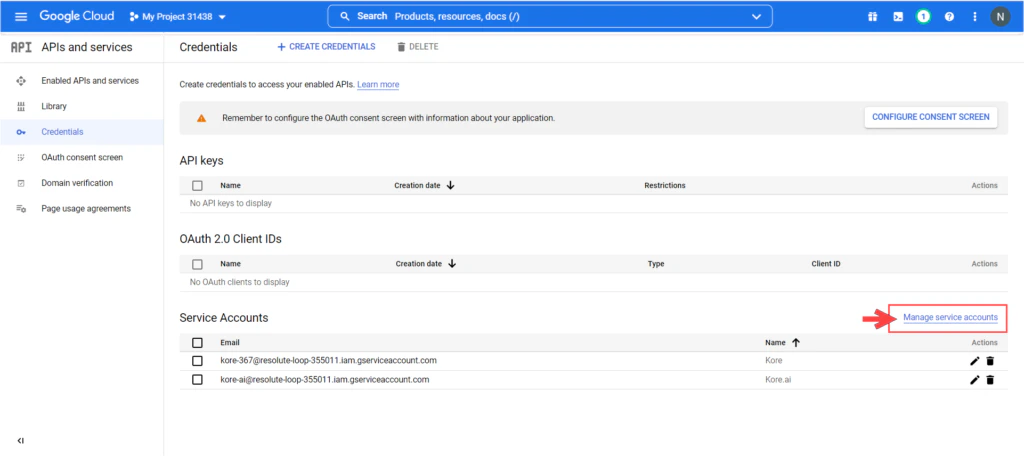
Navigate to the Credentials page and click on Manage service accounts.
-
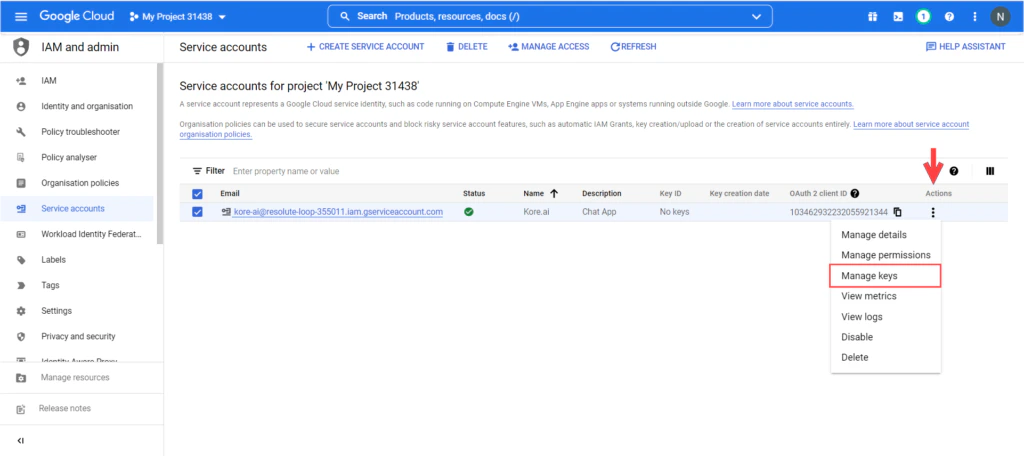
From the Manage service accounts page click the Actions button corresponding to your newly created account, then on Manage keys.
-
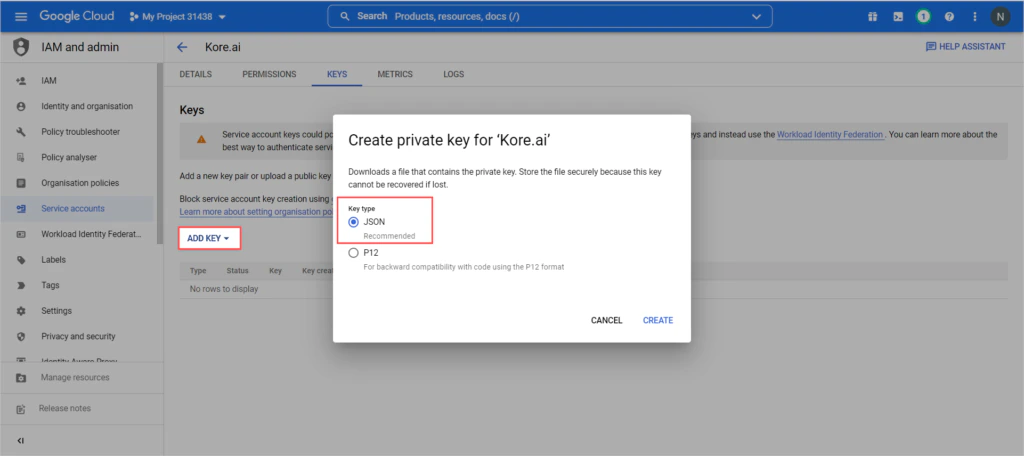
From the Manage Keys page click on Add Key button, select Create new key from the drop down, select the JSON option, and click on Create button.
Step 4: Configure the Hangouts Chat Channel
In the XO Platform, select the AI Agent you’re working with, then go to Channels & Flows > Channels > Digital > All > Hangouts Chat > Configurations.-
Enter the following configuration details:
- Client Email – Copy the value of the client_email field present in the credentials JSON file of your Service Account and enter it here.
- Private Key – Copy the value of the private_key field present in the credentials JSON file of your Service Account and enter it here.
- Enable Proactive Notifications to send relevant updates to the users without requiring them to initiate interaction with the app first.
-
Select Yes and click Save to enable Hangouts Chat channel.