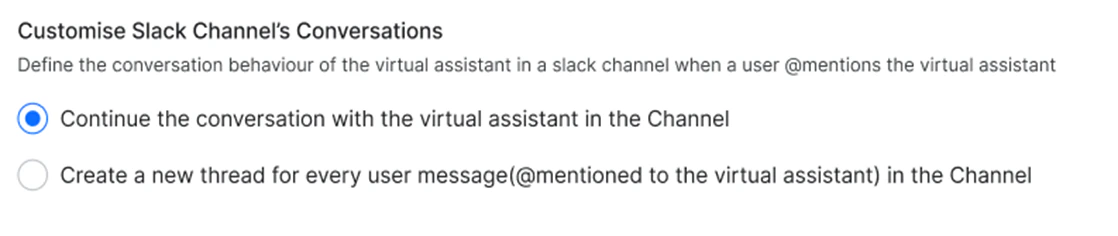
To use Slack Threads for your AI Agent deployed on the Slack Channel, add the Bot token Scope
chat:write.public to the existing Slack app under OAuth & Permissions > Scopes > Bot Token Scopes. Learn more- Create an App on Slack.
- Set Redirect URL and Scopes.
- Install the App.
- Enable Interactivity.
- Enable Events.
- Enable Interactions from the Message Tab.
- Configure App Credentials.
- Manage Distribution.
- Enable the Channel on the Platform.
Step 1: Create an App on Slack
- In the Platform, select the assistant to which you want to add the Slack Channel.
- Go to Deploy > Channels > Slack, and open the Configuration tab.
-
In a new browser tab, Login to the Slack developer portal and go to the Your Apps section here. If this is your first app, click Create an App. If you already have some apps, then click Create New App.
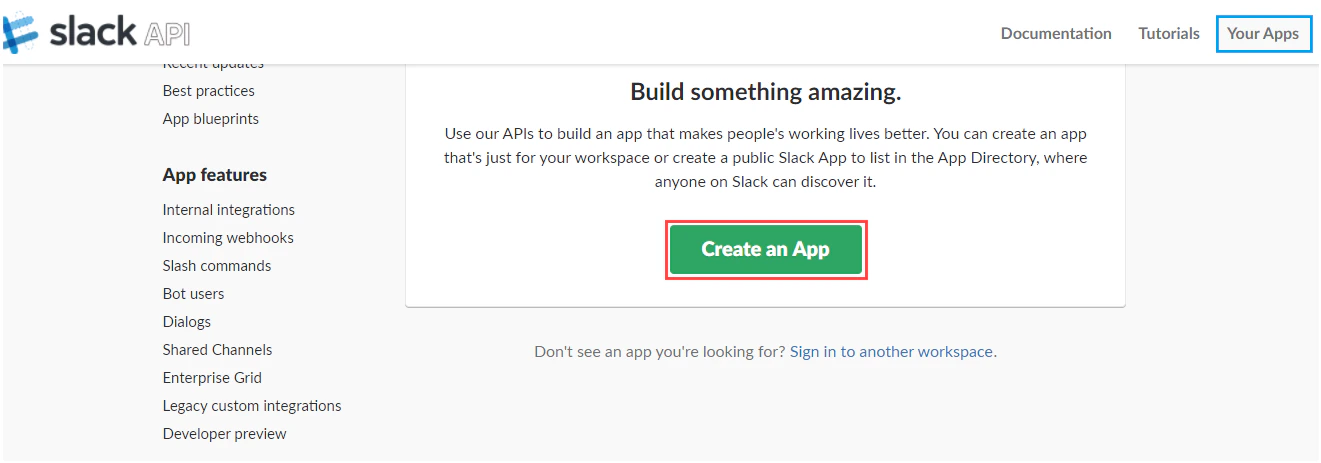
- You will now be asked to choose how you’d like to configure your app’s scopes and settings. Select From Scratch.
-
On the Create a Slack App window, enter the App Name and select a team from the Development Slack Team drop-down list. Use your assistant’s name as the App Name.
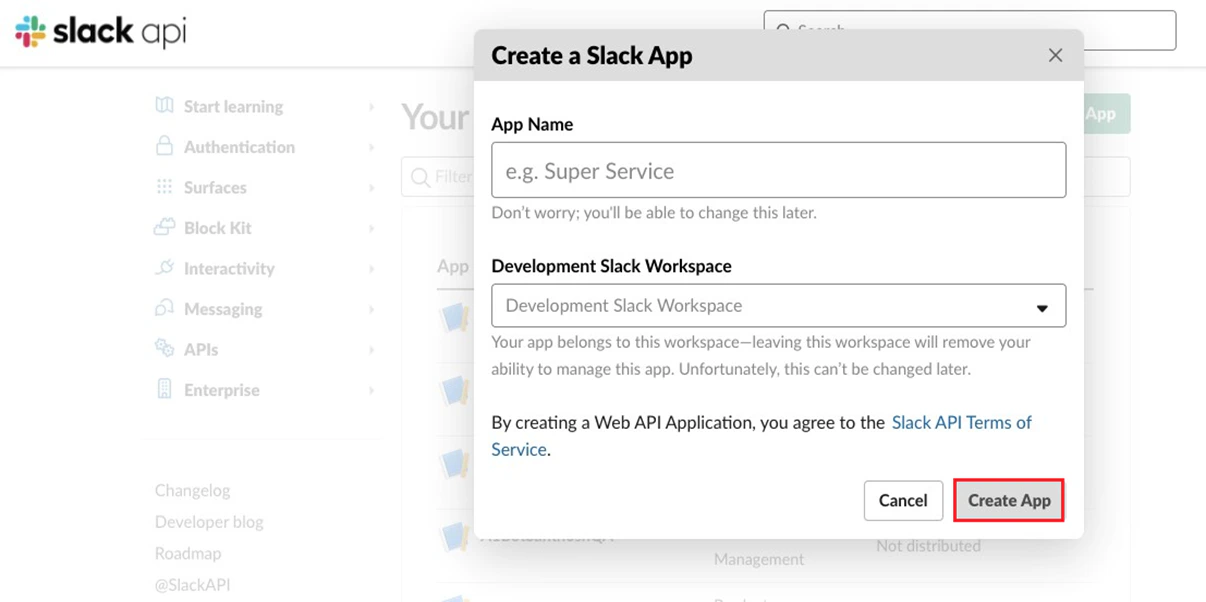
- After you enter the required information, click Create App. Slack will now create a new app and you are redirected to the Basic Information section of the new app.
Step 2: Set Redirect URL and Scopes
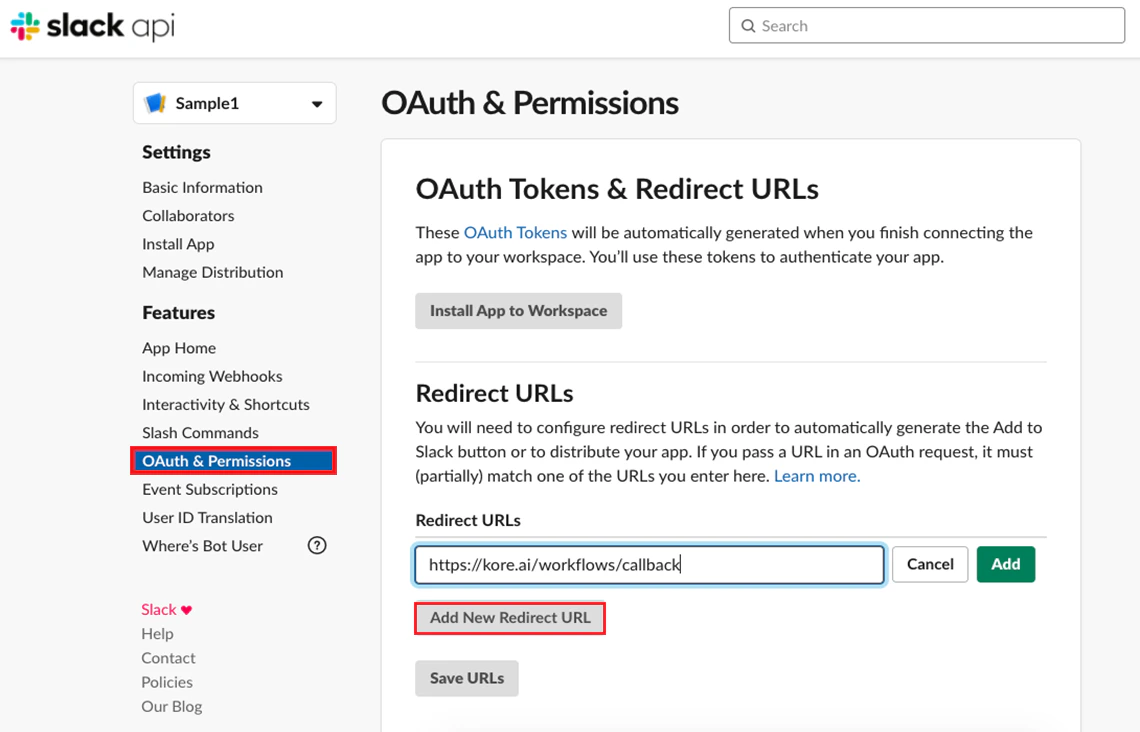
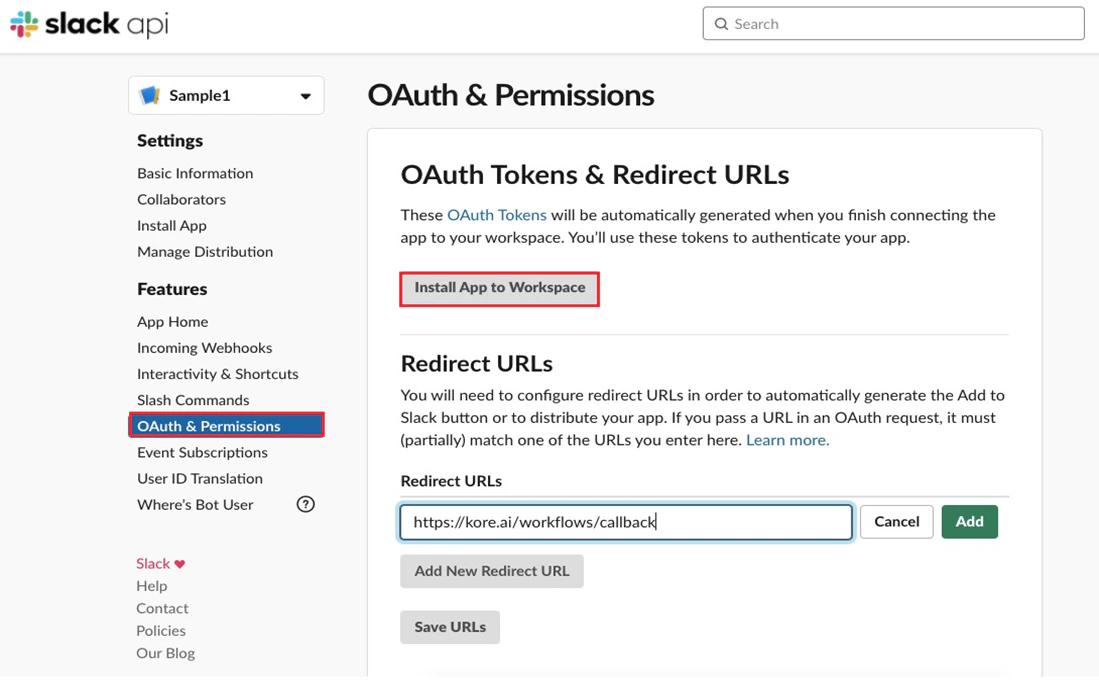
- Click OAuth & Permissions on the left menu and click Add New Redirect URL on the resulting page.
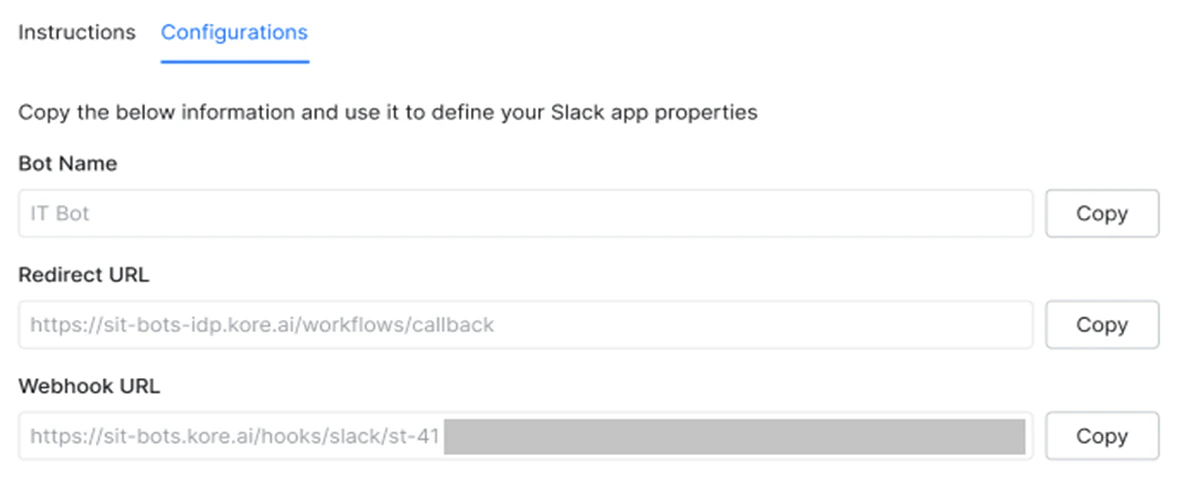
- On the Platform, copy the Redirect URL provided in the Configurations section of the Slack channel window and paste it in the Redirect URLs field of the OAuth Tokens & Redirect URLs page.
-
Click Add, and then click Save URLs.
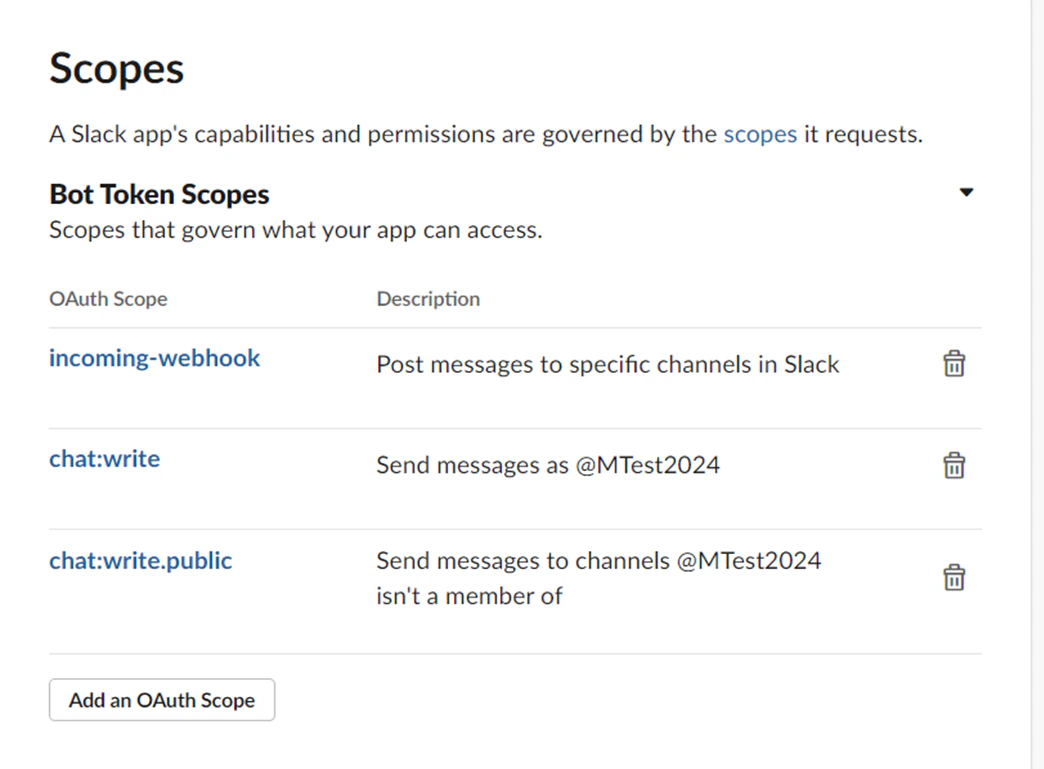
- Proceed to Scopes > Bot Token Scopes section.
-
Add
*incoming-webhook*,*chat:write*, and*chat:write.public*scopes. -
If you would like your users to send attachments to your app, then select the *
files:write*scope.
files:write scope.
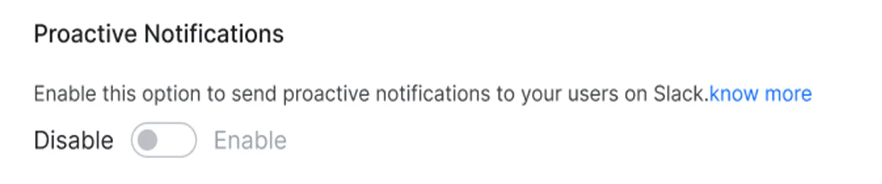
To send Proactive Notifications to users on Slack, select the users:read, users:read.email, and team:read scopes.
Step 3: Install the App
-
Navigate to OAuth & Permissions > OAuth Tokens & Redirect URLs, and click Install App to Workspace. Choose the required Workspace and complete the process.
-
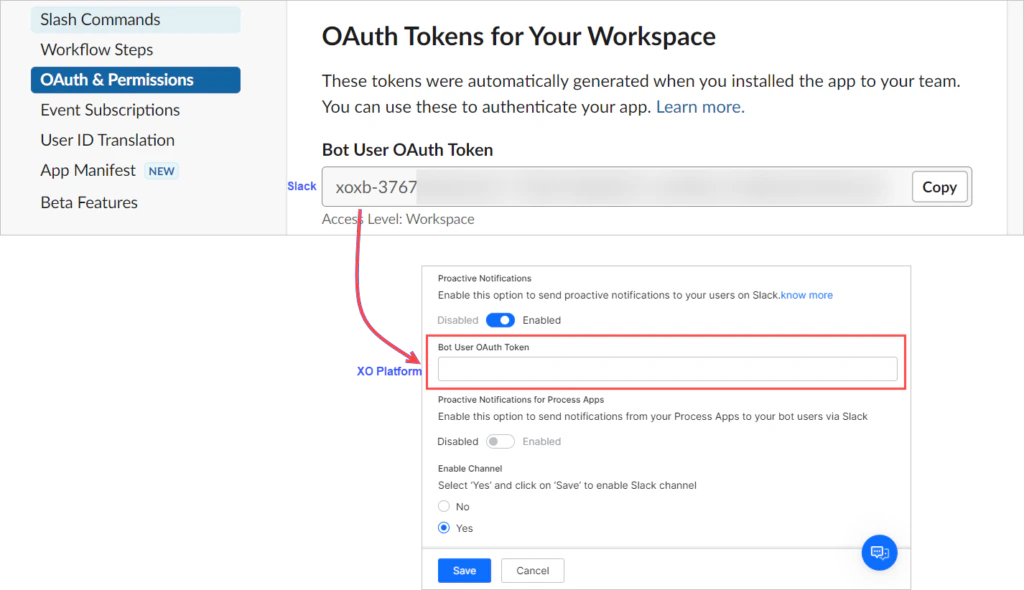
(Optional) To send Proactive Notifications to your users on Slack, copy the Bot User OAuth Token from the OAuth Tokens for Your Team section and provide it in the Slack Channel Configurations section on the Platform.
Step 4: Enable Interactivity
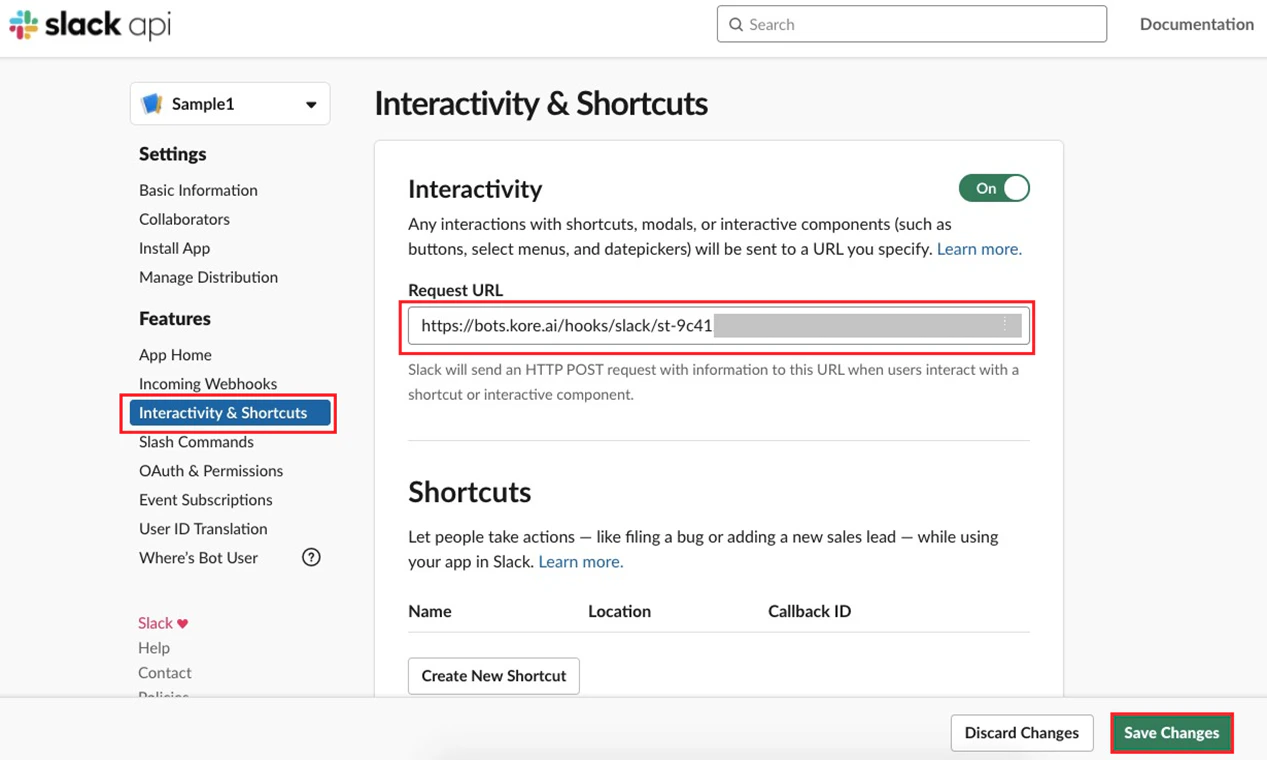
- Navigate to Interactivity & Shortcuts and enable Interactivity.
- On the Platform, copy the Webhook URL from the Slack channel’s Configurations tab and enter it in the Request URL field on Slack. Important The Webhook URL now includes the streamid in the API request to identify the AI Agent being accessed. When an incoming request is qualified with this identifier, it helps with traceability, troubleshooting, and remediation at the network level during anomalies like malicious calls or unusual app activity.
Step 5: Enable Events
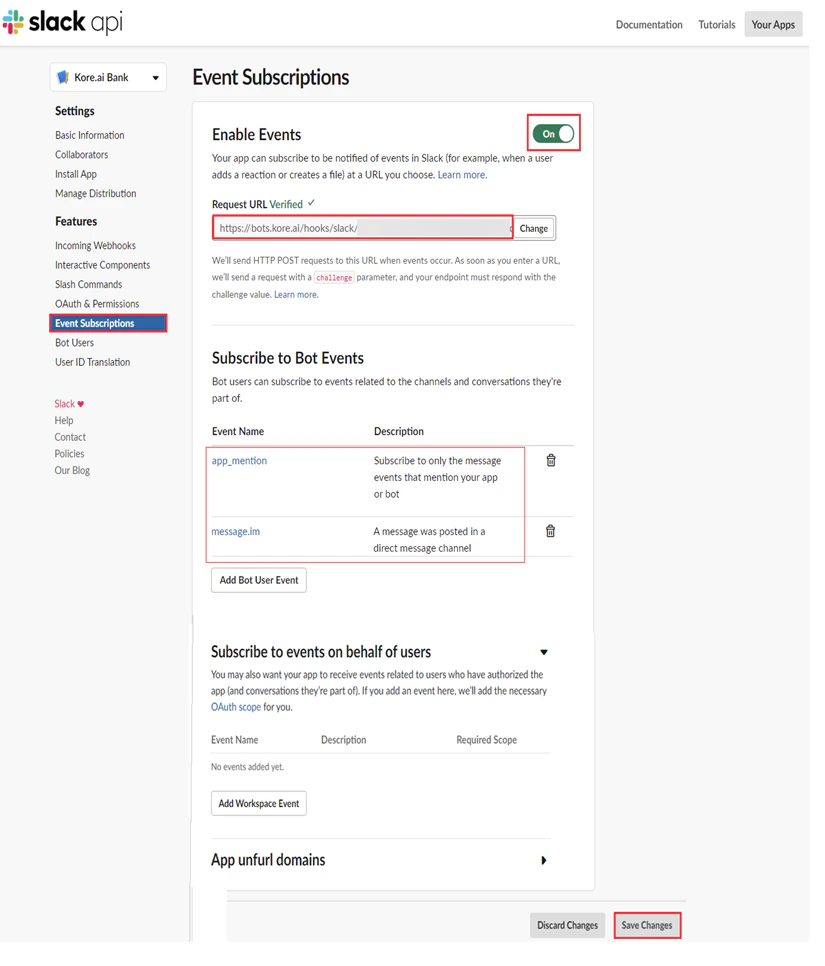
- Navigate to Event Subscriptions and activate the Enable Events option.
- On the Platform, copy the Webhook URL from the Slack channel’s Configurations section and paste it in the Request URL field in the Enable Subscriptions section.
- In the Subscribe to Bot Events section, add
*app_mention*, and*message.im*events. - Click Save Changes.
Step 6: Enable Interactions from the Messages tab
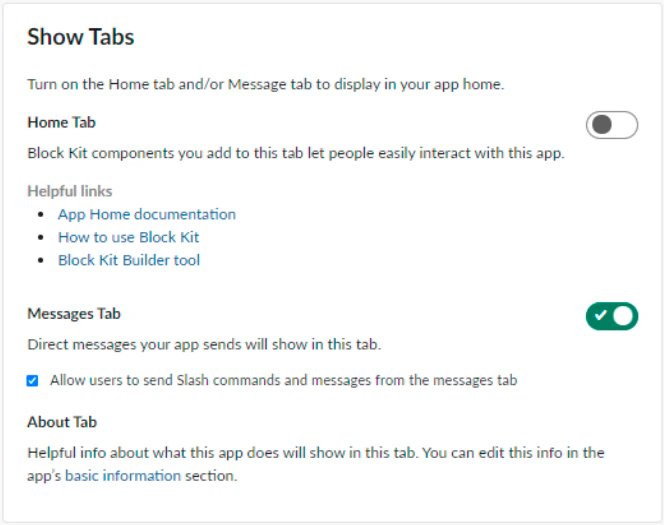
- Navigate to the App Home section and under Show tabs. enable the Messages Tab.
- Enable Allow users to send Slash commands and messages from the messages tab. This allows users to directly interact with the app from the Messages section.
Step 7: Configure App Credentials
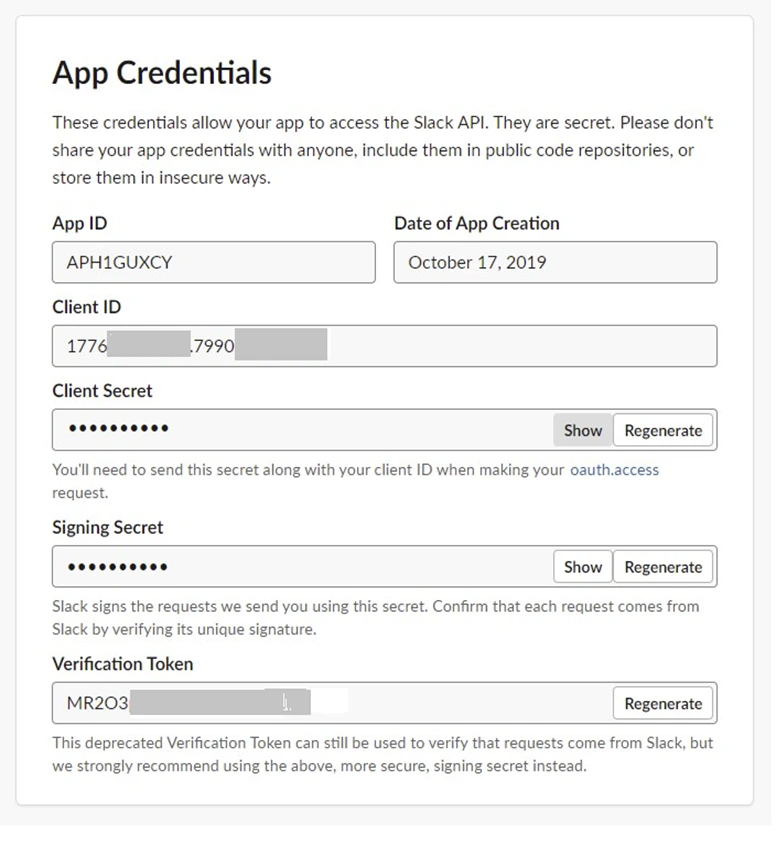
- Navigate to Basic Information and scroll down to the App Credentials section.
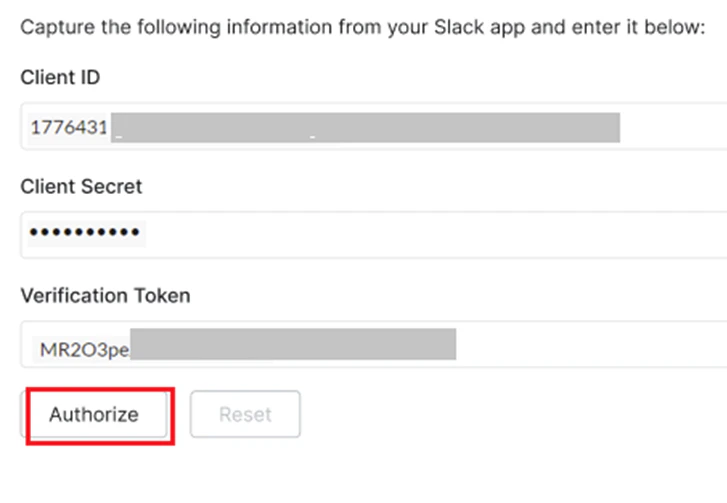
- Copy the values for Client ID, Client Secret, and Verification Token fields and provide them in the Configurations section of the Slack Channel on the Platform.
Step 8: Manage Distribution
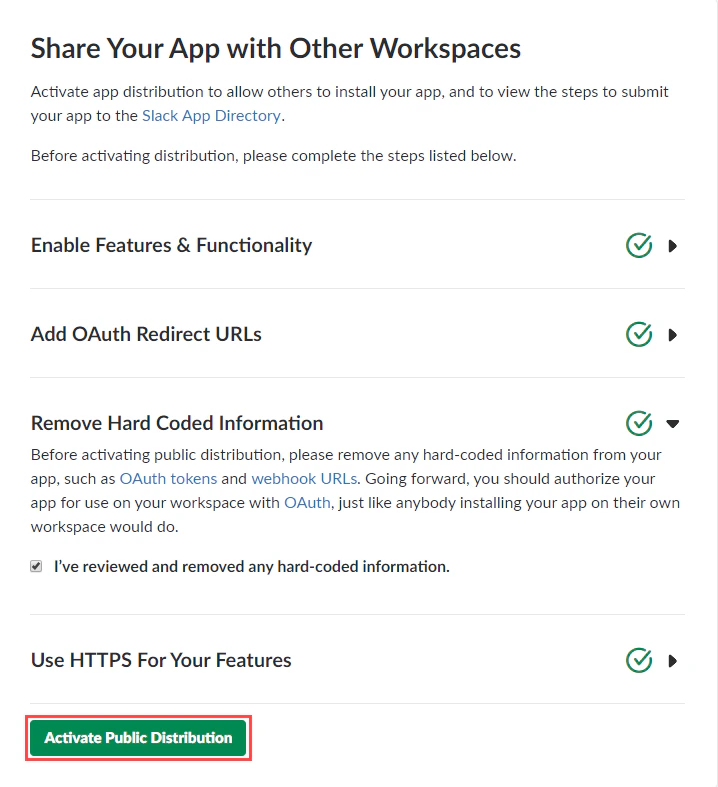
To enable the public distribution of your app on Slack, do the following:- Navigate to Manage Distribution and click Remove Hard Coded Information.
- Select I’ve reviewed and removed any hard-coded information and click Activate Public Distribution..
Step 9: Enable the Channel
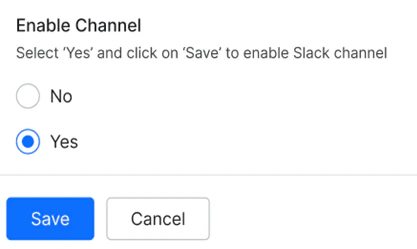
To enable Slack on the Platform, follow the steps below:- Navigate to Channels > Slack, and click the Configurations tab.
- Copy the below information and use it to define the app properties on Slack: