
Authorizing the Kore.ai Integration to Sunshine Conversations
To enable the integration, you need to provide authorization using your Zendesk credentials. Follow the steps below to complete the OAuth-based authorization:- Log into the Kore.ai XO Platform.
- Navigate to Channels & Flows > Channels > Digital > All > Sunshine Conversations Channel.
-
Click the Authorize button under Configurations on the Sunshine Conversations panel.
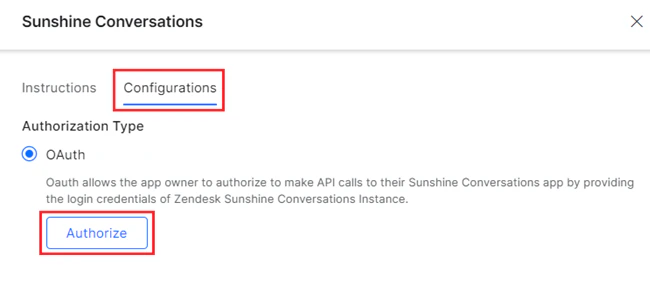
- On the Zendesk subdomain page, provide the subdomain and click Sign in.
- On the Zendesk sign-in page, provide your login credentials and click Sign in.
- After you have signed in successfully, a pop-up window will appear asking you to allow Kore.ai to access your Zendesk account. Click on Allow.
- Once the integration is created successfully, you’ll be redirected to the Kore.ai XO Platform to complete the channel enablement process.
Switchboard Integration for Agent Handoff
The Kore.ai XO Platform lets you hand off the conversation to your Zendesk agents via Zendesk Switchboard using the Agent Transfer node. The Switchboard Integration API is used to route the user’s conversations from Zendesk to the XO platform. This API has a pass control system to decide whether the conversation is to be routed to an AI Agent or a live agent. The Pass Control action is triggered as a part of the event where the conversation is switched to the App or the agent helpdesk, and also during conversation closure. Developers can define custom metadata to be sent with the existing metadata from the XO Platform to Zendesk. The additional metadata can also be used to create a Zendesk ticket. Capturing the Session Closure Metadata The Zendesk Sunshine Configuration flow lets you enable the Session Closure Metadata field to let Kore.ai capture the metadata and share it with Zendesk as part of the pass control event triggered when the conversation is transferred to the agent’s helpdesk, or when closing a conversation session. The metadata is captured using the key-value pair you provide during the configuration. However, providing the key and value inputs when you enable Session Closure Metadata is optional. For example: When you provideSessionKey as key and apikeyvalue as value, Kore.ai generates the field variable SessionKey.apikeyvalue to fetch the session API key and pass it to Zendesk as metadata.
Important Information on Session Closure Metadata
- The Platform does not trigger the session closure message when the Agent transfer is initiated, and the conversation is not handed over back to the platform again.
- When the Conversation is handed over to the Platform after the agent transfer, the session closure functionality works as usual.
- For all the new Apps or existing apps that do not have at least one SessionClosure metadata tag, the SessionClosure switch is turned off by default.
- For all the existing apps that have at least one SessionClosure metadata tag, the switch is turned on by default.
- The Platform introduces the KoreUtil.getSunshineConversationsMetadata function to let a App developer fetch the stored metadata (Get API operation), and use it for the following:
- Entities where JavaScript is supported like advanced messages for a prompt, script nodes, etc.
- Simple messages like plain text prompts.
- Any additional changes or updates to the channel configurations should go through the App Publish cycle.
Steps to Set up Agent Handoff
- Enable the Enable Agent Handoff option under Configurations in the Sunshine Conversations panel.
- From the Zendesk Admin Center, navigate to Apps & Integrations and click the Conversations API menu option to get your API Key and API Secret. Please get in touch with your Zendesk sales representative if you don’t see this menu.
-
Paste these values in their respective fields on the Kore.ai platform under Sunshine Conversations > Configurations > OAuth > Enable Agent Handoff section.
.png?fit=max&auto=format&n=EjC-WgEVZT1I9OIs&q=85&s=6163f7a436c36e47cca07be2342c01c7)
-
Click Configure for Switchboard Integration to set up the integrations available in your Sunshine Conversations account app.
.png?fit=max&auto=format&n=EjC-WgEVZT1I9OIs&q=85&s=b99e904910447be8d5a1e593d70145f9)
-
Select the required option for the following integrations in the Switchboard Configuration window:
- Default Switchboard Integration: Select the primary contact point for users in your Sunshine Conversations application.
- Next Switchboard Integration to Kore.ai: Select the next switchboard integration to which the control of an AI Agent conversation is passed from Kore.ai.
-
Next Switchboard Integration to Agent: Select the next switchboard integration to which control is transferred after an agent conversation with a user.
.png?fit=max&auto=format&n=EjC-WgEVZT1I9OIs&q=85&s=aad8db401920a41ae1d7ce2446e0f285)
- After selecting the above fields, click Done.
-
On the Zendesk Sunshine Configurations window, follow either step below to set Session Closure Metadata:
- Disable the toggle switch if you don’t want the Platform to pass the session metadata to Zendesk.
.png?fit=max&auto=format&n=EjC-WgEVZT1I9OIs&q=85&s=135bd5fa2bf8d5056f92d63a0fd77068)
- Enable SessionClosure Metadata, and do one of the following:
- Provide at least one Key and Value input (optional) to allow Kore.ai to capture the session metadata using the switchboard integration API and share it with Zendesk. Adding these parameters and saving the configuration will create a Zendesk ticket with the conversation details and close it.
.png?fit=max&auto=format&n=EjC-WgEVZT1I9OIs&q=85&s=9c0b088e9d957d8f1c4393b46ab3cd4e)
- Skip the Key-Value input and move to the next step. Not adding these parameters will create a Zendesk ticket with the conversation details but not close it.
- Provide at least one Key and Value input (optional) to allow Kore.ai to capture the session metadata using the switchboard integration API and share it with Zendesk. Adding these parameters and saving the configuration will create a Zendesk ticket with the conversation details and close it.
- Disable the toggle switch if you don’t want the Platform to pass the session metadata to Zendesk.
-
Select Yes for Enable Channel.
.png?fit=max&auto=format&n=EjC-WgEVZT1I9OIs&q=85&s=87acc959fc9dd092ef79c81453a0aa28)
- Click Save.
Templates Support
Sunshine Conversations templates are pre-defined structures you can use to send rich messages to users for consistent and engaging interactions on the XO Platform. Templates help create a set of “canned messages” or “agent saved replies,” which is especially useful for messages that are difficult to craft on the fly because they require external resources. To trigger various message templates, you must use a specific JavaScript format in the Bot Responses section of the Message Node in a Dialog Task. Below are the supported templates along with their sample code formats:-
Compound Message: Combines multiple elements like text, images, buttons, and quick replies to create an engaging and informative message. See example.
-
Carousel Message: Allows you to send a series of cards that users can swipe through. Each card can contain an image, title, subtitle, and buttons for further actions. See example .
-
File Message: Allows you to send a file to the user. This can be useful for sharing documents, PDFs, images, or other types of files. See example .
-
Form Message: Allows you to collect information from users through a structured form. This can include text fields, dropdown menus, radio buttons, and more. See example .
-
Quick Reply: Provides users with predefined response options that they can select with a single tap. This can streamline interactions and guide users towards specific actions. See example .
-
Location Request: Allows you to request the user’s location. This can be useful for services that require location information, such as finding the nearest store or providing location-based services. See example .