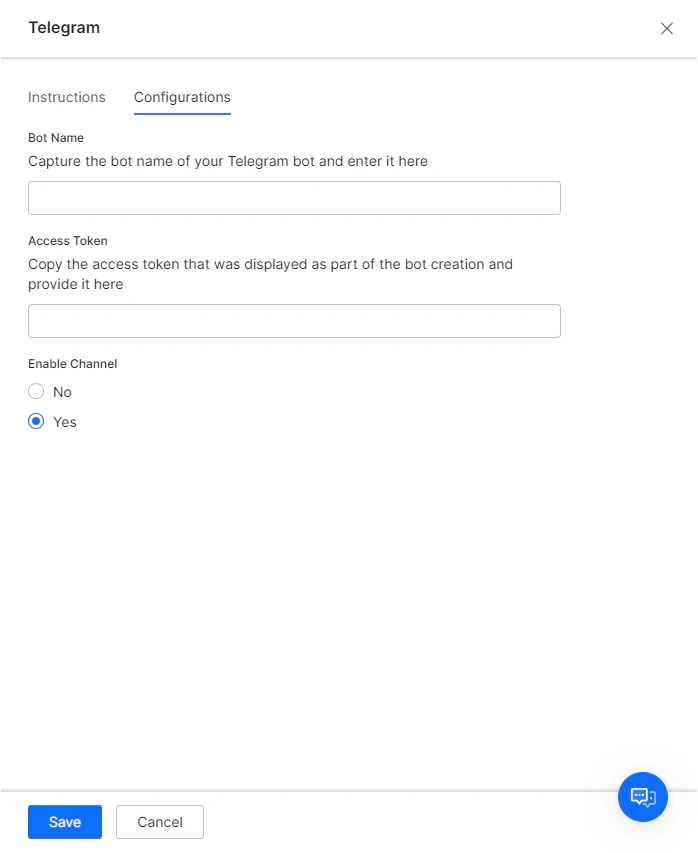
Step 1: Configure a Telegram Bot
-
Log into Telegram and search for @BotFather from the Search bar as shown below.
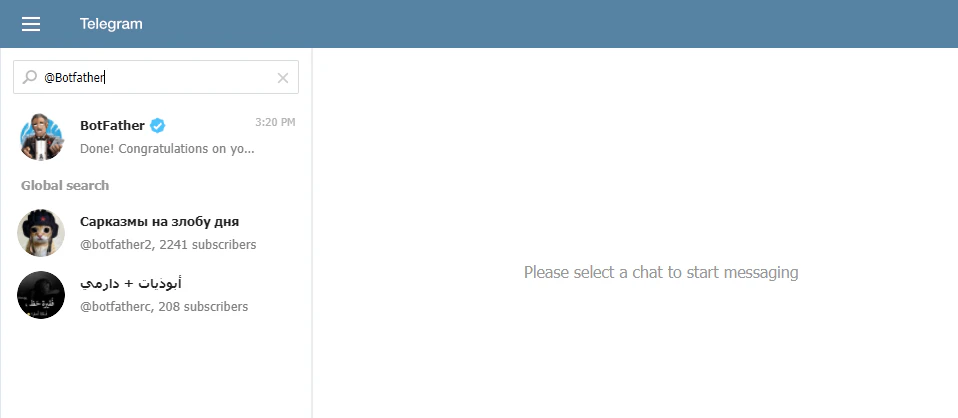
- Select @BotFather and click START.
-
In the chat section, type /newbot in the Message box and click Send.
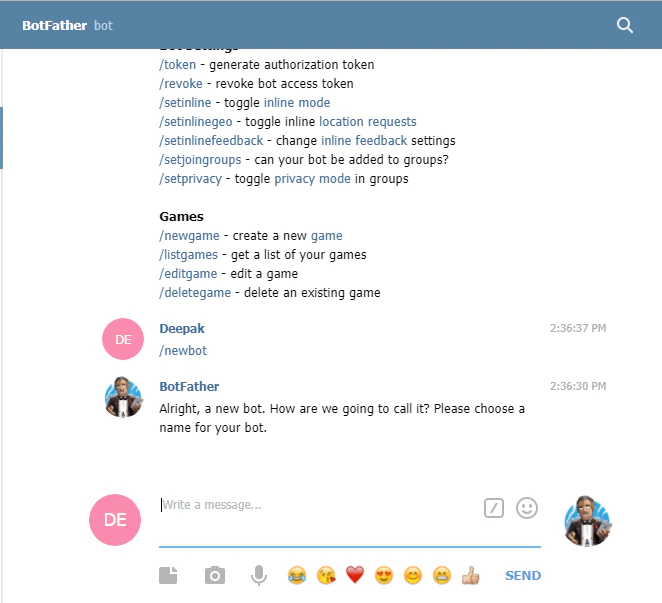
- On sending the_ /newbot_ message, BotFather prompts you to enter a Name for the new bot to be created. Preferably, give the same name as that of the Kore.ai assistant for which the channel is enabled.
-
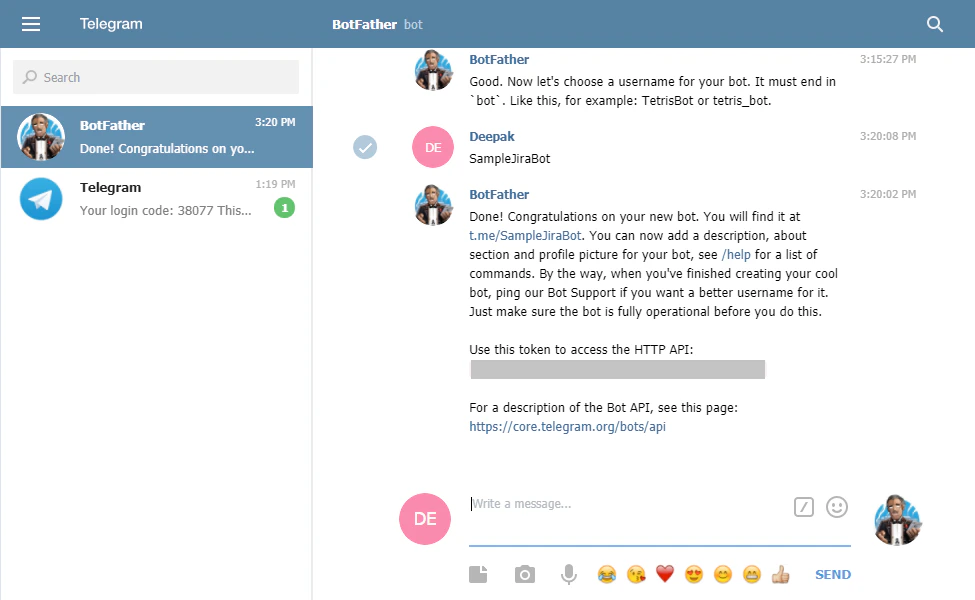
After providing the name, BotFather prompts for the Username for the new bot to be created. Provide any name that ends with bot. For example, sample bot or SampleBot.
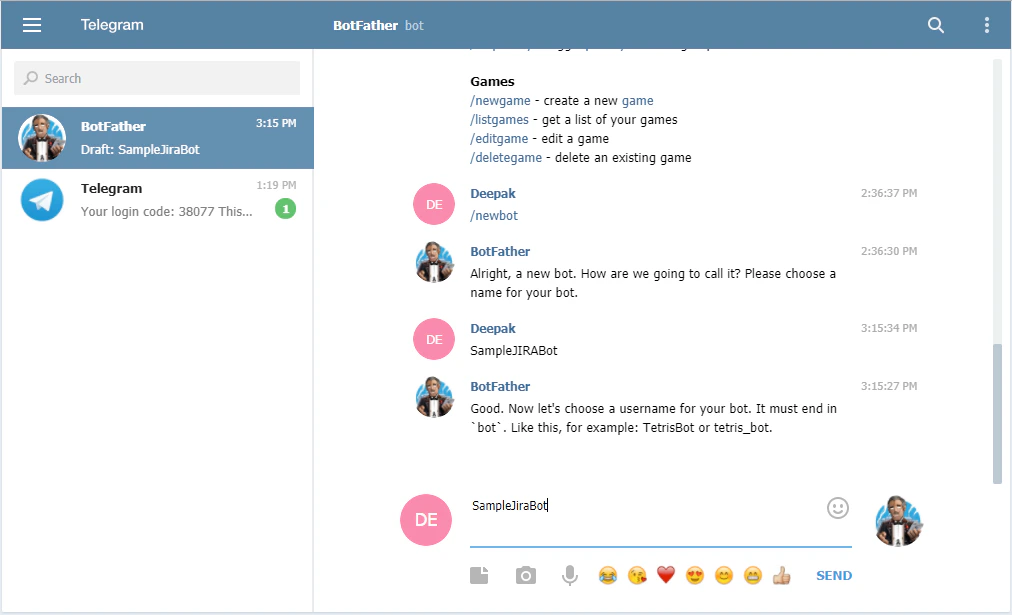
-
After providing the username, BotFather displays a confirmation message and access token. Note the access token to enter in the Configurations tab of the Telegram Channel page.
Step 2: Configure the Channel
- In the XO Platform, select the assistant that you want to enable the channel for.
- Go to Channels & Flows > Channels > Digital > All > Telegram.
- Go to the Configurations tab of the Telegram Channel page, enter the Bot Name of your Telegram bot in the Bot Name field.
- Enter the Access Token that was displayed as a part of bot creation.
- Select Yes and then click Save to enable the Telegram Channel for your bot.