
- Open the assistant to which you want to add the Widget SDK channel.
- Go to Channels & Flows > Channels > Digital > All > Widget SDK.
- Navigate to the Configurations tab.
-
In the Select App drop-down list, select your existing app or click Create App to create a new one.
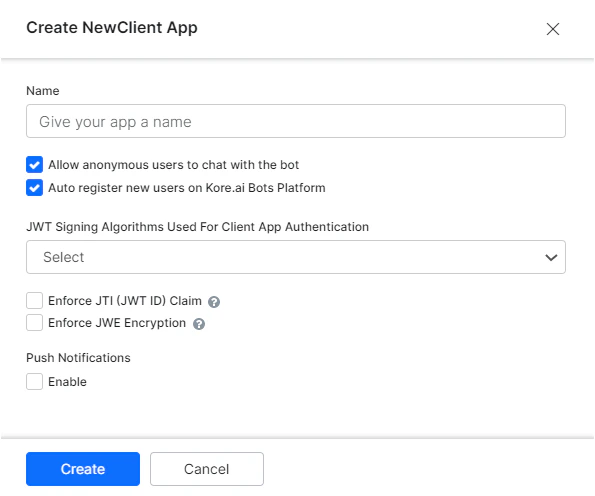
- In the Name field, enter the name for the app registration used in the XO Platform, for example, My App Registration.
-
Select one of these scopes for the app:
- Allow anonymous users to chat with the assistant: enables anonymous users to interact with the assistant.
- Auto register new users on Kore.ai XO Platform: Select to control the auto-user registration in Kore.ai if the user assertion is unknown.
-
In the JWT Signing Algorithms Used For Client App Authentication drop-down list, select one of the following security algorithms:
- RS256/RS512: Select to enable the Public Key. The Private key, used for encryption, is provided by the user, and the Public key, used for decryption, is provided by the Platform. Both the keys have to be used for generating the token. The Public Key is used by the XO Platform to authenticate the client application.
- HS256/HS512: Select to generate a Secret Key and a Client ID. The Client ID is required for app initialization, and the Secret Key is used by the XO Platform to authenticate the client application.
- Optionally, In the Push Notifications section, click Enable and then specify a URL to send the notifications to.
-
Click Create. The app registration details appear.
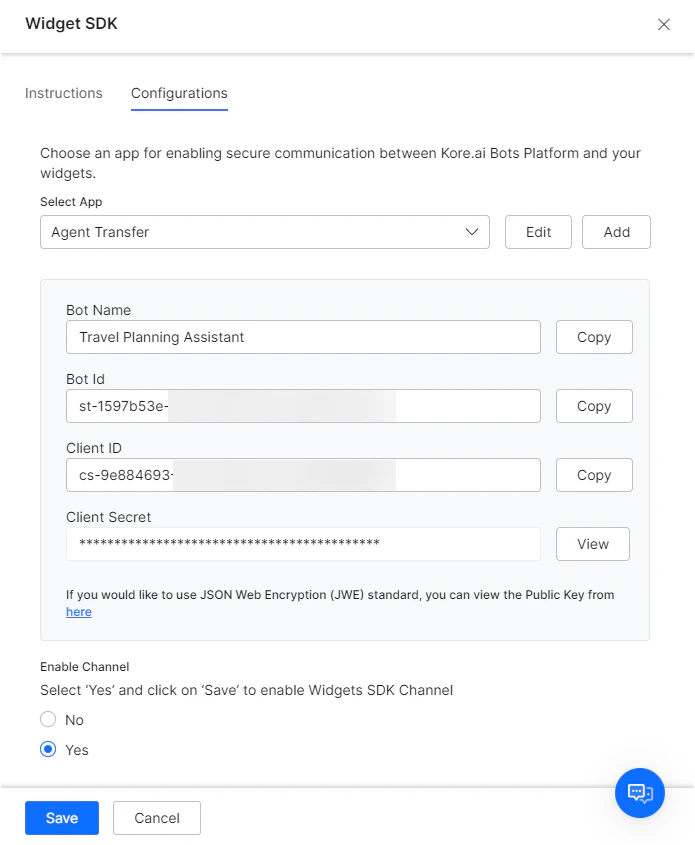
- To copy the app registration details to the clipboard for your application, you can click Copy for Bot Name, Bot ID, and Client ID. For Client Secret, click View, and then click Copy.
- In the Enable Channel section, select Yes to enable the channel immediately after saving.
- Click Save to save the settings and close the Widget SDK Channel page.
Adding the Widget SDK Channel
The Widgets SDK channel allows you to host widgets for presenting information from your assistant and enabling interaction with end-users.
To add the Widget SDK Channel, you must first register, or create an app in the XO Platform. When you create an app, you are provisioning credentials for your application to communicate securely with Kore.ai servers. After you create an app, you can use that app registration in the configuration to add the Widget SDK Channel.
To add the Widget SDK channel