

Filters
Use the language and date range filters to refine the data displayed. The dashboard shows only evaluations performed in the selected languages.Evaluation Details
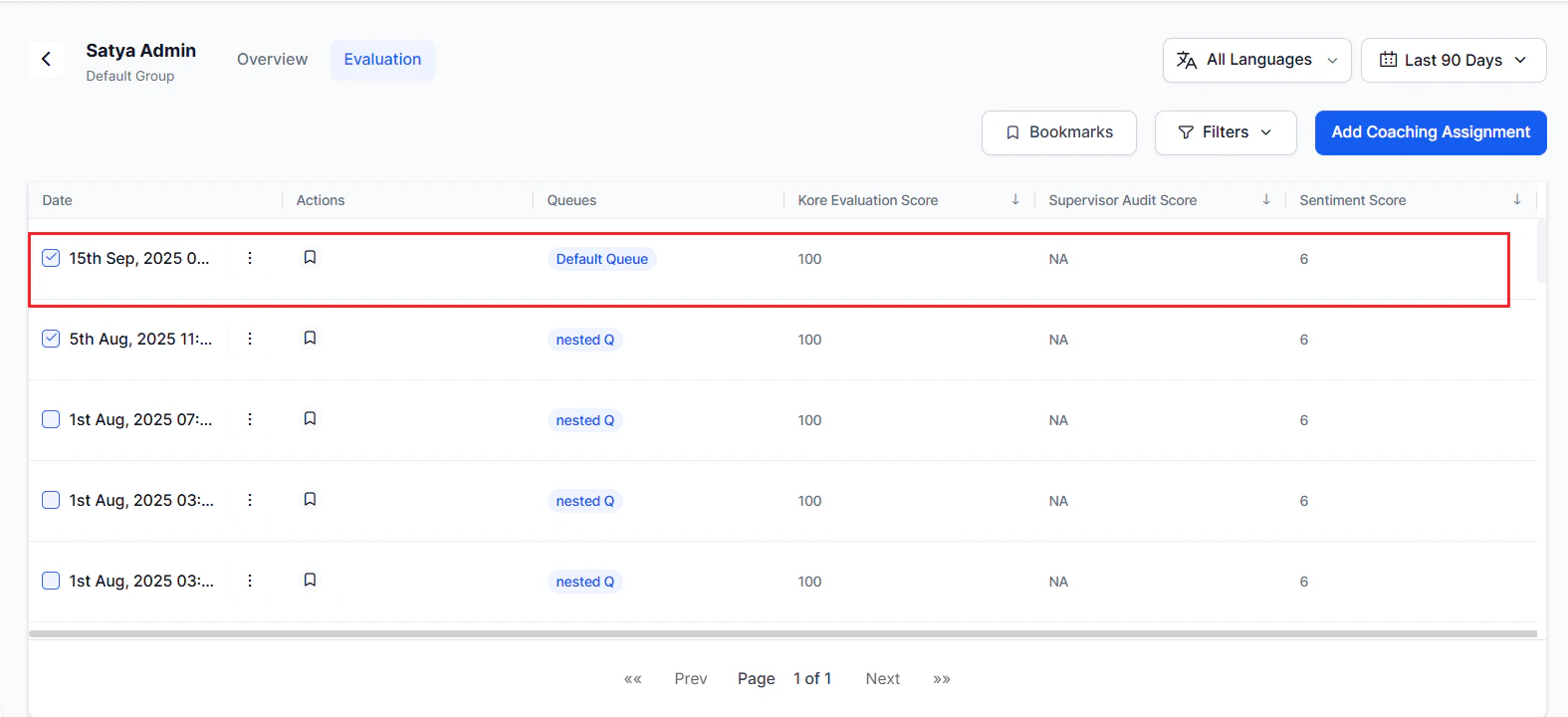
The Evaluation tab includes the following columns:| Column | Description |
|---|---|
| Date | Date and time when the interaction started. |
| Actions (Bookmark) | Bookmarks assigned to the interaction, which you can filter and use for coaching. |
| Queues | The queue where the interaction was completed and its origin. |
| Kore Evaluation Score | Auto QA score for the interaction based on the evaluation form. |
| Supervisor Audit Score | Score assigned when a supervisor manually audits the interaction. |
| Sentiment Score | System-generated sentiment score based on the customer’s statements. |
| Date Range Selection | Lets you select a date range; defaults to the last 7 days. |
| Bookmarks | Filters to show only the agent’s interactions that a supervisor has bookmarked for coaching. |
| Filters | Filters audited interactions by agent for the selected date range. |
| Filter | Description |
|---|---|
| Queues | Filters interactions by queue. |
| Audit Status | Filters audited and unaudited interactions individually. |
| Filter Interactions | Displays the total number of filtered interactions. |

Create a Coaching Assignment
Supervisors can select one or more interactions where an agent’s performance needs improvement and create a targeted coaching session. Selecting multiple interactions helps address recurring issues or patterns.Steps
-
Select one or more interactions. The Add Coaching Assignments screen appears.
-
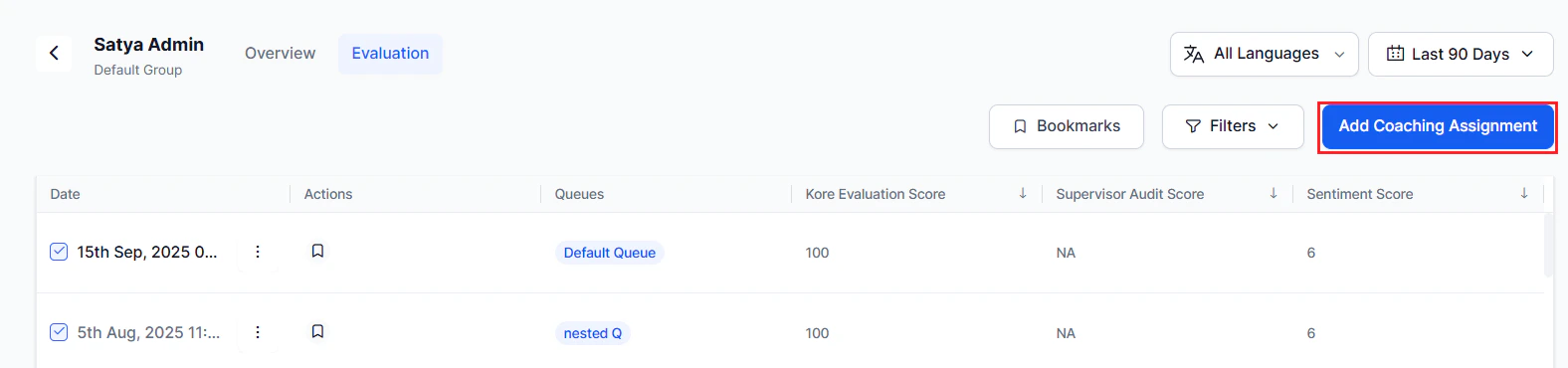
Select Add Coaching Assignment.
-
Enter a Name for the coaching assignment.

-
In Coaching Area, select the required areas for improvement, then select Add.

-
The Interactions Marked for Coaching section auto-populates with the interactions you selected from the Evaluation tab.

-
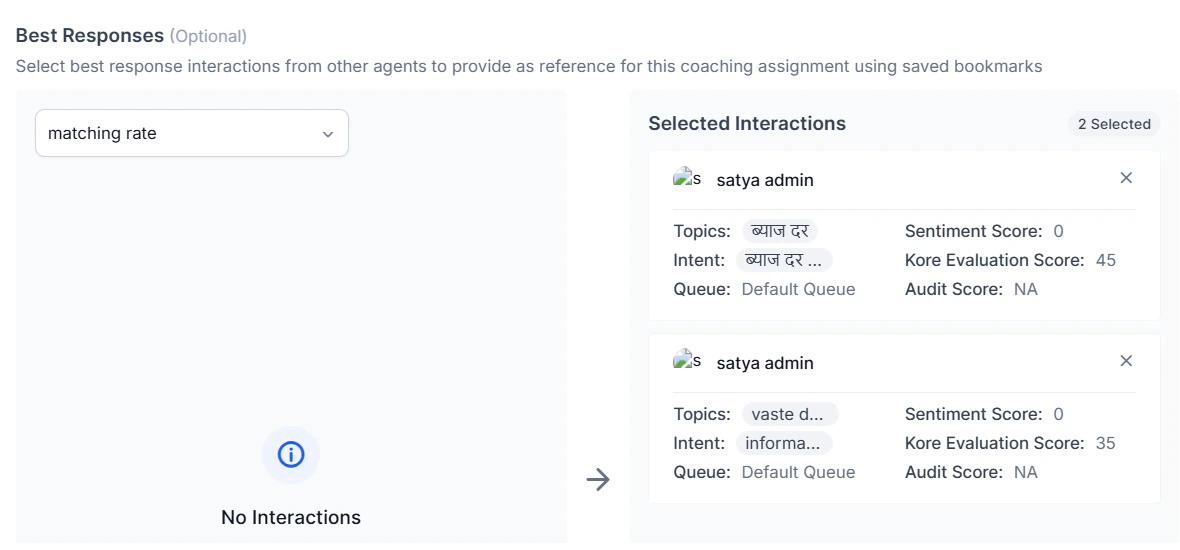
Under Best Responses (optional), add reference interactions from other agents using saved bookmarks.
 You can select more than one bookmark based on the evaluation criteria. For example, one set for the support queue and another for best responses.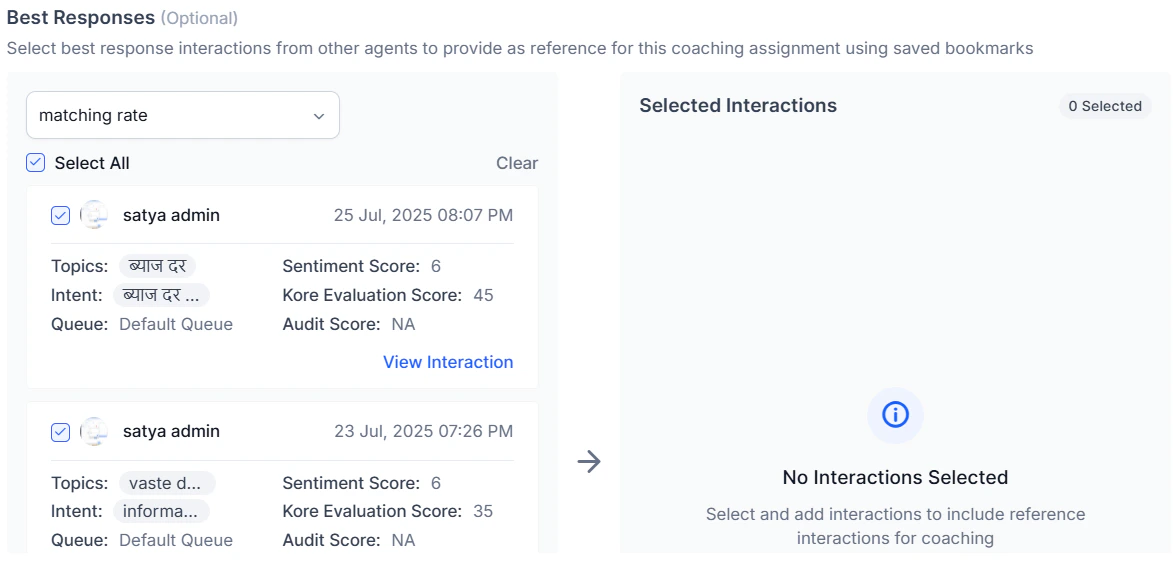
-
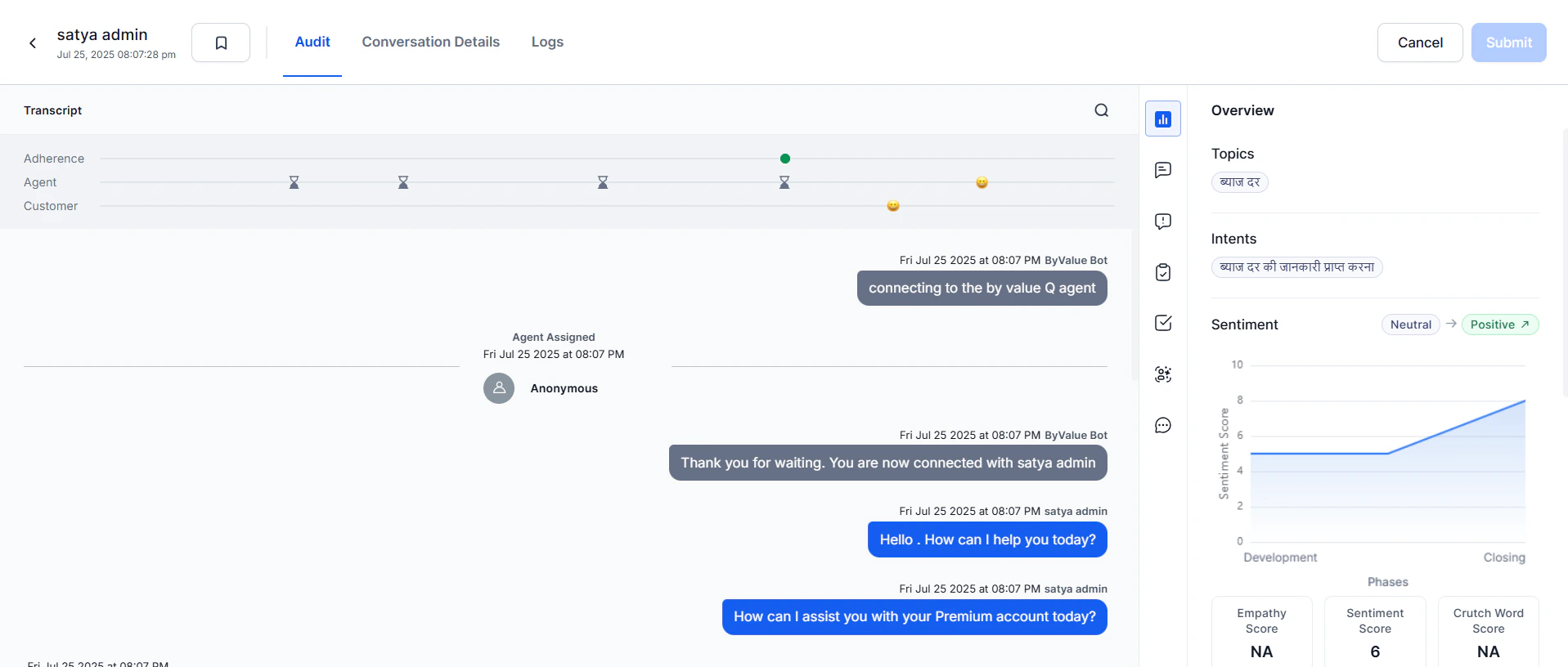
Select View Interactions to review an interaction in the AI-Audit screen before adding it.
-
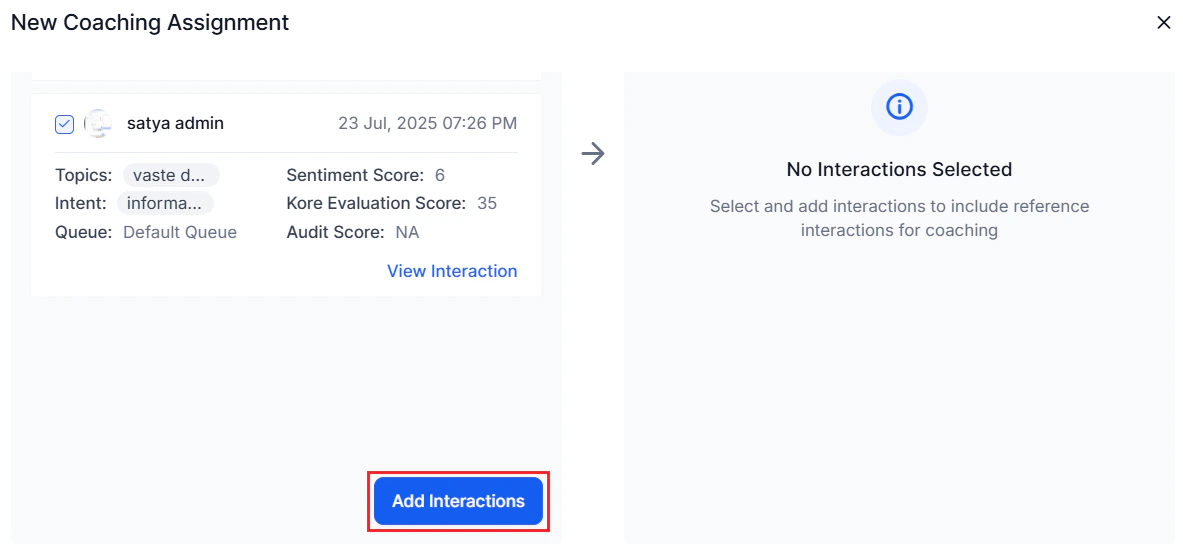
Select Add Interactions to choose best-response examples from other agents using saved bookmarks.
-
Select the required interactions, then select Add Interaction to move them to the Selected Interactions box.
-
In Feedback, enter your assessment — strengths and areas for improvement.

-
Enter the Action Plan — concrete steps for the agent to improve.

-
Set the Follow-up Date for the coaching review.

- Select Create. The assignment appears in the agent’s dashboard.