
| Permission Level | Tabs Available |
|---|---|
| With allocation creation permission | My Allocations and Assigned to Me |
| Without allocation creation permission | Assigned to Me only |
My Allocations
The My Allocations tab is the central dashboard for managing all audit assignments you’ve created. It provides complete visibility into allocation status, completion progress, and auditor assignments. Navigate to Quality AI > ANALYZE > Allocations > My Allocations.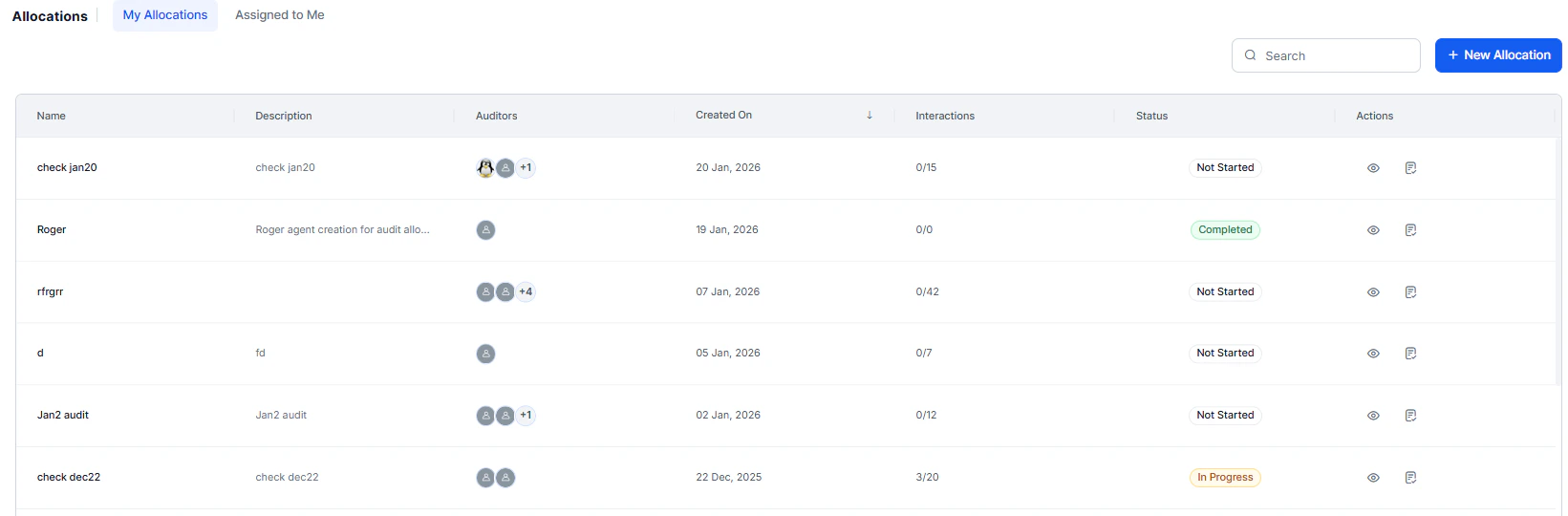
Allocation Overview
| Column | Description |
|---|---|
| Name | Allocation identifier you created. |
| Description | Description for the allocation. |
| Auditor | List of auditors assigned. |
| Created On | Date of creation. |
| Interaction | Number of interactions. |
| Status | Overall state (Completed or In Progress). |
| Actions | Management options: View Logic and Edit. |
View Logic
Reveals the complete configuration behind an allocation — helpful for understanding its composition and replicating successful audit strategies.
| Field | Description |
|---|---|
| Date Range | Date range for selected interactions. |
| Evaluation Form | Form template used for evaluating interactions. |
| Languages | Language filters applied. |
| Queues | Selected queues or all queues. |
| Agents/Agent Groups | Specific agents or groups included. |
| Allocation Type | Random or Custom. |
| Channel Settings | Voice, Chat, or both. |
| Assignment Logic | Percentage-based or fixed interaction count per agent. |
| Custom Filters | Applied filters for custom allocations. |
Edit Allocation
Use Edit to redistribute pending interactions without disrupting completed work — especially when auditor availability changes. When to use Edit:- Reassign interactions from auditors on leave or unavailable.
- Balance workload when some auditors finish faster than others.
- Add new auditors to help complete an allocation.
- Update the allocation name or description.
- Select Edit from the Actions menu.
- Update Name or Description if needed.
-
Review current auditor assignments, which show:
- Auditor name
- Total interactions assigned
- Completed count
- Pending count
- Select the auditors to reassign interactions from (only pending interactions can be reassigned).
-
Choose a reassignment option:
Option Description Redistribute Among Existing Auditors Assign pending interactions to auditors already in this allocation. Add New Auditors Include additional team members to help complete the allocation. - Enter the allocation percentage for each auditor receiving redistributed interactions. The system calculates interaction counts automatically.
- Select Update to apply changes.
Create New Allocation
Select New Audit Allocation to start the three-step creation process: Settings, Allocation, and Assignment. For details, see Creating Audit Allocations.Assigned to Me
The Assigned to Me tab shows all interactions that managers or supervisors have assigned to you for manual evaluation.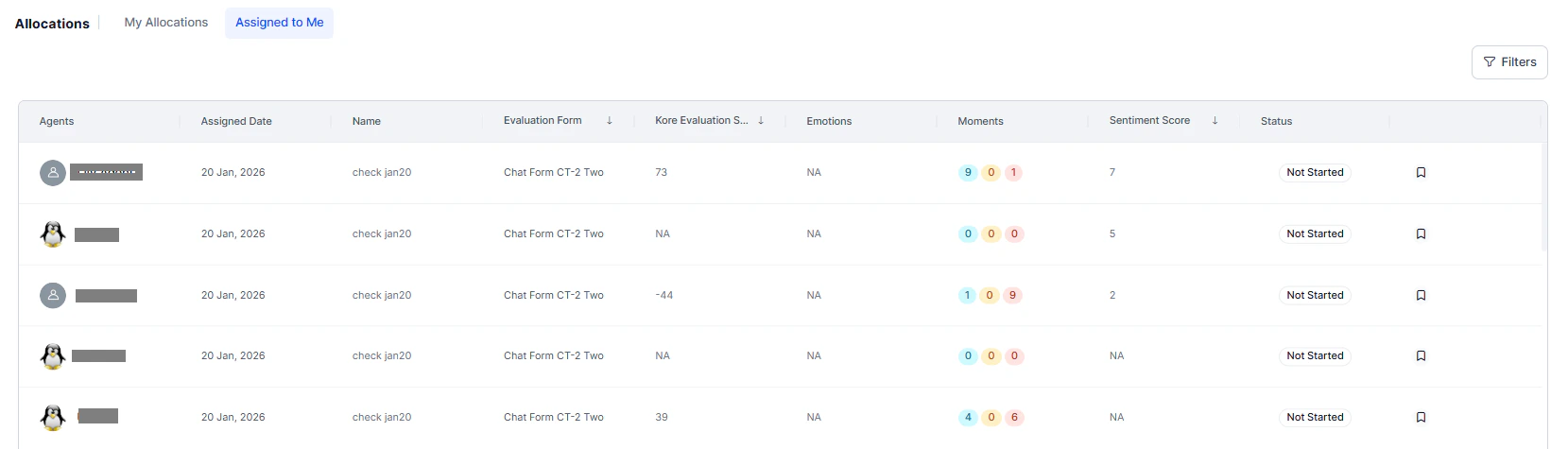
Interaction List
| Column | Description |
|---|---|
| Name | Allocation name. |
| Agent | Agent who handled the interaction. |
| Assigned Date | Date the allocation was created. |
| Evaluation Form | Form to use for evaluation. |
| Kore Evaluation Score | Auto QA score, if available. |
| Emotions | Detected customer emotions (for example, frustrated, satisfied, neutral). |
| Moments | Key moments identified (for example, escalation points, resolution moments). |
| Sentiment Score | Overall sentiment analysis (positive, negative, or neutral with numerical score). |
Filter and Search
Use Filters to narrow your assigned interactions:| Filter | Description |
|---|---|
| Allocation Name | Filter by specific allocation names using the search dropdown. |
| Date Range | Focus on interactions from specific time periods. |
| Agent | View interactions for specific agents. |
| Queue | Filter by queue assignments. |
| Evaluation Form | See interactions using specific forms. |
Evaluation Workflow
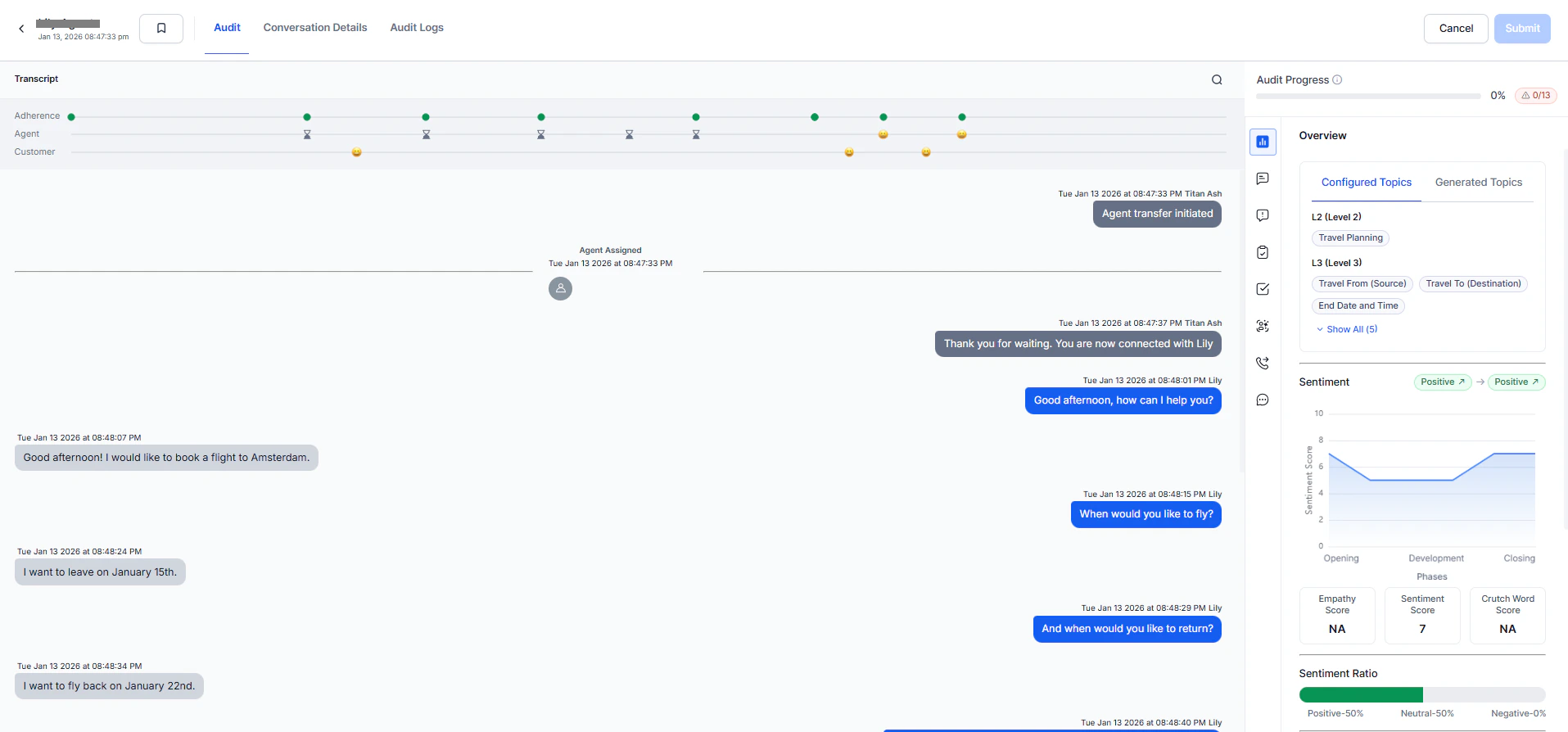
- Select Evaluate for an interaction to open the full conversation view.
- Review the complete interaction with all available context:
- Customer-agent conversation flow
- Interaction metadata (duration, channel, queue)
- Auto QA scores and insights
- Topic identification and sentiment analysis
- Use the assigned Evaluation Form to score each criterion.
- Save your evaluation when complete.
- The interaction is automatically removed from your Assigned to Me list after submission.