
- Conversation Intelligence
- Quality AI General Settings
- Language Settings
Conversation Intelligence
Conversation Intelligence extracts insights from customer interactions across voice and chat channels. It captures spoken and written conversation data, matches it with interaction metadata, and analyzes customer sentiment to surface needs, opinions, and expectations. Navigate to Quality AI > CONFIGURE > Settings > Conversation Intelligence.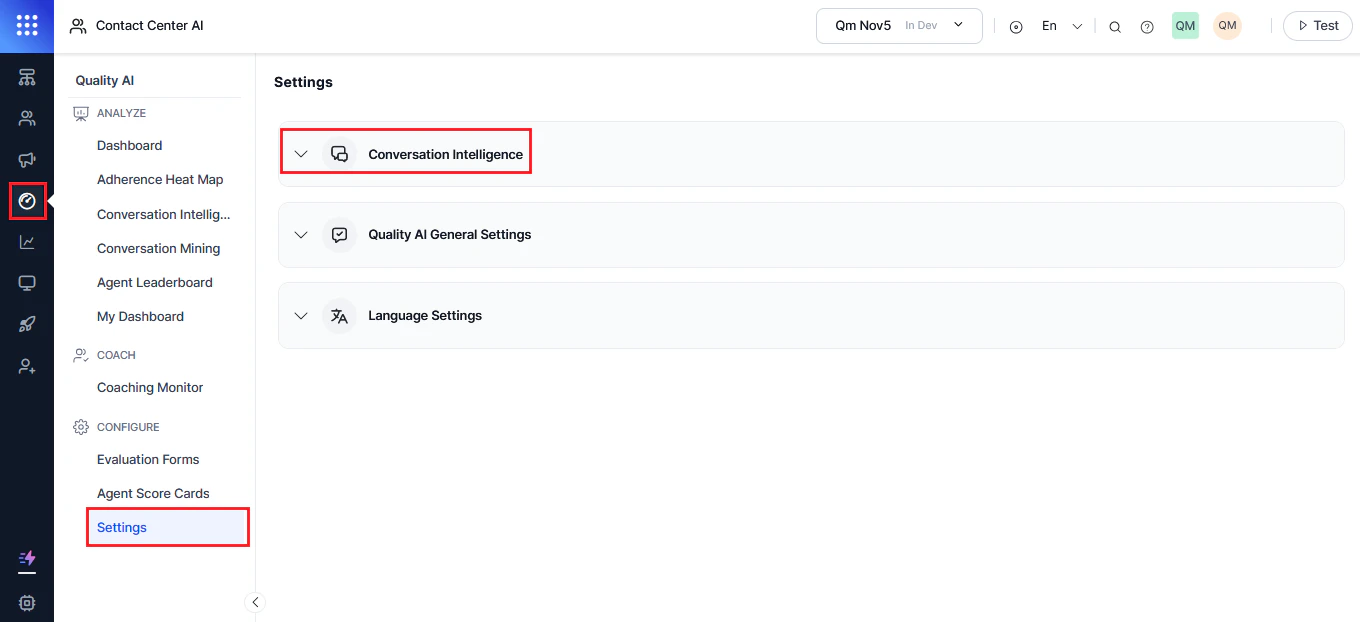
Enable Conversation Intelligence
Users cannot view Conversation Intelligence Dashboard details until an administrator configures the settings. Permissions are based on user and agent roles.
-
Expand the Conversation Intelligence section.
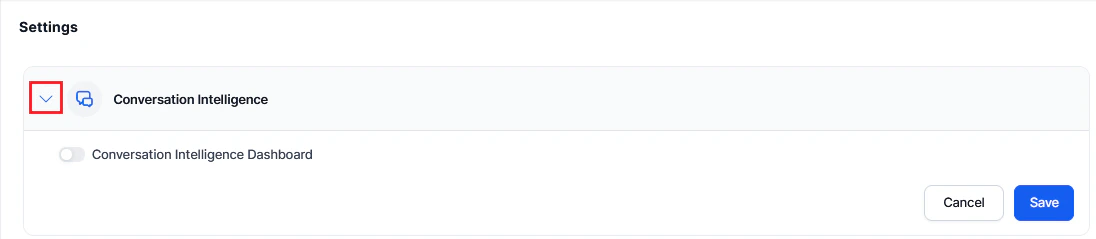
-
Enable the Conversation Intelligence Dashboard toggle.
 Enabling this option makes the Conversation Intelligence feature visible under the Analyze section.
Interaction-Level Resolution Detection
This setting defines how the system determines resolution across all conversations. The method you select applies organization-wide and affects dashboards, reports, and agent metrics.Method 1: Topic-Based Resolution (Strict)
The system marks a contact as resolved only when all L3 topics in a conversation are resolved. When to use:- All issues in a conversation must be resolved, including minor ones.
- Quality standards require complete issue closure.
- Compliance mandates full resolution tracking.
- Navigate to Settings > Conversation Intelligence.
- Select Topic-Based Resolution (Strict).
- Select Save.
Method 2: Overall Contact Level Resolution (Holistic Assessment)
The system uses an LLM to assess whether the customer’s primary reason for contact was resolved, even if minor secondary issues remain. When to use:- Primary and secondary issues should be weighted differently.
- Agent performance should reflect resolution of the main customer concern.
- Minor mentions should not affect resolution metrics.
- Navigate to Settings > Conversation Intelligence.
- Select Overall Contact Level Resolution (Holistic Resolution Assessment).
- Select Save.
- Navigate to Quality AI > Configure > Taxonomy Builder.
- Open the Resolution tab.
- Configure Successful, Unsuccessful, and Overall Resolution descriptions.
-
Select Save.
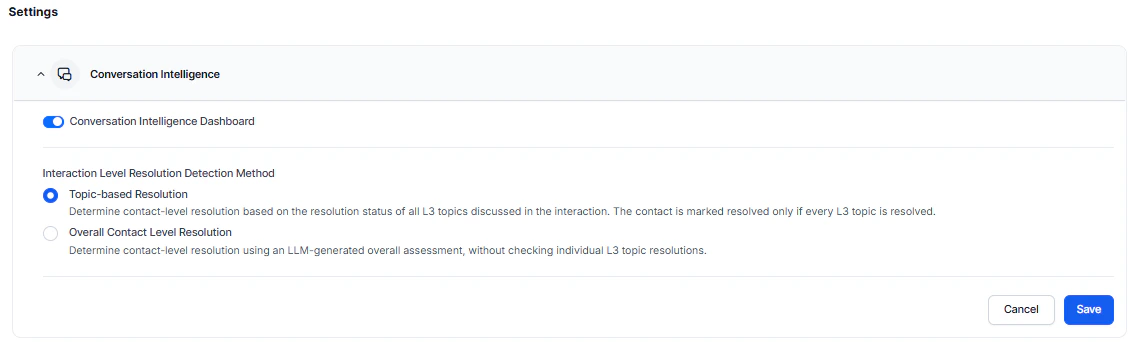
This setting applies to all taxonomies, queues, and agents. Changing the resolution method affects all historical data interpretation, dashboards, reports, and agent performance metrics.
Settings vs. Taxonomy Configuration
| Level | Scope | Who Configures |
|---|---|---|
| Settings (Application level) | Defines the global resolution detection method, applies organization-wide | Administrator |
| Taxonomy Builder (Taxonomy level) | Defines topic structures, resolution criteria, and holistic assessment descriptions | Administrator |
Disable Conversation Intelligence
-
Toggle off Conversation Intelligence Dashboard.
 Disabling Conversation Intelligence hides all related insights — contact center efficiency, agent efficacy, and customer experience data — across the application.
 -
Select Confirm.
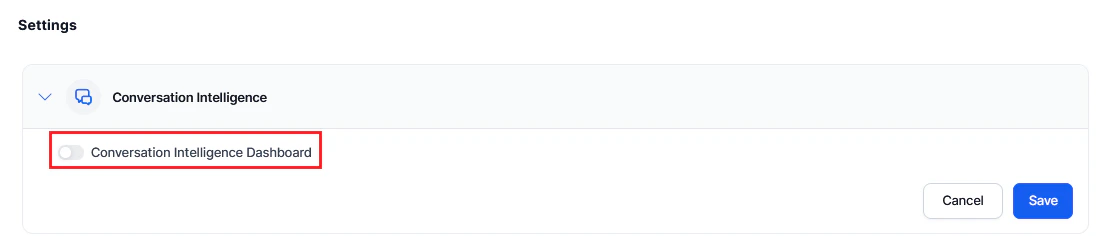
- Select Save.
Script Adherence Configuration
Script Adherence lets you define custom messages for each step of a conversation script. When enabled, the system checks agent adherence against your custom messages instead of the default generic script.Enable Script Adherence
-
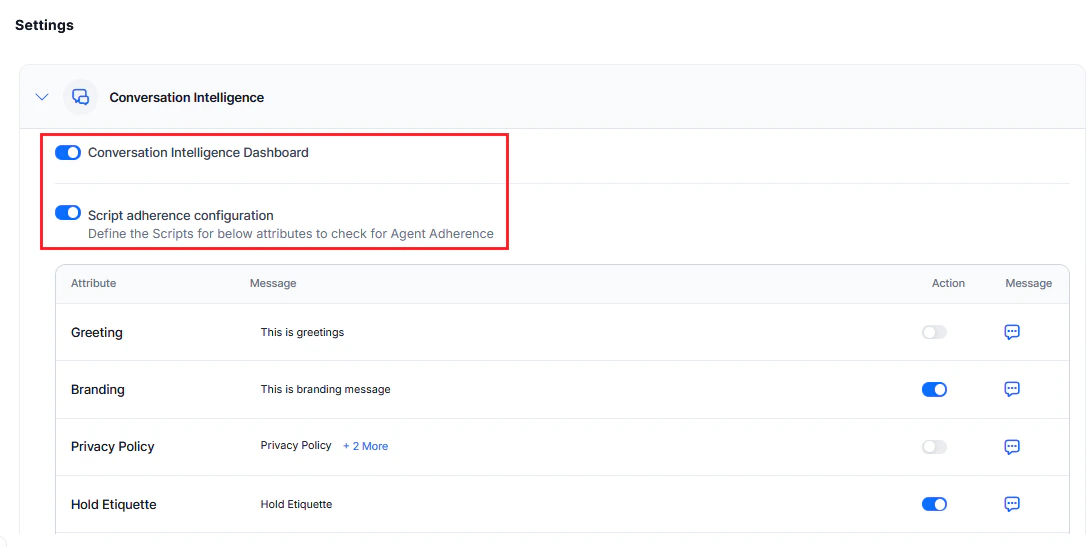
Expand Conversation Intelligence, enable the Conversation Intelligence Dashboard toggle, then enable Script Adherence Configuration.
-
Configure messages for each script attribute:
Field Description Attribute Script step (for example, Greeting, Branding) Action Toggle on to enable custom messages for that step Message Custom message agents should follow for that step  If you enable the message toggle for an attribute, you must enter a message before saving. A warning appears if the field is left empty. Save each attribute before moving to the next.
 - Select Save.
- Conversation Intelligence Dashboard — post-interaction analytics including brand tags, greetings, questions, emotions, and interactions.
- Script Adherence — the custom messages or scripts defined by the supervisor or administrator.