Why Use This Metric
Configuring By Dialog Task metrics lets you:- Audit performance at the entire playbook level or drill down into specific steps.
- Set adherence thresholds to flag unacceptable variances.
- Improve agent performance and customer experience continuously.
- Identify training or coaching needs based on non-compliance behaviors.
- Ensure consistency across agents and communication channels.
- Support regulatory and procedural compliance in regulated industries.
- Configure time-bound evaluation windows for timely feedback.
Use Cases
| Use Case | Description |
|---|---|
| Compliance Monitoring | Evaluate mandatory process steps in regulated industries (finance, telecom) |
| Onboarding and Escalation Flows | Help new agents follow onboarding scripts or escalation workflows |
| Quality Assurance Reviews | Audit specific conversation parts (greetings, disclaimers, closings) |
| Training Needs Analysis | Identify agents or teams that frequently deviate from prescribed scripts |
| Performance Benchmarking | Compare adherence scores across agents, shifts, or teams |
| Customer Experience Improvement | Detect and correct deviations that affect customer satisfaction |
Prerequisites
Before configuring By Dialog Task metrics, confirm:- Playbooks or dialog tasks exist — define dialog tasks or playbooks before creating this metric.
- Configuration access — you must have permissions to access Quality AI > Configure > Evaluation Metrics.
- Evaluation forms defined — if you plan to use metrics in forms, configure forms beforehand.
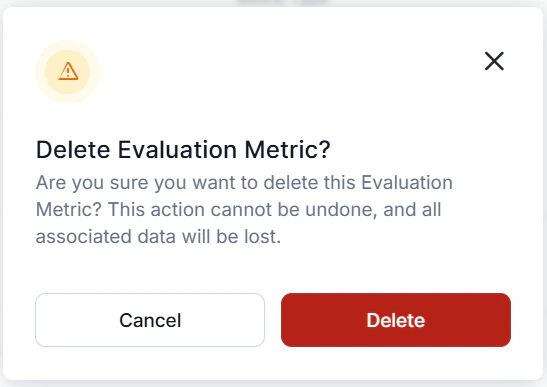
- No active dependencies for deletion — metrics linked to active evaluation forms or attributes cannot be deleted. Reassign or remove dependencies first.
- Clear evaluation criteria — choose the correct Measurement Type (Entire Conversation or Time Bound). For time-bound analysis, define boundaries in seconds (Voice) or message counts (Chat).
Configure By Dialog Task Metric
- Navigate to Quality AI > Configure > Evaluation Forms > Evaluation Metrics.
- Select + New Evaluation Metric.
-
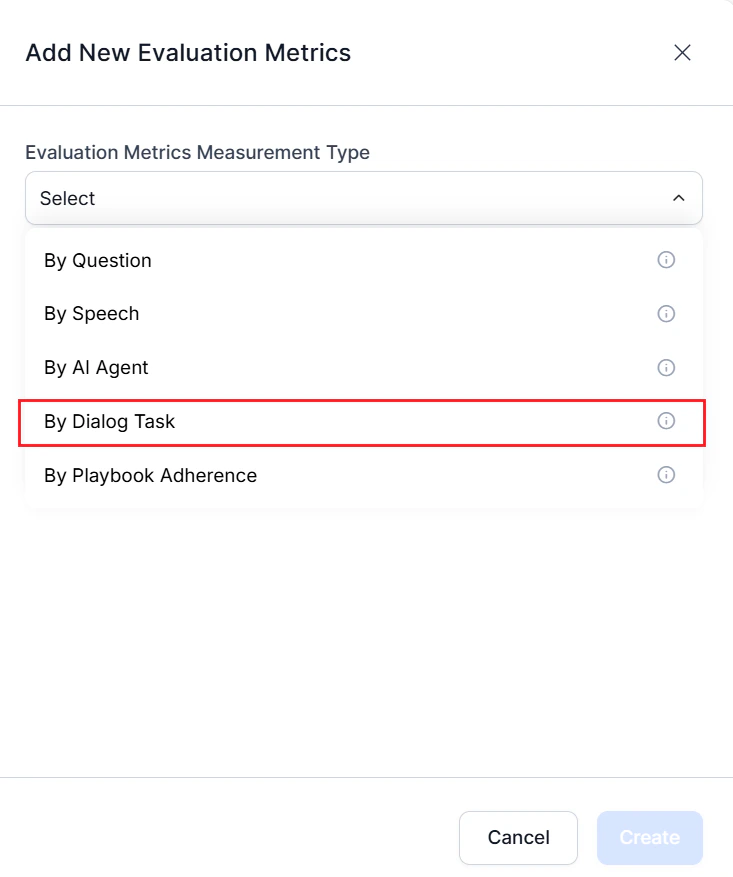
From the Evaluation Metrics Measurement Type dropdown, select By Dialog Task.
-
Enter a descriptive Name for future reference.
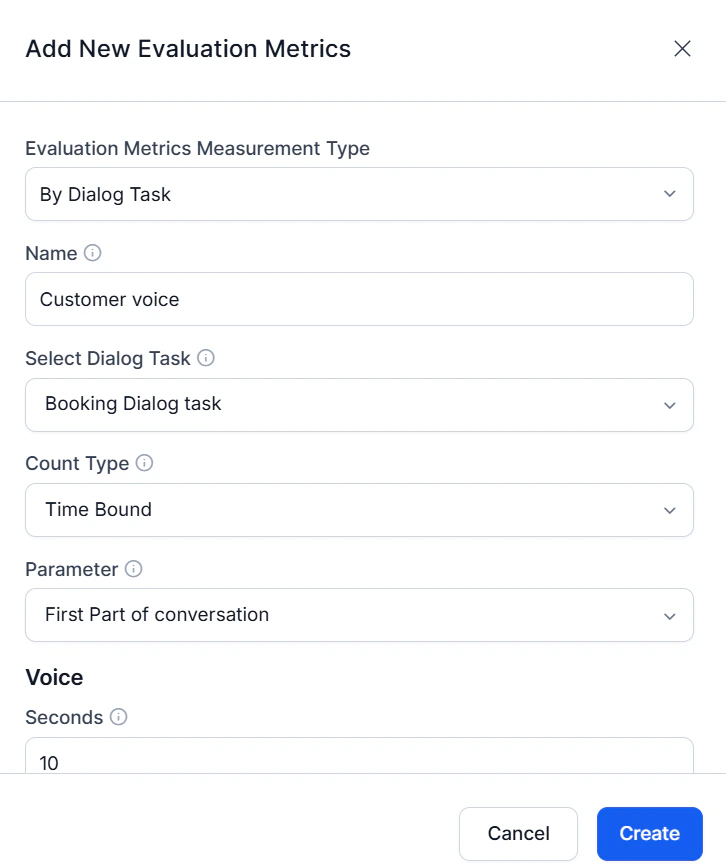
- Select a Dialog Agent from the dropdown.
-
Select a Count Type:
For Time Bound, configure:
Option Description Entire Conversation Checks adherence throughout the entire interaction Time Bound Checks adherence within a specific time range or message count - Parameter — select First Part or Last Part of the conversation.
- Voice — enter the number of seconds from the start or end.
- Chat — enter the number of messages from the start or end.
- Select Create.
Edit or Delete By Dialog Task Metric
-
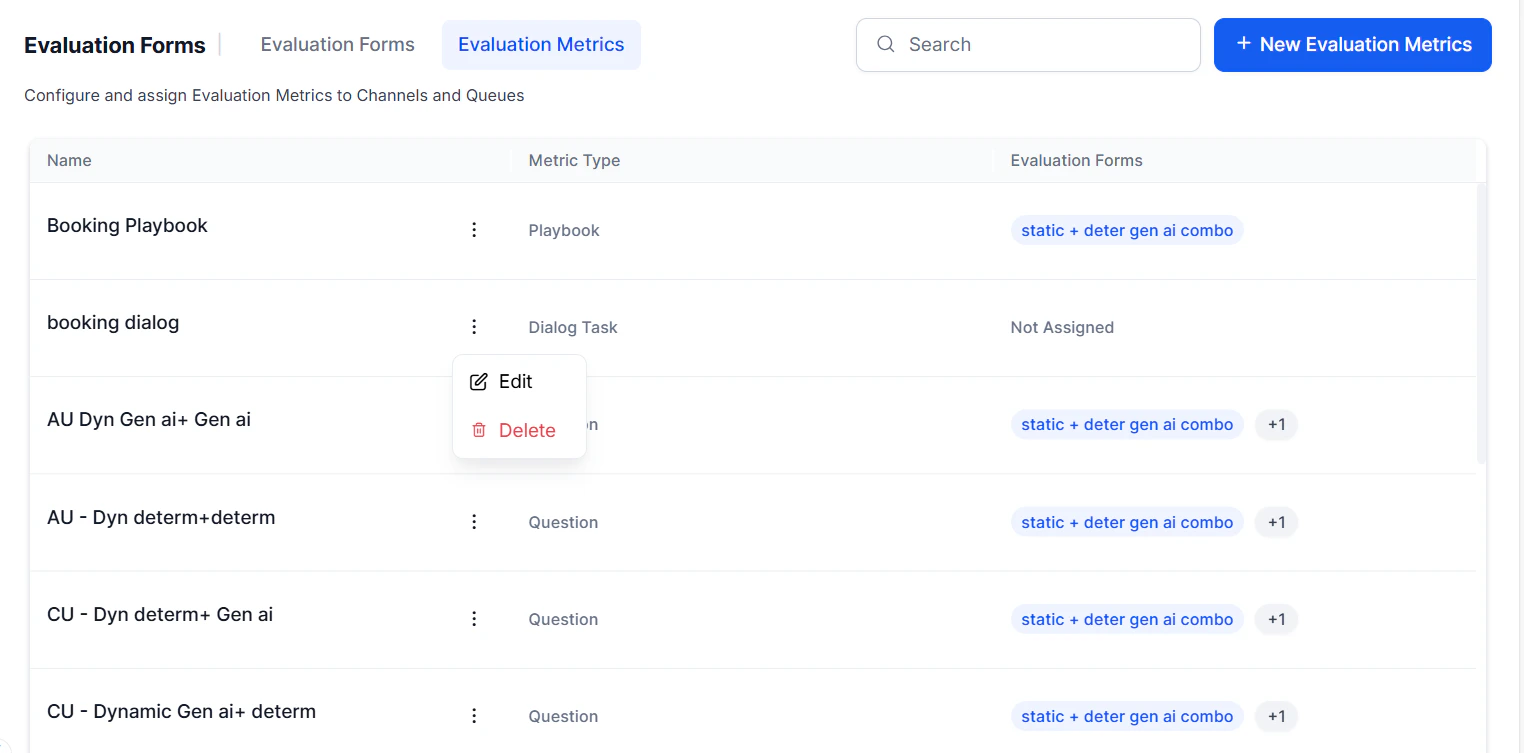
Select the By Dialog Task metric in the evaluation metrics list.
-
Select the option:
-
Edit to modify the metric.
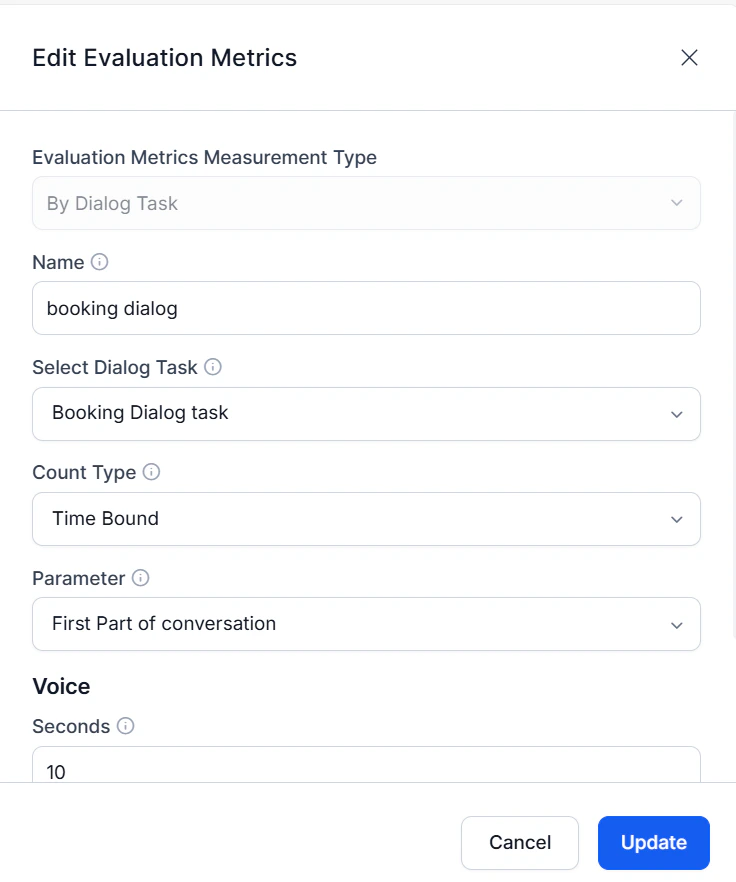
- Delete to remove the metric.
-
Edit to modify the metric.
- Select Update to save changes.
Deletion Requirements
Before deleting a metric:- Remove it from all associated evaluation forms.
- Reassign any linked attributes to a different metric.
- The system allows deletion only after all dependencies are resolved.