
When to Use This Metric
Use speech evaluation metrics when you need to:- Monitor and evaluate agent behavior based on voice characteristics.
- Detect issues such as Crosstalk (overlapping speech), Dead Air, or Speaking Rate Violation.
- Enable automated, unbiased quality scoring across voice interactions.
- Identify coaching and training opportunities for agents.
- Improve customer experience and operational efficiency.
- Analyze speaking patterns and interaction trends.
Prerequisites
- Admin or configuration permissions
- Agent attribute definitions created
- Evaluation forms available or in draft state
- Speech data available for Quality AI analysis
Configure By Speech Metric
- Navigate to Quality AI > Configure > Evaluation Forms > Evaluation Metrics.
- Select + New Evaluation Metric.
-
From the Evaluation Metrics Measurement Type dropdown, select By Speech.
 Assign each metric to a single agent attribute for evaluation.
 - Enter a descriptive Name for auditing and reporting.
-
Select and configure one of the Speech Type options:
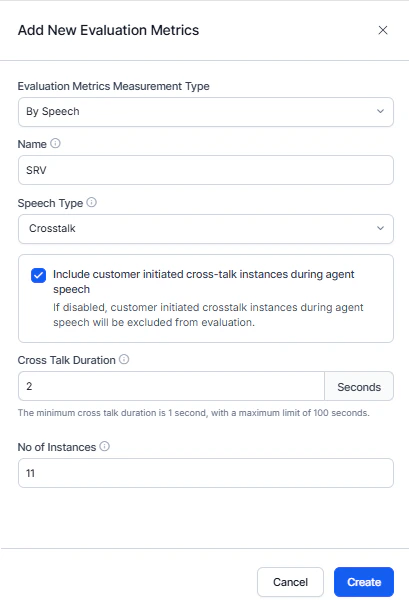
Crosstalk
Tracks simultaneous agent–customer speech.- Configure overlap duration, maximum instances, and instance control (agent-only or both).
- The metric passes when instances stay within the set limit; exceeding the limit fails the metric.
Dead Air
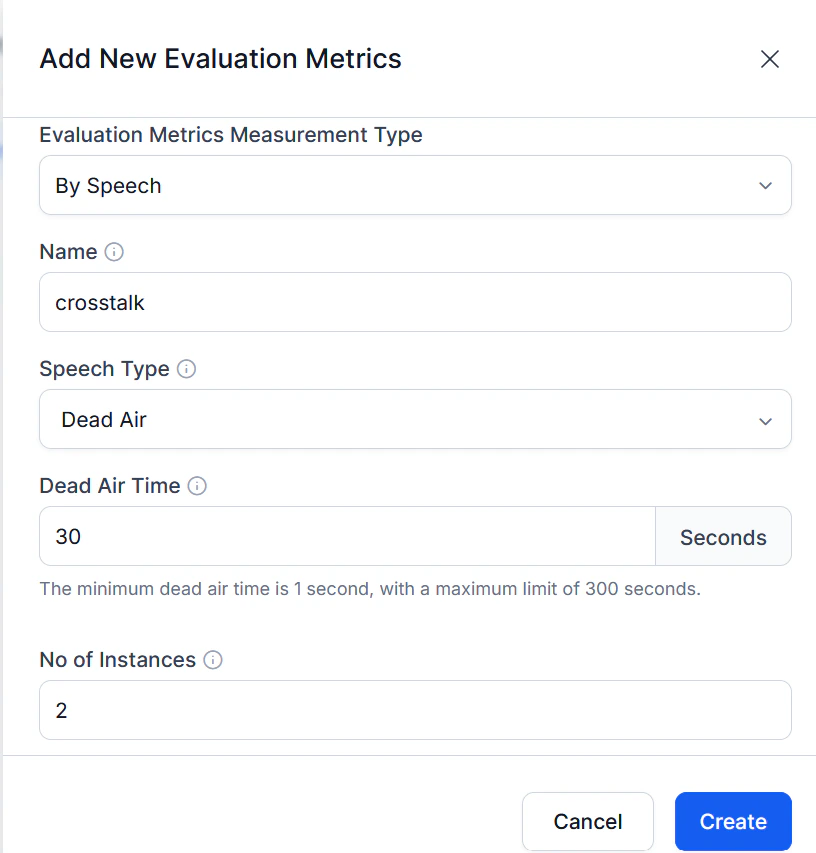
Tracks periods of silence.- Set minimum and maximum duration and allowed instances.
- The metric fails if silence exceeds the configured limits.
Speaking Rate Violation
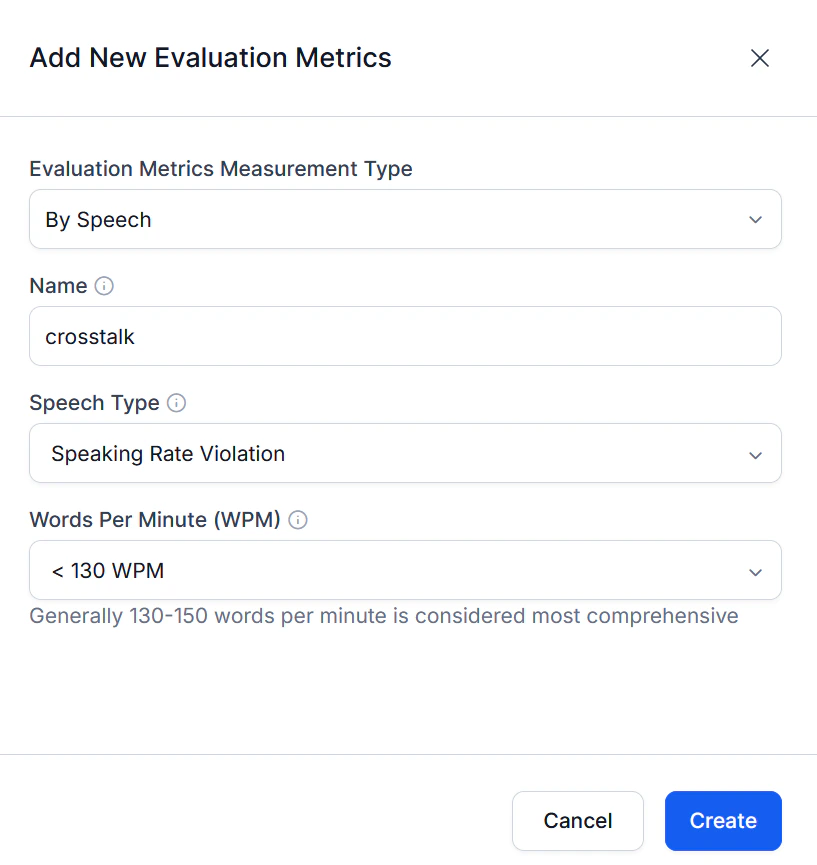
Monitors the agent’s speaking rate using Words Per Minute (WPM).- The metric fails if the rate falls outside the defined range.
- Select Create.
Edit or Delete By Speech Metric
- Select a metric under the By Speech category.
- Select Edit to modify the configuration.
- Update as needed, then select Update to save.
- To remove the metric, select Delete.
Speech Metric Limitations
One Subtype Per Form
During evaluation form configuration, you can add only one speech metric per subtype (Crosstalk, Dead Air, or Speaking Rate Violation) to a form. Adding a second metric of the same subtype shows an error.To add another metric of the same subtype, you must first remove the existing one from the form.