The By Value metric validates agent adherence to customer-specific information — such as interest rates, account balances, and service values — by extracting spoken or written values using LLM-powered entity recognition and comparing them against trusted backend systems via API.
It combines advanced extraction logic with configurable business rules to verify the accuracy of financial and service-related information mentioned during agent-customer interactions.
Why Use This Metric
- Automates manual QA by verifying agent-mentioned customer data without reviewing transcripts.
- Validates agent statements against CRM or trusted systems in real-time.
- Detects compliance violations across all interactions with instant alerts.
- Supports complex business rules including tolerance ranges, negotiation clauses, and multi-language.
- Provides full transparency with audit logs of API calls, extraction confidence, and rule evaluations.
- Enables real-time agent feedback through GenAI and co-pilot integration.
Use Cases
- Interest Rate Adherence
- Balance Verification
- Fee Disclosure
Prerequisites
The By Value metric requires the following GenAI features to be enabled and published via Manage > Generative AI > GenAI Features:
- By Value Adherence Validation for Quality AI
- By Value Metric Extraction for Quality AI
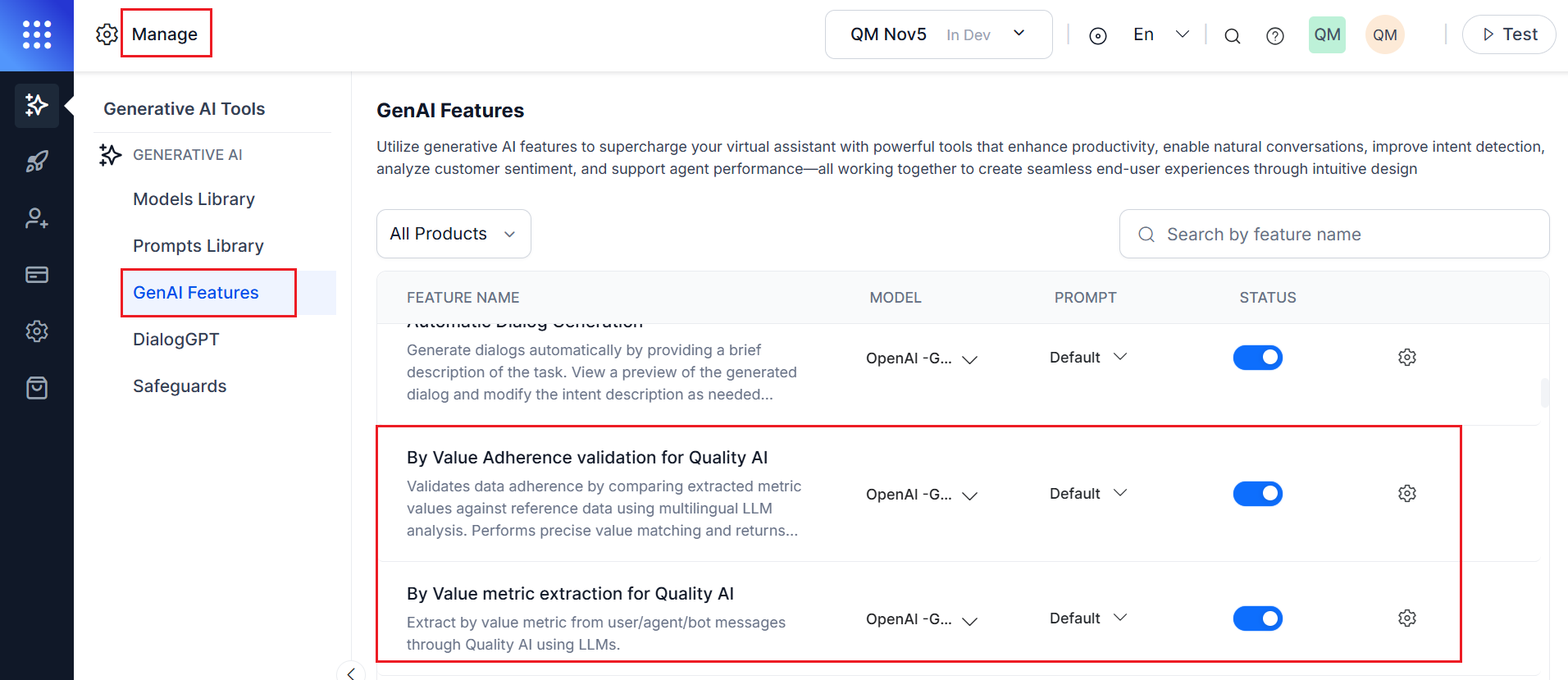
The By Value measurement type only appears in the metric creation dropdown when these GenAI features are enabled. All languages used in the metric must be valid and properly configured.
Configure By Value Metric
-
Navigate to Quality AI > Configure > Evaluation Forms > Evaluation Metrics.
-
Select + New Evaluation Metric.
-
From the Evaluation Metrics Measurement Type dropdown, select By Value.

-
Enter a descriptive Name (for example, “Discount Rate Verification” or “Interest Rate Adherence Check”).
-
Enter an evaluation Question for manual evaluation reference.
-
Select the required Language(s).
You can select multiple languages. The system applies an AND condition — if a metric does not support all selected languages, it does not appear in the dropdown.
Adherence Type
-
Select an Adherence Type:
| Type | When it evaluates |
|---|
| Static | Every conversation, regardless of triggers |
| Dynamic | Only when a configured trigger is detected |

Trigger Configuration (Dynamic Adherence Only)
-
Choose the Trigger Utterance source:
| Source | Use when |
|---|
| Customer Utterance | Customer action triggers the check (for example, customer asks about interest rates) |
| Agent Utterance | Agent action triggers the check (for example, agent proposes a credit card plan) |
Trigger Detection Method
-
Choose the detection method:
| Method | Description |
|---|
| Gen AI-Based | Uses LLMs to detect trigger intent contextually. No training required (zero-shot). Enter a text Description of the trigger intent. |
| Deterministic | Uses exact pattern matching. Provide specific utterance examples. Best for compliance keywords or exact terminology. |
API Request Parameter Configuration
The API setup enables calls to your backend systems (CRM, databases) to retrieve ground-truth data for validating agent-mentioned values.
Choose how the request parameter is sourced:
Context Variable
Use when a customer identifier (phone number, customer ID, email) is mentioned in the conversation.
-
Select Context Variable.

-
Choose who provides the identifier — Customer or Agent.
-
Configure the Entity Type:
- Entity Name — descriptive name for the data type (for example, “Customer ID”).
- Entity Type — String (text/alphanumeric) or Number (numeric identifiers).
- Description — instructions for the AI to identify and extract this entity from the conversation.
-
Configure Service Request Authorization — authentication profiles that secure API calls to backend systems.
-
Select + Define Request and configure:
| Field | Description |
|---|
| Request Name | Unique descriptive identifier |
| HTTP Method | GET or POST |
| Auth | Authorization profile from Dev Tools |
| Headers | Custom HTTP headers (if required) |
| Response | API response parameter as JSON object or path |
{"userId": "{{context.user_id}}"}).
Optionally add a Post Process Script to extract or transform the response.
Test Request is enabled for Context Variable configurations. For Conversation ID-based configurations, it is disabled.
-
Select Save.
Conversation ID
Use when customer identifiers are missing and SFTP integration is in place. The custom conversation ID from CSV metadata triggers sequential API calls.
The Conversation ID option is only available when a connector is configured for Quality AI Express. System-generated and CCAI system-generated conversation IDs are not supported. Use only conversation IDs sourced from metadata delivered via SFTP.
-
Map the custom Conversation ID from the CSV upload metadata.
-
Configure Script Definition:
- Select an Auth profile (must be consistent across all APIs in the function).
- Set request-specific Headers.
- Map the API Response (JSON object or path).
- For POST: define the Body using the conversation ID (for example,
{"conversationId": "abc123-xyz"}).
- Optionally configure a Post Process Script for nested or chained API calls.
-
Select Save.

Agent Answer Configuration
Defines how the system identifies and extracts values mentioned by the agent during the conversation (for example, an interest rate percentage), then compares them against backend references.
| Field | Description |
|---|
| Entity Name | Descriptive label for the extracted value (for example, “Interest Rate”) |
| Entity Type | String (alphanumeric) or Number (numeric values) |
| Description | Instructions for the AI to identify the agent-mentioned value (for example, “Extract the interest rate percentage mentioned by the agent when discussing loan terms, formatted as a decimal such as 4.5 for 4.5%“) |

Business Rules
Business Rules guide the AI when selecting the correct agent-mentioned value, especially in negotiation scenarios where multiple values are discussed.
| Rule | When to Use | Example |
|---|
| First Value | First mention is the official value | Agent says 4.5%, then 4.7%, then 5.0% — system uses 4.5% |
| Last Value | Last mention represents the official quote | Agent says 4.5%, 4.7%, 5.0% — system uses 5.0% |
| Negotiated Value | Agreed-upon value after negotiation | Agent and customer agree on 4.8% — system uses 4.8% |
| Strict Source System Value | Zero tolerance for deviation from system data | System shows 7.9%, agent says 7.5% — marked non-adherent |
| Custom Business Rule | Complex or organization-specific selection logic | Use the value mentioned after the customer accepts terms |

Score Logic and Adherence Criteria
Gen AI-Based Adherence
Uses LLMs to evaluate whether the agent communicated the expected value correctly.
| Outcome | Meaning |
|---|
| Pass | The expected value is mentioned per the configured rule |
| Metric Failure | Value is missing or incorrect |
| Not Applicable (NA) | Trigger condition not met; metric skipped |
Custom Script-Based Adherence
Uses rule-based logic to enforce specific validation. Suitable for deterministic or compliance-critical scenarios.
| Outcome | Meaning |
|---|
| Metric Failure | Required value is missing, mismatched, or does not match backend data |
| Not Applicable | Value is not relevant for the conversation; metric is skipped |
When Custom Script is selected, the system applies the defined logic to validate all mentioned values and selects the most relevant one (for example, final or negotiated value).
- Select Create to save the metric.
Edit or Delete By Value Metric
-
Select the By Value metric and click the ellipsis (⋮).

-
Choose Edit to modify or Delete to remove.
-
Select Update to save changes.
Language Dependency Warnings
- You cannot remove a language currently used by any evaluation form.
- Remove the language from all associated forms before modifying.

Delete Warnings
Before deleting a metric:
- Remove it from all associated evaluation forms.
- Resolve all dependencies.
- The system allows deletion only after dependencies are cleared.

