Specifications
| Specification | Details |
|---|---|
| Repository type | Cloud |
| Extractive answer support | |
| Generative answer support | .txt, .pdf, .rtf, .doc, .docx, .ppt, .pptx |
Step 1: Create a Storage Account and Generate a SAS Key
-
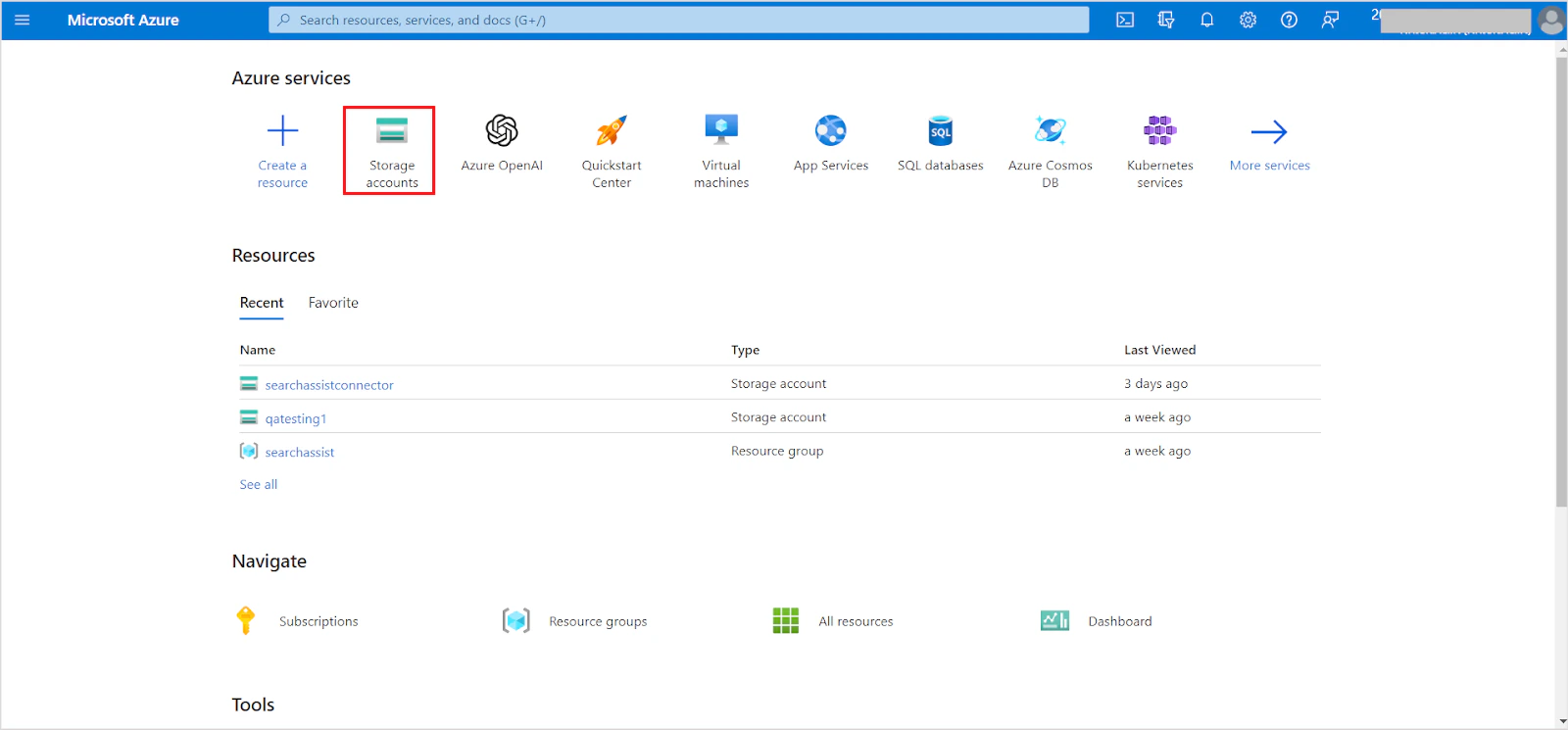
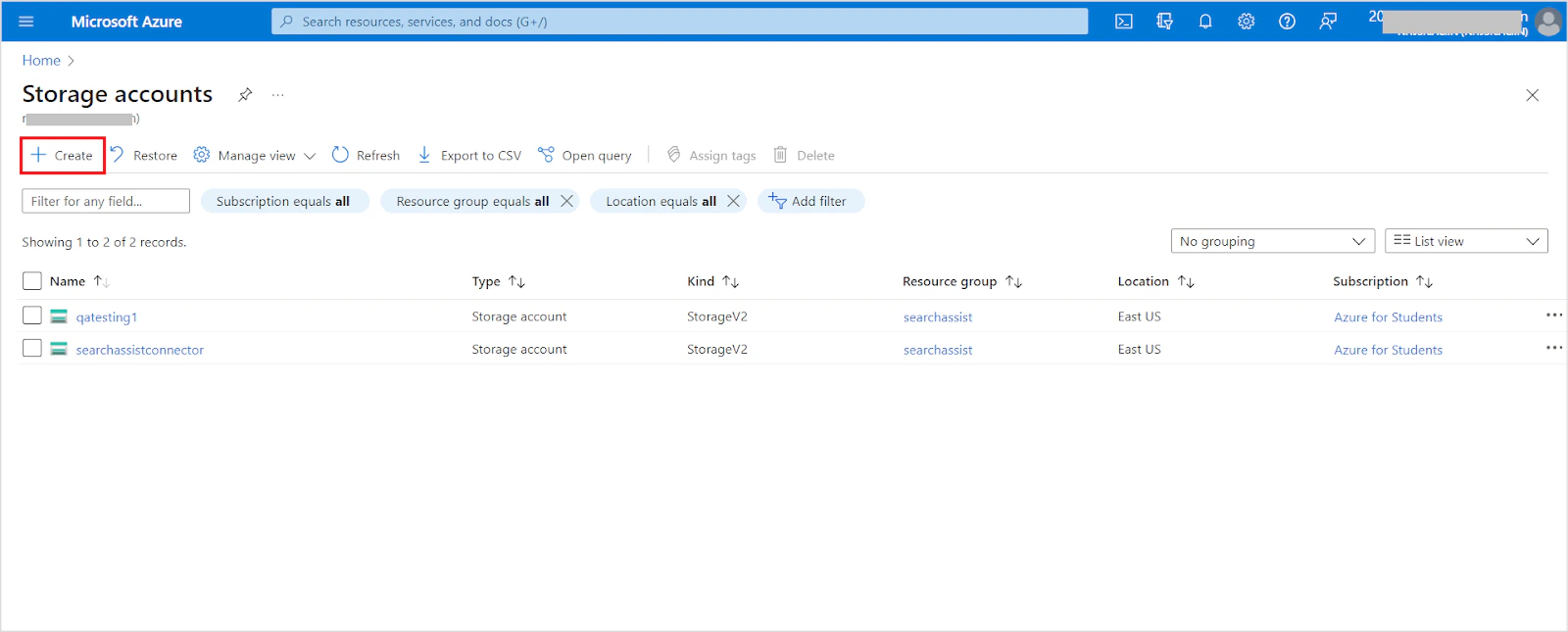
Log in to the Azure portal and go to Storage Accounts.
-
Click Create to create a new storage account.
-
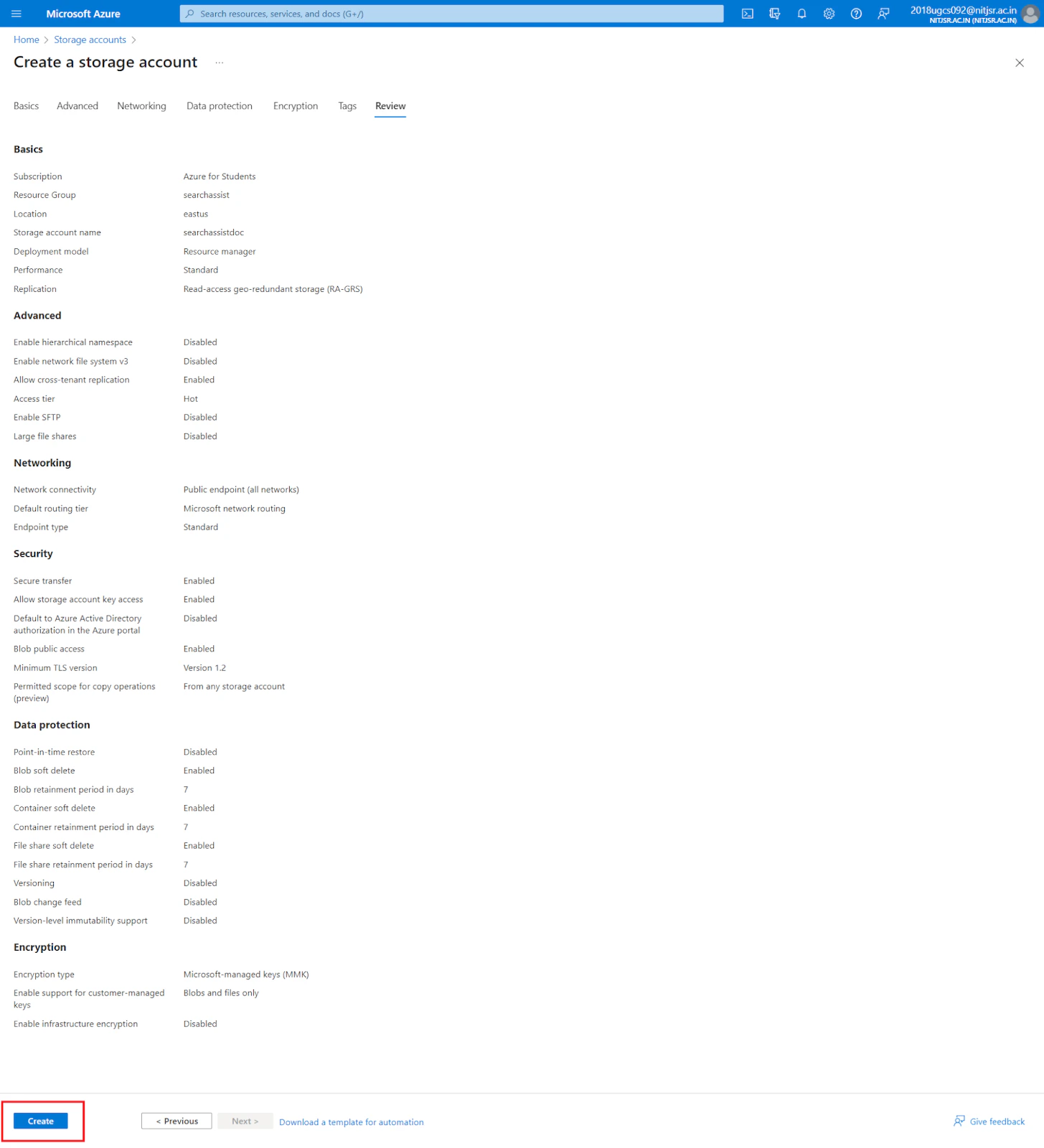
Fill in the required project details (security, access protocols, networking, encryption, etc.). For field descriptions, see the Azure storage account creation guide. Click Create.
-
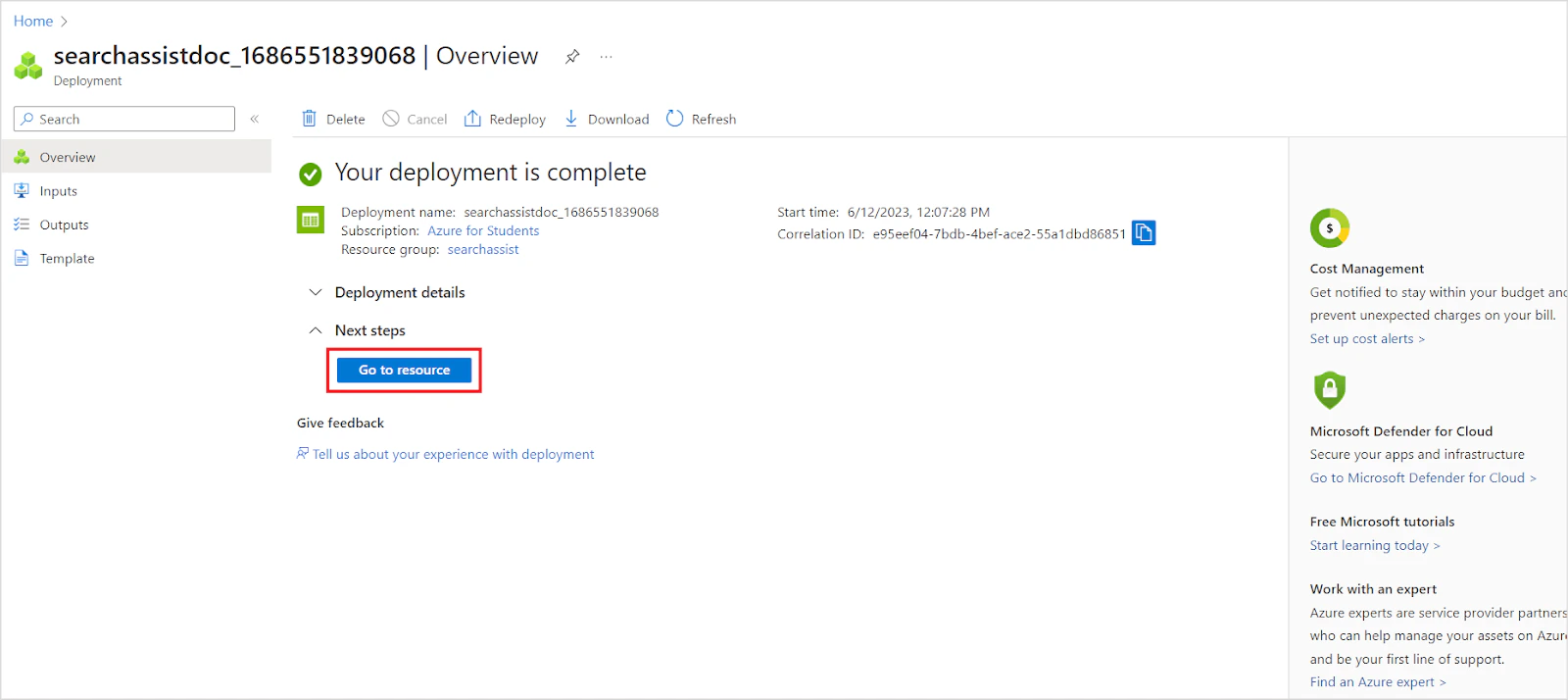
After deployment completes, click Go to resource.
-
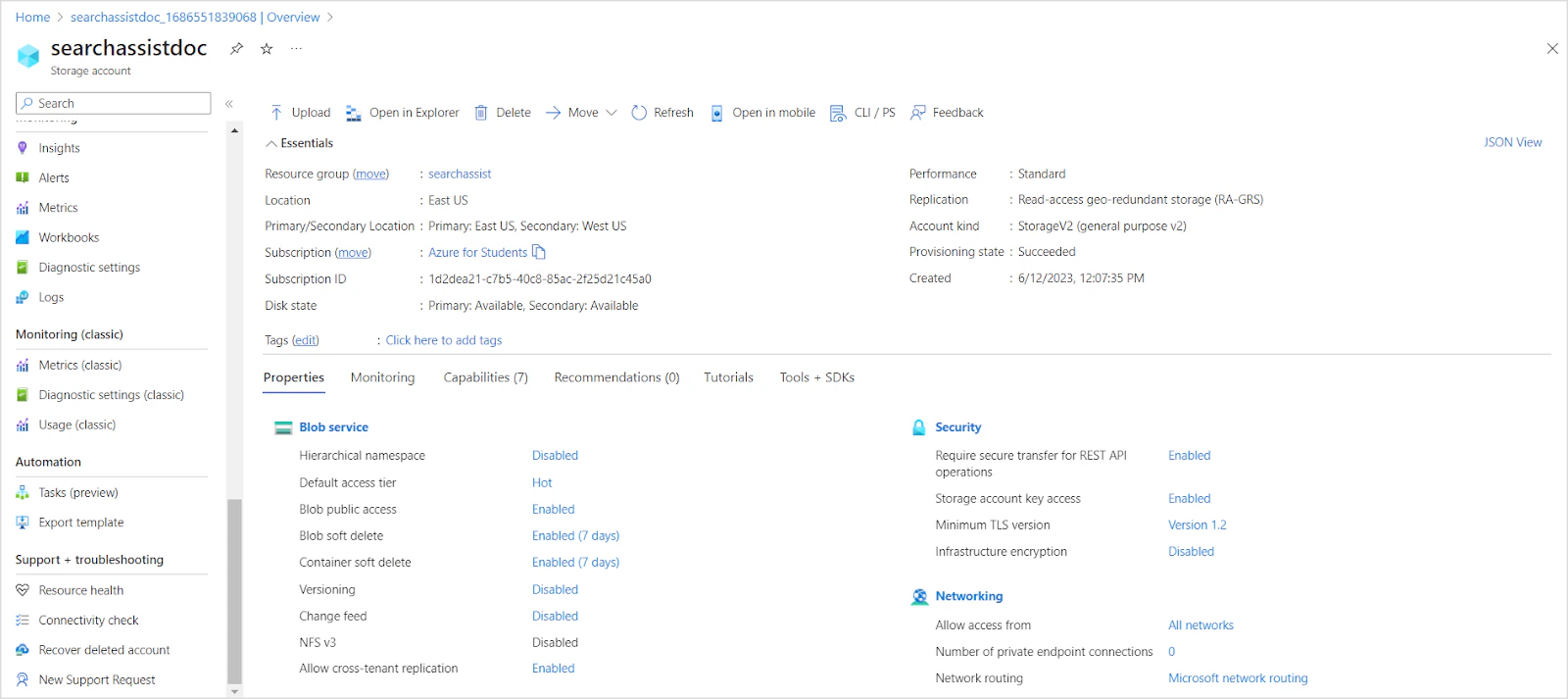
Review the storage account overview.
-
In the left navigation menu, go to Shared access signature. Configure the following minimum permissions, then click Generate SAS and connection string.
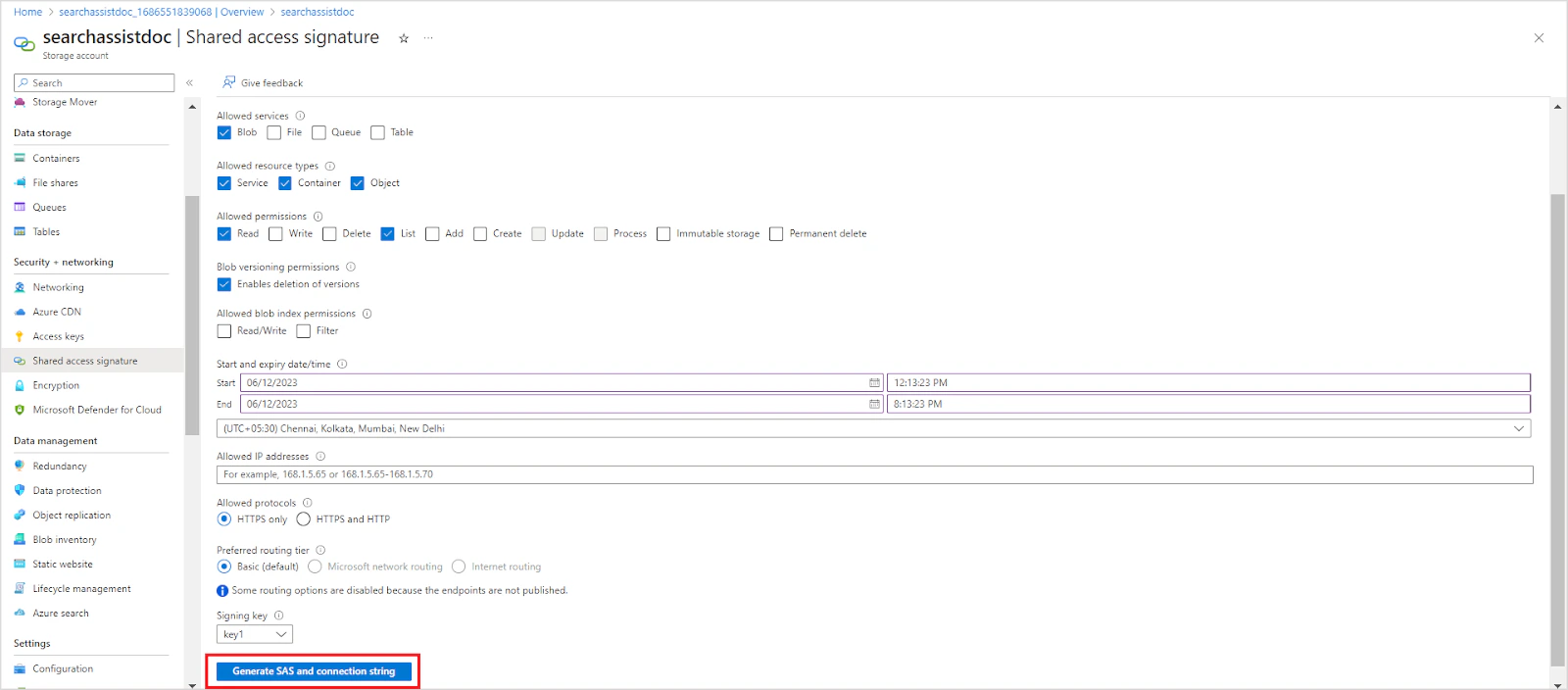
- Allowed resource types: Service, Container, Object
- Allowed permissions: Read, List
-
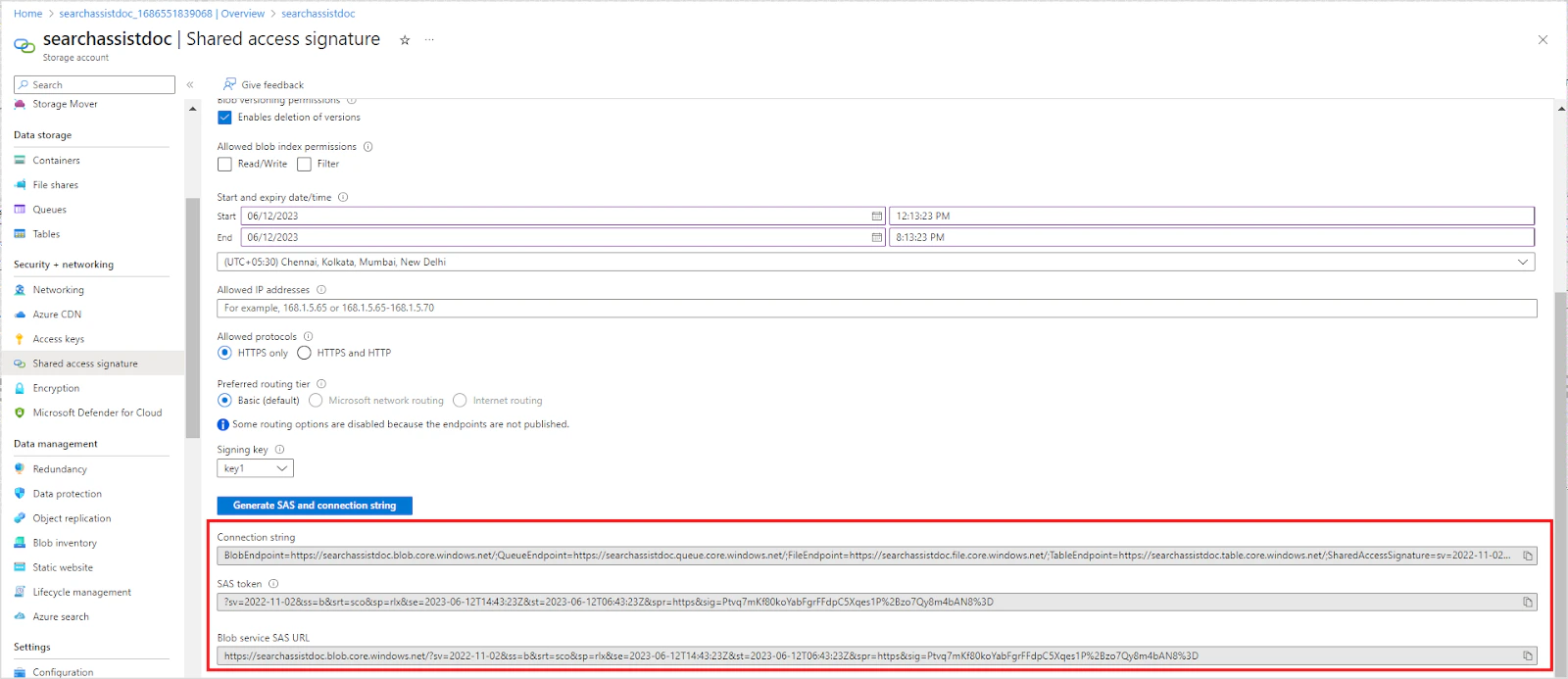
Save the generated connection string, SAS token, and blob service SAS URL — you will need these in Step 2.
Step 2: Configure the Azure Connector in Search AI
Set Up the Connection
-
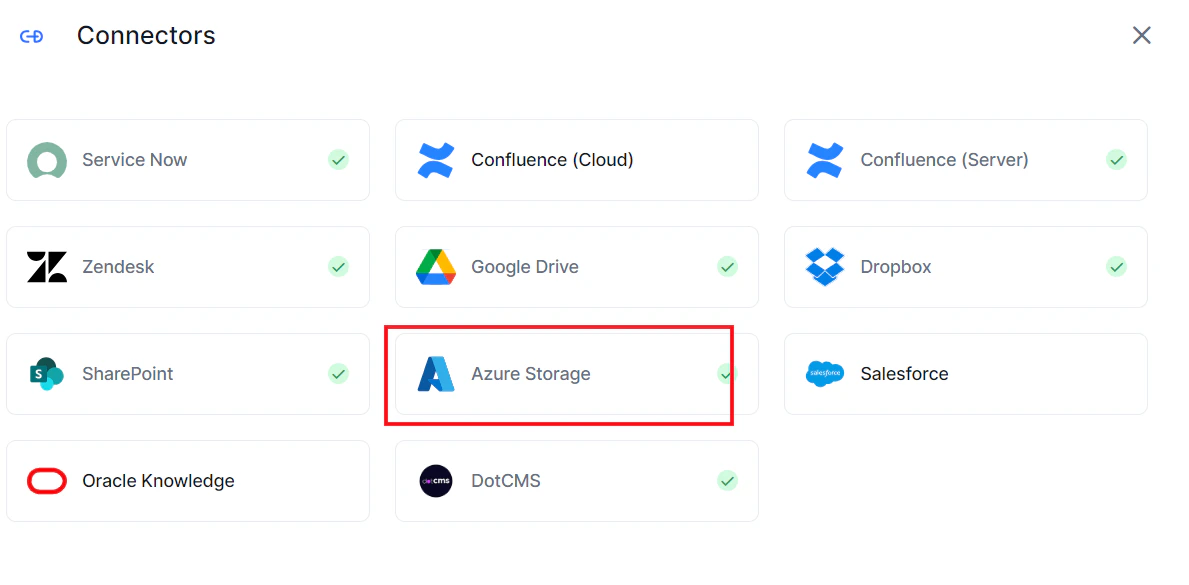
Go to Content > Connectors, click Add New Connector, and select Azure Storage.
-
On the Authorization tab, enter the following fields and click Connect.
On successful authentication, the connector status changes to Connected.
Field Description Name A name for this connector Host URL The base URL from the blob service SAS URL generated in Step 1 SAS Token The SAS token generated in Step 1
Note: Connecting does not trigger content syncing automatically.
Content Synchronization
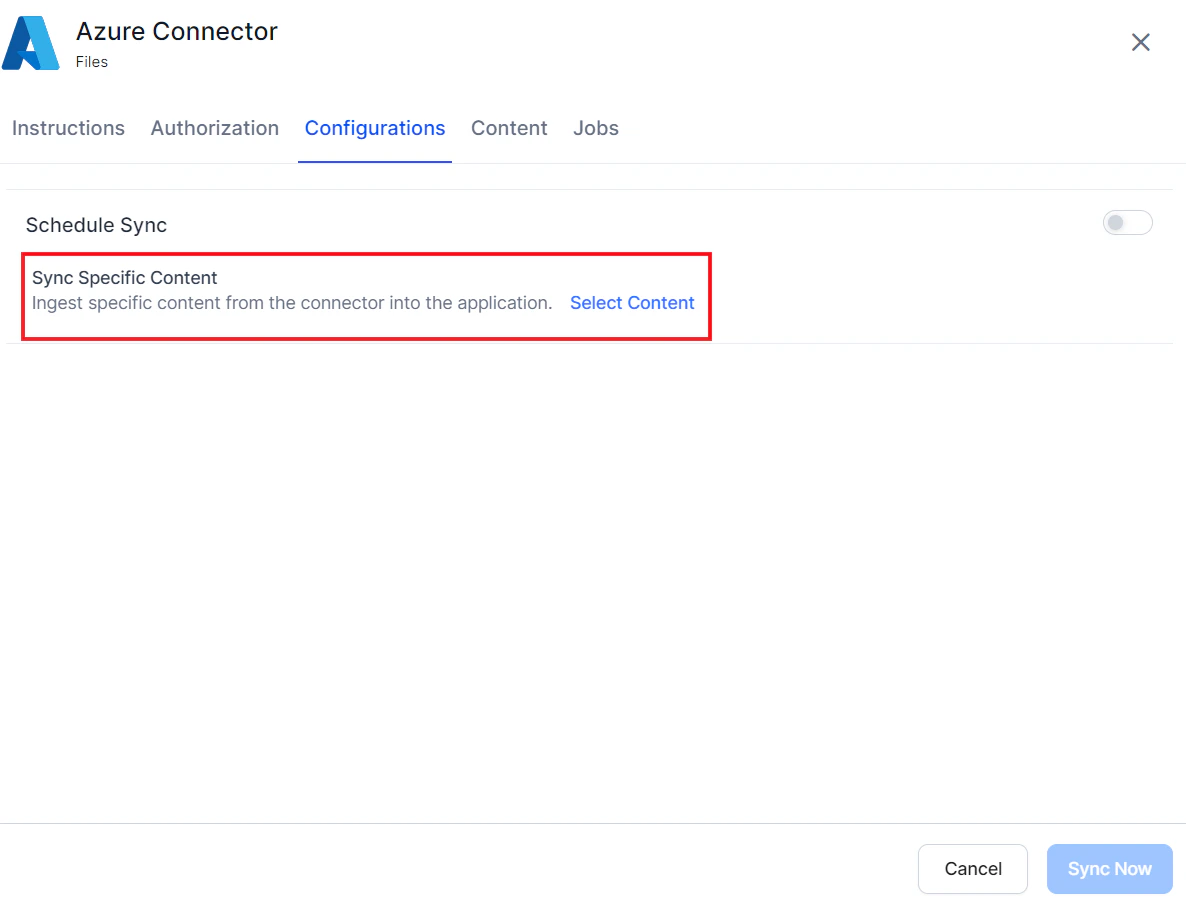
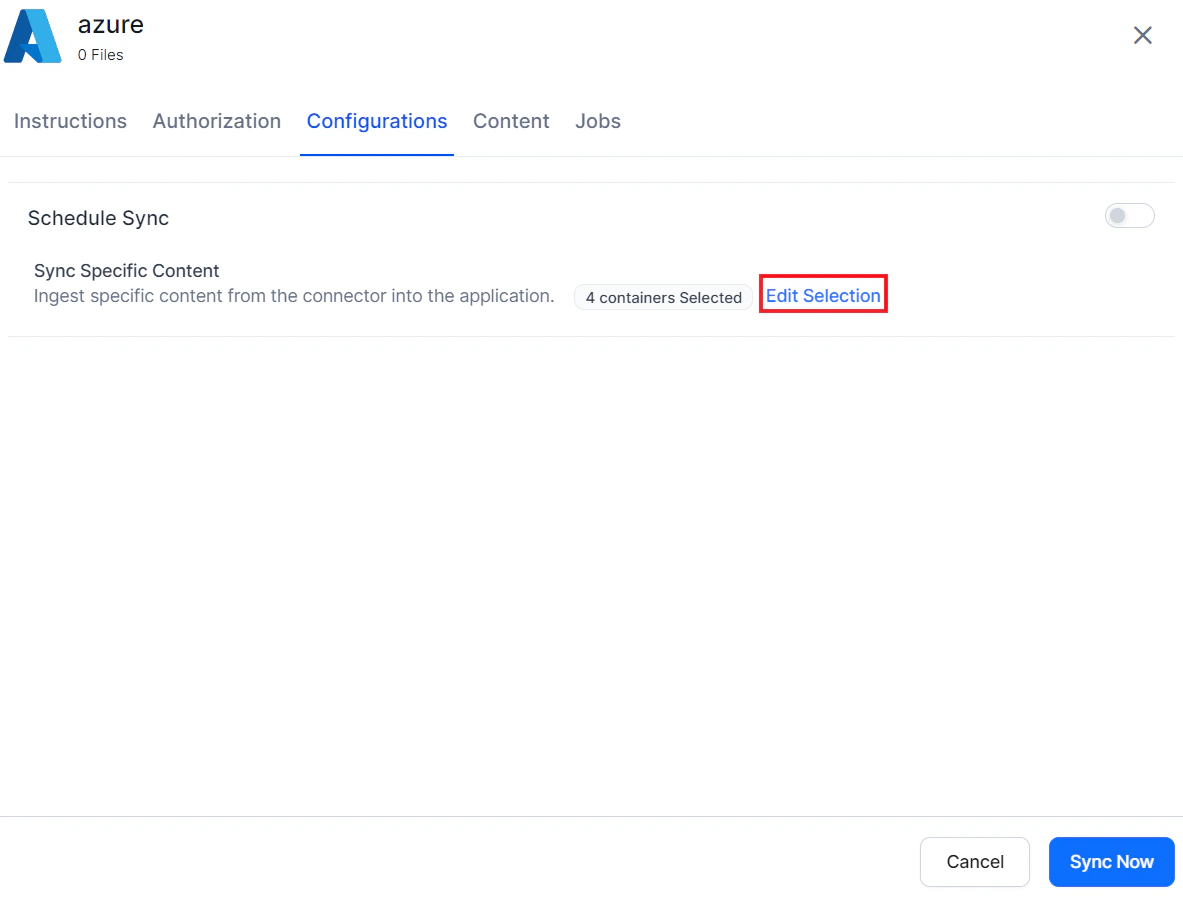
Go to the Configurations tab to set up synchronization.-
Manual sync: Click Sync Now at the bottom of the page.

-
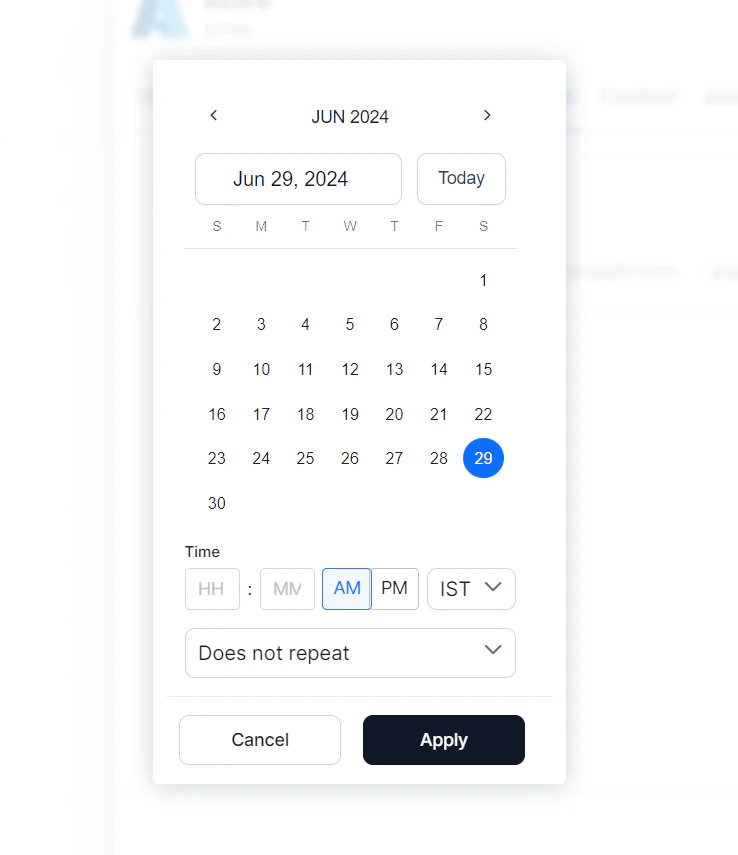
Scheduled sync: Enable the Schedule Sync option and set the date, time, and frequency.