
Specifications
| Specification | Details |
|---|---|
| Repository type | Cloud |
| Supported content | Pull Requests |
| RACL support | Yes |
| Content filtering | No |
Prerequisites
Create an OAuth Consumer in BitBucket. The client credentials generated for the consumer are used to configure the connector in Search AI.Set Up an OAuth Consumer in BitBucket
OAuth Consumers are workspace-specific. To create a new consumer:- Select the Settings icon in the top navigation bar.
- Select Workspace settings from the Settings dropdown.
- Under Apps and Features, select OAuth consumers.
-
Click Add consumer and provide the following:
- Name: A unique display name for the consumer.
- Description: Optional description.
- Callback URL: Use the URL matching your region or deployment.
Region Callback URL JP https://jp-bots-idp.kore.ai/workflows/callbackDE https://de-bots-idp.kore.ai/workflows/callbackProd https://idp.kore.com/workflows/callback -
Under Permissions, enable the required permissions as shown below.
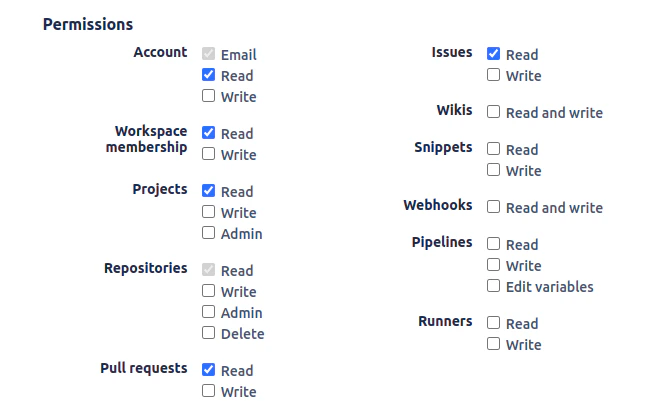
- Click Save. BitBucket generates a key and secret.
Configure the BitBucket Connector in Search AI
- Navigate to the Connectors page in Search AI.
- Click Add Connector and select BitBucket.
-
Provide the following configuration details.
Field Value Name Unique name for the connector Authorization Type OAuth 2.0 Grant Type Client Credentials Client ID Key generated for the OAuth Consumer Client Secret Secret generated for the OAuth Consumer Workspace Name Name of the Bitbucket workspace to ingest from - Click Connect to authenticate and establish the connection.
Content Ingestion
After connecting, go to the Configuration tab to set up content synchronization.- Sync Now: Immediately sync content.
- Schedule Sync: Set up automatic sync at a future time or regular interval.
Note: Only content added or updated in the last 90 days is ingested during sync. Existing content in Search AI remains unchanged.
RACL Support
Search AI uses the Project ID from Bitbucket to enforce user access control. All pull requests associated with a project are tagged with that project’s ID in thesys_racl field.