
| Specification | Details |
|---|---|
| Repository type | Cloud |
| Supported API version | REST API v1 |
| Supported content | Knowledge Articles |
| Access control support | Yes |
Note: Only manually created Knowledge Articles are supported. Searching through other uploaded content types such as PDF files, attachments, docs, and images is not supported.
Prerequisites
- An admin account in Atlassian Confluence Cloud
- A target domain
- Access to the Atlassian Developer Portal
Step 1: Configure an OAuth Application on Confluence Cloud
Sign in to your developer account at the Atlassian Developer Portal. Click your profile name at the top right and navigate to the Developer Console.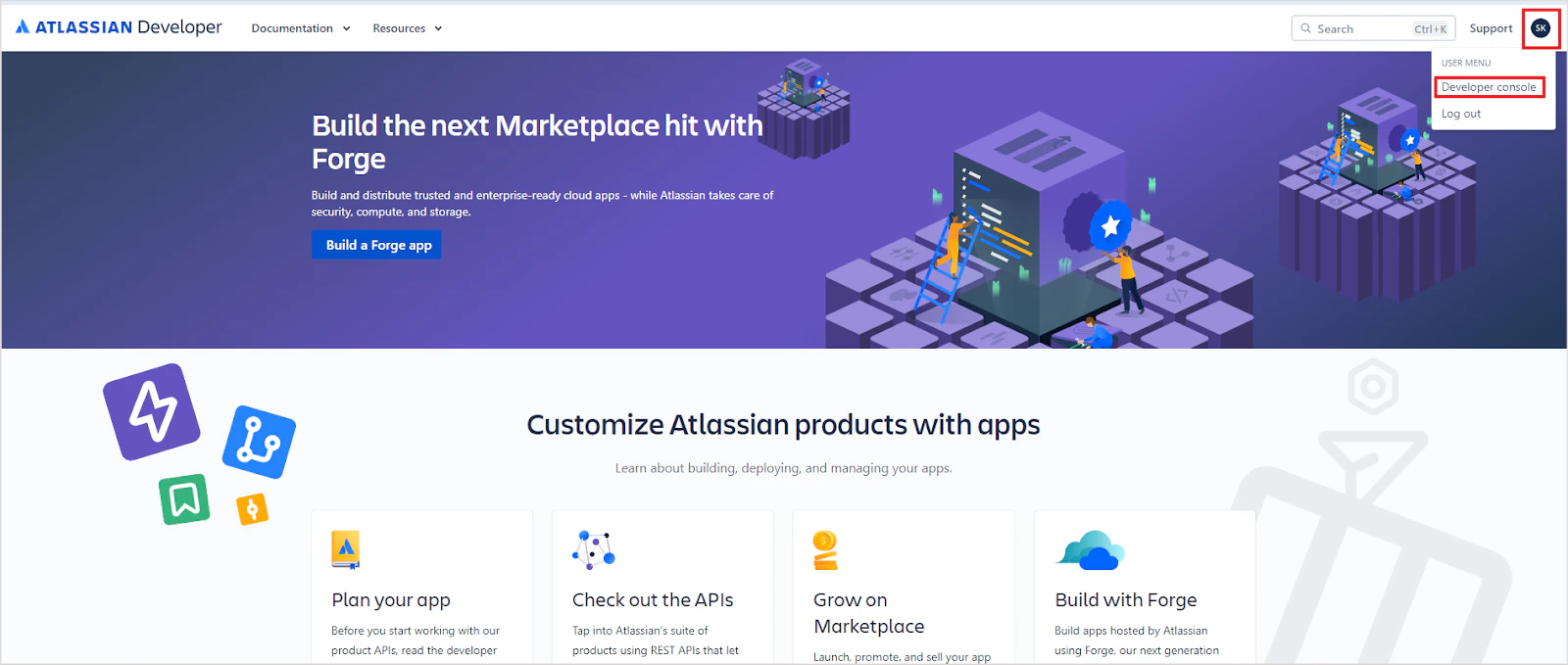
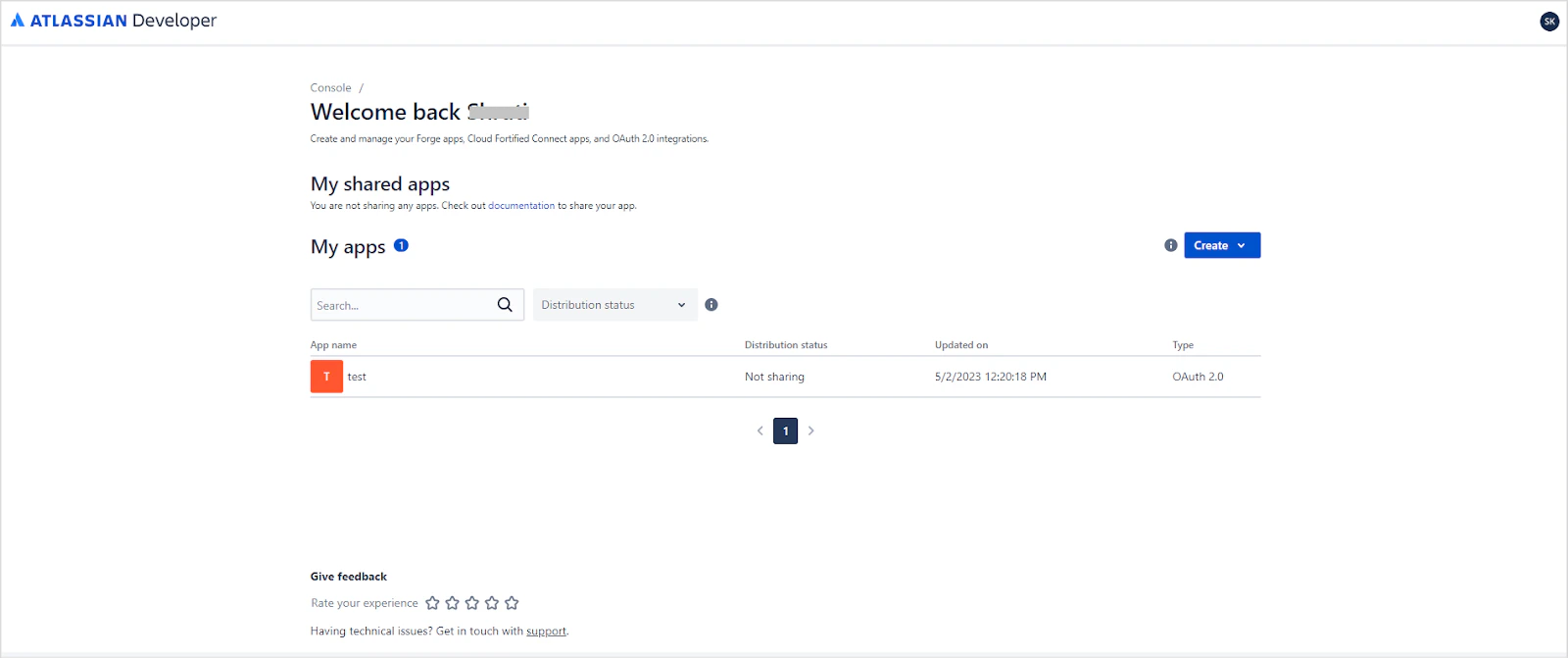
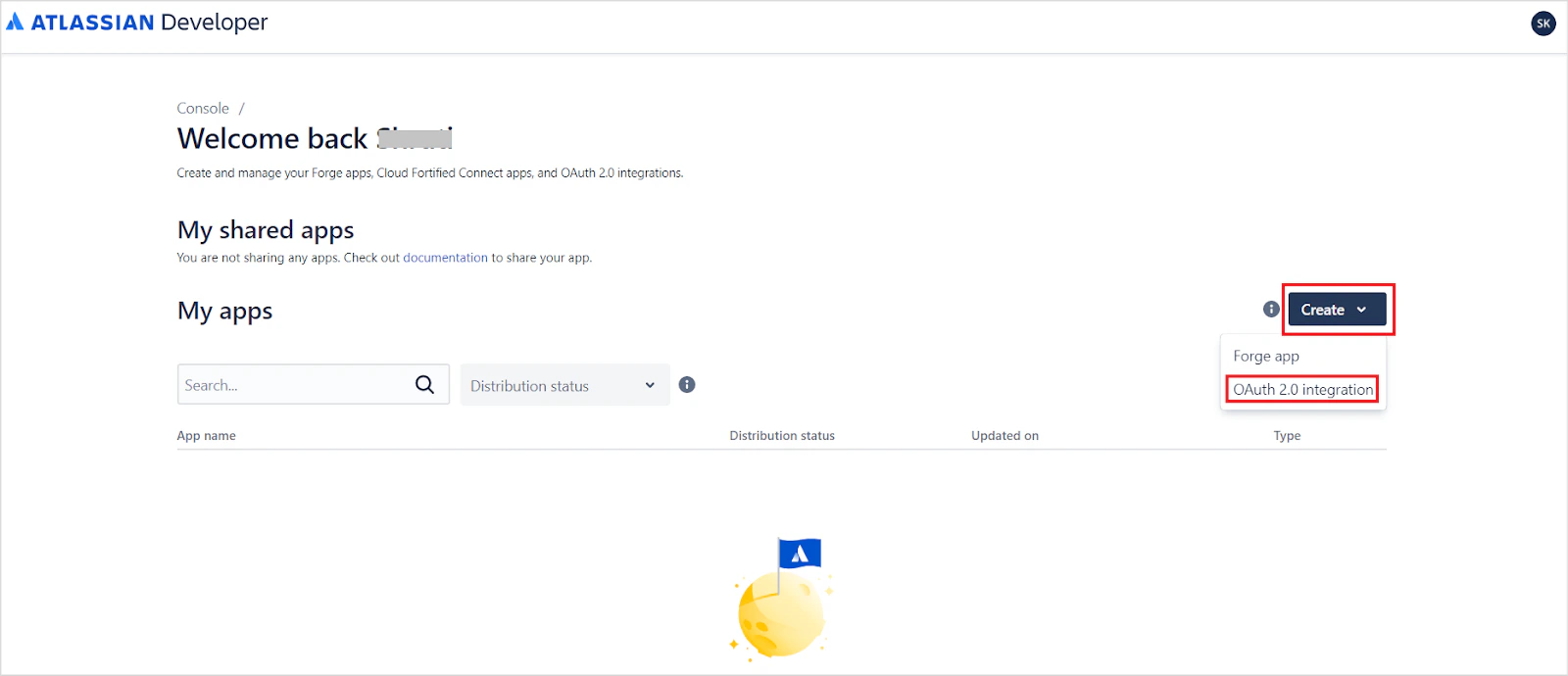
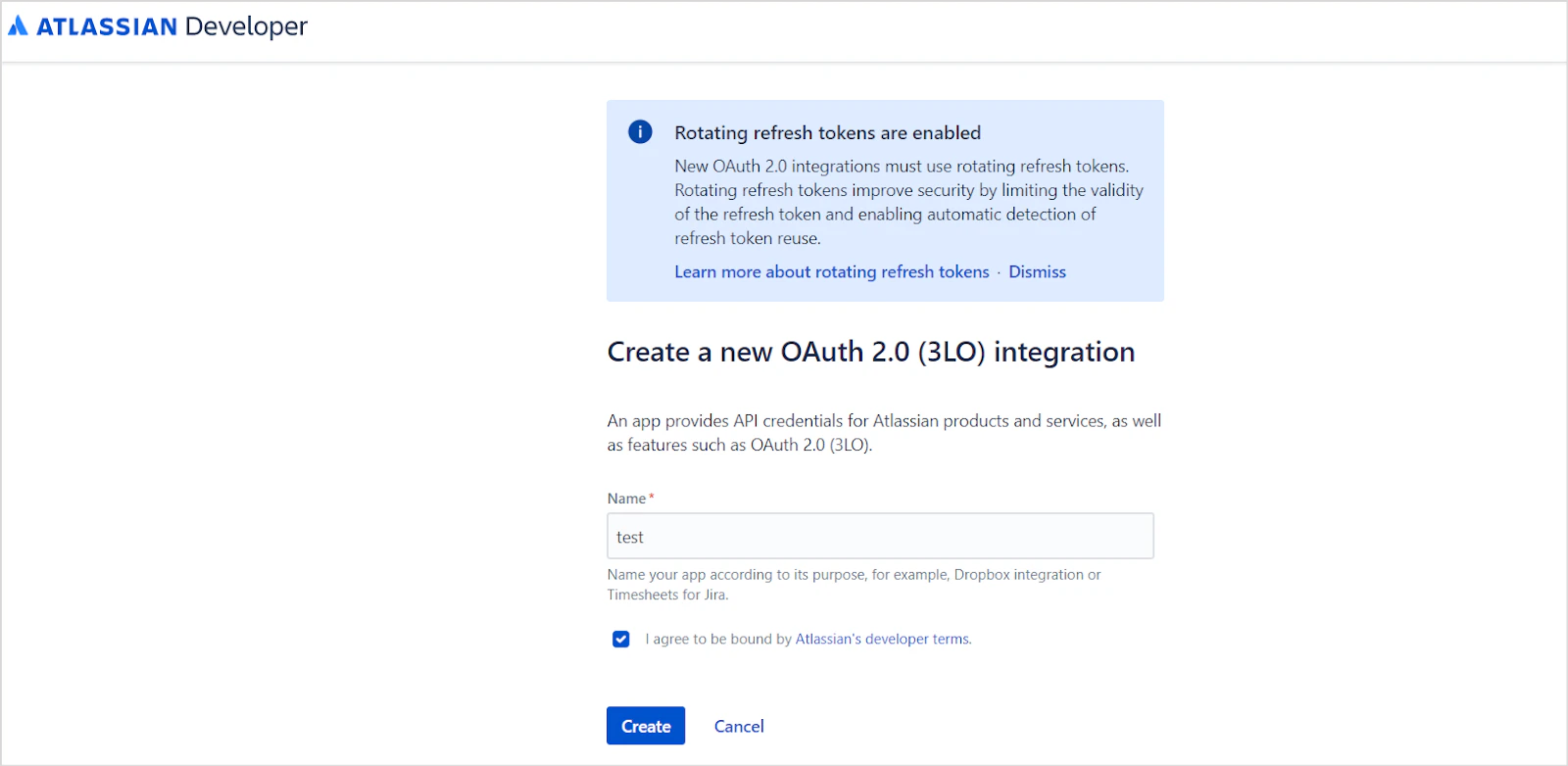
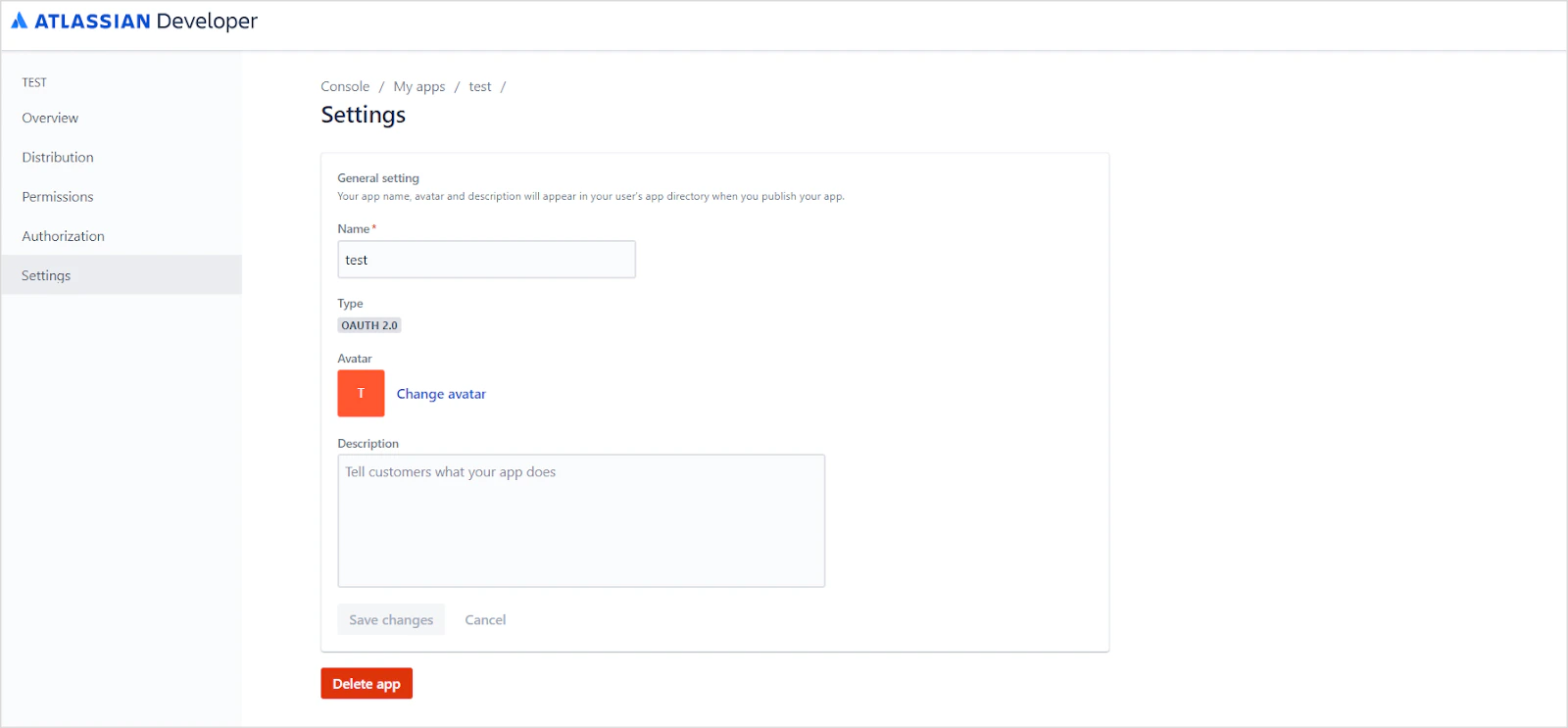
Configure the Callback URL
Go to the Authorization tab and enter the Search AI callback URL for your region, then click Save changes.| Region | Callback URL |
|---|---|
| JP | https://jp-bots-idp.kore.ai/workflows/callback |
| DE | https://de-bots-idp.kore.ai/workflows/callback |
| Prod | https://idp.kore.com/workflows/callback |
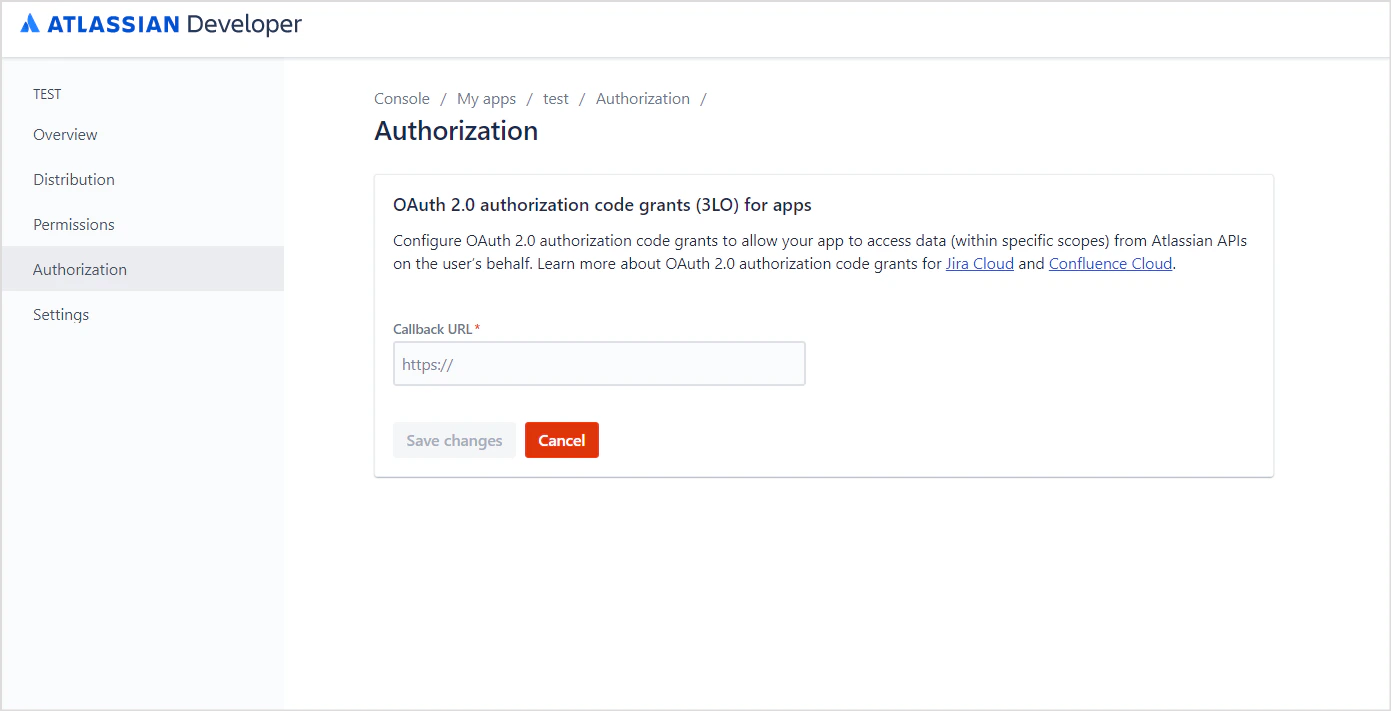
Grant API Permissions
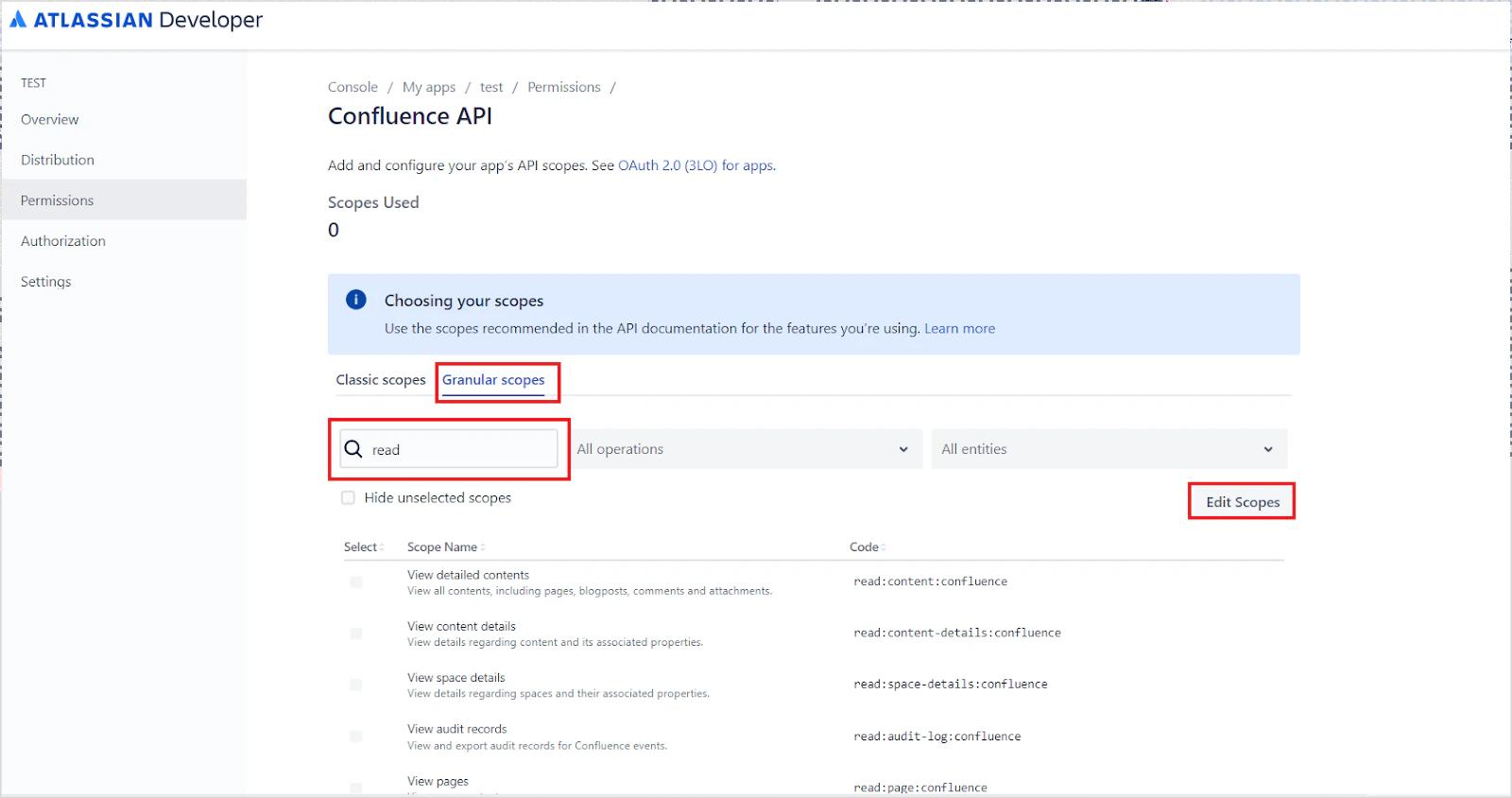
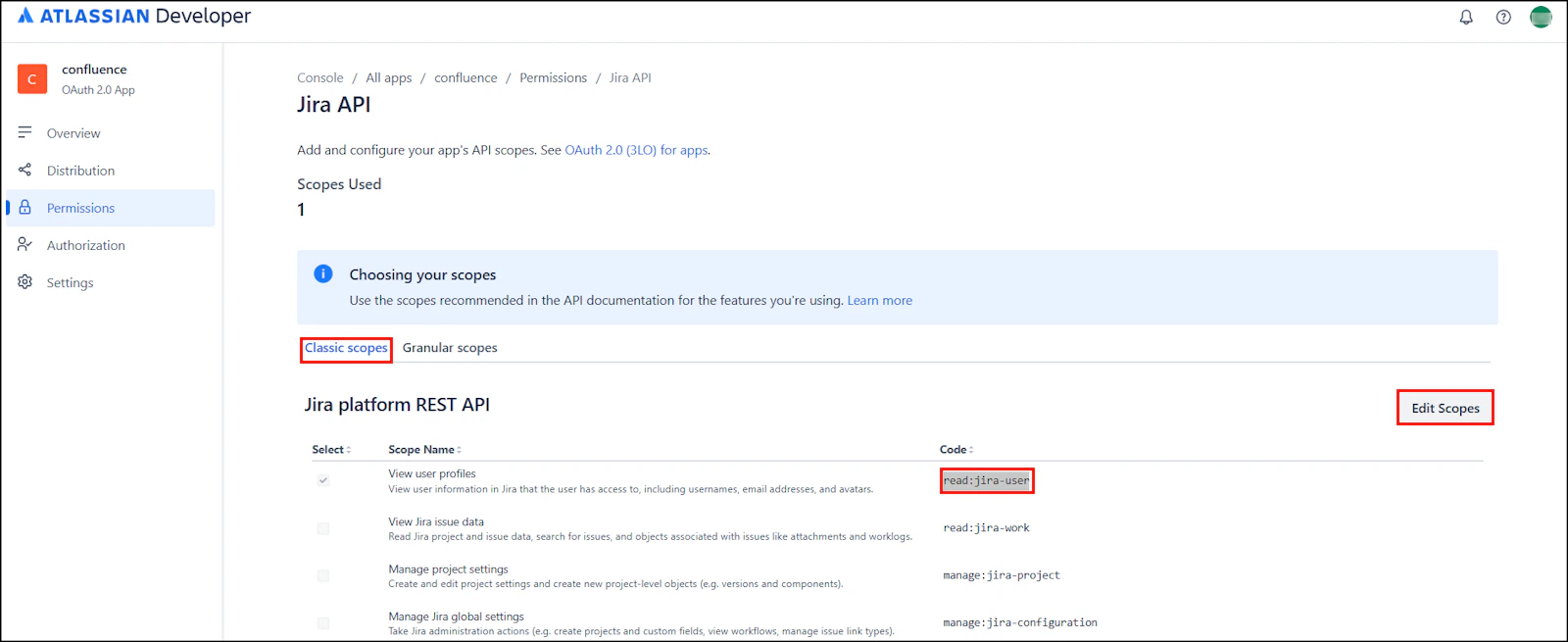
Go to the Permissions tab and add the following APIs:- User Identity API
- Confluence API
- Jira API
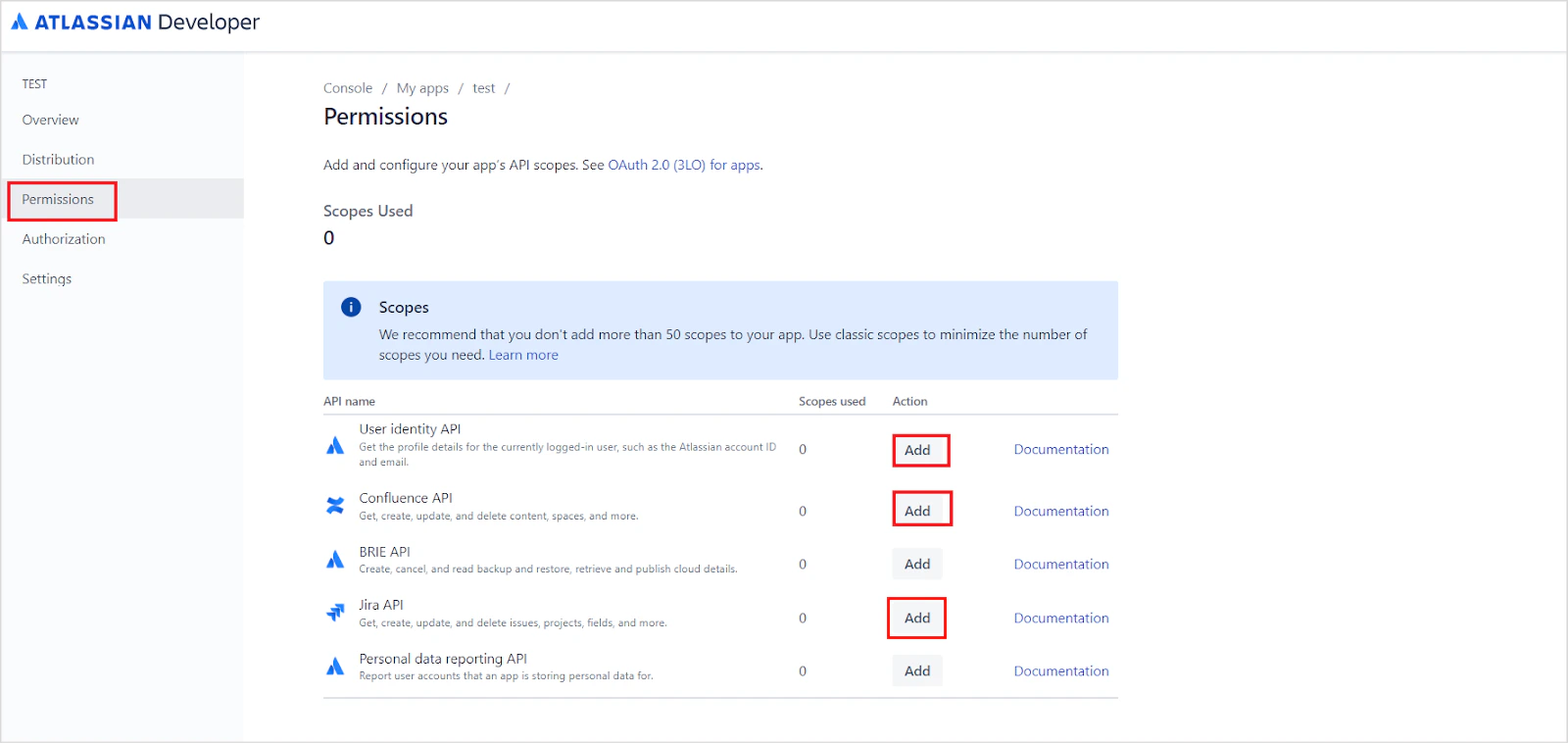
read:meread:account
read:analytics.content:confluenceread:content-details:confluenceread:content.permission:confluenceread:content:confluenceread:page:confluenceread:space-details:confluenceread:space.permission:confluenceread:space:confluenceread:user.property:confluence
read:confluence-groups and click Save.
read:jira-user, and click Save.
Retrieve Client ID and Client Secret
Go to Settings and locate the Client ID and Secret at the bottom of the page. Save these for use in the next step.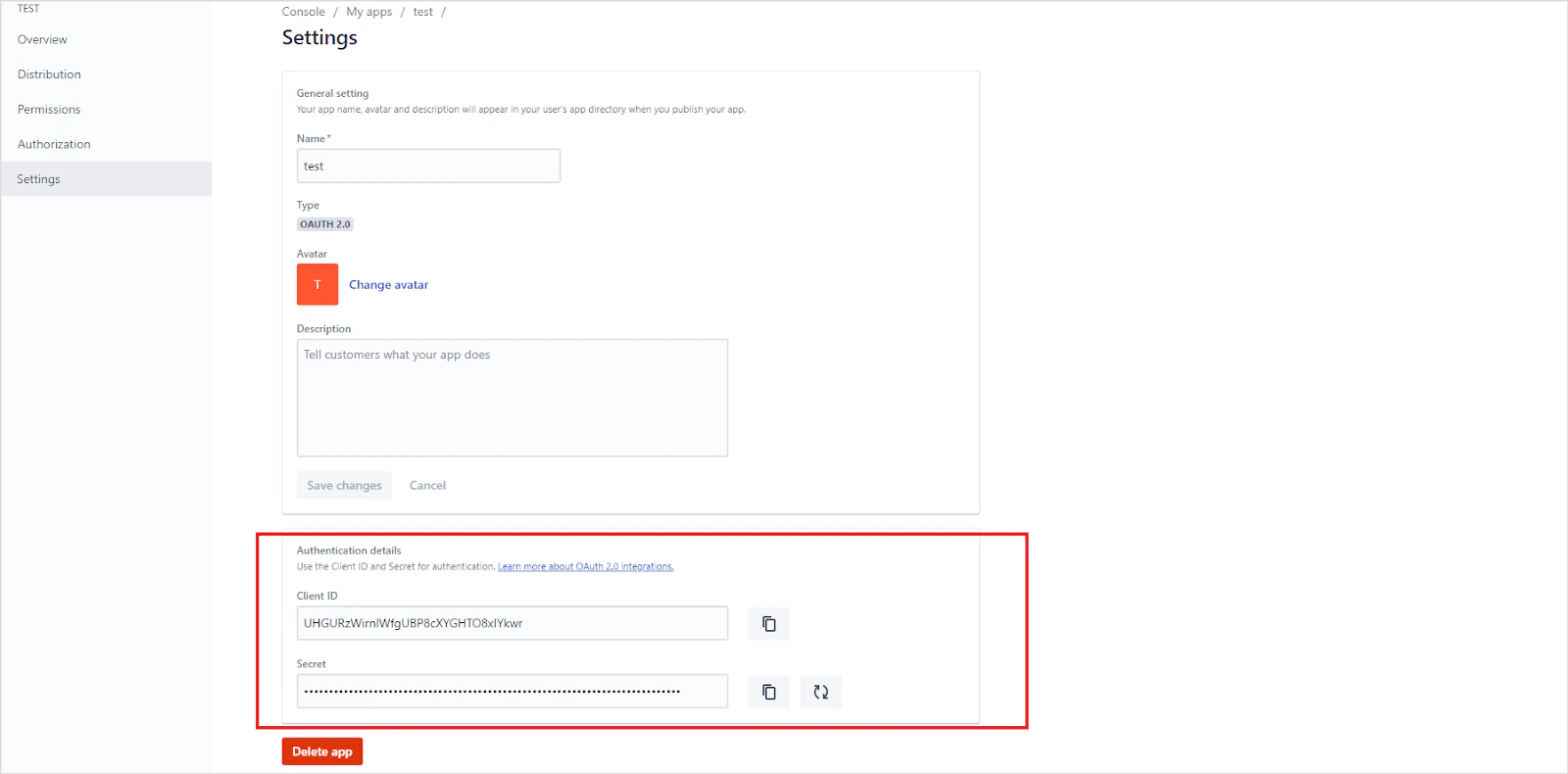
Retrieve the Host URL
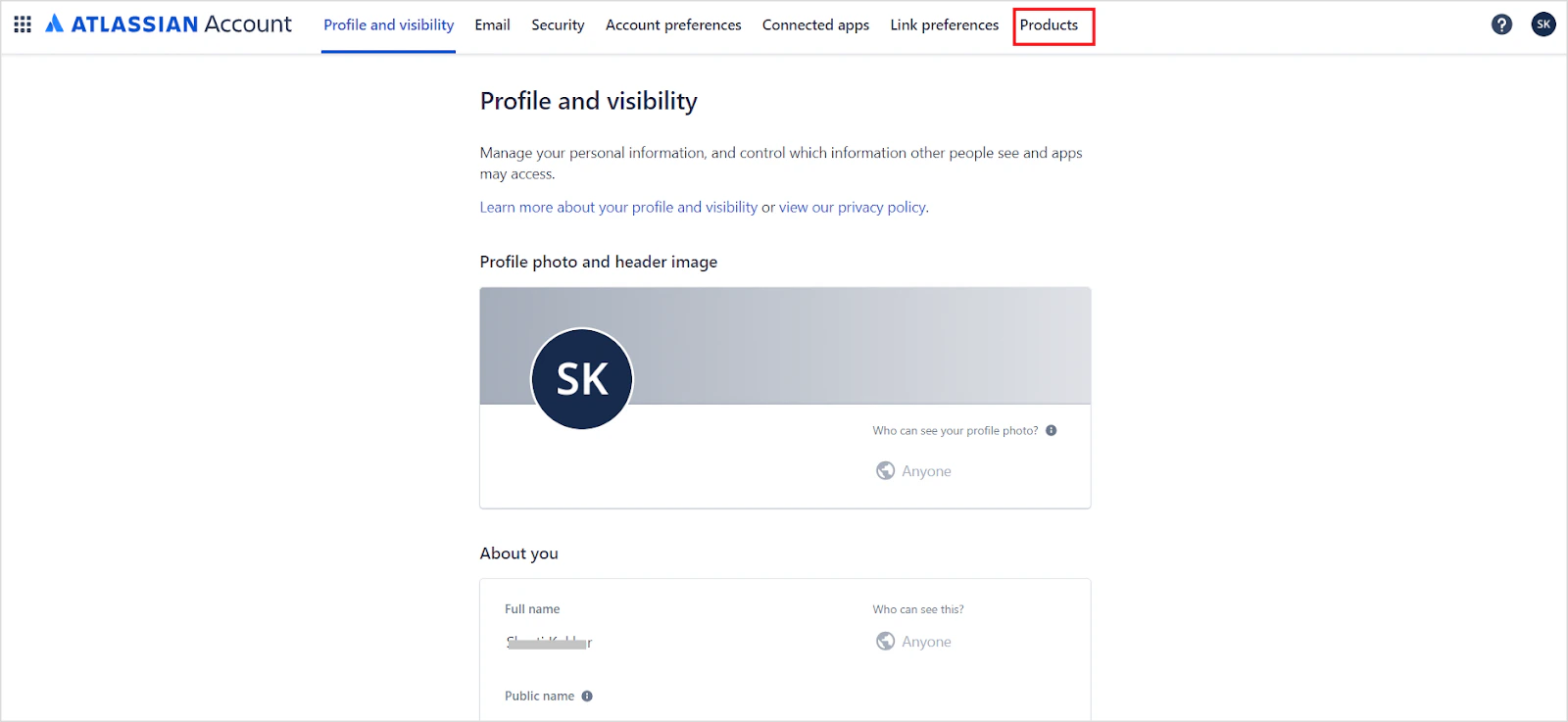
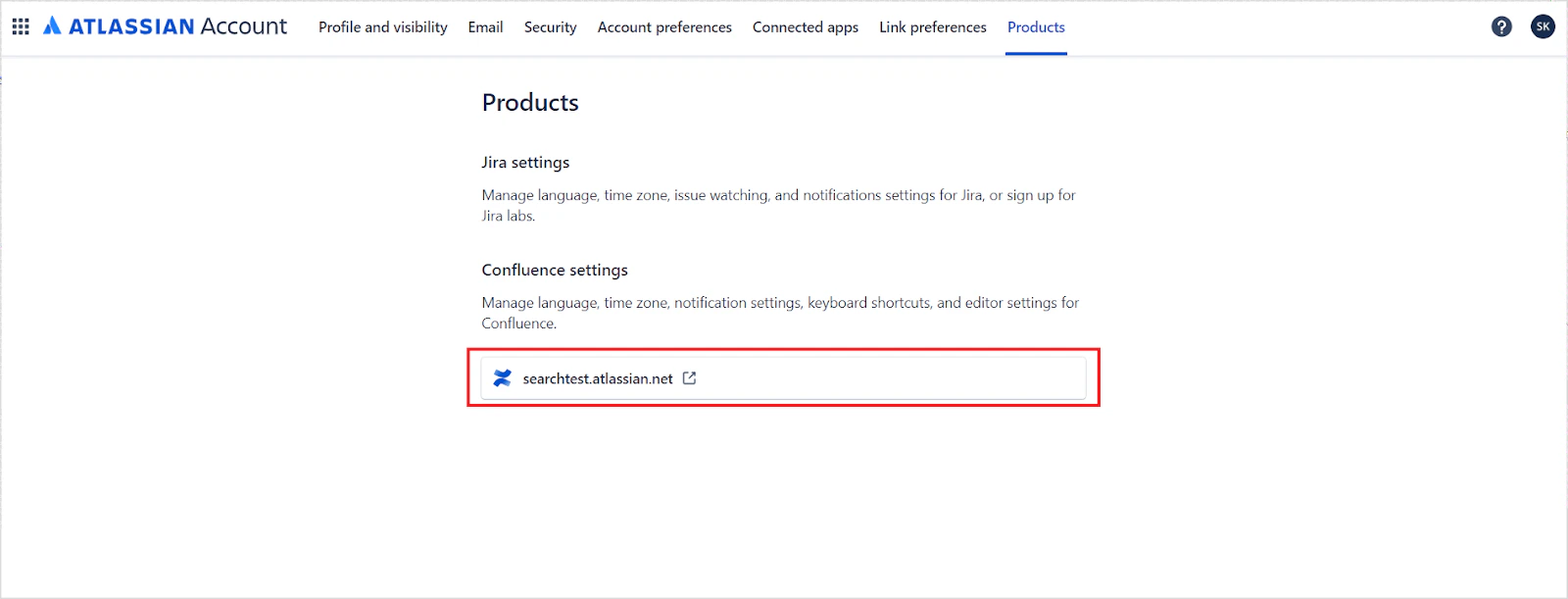
Go to the Confluence home page, click your Profile, and navigate to the Products tab. The host URL is displayed at the bottom of the page.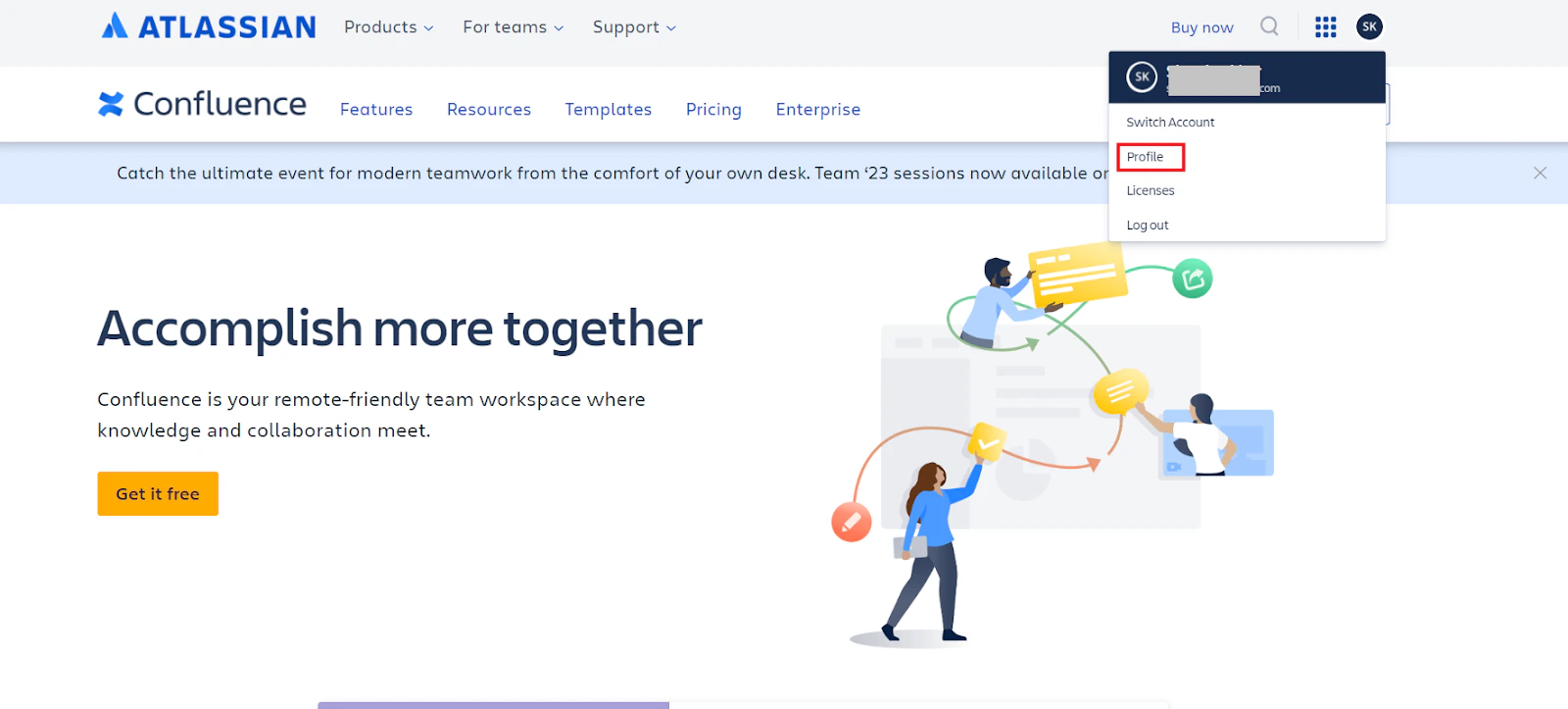
Step 2: Configure the Search AI Connector
Go to Content > Connectors and select the Confluence Cloud connector. On the Authorization tab, enter the following fields:| Field | Description |
|---|---|
| Name | Unique name for the connector |
| Authorization Type | OAuth 2.0 |
| Grant Type | Authorization Code |
| Client ID | Client ID from the Confluence OAuth application |
| Client Secret | Client Secret from the Confluence OAuth application |
| Host URL | Confluence server base URL (without trailing slash) |
Content Ingestion
Go to the Configuration tab and select the content to ingest. You can sync all content from the Confluence Cloud account or select specific content.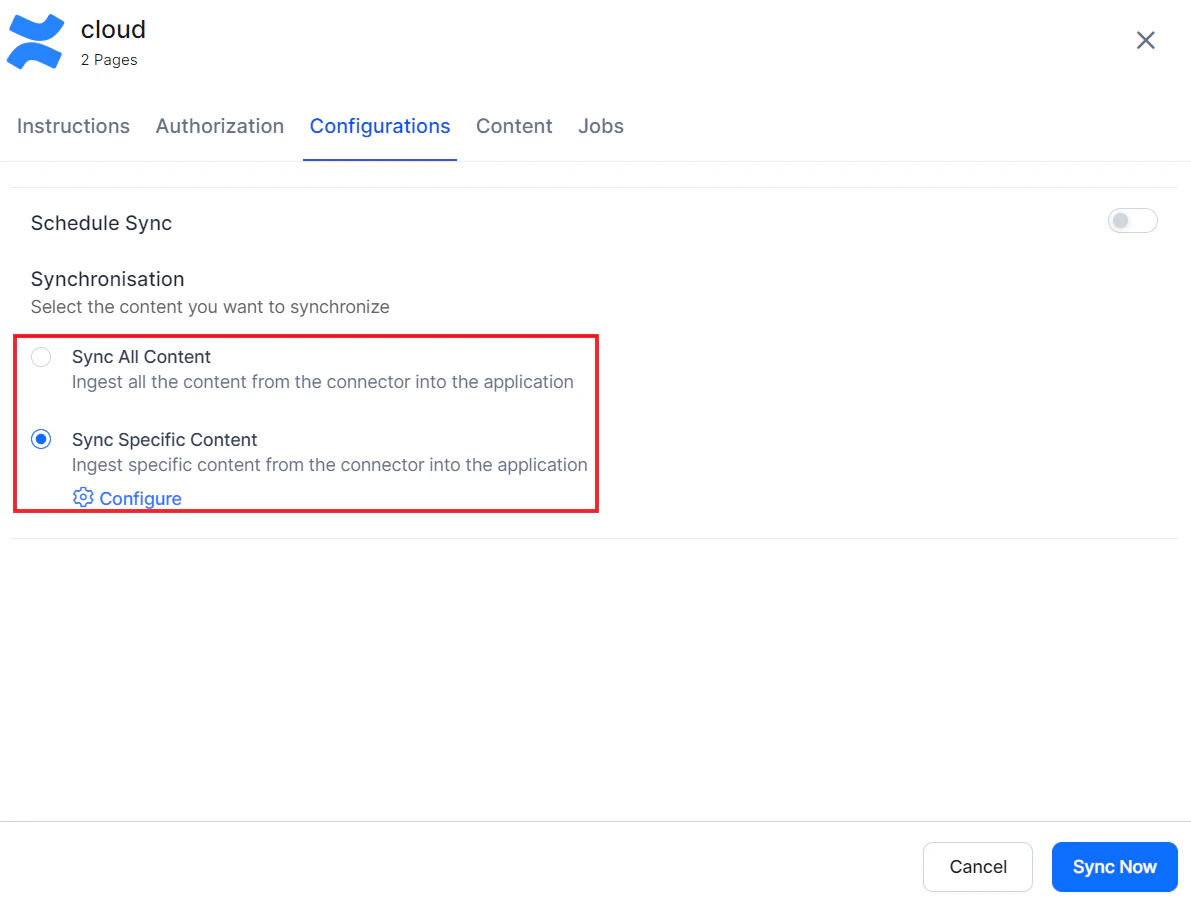
Content Filters
To selectively ingest content, select Sync Specific Content and click Configure. Define rules using a parameter, operator, and value.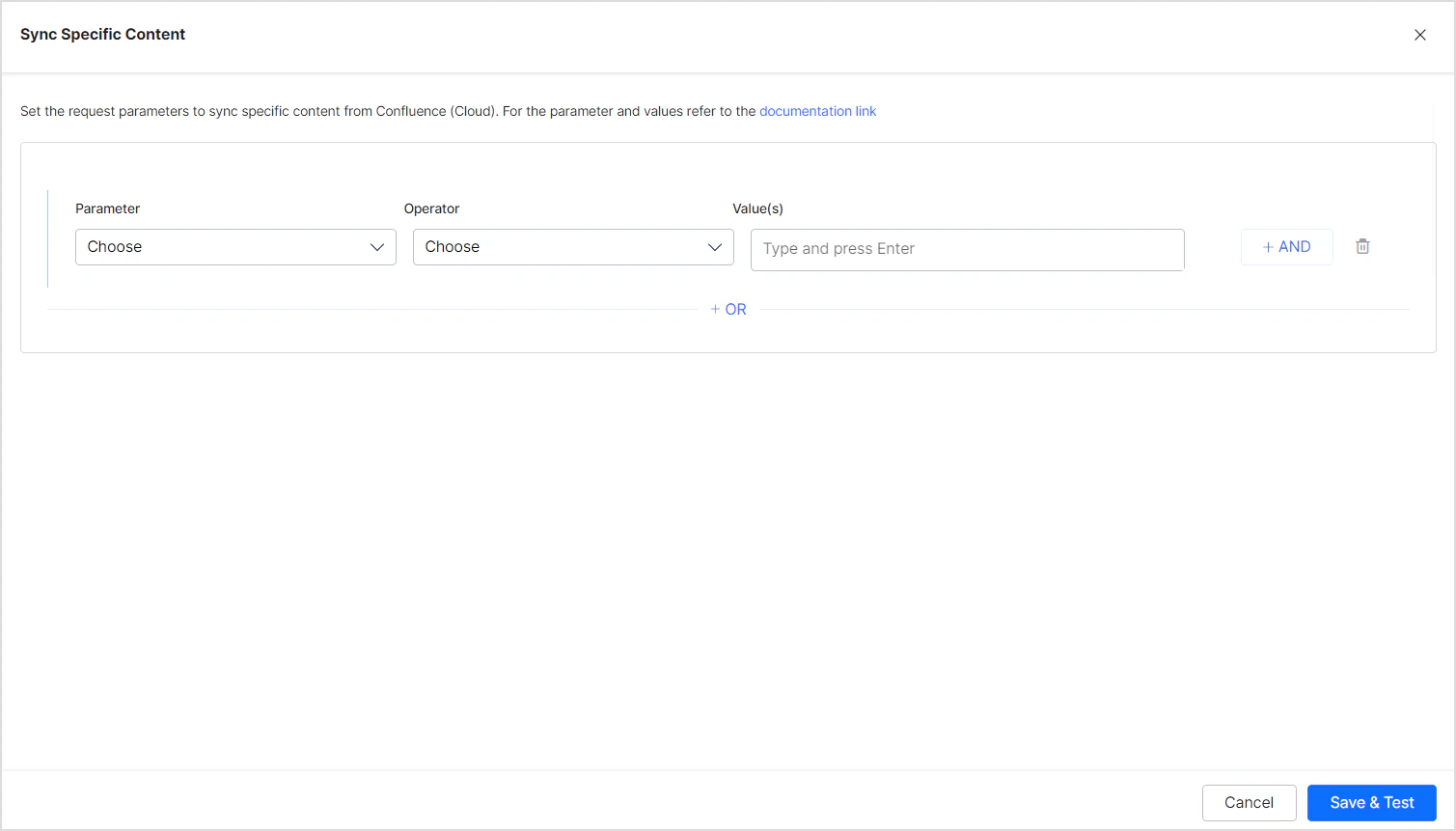
| Parameter | Description |
|---|---|
| Ancestor | Direct child pages and descendants of given content IDs |
| Content | Specific content by content ID |
| Created | Content by creation date (yyyy/mm/dd hh:mm, yyyy-mm-dd hh:mm, yyyy/mm/dd, yyyy-MM-dd) |
| Creator | Content created by specified user account IDs |
| Label | Content filtered by label |
| Parent | Content under a given parent |
| ID | Content by content ID |
| Space | Content in a specific space |
| Title | Content by page title |
| User | Content by user ID |
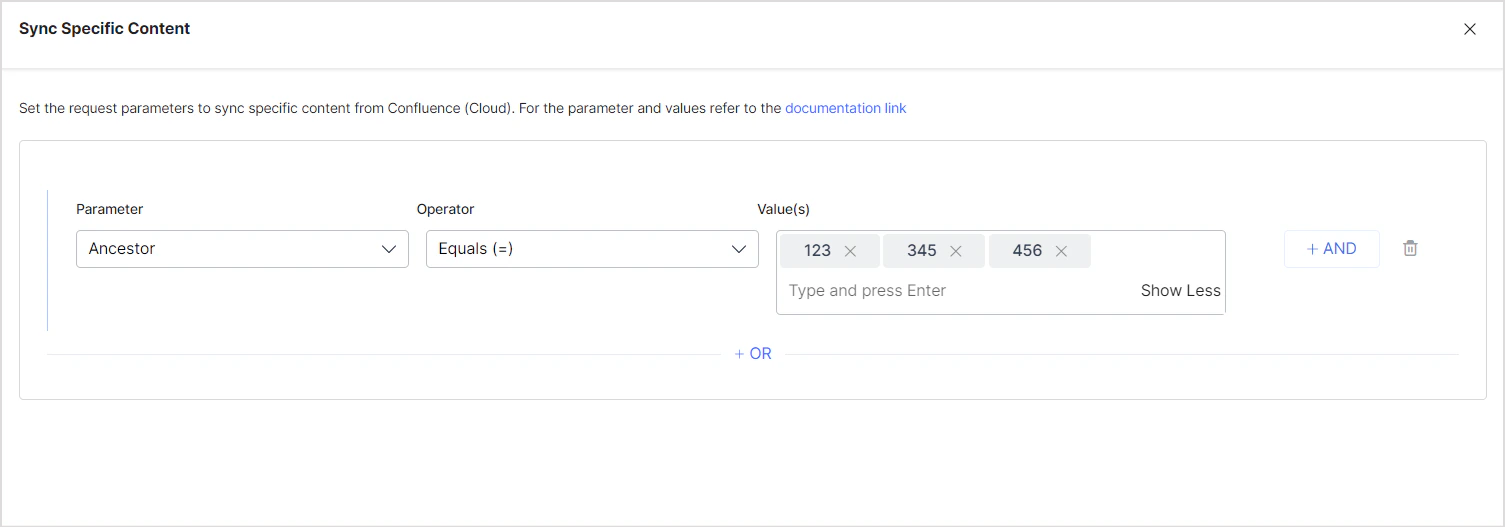
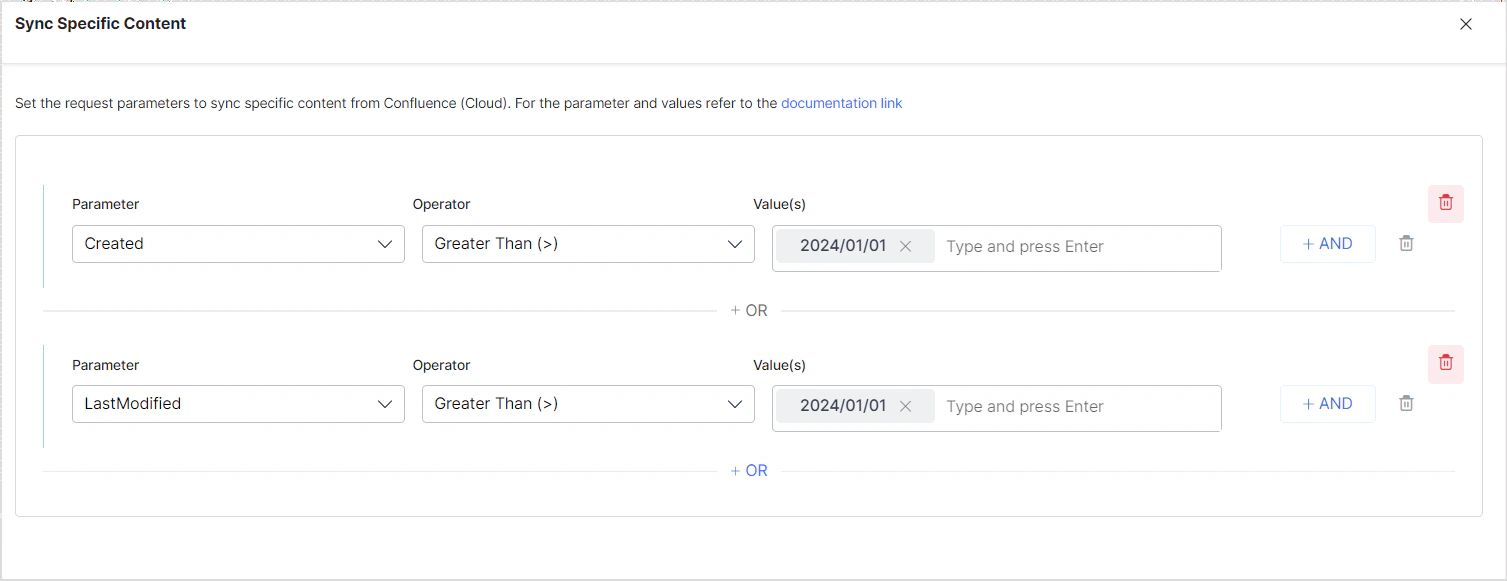
- Use the OR operator to combine multiple rules for different content types.
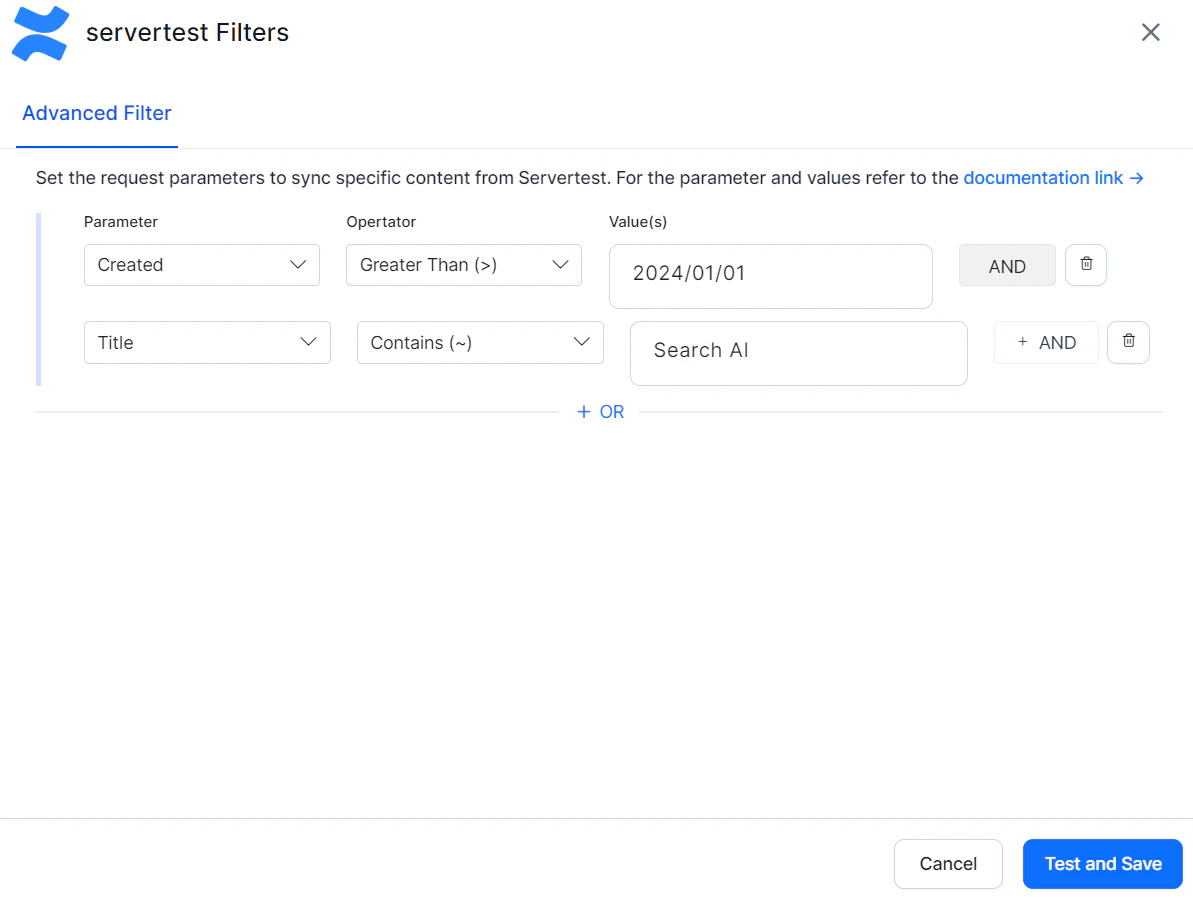
- Use the AND operator within a rule to apply multiple conditions. For example, to ingest content created after January 1, 2024 with “SearchAI” in the title:
Content Sync Schedule
Manual sync — Click Sync Now on the Configuration tab to immediately ingest all updates from Confluence Cloud.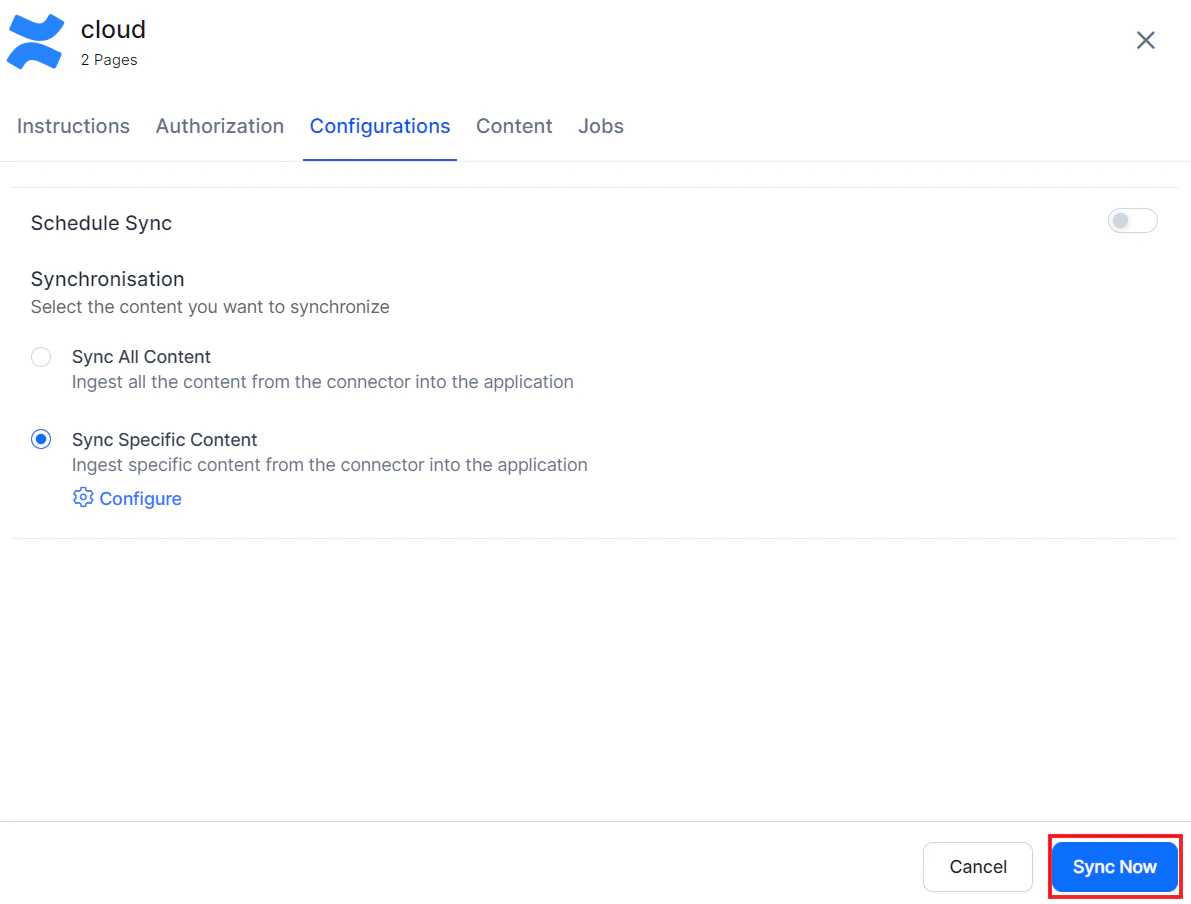
Access Control
Search AI supports access control for content ingested via the Confluence Cloud Connector. Go to the Permissions and Security tab and select the access mode:- Permission Aware — Honors user permissions from Confluence Cloud. Users can only view search results for content they can access in Confluence.
- Public Access — Overrides Confluence permissions. All users can access all ingested content regardless of their Confluence permissions.
Prerequisites
Access control relies on user email addresses as unique identifiers. The account used to configure the connector must be able to view user email addresses. Use an admin account or ensure users have enabled the required settings in their Confluence profiles.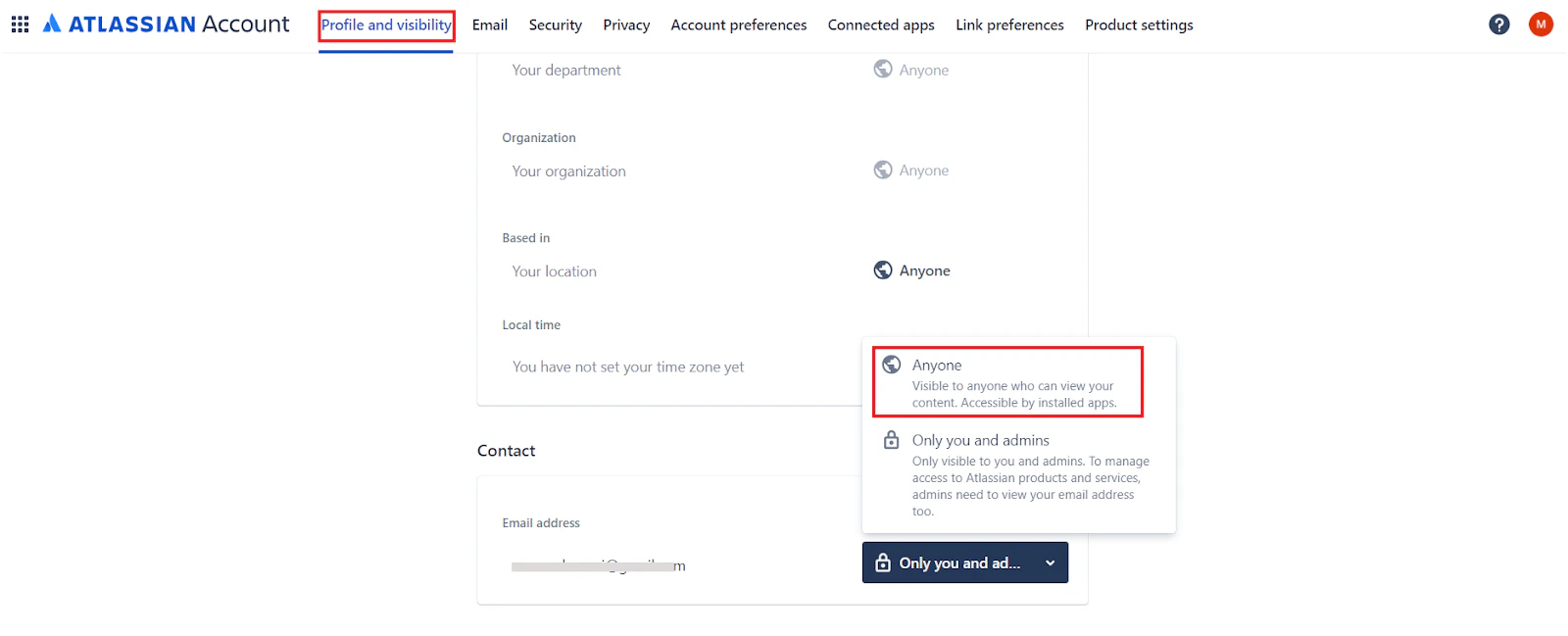
Permission Sets in Confluence Cloud
Space Permissions — Each space has an independent set of permissions managed by space administrators. Search AI requires at minimum view permission to allow a user to access the content.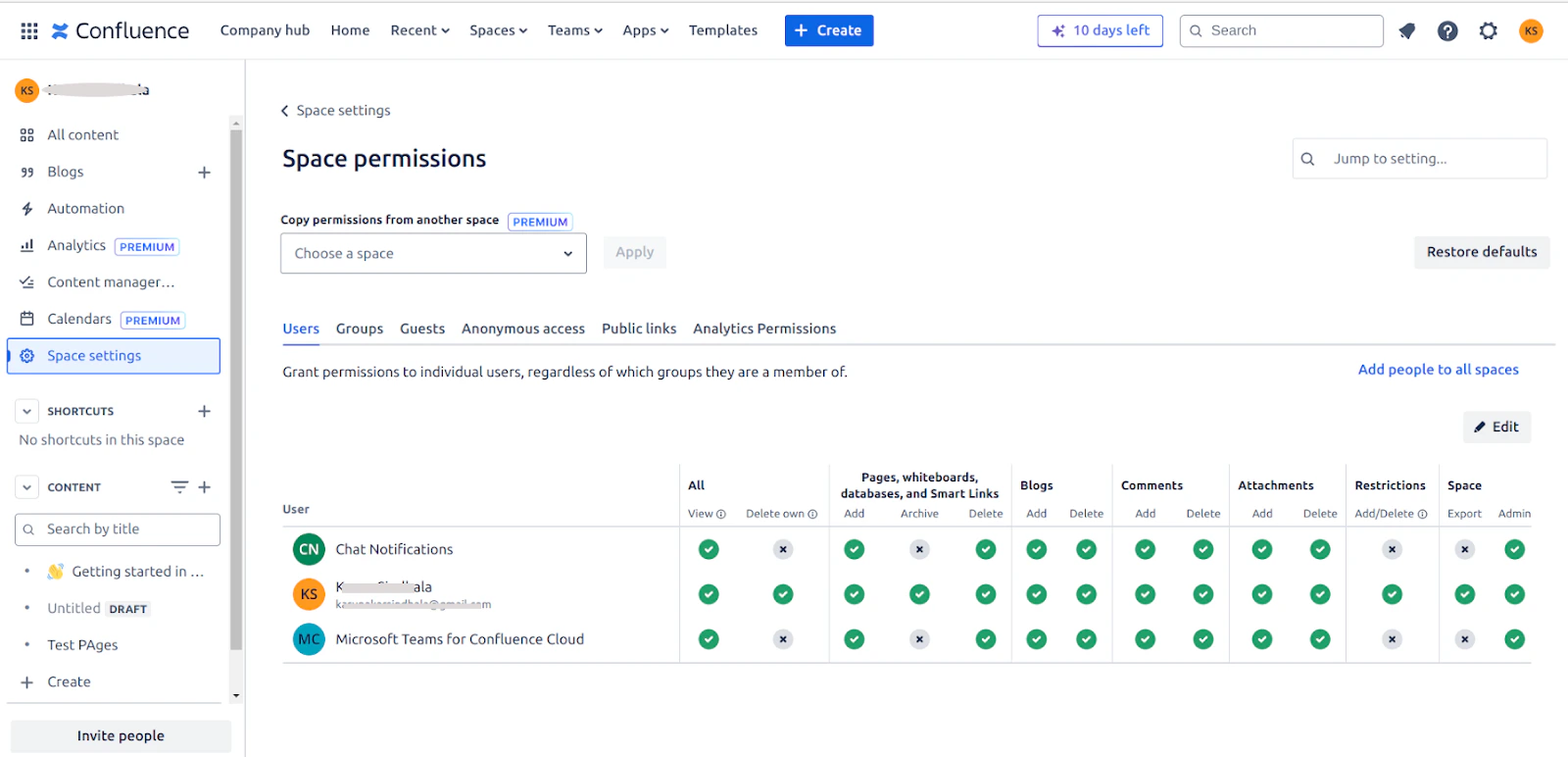
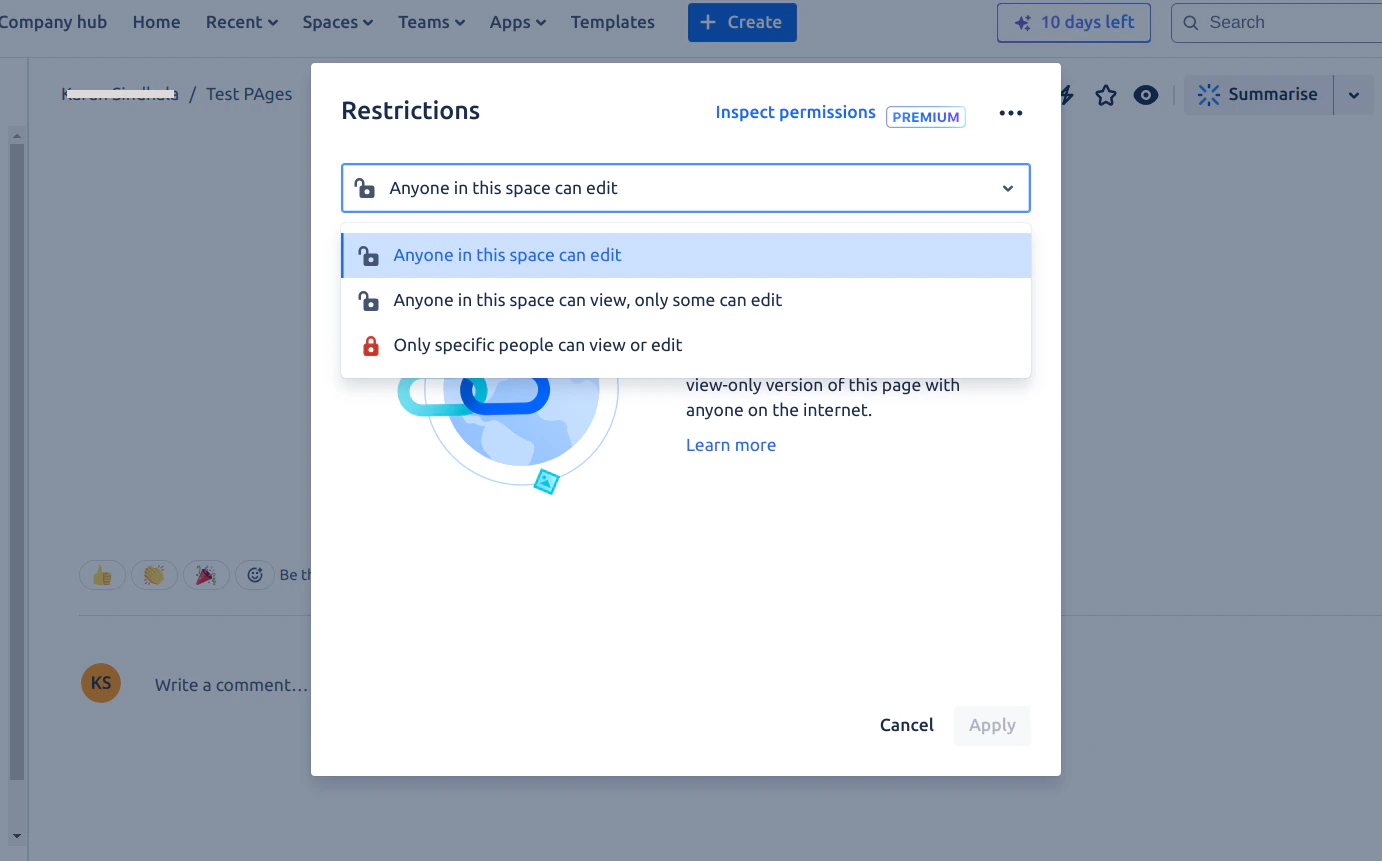
How Permissions Are Handled in Search AI
- Individual access — Users added directly to a space or page are listed in the
sys_raclfield of the indexed content by their email address. These users can directly access the content based on their permissions. - Group access — When access is granted to user groups, Search AI creates a corresponding permission entity for the group. The
sys_raclfield stores the permission entity IDs. Add users to the permission entity using the Permission Entity APIs to grant access.