
| Specification | Details |
|---|---|
| Repository type | On-Premise |
| Supported content | Knowledge Articles, Spaces, Blogs, and Comments |
| RACL support | Yes |
| Content filtering | Yes |
| Webhook support | Yes |
Authorization Support
The connector supports three authentication methods:- Basic Authentication — No server-side configuration required. Proceed directly to Step 2.
- OAuth 2.0 — Register Search AI as an OAuth client in Confluence Server, then configure the connector with the generated credentials.
- Header-Based Authorization — Configure required headers (for example,
Authorization: Bearer <token>orX-API-Key) in the Search AI connector settings. Ensure the external system is configured to accept and validate these headers. Proceed directly to Step 2.
Step 1: Register Search AI in Confluence Server (OAuth 2.0 Only)
OAuth 2.0 requires creating an incoming link under Application Links in the Confluence Server. During setup, use the Redirect URL for your region:| Region | Redirect URL |
|---|---|
| JP | https://jp-bots-idp.kore.ai/workflows/callback |
| DE | https://de-bots-idp.kore.ai/workflows/callback |
| Prod | https://idp.kore.com/workflows/callback |
Step 2: Configure the Confluence Server Connector
- Go to Content > Connectors and choose Confluence (Server).
- Under Authentication, enter the required fields:
- Authorization Type — Basic, OAuth 2.0, or Header-Based
- Grant Type — For OAuth 2.0, select Authorization Code or Client Credentials. For more details, refer to Connectors.
- Basic Auth — Connector name, username, password, and Confluence Data Center host URL
- OAuth 2.0 — Connector name, Client ID, Client Secret, Confluence Data Center base URL, and domain name
- Header-Based — Header, Token, and Host URL
- Real-Time Sync — Toggle to enable or disable automatic syncing of content changes using Confluence webhook notifications.
- Webhook Client Secret — Generated automatically (with option to regenerate).
- Webhook URL — Copy the provided URL for use when configuring the Confluence webhook.
- Click Connect to initiate authorization.
Note: Webhook sync updates document entities only. Associated users and permissions within those entities must be synchronized through regular incremental or manual sync.
Webhook Configuration for Real-Time Sync
Search AI uses Confluence webhook notifications to manage real-time content updates and deletion events. When configured, webhooks automatically sync content changes and remove deleted pages and blog posts from the Search AI index. Perform the following steps in your Confluence server:- Go to Settings > General Configuration.
- Search for “Webhook” and select Webhooks from the left navigation under Configuration.
- Click Create webhook.
- Enter the following details:
- Name — SearchAI Webhook Sync
- URL — The webhook endpoint URL provided in the Search AI connector configuration
- Secret — The webhook secret token displayed in the Search AI connector Authentication configuration
- Click Test connection to verify Confluence can reach the endpoint.
- From the Events dropdown, select the subscribed events:
page_created,page_updated,page_removed(orpage_deleted),blog_created,blog_updated,blog_removed(orblog_deleted). - Ensure Active is selected, then click Save.
Content Ingestion
Go to the Manage Content tab in the connector configuration to define how content is ingested. Choose between two modes:- Ingest all content — Syncs all available content from Confluence.
- Ingest filtered content — Syncs only the content you specify.
- Select Ingest filtered content and click Edit configuration to open the Ingestion Filters page.
- Click Browse & Select, then mark the spaces or content types you want to sync.
- Use the search box to locate spaces, check or uncheck items to include or exclude, and click View More to load additional spaces.
- Save the configuration.
Real-Time Sync via Webhooks
When Real-Time Sync is enabled and Search AI receives a webhook POST from Confluence:- Create/Update — For
page_created,page_updated,blog_created, orblog_updatedevents, the document is created or updated in the Search AI index. - Delete — For
page_removed,page_deleted,blog_removed, orblog_deletedevents, the content is removed from the index.
Incremental Sync
During each sync cycle, only newly created or modified Pages, Blogs, Spaces, and Comments are fetched and updated in Search AI.Content Filters
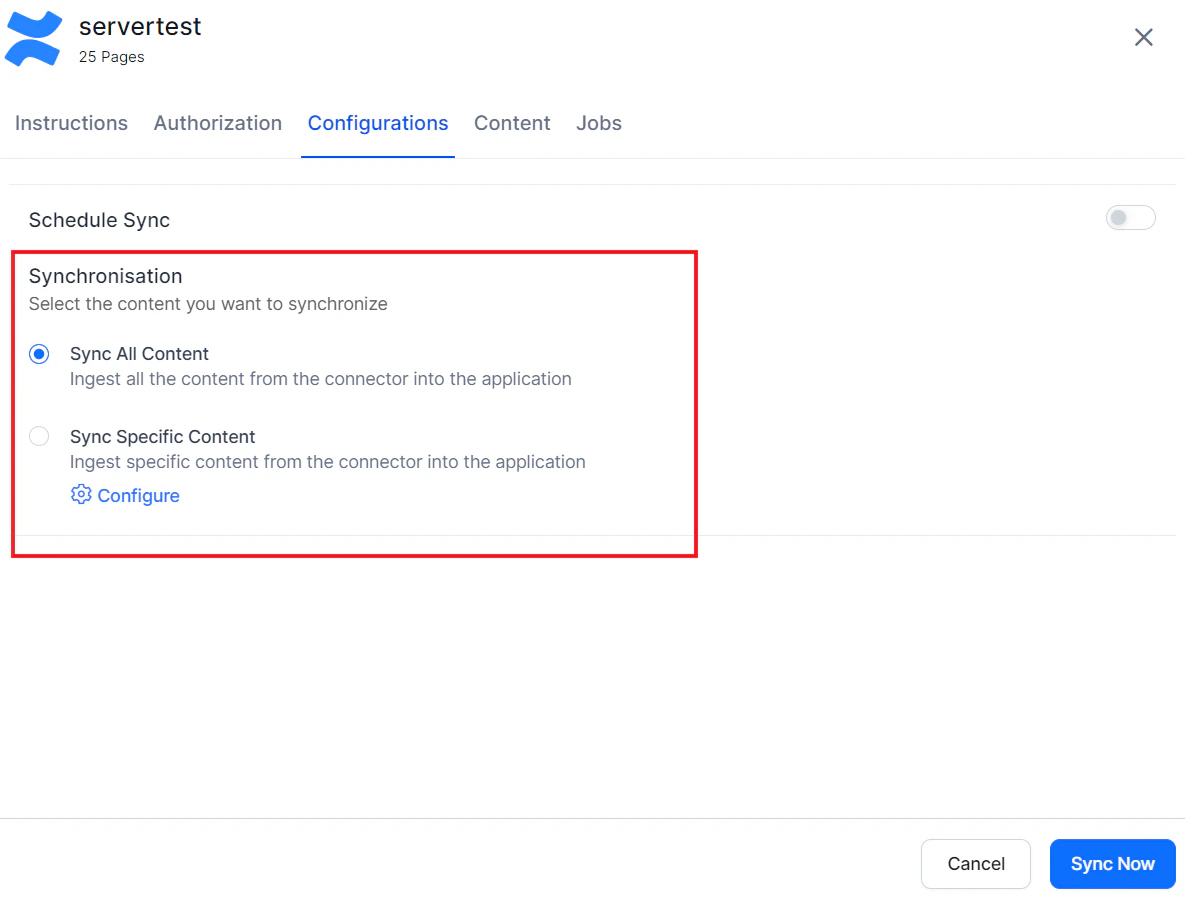
To selectively ingest content, select Sync Specific Content and click Configure. Define rules using a parameter, operator, and value.
| Parameter | Description |
|---|---|
| Ancestor | Direct child pages and descendants of given content IDs |
| Content | Specific content by content ID |
| Created | Content by creation date (yyyy/mm/dd hh:mm, yyyy-mm-dd hh:mm, yyyy/mm/dd, yyyy-MM-dd) |
| Creator | Content created by specified user account IDs |
| Label | Content filtered by label |
| Parent | Content under a given parent (applies to Pages, Blogs, and threaded Comments) |
| ID | Content by content ID |
| Space | Content in a specific space (applies to Pages, Blogs, and Comments) |
| Title | Content by page or blog title |
| User | Content by user ID |
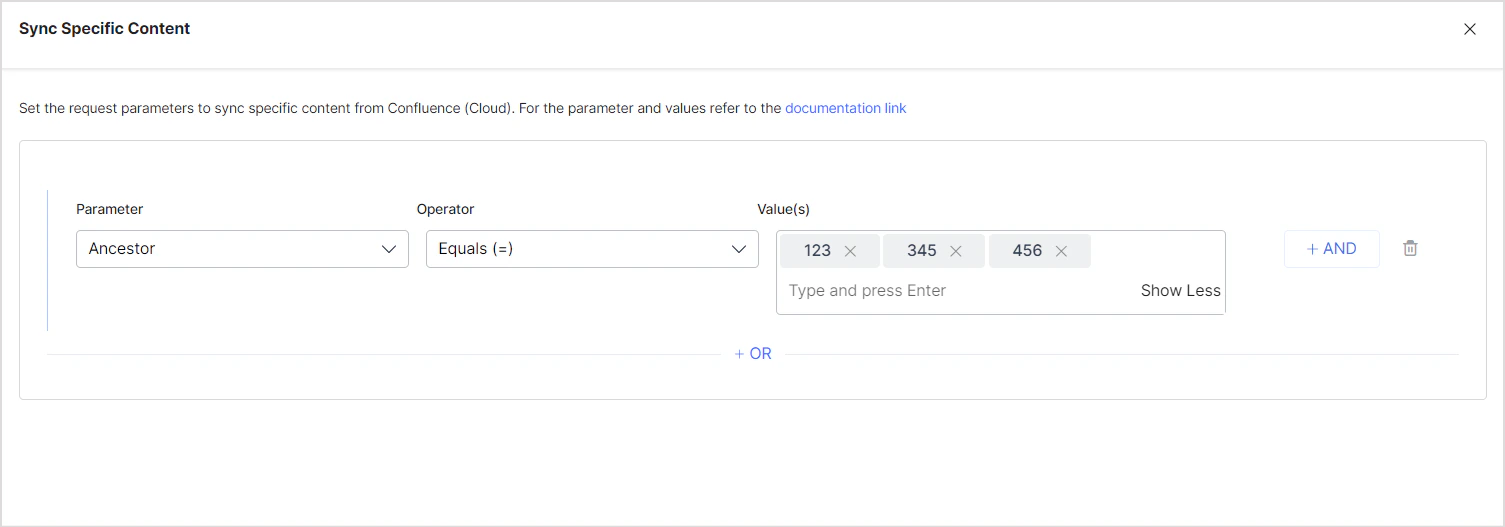
- Use the OR operator to combine multiple rules for different content types.
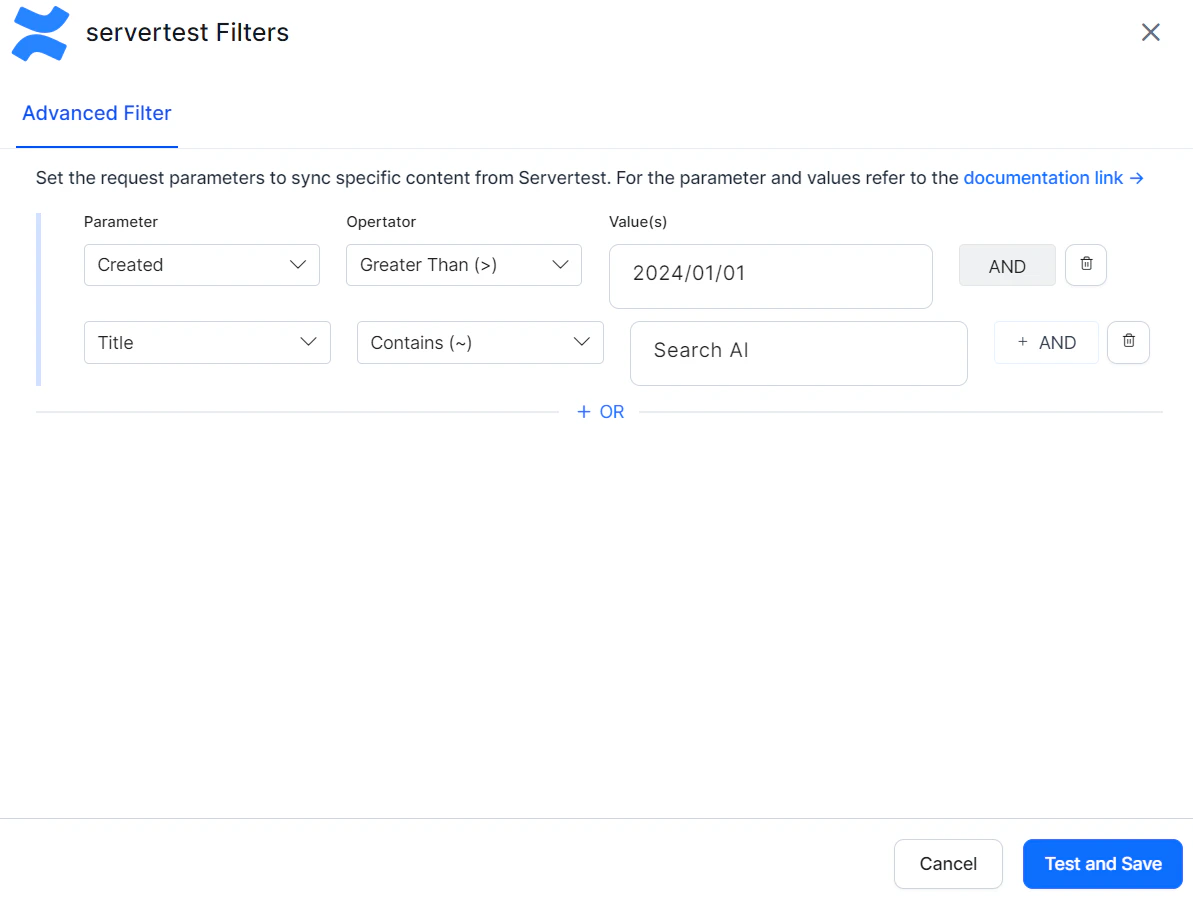
- Use the AND operator within a rule to apply multiple conditions. For example, to ingest content created after January 1, 2024 with “SearchAI” in the title:
Access Control
Search AI supports access control for content ingested via the Confluence Server Connector. Go to the Permissions and Security tab and select the access mode:- Permission Aware — Honors user permissions from Confluence Server. Users can only view search results for content they can access in Confluence.
- Public Access — Overrides Confluence permissions. All ingested content is visible to all Search AI users regardless of actual Confluence access.
Prerequisites
Access control relies on user email addresses as unique identifiers. The ingestion account must have access to:- Read page-level and space-level permissions
- Retrieve user and group details via API tokens with appropriate access
Permission Sets in Confluence Server
Space Permissions — Each space defines its own set of permissions managed by space administrators. These permissions control who can view, edit, or administer content in that space. Search AI requires at least view access to ingest and apply access control correctly. Blog Restrictions — Blog posts inherit permissions from their parent space but can have their own view or edit restrictions. Blog permissions follow the same model as page permissions. The Blog Post ID must be set in thesys_racl field. Permissions inherited from the parent space apply unless overridden by blog-specific restrictions.
Page Restrictions — Pages may inherit permissions from their parent space but can also define their own view or edit restrictions. If a page is restricted to specific users or groups, those restrictions override inherited space permissions.
How Permissions Are Handled in Search AI
- Individual access — Users added directly to a space or specific page are included in the
sys_raclfield of the ingested document, represented by email addresses or usernames depending on your Confluence setup. - Group access — When access is granted to groups (for example,
confluence-usersorengineering-team), Search AI creates Permission Entities based on group identifiers stored in thesys_raclfield. Use the Permission Entity APIs to associate users with the appropriate group or entity in Search AI.
Limitations
- Anonymous access — Search AI does not support anonymous access. If a page is publicly viewable in Confluence without login, it will not be searchable unless explicitly shared with known users or groups.
- Webhook sync — User synchronization is not supported through webhooks. Document entities are updated via webhook, but associated users within those entities must be synchronized through regular incremental or manual sync.