
Note: Searching through attachments is not supported.
Specifications
| Specification | Details |
|---|---|
| Repository type | Cloud |
| Supported content | Issues, Pull Requests, README files |
| RACL support | Yes |
| Content filtering | Yes |
| Auto permission resolution | No |
Prerequisites
- Set up authentication on your GitHub On-Prem instance.
- Whitelist the Search AI domain in your GitHub On-Prem instance.
Authorization Support
Search AI supports two authentication methods for GitHub On-Prem:- Personal Access Token
- OAuth 2.0
GitHub Configuration
Personal Access Token
- Go to Developer Settings in your GitHub account.
- Generate a token with the following permissions:
reporead:org
OAuth 2.0
- Register a new OAuth application in GitHub.
- Provide the basic app details.
- Use one of the following callback URLs based on your region:
- JP Region:
https://jp-bots-idp.kore.ai/workflows/callback - DE Region:
https://de-bots-idp.kore.ai/workflows/callback - Prod:
https://idp.kore.com/workflows/callback
- JP Region:
- This generates client credentials. Use the device flow and client credentials to manually create an access token using an API client tool such as Postman.
Configure the GitHub On-Prem Connector in Search AI
Provide the following fields when configuring the connector:| Field | Description |
|---|---|
| Name | Unique identifier for the connector |
| Owner Name | GitHub organization or user account that owns the repositories |
| Authorization Type | Personal Access Token or OAuth 2.0 |
| Token / Client Credentials | Provide the token (PAT) or client credentials (OAuth 2.0) |
| Host Domain | URL of the GitHub On-Prem domain |
Managing Multiple Authentication Profiles
The connector supports multiple authentication profiles, each representing a different GitHub organization.Adding Authentication Profiles
- Add profiles from the connector UI. The dropdown shows connection status: Connected or Not Connected.
- During initial setup, you cannot navigate to other tabs until authentication succeeds.
- After authenticating, a prompt lets you sync with default settings or customize before syncing.
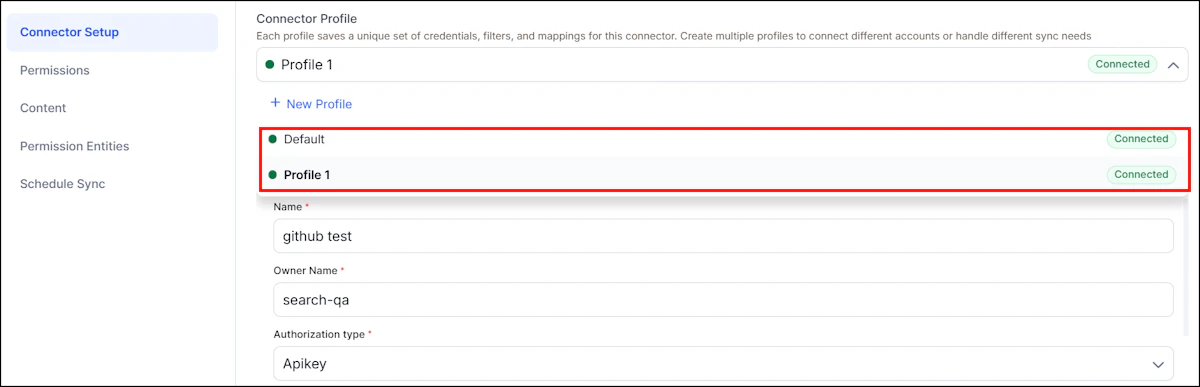
Profile-Specific and Shared Settings
Each profile maintains its own filters, repository selections, and content rules. The following settings are shared across all profiles:- Permissions content (combined content, duplicates removed)
- Sync schedule
Content Ingestion
- Go to Manage Content and select the object types to ingest: Issues, Pull Requests, Pages, Files, or Commit Messages.
- Choose an ingestion mode:
- Ingest All Content — syncs all content.
- Ingest Filtered Content — configure filters below.
doc_source_type— identifies the content type in the ingested JSONrepository_idandrepository_name— repository detailsurl— link to the specific object- Creation and update timestamps
Sync Logic
| Scenario | Behavior |
|---|---|
| Manual sync | Only the selected profile is synchronized |
| Scheduled sync | All profiles are synchronized in sequence, most recently added first |
| Disconnected profile | Previously ingested content is retained until a manual sync or deletion |
| Deleted profile | All associated content is removed unless already synced through another profile |
RACL Support
For all content ingested from GitHub repositories, Search AI sets therepository ID as the sys_racl value. This value is stored as a permission entity. Use the Permission Entity APIs to associate users with the permission entity corresponding to each repository ID.