
| Specification | Details |
|---|---|
| Repository type | Cloud |
| Supported content | Tickets, Contacts, Companies, Deals |
| RACL support | Yes |
| Content filtering | Yes |
| Auto permission resolution | Yes |
Prerequisites
Authentication uses a HubSpot Private App access token. Refer to the HubSpot documentation to create a private app and generate an access token. The following scopes are required when creating the app:crm.objects.users.readticketscrm.objects.owners.readsettings.users.teams.readcrm.objects.companies.readcrm.objects.deals.readcrm.objects.contacts.read
Configure the HubSpot Connector
- Navigate to Content > Connectors in Search AI and select HubSpot.
- On the Authentication tab, enter the following details:
| Field | Description |
|---|---|
| Name | Unique name for the connector |
| Authentication | Private App |
| API Key | Access Token from your HubSpot Private App |
- Click Connect.
Content Ingestion
After connecting, go to the Manage Content page and select one or more content types under Object Type to ingest.Note: At each sync, content from the past 90 days is ingested.For each content type, the
content field stores the main content, the type field identifies the content type, and other properties are stored in dedicated index fields or as metadata.
Tickets
- Content, Priority, Creation Date, Owner Name, Last Activity Date, Associated Companies, Associated Contacts
Deals
- Amount, Creation Date, Deal Stage, Owner Name, Last Activity Date, Associated Companies, Associated Contacts
Contacts
- Email, Phone Number, Company Name, Total Revenue, Recent Deal Amount, Creation Date, Last Activity Date, Owner Name, Associated Companies
Companies
- Description, Domain Name, Industry, City, Employee Count, Annual Revenue, Owner Name, Associated Contacts
Content Filtering
To ingest a filtered subset of content:- Go to Manage Content and select the content types under Object Type.
- Select Ingest Filtered Content and click Edit Configuration.
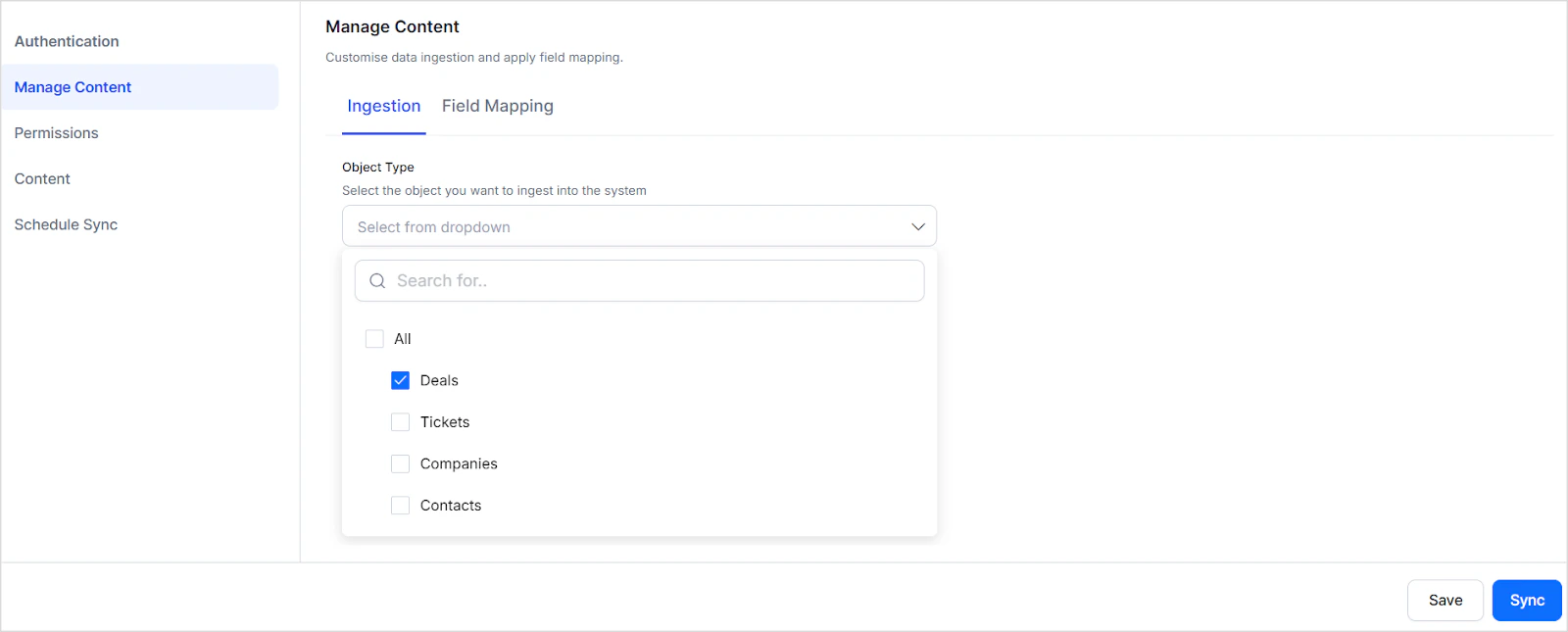
- Under Advanced Filters, create filter rules based on content type properties. Use the Parameter list to select a default property, then specify an operator and value.
- Combine conditions using AND or OR operators.
- Click Save.
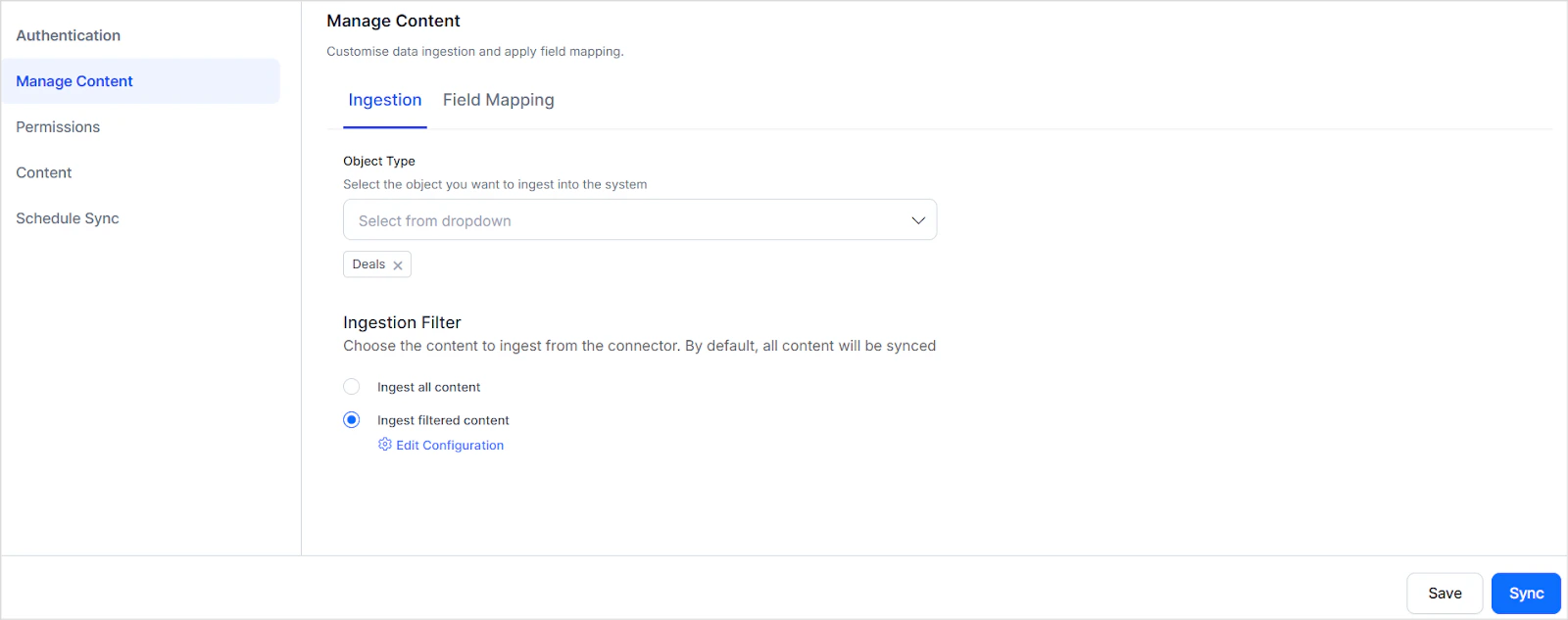
Note:
- Filters configured for a content type not selected under Object Type are ignored.
- Each content type includes default parameters in the Parameter drop-down. Choose appropriate operators and values for accurate filtering.
- To filter by a parameter not in the drop-down, select Add and enter the exact parameter name as it appears in your HubSpot account.
RACL Support
For each ingested content item, Search AI populates thesys_racl field with the email address of the content owner, granting that user direct access. Search AI automatically creates permission entities for the owner’s teams and associates team members with those entities. No manual configuration is required.