
Connector Specifications
| Specification | Details |
|---|---|
| Repository type | Cloud |
| Supported content | Extractive answers: .pdf, pages/articles (.aspx), .html, .xhtml. Generative answers: pages/articles (.aspx), .doc, .docx, .ppt, .pptx, .html, .xhtml, .txt, .pdf |
| RACL support | Yes |
| Auto permission resolution | Yes |
| Extractive model support | Yes |
| Generative model support | Yes |
Authorization Support
Search AI uses OAuth 2.0 Authorization Code Grant Type for OneDrive integration.Register a Multi-Tenant App in Azure
Registering an app in Azure establishes trust between Search AI and the Microsoft identity platform, enabling programmatic access to OneDrive resources.Register the App
- Sign in to the Azure Portal and go to Azure Active Directory.
- Select App Registrations > New Registration.
- Enter the app name.
- Under Supported account types, select Accounts in any organizational directory (multi-tenant).
- Enter the Redirect URL for your region or deployment:
- JP Region:
https://jp-bots-idp.kore.ai/workflows/callback - DE Region:
https://de-bots-idp.kore.ai/workflows/callback - Prod:
https://idp.kore.com/workflows/callback
- JP Region:
- Select Register.
Create a Client Secret
- In the app, go to Certificates & secrets.
- Select New client secret.
- Enter a description, set the expiration to 24 months, and select Add.
- Copy and save the client secret value immediately — it cannot be viewed again after leaving the page.
Configure API Permissions
- Go to API permissions > Add a permission.
- Select Microsoft Graph > Delegated permissions.
- Add the following permissions:
Files.ReadFiles.Read.AllOffline_access
- Select Grant admin consent to apply the permissions.
Configure the OneDrive Connector
- Go to the Connectors page and add the OneDrive connector.
- On the Authorization page, set the authentication mechanism to OAuth 2.0 and the grant type to Authorization Code.
- Enter the Client ID, Tenant ID, and Client Secret generated during Azure app registration.
- Select Connect.
Content Ingestion
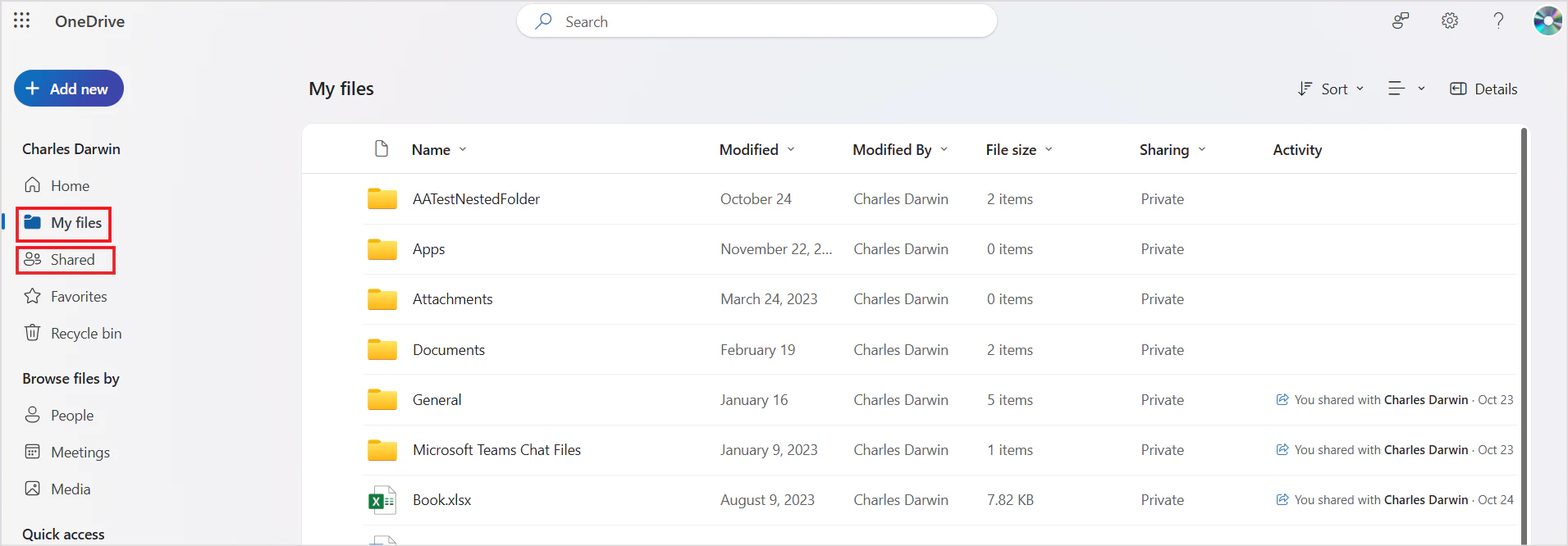
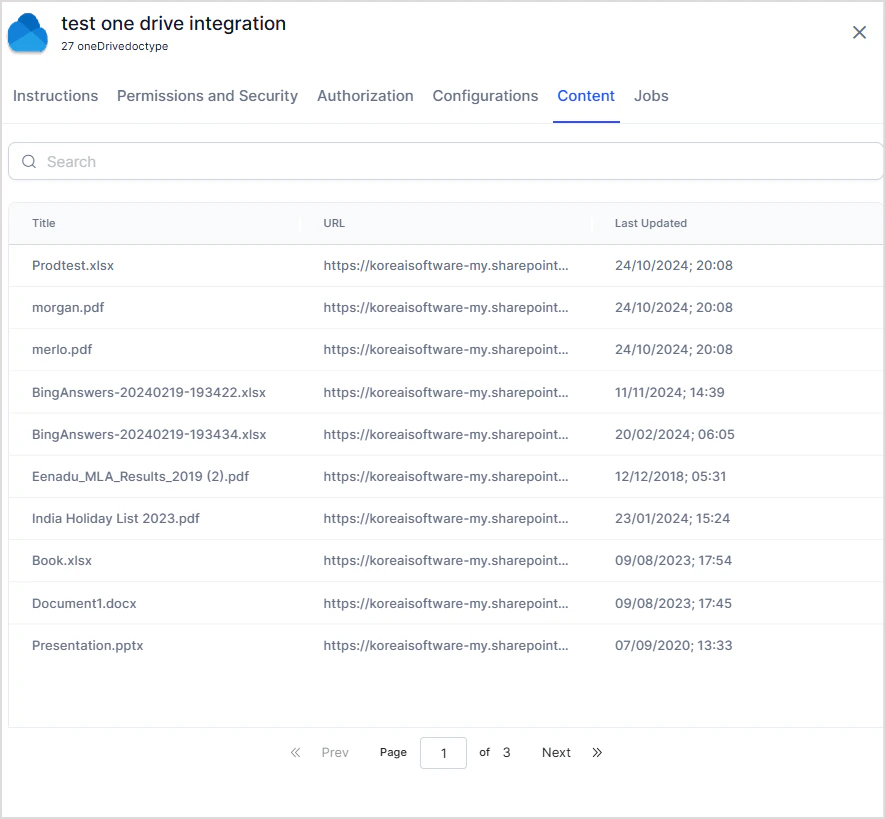
After authentication is complete, configure content ingestion from the Configuration tab.- Go to the Configuration tab.
- Select Sync Now to perform an immediate sync.
- Optionally, Schedule a sync to run at a future time.
- First sync: All supported content is ingested.
- Subsequent syncs: Only updated content is ingested. Chunks for updated content are deleted and recreated.
Access Control
Search AI supports access control for content ingested from OneDrive. To configure it, go to the Permissions and Security tab in the OneDrive Connector. Search AI provides two options for managing access:- Permission Aware: The connector retrieves access information from OneDrive during ingestion and stores it in the
sys_raclfield. Each entry insys_raclrepresents a permission entity. Search AI automatically resolves these entities and associates the correct users with the corresponding files or folders. - Public Access: The
sys_raclfield is set to*. All Search AI users can access the ingested content regardless of OneDrive permissions.
How OneDrive Permissions Work
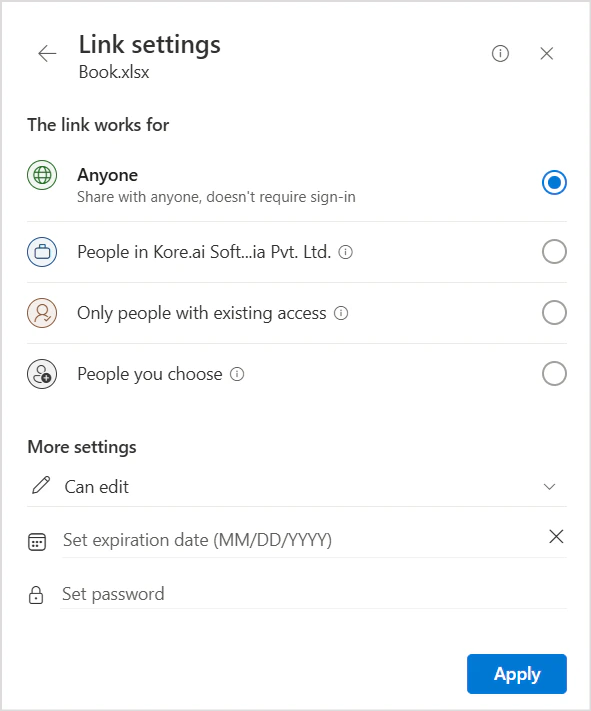
By default, files and folders created in OneDrive are private — only the owner can access them. Files and folders can be shared with internal or external users and user groups using the Share option in OneDrive.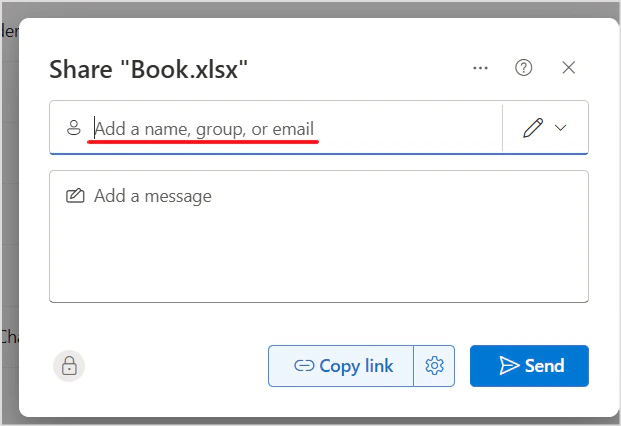
How Search AI Handles Permissions
| Source | Handling in Search AI |
|---|---|
| File owner | Automatically added to sys_racl |
| Directly shared users | Added directly to sys_racl |
| Shared user groups | Added as permission entities in sys_racl; users in those groups must be added manually using the Permission Entity APIs |
| Link shared to a domain | Users of that domain are automatically identified using the domain name |
test@example.com and external user xyz@other-example.com, the sys_racl field appears as: