
| Feature | Description |
|---|---|
| Standard Responses | Pre-defined NLP interpreter messages triggered by events, user inputs, or system conditions. |
| Manage Interruptions | Configure how the AI Agent handles mid-task interruptions such as FAQs or small talk. |
| Small Talk | Enable casual, non-task conversations to make interactions feel more natural. |
| Alert Tasks | Set up proactive notifications the AI Agent sends based on triggers or schedules. |
Standard Responses
Standard responses are pre-defined NLP interpreter messages the AI Agent displays based on events, user inputs, or system conditions. All defaults can be customized, and channel-specific overrides can be added. Go to Automation AI > Conversation Intelligence > Conversation Management > Standard Responses. For each category, the trigger condition is listed alongside the default response(s). The NLP interpreter randomly selects from multiple responses at runtime.Response Categories
| Category | Description |
|---|---|
| Statements | Responses triggered by AI Agent or user actions — for example, task cancellation or invalid input. |
| Queries | Questions the AI Agent asks for more information — for example, Which field do you want to change? |
| Errors & Warnings | Messages displayed during errors — for example, End date cannot be before the start date. |
| Questions | General questions posed to the user that don’t fit other categories. |
| Choices | Yes/No prompts — for example, Would you like to receive push notifications? |
| Greeting | Initial responses when the app starts or when a user returns after inactivity. |
Statements
Responses triggered by actions from the AI Agent or user.| Message | When It Appears |
|---|---|
| When the user confirms to close the conversation in a language and switch to another language | User ends a conversation in one language and starts the next in a different language. |
| When only field prompt is present in the OOB | Internal field prompt for action and alert tasks. Not recommended for customization by enterprises. |
| When language preference is set | User switches language using cheat lang or picks from language options. |
| When task is not accessible to user | Developer tries to access an app task they don’t have permission for. |
| User confirms alert setup | An alert is set up successfully (Alert Task only). |
| User discards/abandons the current activity | User says discard, or the task fails due to max retries, invalid LoV, or cURL error. |
| User implies to end the conversation | User says bye, good night, etc. Shown when the Follow-up Intents list is presented at dialog end. |
| Location provided by user is invalid | AI Agent cannot validate input for a Location-type entity. |
| Amending an Alert field | User says Yes to amend alert parameters (Alert Task only). |
| Amending a task which has no fields | Task has no entities to amend (Alert, Action, and Information Tasks). |
| Ask at least one optional field | User did not provide any optional field value when at least one is required ( only). |
| Topic retry limit exceeded | Developer mode only. Dialog looped through the same nodes beyond the allowed limit. |
| Universal fallback response | AI Agent cannot generate a response for any reason, or maximum node execution limit exceeded. |
| Server returned authorization failure | Authorization failure occurred during script or API execution. |
| User selects a valid option from a list | User selects an action/alert/info task from the listed options. |
| User selects an action | User selects an action task; AI Agent confirms and asks for required parameters. |
| Alert is identified, ask for alert time | Displayed when Trigger Interval is set to At a specific time. |
| Alert is identified, ask for alert time interval | Displayed when Trigger Interval is set to Every X minutes. |
| User selects an alert | User selects an alert task; AI Agent confirms and requests required parameters. |
| Task discarded | User types discard mid-task. |
| App choosing the default account | Shown during alert amend when AI Agent cannot parse the user’s response. |
| Confirmation Dialog for Task consolidated | AI Agent confirms captured parameters before executing an Action/Info task. |
| Confirmation Dialog for Alert consolidated | AI Agent confirms all details before setting up an alert (if confirmation is enabled). |
| Confirmation Dialog for Alert consolidated without fields | Alert has no fields; AI Agent confirms before execution (if confirmation is enabled). |
| The alerts will be muted | Developer has muted alert notifications. |
| Confirmation Dialog when alerts are muted | Shown when Mute alert notifications is enabled for an RSS alert. |
| Alert frequency description | Confirmation of alert query frequency for web-service alert tasks. |
| Not understanding the input at confirmation | User’s response during alert frequency confirmation does not match the expected input. |
| No results found for the search string | Typeahead field returned no results. |
| Successful task setup | Alert task set up successfully. |
| I am not sure what you mean | One or more low-confidence intents found. Usually shown as FAQ suggestions. |
| Ambiguity in intent recognition | AI Agent failed to identify user intent; prompts user to rephrase. |
| User has selected daily alert — ask for frequency or specific time | Both frequency interval and specific time options are available. |
| App needs to present filter options | Multiple filters available during alert setup. |
| App needs to present filter options with exit option | Same as above, but includes an option to skip. |
| User finished configuring filters | Filter configuration for an alert task completed. |
| User asks Who am I | User types Who am I. |
| User asks for help | User types Help; AI Agent lists available tasks. |
| Skipped values | Part of confirmation message for Action/Info tasks — shows skipped (optional) parameters. |
| Ask user to change dependent field | A dropdown depends on another field, but the Platform cannot fetch data from that field. |
| When there is no data | User chooses to change account but responds no to the AI Agent’s confirmation. |
| When date given in invalid format | User enters an unrecognizable date format. Valid formats: YYYY-MM-DD, DD-MM-YYYY, 1 Jan 1982, Next Friday. |
| Follow-up sentence post task discard | AI Agent confirms task was discarded and offers to restart. |
| Confirmation Dialog for task with skipped fields | Confirmation before executing an Action/Info task when some optional fields were not provided. |
| Listing all tasks | Displayed when user types Help and no task matches. |
| Listing all alerts | Displayed when user types Help and the app has only alert tasks. |
| Listing all FAQs | Displayed when user types Help — includes Knowledge Graph collections. |
| Listing all alerts after tasks | Shown when app only has alert tasks and intent is not identified. |
| Listing all alerts after tasks and FAQs | Shown when all task types are configured and user types Help. |
| Lists all actions and FAQs | No matching task found; lists actions and FAQs. |
| Lists all alerts and FAQs | No matching task found; lists alerts and FAQs. |
| When app has no tasks | Developer tries to run an app without any tasks. |
| When a server call fails | Webhook or service node call failed; task is discarded. |
| User prompt when a task is discarded due to server call failure | API call did not complete successfully. |
| Specific app is not available | App is not yet published. |
| Field title and value in confirmation | Part of the confirmation step — shows captured field values for alert, action, or info tasks. |
| Recursive dialog found | AI Agent recursively called the same dialog and exceeded the limit (100). |
| Loop limit reached for a node | Same node invoked repeatedly beyond the allowed number of times. |
| Message component doesn’t have a message | Message or Service node returned empty content. |
| User says thanks | User thanks the AI Agent. |
| User says OK, fine, yes | Shown after task completion when the user acknowledges positively. |
| User says no, nope | Small talk response to negative acknowledgments. |
| User says great, awesome | Shown after task completion when the user responds positively. |
| User says that helped, that was useful | Shown after positive feedback (great, cool, fair enough, that helped). |
| User says I am done | Shown when user indicates they are finished (done, that’s all, that’s it). |
| Successfully added filter | A filter was added to an alert. |
| After successfully adding a filter, showing filter options again | Shown when a filter is applied to an alert (Alert Task only). |
| User gave invalid input for filter | Filter name doesn’t match any configured filter. |
| Resume paused task | User chooses to resume on-hold task. Shown only when Resume option is Notify the user with a message that the on-hold task is being resumed. |
| Notify the user that we have canceled the paused task | User chose not to resume the on-hold task during confirmation. |
| Notify the user that we have canceled the current task to switch to another | Hold option is Discard the current task and switch to new. |
| When an interruption is identified but hold is not allowed | New intent detected during task execution; new intent added to follow-up list (current task continues). |
| Service call timed out | Third-party API call (webhook or service node) timed out. |
| Dialog has no transitions | Dialog task has only an Intent node and no further flow defined. |
| Manage account | User says manage accounts, add phone number, delete account, etc. |
Queries
Questions the AI Agent asks users for more information.| Message | When It Appears |
|---|---|
| Ask if user would like to switch to a new language (multiple detected) | Multiple new languages detected mid-conversation; user asked to select preferred language. |
| Ask if user would like to switch to a new language (single detected) | A different language detected; user offered option to switch or continue. |
| Follow-up sentence post task execution or discard | Task completed or discarded; user offered option to restart. |
| Confirmation before discard | User types Discard or Discard All during task execution (applies to select clients). |
| User types Change or similar words | User changes their mind during alert filter setup; alert setup is discarded. |
| User prompted to enter text to search | Typeahead field prompt (Action, Alert, Info tasks). |
| Ask the user to enter alert frequency | Frequency can be interval or specific time (Alert only). |
| Ask the user to enter alert interval | Frequency is an interval, e.g., every 4 hours (Alert only). |
| Ask the user to enter alert time | Frequency is a specific time, e.g., daily at 9:00 am. |
| Alert identified — ask for frequency | Prompted based on schedule options defined by the alert developer. |
| Prompting user to enter name for alert instance | User installs alert in Kore messaging rooms. |
| User needs to select from a static dropdown | Filter field type is static dropdown. |
| User needs to select from a search results list | Filter field type is dynamic dropdown. |
| Request for email address for webhook instructions | Webhook alert setup — developer email needed for configuration instructions. |
| Query to get the alert instance description | User prompted to provide a description during alert setup. |
| Tell me the alphabet or unique word for the action | Displayed before a list of options when no custom template is used. |
| I am not sure what you mean after an invalid choice | User’s follow-up doesn’t match any of the initially identified ambiguous alerts. |
| Asking user to pick an alert | A list of alerts is shown; user prompted to select one. |
| Asking user to pick an alert after an error | User selected an invalid option from the alert list. |
| When user responded with invalid answer to confirmation dialog | User said they want to amend but the AI Agent didn’t understand what — confirmation repeated. |
| Typeahead field prompt (first field in task) | First field in task is a typeahead type. |
| Ask user what to rename the alert | User chose to change/amend the alert name. |
| After user amends a parameter — ask if anything else to change | User amended a parameter; AI Agent asks if further changes are needed. |
| No results found for search string — ask to try again | Typeahead field query returned no results. |
| Follow-up sentence post discard — Part 2 | At alert confirmation, user said no twice. |
| Listing ambiguous tasks | User prompted to pick a task from a list; response led to ambiguity. |
| Ask if user wants to continue the paused task | Shown after the interrupting task completes (Resume option: Get confirmation before resuming). |
| Ask if user would like to switch | Hold & Resume is set to Allow the end user to select the behavior; AI Agent confirms before switching. |
Errors & Warnings
Messages displayed when errors or validation issues occur.| Message | When It Appears |
|---|---|
| Agent transfer fallback response | Agent unavailable, wait time exceeded, or agent transfer failed. |
| User exceeds maximum retries for an entity (task on hold) | User exceeded max retries while another task is on hold. |
| Dialog task associated to FAQ is not available | The dialog linked to a FAQ was suspended, deleted, or not assigned to the user. |
| User needs to authorize or re-authorize | End-user authorization or re-authorization is required. The authorization URL is appended dynamically. |
| User authorization has failed or is yet to authorize | Task requires authorization; AI Agent provides an authorization link. |
| User’s intent recognized, but authorization fails | Service call needs authorization and no account has been authorized yet. |
| User authorization failed more than 3 times | User entered wrong credentials three times in a row. |
| User provided value is not unique | User’s input causes ambiguity when selecting from a partially matched intent list. |
| App did not find any options based on user’s choice | Option set is empty, or no account credentials are available. |
| Discarding task — no options found for list or lookup | User input not found in service call response (dynamic dropdown or typeahead field). |
| Task identified, but server call failed | Kore account for the third-party API expired or failed. |
| User enters invalid email | Invalid email address entered for an alert, action, or info task. |
| User enters invalid country | Invalid country name entered. |
| User enters invalid URL | Invalid URL entered. |
| User enters invalid phone number | Invalid phone number entered. |
| User enters invalid number | Non-numeric input entered for a number field. |
| Invalid date format | Invalid date format entered. |
| Missing date | No date provided for a date field. |
| Ask user to enter time for a field | Time missing for a DateTime entity in a dialog task. |
| Ask user to enter time | User provided only a date for a DateTime entity (e.g., scheduled appointment). |
| Invalid time — ask to try again for a field | User’s time input for a DateTime entity is missing or invalid. |
| Invalid time — ask to try again | User entered an invalid time value (e.g., Aug 29 at 25). |
| Missing date/time | Error prompt for DateTime entities in Actions and Alerts. |
| You have chosen a wrong choice | Sub-response used when a user selects an invalid option from a list. |
| Cannot understand your request | AI Agent fails to identify intent; lists available tasks and FAQs. |
| App is selected, user asked for reauthorization | API call failed due to expired credentials. |
| Listing all tasks after wrong choice | User selected an invalid option; app has only Actions/Dialogs/Info tasks. |
| Listing all alerts after wrong choice | User selected an invalid option; app has only Alert tasks. |
| Listing all FAQs after wrong choice | User selected an invalid option; app has only FAQs. |
| Listing all FAQs — not understanding request | App has only a Knowledge Graph and fails to understand intent. |
| Listing all actions — not understanding request | App has only Action tasks and fails to understand intent. |
| Listing all actions and alerts — not understanding request | App has only Action and Alert tasks and fails to understand intent. |
| Listing all actions and FAQs — not understanding request | App has only Actions and a Knowledge Graph and fails to understand intent. |
| Listing all alerts — not understanding request | App has only Alert tasks and fails to understand intent. |
| Listing all alerts and FAQs — not understanding request | App has only Alert tasks and a Knowledge Graph and fails to understand intent. |
| Listing all tasks — not understanding request | App fails to understand intent; shows all available tasks. |
| Listing all tasks and alerts after wrong choice | User selected an invalid option; app has tasks and alerts. |
| Listing all alerts, tasks, and FAQs after wrong choice | User selected an invalid option; app has all task types. |
| Lists all actions and FAQs after wrong choice | App has only Actions and a Knowledge Graph; user selected an invalid option. |
| Lists all alerts and FAQs after wrong choice | App has only Alerts and a Knowledge Graph; user selected an invalid option. |
| Task discarded — user exceeded maximum allowed attempts | User entered an invalid entity format five times. |
| Entity component in dialog has no error prompt | Entity node has no error prompt defined. |
| Entity component in dialog has no message attribute | Entity node has no message prompt defined. |
| User input exceeds maximum sentence or word limit | Input exceeds the allowed character or word count. |
Questions
General questions the AI Agent poses to users.| Message | When It Appears |
|---|---|
| When user input matches and frequency is asked | User input led to ambiguity while setting an alert frequency. |
| Ask user to input alert frequency | Prompt for frequency at which the alert task will run. |
Choices
Yes/No prompts used during alert and task setup.| Message | When It Appears |
|---|---|
| Search results displayed (type-ahead search) | User input triggered a typeahead search in an alert filter (Alert Task only). |
| Confirming alert frequency | App confirms current alert trigger frequency with the user. |
| Repeat confirmation of default alert frequency | User input doesn’t match the expected frequency response. |
| Confirmation to set up alert with frequency | Confirm the trigger frequency for an alert. |
| Prompting user to set up filters | App asks whether the user wants to configure alert filters. |
| Prompting user to set up filters as soon as alert is identified | Same as above — triggered immediately on alert identification. |
| Asking user to set up push notifications | User wants to amend the alert notification setting. |
| Repeat — asking user to set up push notifications | User’s response to notification setting doesn’t match yes/no. |
| Amending the description | User wants to change the alert description. |
| Amending the frequency | User wants to change the alert trigger frequency. |
| Amending notification settings | User wants to change whether notifications are enabled. |
| Prompting user to choose days of the week | User selecting Weekday/Weekend for trigger frequency. |
| Query to choose interval for frequency | User prompted to select a frequency interval. |
| Query to send webhook setup instructions via email | App checks if developer wants webhook configuration instructions emailed. |
| Do you want to change the alert name? | User wants to amend the alert name. |
| Query to choose operator while setting up a filter | User prompted to select an operator for an alert filter. |
| Options to pick frequency for alert notification days | All interval options available (Daily, Weekday, Weekend). |
| When the user needs to choose from provided choices | User prompted to pick from a dropdown in alerts or actions. |
| Confirm if user wishes to reuse a pre-saved context | Prompted when a pre-saved context is available for reuse. |
| Show possible intervals for alert schedule | User entered a specific time, but only intervals are valid. |
| Show closest frequency for alert schedule | User’s input doesn’t match available frequencies; nearest option shown. |
| Show closest time for alert schedule | User’s input doesn’t match available times; nearest option shown. |
| When changing a field | User selected No during alert parameter confirmation. |
| Prompting to set up filters after alert identified | User provides input to set up an alert that has filters configured. |
| Ask if setup instructions should be sent via email (first prompt) | First prompt in alert setup is to ask about emailing setup instructions. |
| While choosing options | Shows options from the Platform for a typeahead entity in an action or alert. |
| After selecting task — ask about schedule | Alert selected from list; AI Agent asks how often the user wants to be notified. |
| Wrong choice for task schedule | User entered invalid frequency for an alert; AI Agent asks again. |
| After selecting task — ask for field value | First field in an action or alert is a dropdown. |
| User says no for alert setup confirmation | User chose not to proceed with the alert configuration; offered to amend. |
| After selecting task — user selects wrong choice in dialog | User entered an invalid choice from a non-LoV list. |
| User enters wrong choice for alert frequency | Alert frequency value doesn’t match options defined by the developer. |
| User enters wrong value for a dropdown | Input doesn’t match any value in the List of Values. |
| List ambiguous LoV values | Multiple partial matches for a List of Values entity; user asked to select. |
| User enters invalid choice for an action | User’s response doesn’t match the presented task list. |
| Ambiguous date | User entered an ambiguous date (e.g., 6/9); both interpretations shown. |
| Ambiguous airport | User entered an airport name that matches multiple airports (e.g., London). |
| Ambiguous location | Geocode service returned multiple location possibilities. |
| More than one account to pick from | User has multiple third-party accounts; asked to select one. |
| Intent recognized, but more than one account to pick from | Same as above, when intent is identified. |
| Custom lookup returned more than one value | Multiple results returned from a custom list query. |
| Chosen list is empty after selecting a valid choice | Dependent dropdown has no options because the parent field value returned empty results. |
| User selects an invalid choice (dependent dropdown) | Same as above; user’s value for the dependent field is invalid. |
| Present follow-up tasks at end of dialog | Shown at end of dialog when Follow-up Task setting is Yes, ask the user to select a follow-up task. |
| Ask user to select entity to amend (ambiguous entity value) | Multiple entities share the same value during dialog execution; user asked to clarify which to amend. |
| Max on-hold quantity exceeded — ask user to cancel a task | User tried to put more tasks on hold than the configured maximum. |
| User provides intent when prompted for String/Description entity | User input matched an intent when prompted for a string/description entity; AI Agent asks how to proceed. |
Add and Edit Responses
To add a new standard response:- Select a category tab and hover over the target situation.
- Click Add Response.
-
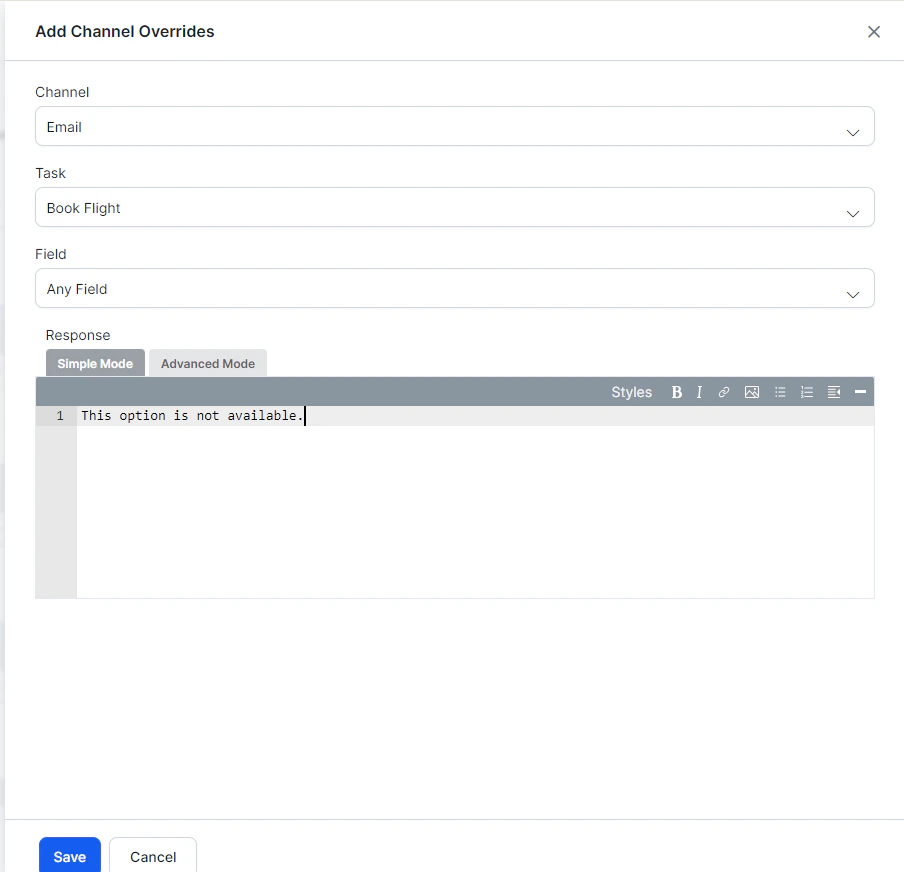
In the Add Channel Overrides dialog:
- Select a channel (or Any Channel for all channels).
- For channel-specific responses, select a task and optionally a field.
-
In the Response editor, choose a mode:
- Simple Mode — Plain text with optional formatting (bold, italics, hyperlinks, lists).
- Advanced Mode — JavaScript for custom channel-specific messages. Use
response.messagefor the default message string andresponse.choicesfor the options array.
- Click Save.
Channel Override Examples
Slack:Customizing Ambiguity Display with getChoices()
Use getChoices() to retrieve ambiguous intent choices and render them in a custom format (for example, as buttons):
Manage Interruptions
Users rarely follow a linear conversation path — they may switch topics, ask unrelated questions, or provide a new intent mid-task. Manage Interruptions gives you granular control over how the AI Agent handles these situations. Go to Automation AI > Conversation Intelligence > Conversation Management > Manage Interruptions.Interruptions Hierarchy
Settings at more specific levels override broader defaults.| Level | Precedence | Where to Configure |
|---|---|---|
| Node | Highest | Node Instance tab > Advanced Controls > Interruptions Behavior |
| Dialog Task | Middle | Dialog Builder > more options icon > Manage Interruptions |
| App | Lowest (default) | Conversation Intelligence > Conversation Management > Manage Interruptions |
If no node or task-level settings exist, the app-level settings apply.
When a user provides input after 15+ minutes of inactivity and the input is within the previous session context, it is treated as an interruption. If the user starts a new utterance, the old context is discarded.
Allow Interruptions
| Option | Behavior |
|---|---|
| Hold the current task and resume after the new task completes | Switches to the new intent immediately. Requires a Resume Option (see below). |
| Discard the current task and switch to new | Discards the current task and switches. Sends the user a notification message. Customizable via Manage Response. |
| Switch to new task without notification and discard current | Silently discards the current task and switches. No user notification. |
| Continue the current task and add new task to follow-up list | Stays on the current task and adds the new intent to the FollowupIntents array. Customizable via Manage Response. |
Do Not Allow Interruptions
Disables interruptions at the app level. Can still be overridden at the task or node level.Allow the End User to Select the Behavior
Prompts the user to confirm whether to switch tasks. Customize the confirmation message via Manage Response. Requires a Resume Option.Resume Options
Defines what happens to the on-hold task after the interrupting task completes.| Option | Behavior |
|---|---|
| Get confirmation before resuming | AI Agent asks the user (Yes/No) whether to resume the on-hold task. Message is customizable. |
| Notify the user and resume | Resumes the on-hold task automatically and notifies the user. No confirmation required. Message is customizable. |
| Resume without any message | Directly resumes the on-hold task with no notification. |
| Always resume without message if the task ended in a single response | If the interrupting task completed in a single response, resumes the on-hold task silently regardless of other resume settings. |
On-Hold Quantity
Set the maximum number of tasks that can be held at once. Default: 1. Range: 1–N. When the limit is reached, new tasks are ignored regardless of interruption settings.Tasks resume in reverse chronological order (most recent first). Limit on-hold tasks to 1–2 to avoid confusion.
Node-Level Customization
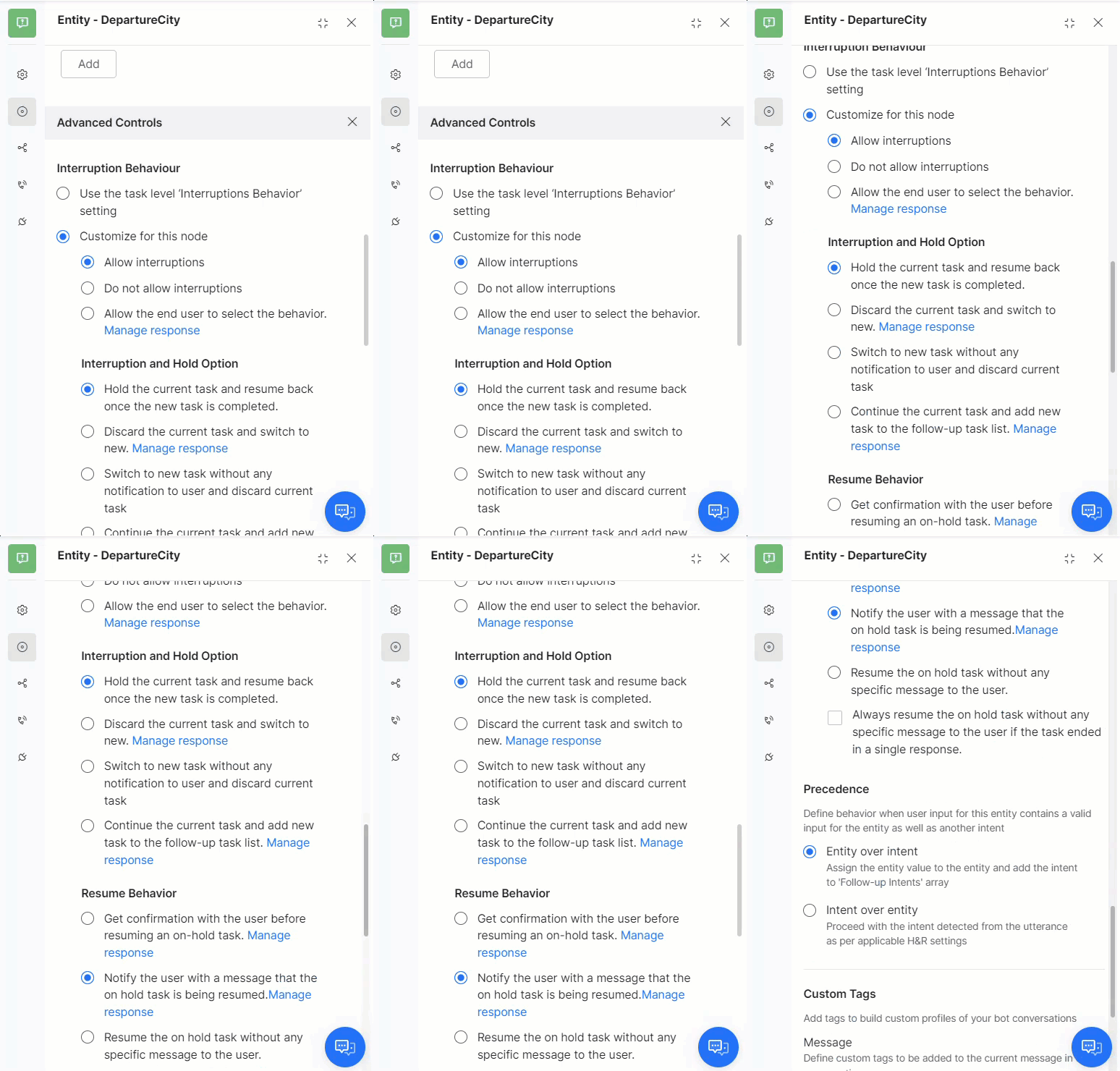
- Open the dialog task and select the node.
- Go to the Instance tab > Advanced Controls.
- Under Interruptions Behavior, select Customize for this node and configure settings.
Dialog-Level Customization
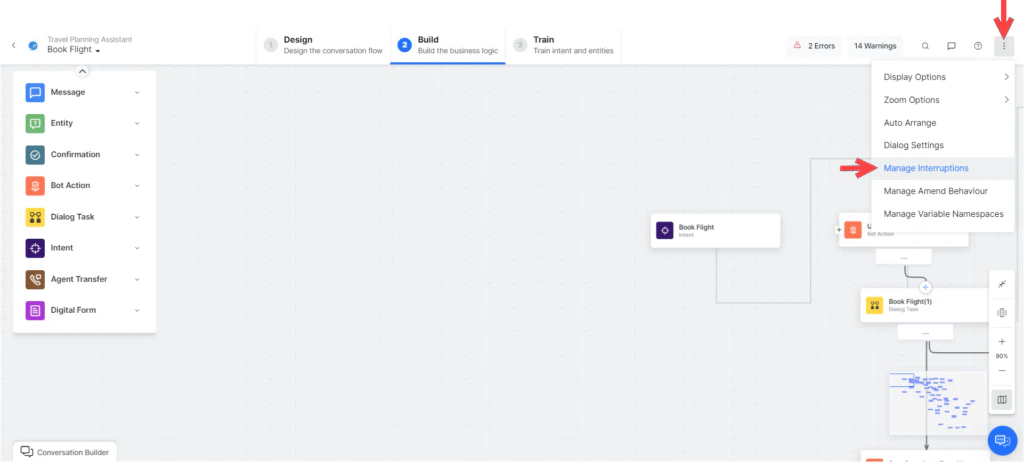
- Open the dialog task.
- Click the more options icon (top-right of Dialog Builder) > Manage Interruptions.
- Under Interruptions Behavior, select Customize for this task and configure settings.
Behavior for FAQs
| Option | Behavior |
|---|---|
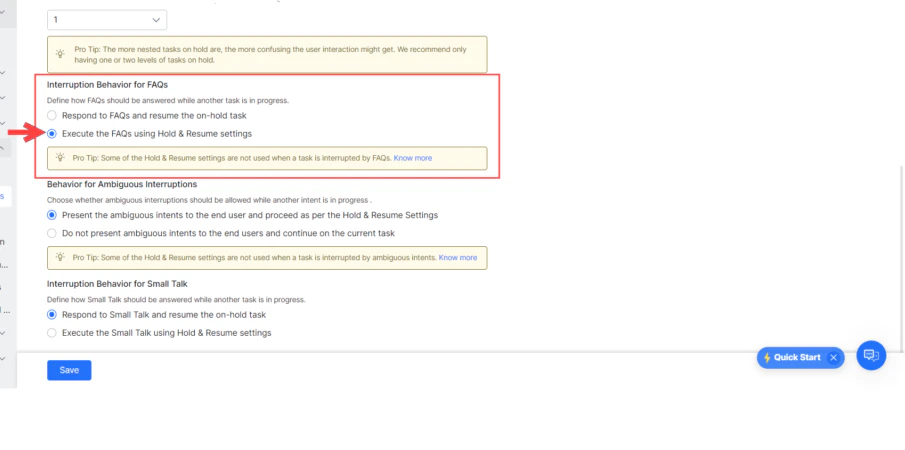
| Respond to FAQs and resume the on-hold task (default) | AI Agent answers the FAQ and then resumes the on-hold task. |
| Execute the FAQs using Hold & Resume Settings | Treats FAQ intents like any other intent and applies configured Hold & Resume settings. |
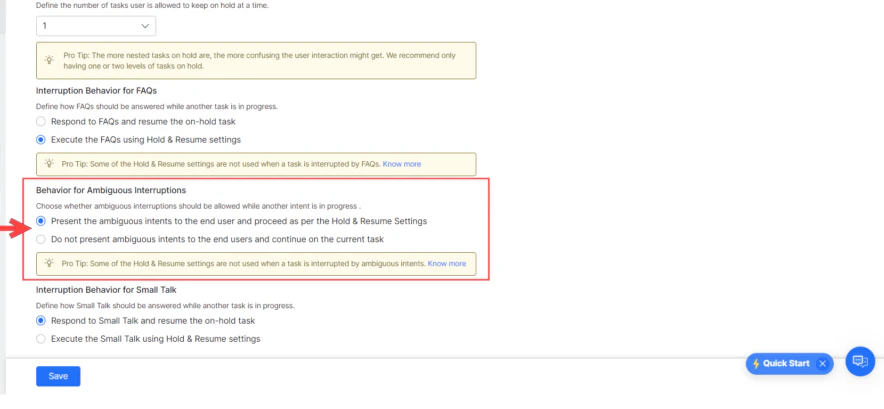
Behavior for Ambiguous Intents
| Option | Behavior |
|---|---|
| Present ambiguous intents to the end-user and proceed as per Hold and Resume settings | User selects a task; interruption settings are applied based on the selection. |
| Do not present ambiguous intents and continue on the current task (default) | AI Agent ignores ambiguous intents and continues the current task. |
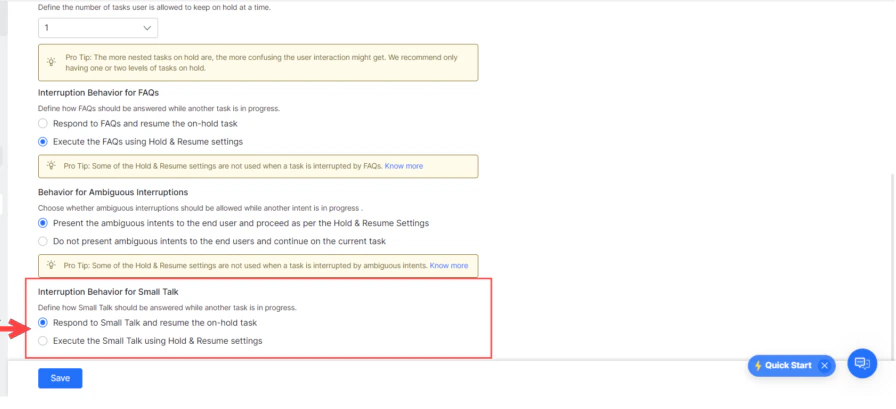
Behavior for Small Talk
| Option | Behavior |
|---|---|
| Respond to Small Talk and resume the on-hold task (default) | AI Agent responds to Small Talk by putting the current task on hold, then resumes it. |
| Execute Small Talk using Hold & Resume settings | Applies configured Hold & Resume settings to Small Talk. |
Behavior for User Authorization
When a user provides unexpected input at an authorization prompt:- If Small Talk is detected: Small Talk response is shown, and the authorization prompt is repeated.
- The Platform checks for intents regardless of interruption settings:
- Single intent detected — Asks the user to confirm discarding the current task and triggering the new one.
- Multiple intents detected — Shows an ambiguity dialog with an option to ignore and continue the current task.
- If no intent is found — User is re-prompted with the authorization link.
Small Talk
Small Talk enables the AI Agent to engage users in casual conversation. AI Agents that respond to social inputs like How are you? create a positive impression and improve engagement. Go to Automation AI > Use Cases > Small Talk.Intents and FAQs take precedence over Small Talk. If both are detected, the intent or FAQ is handled first. Small talk is language-specific — configure it separately for each enabled language.
Features
| Feature | Description |
|---|---|
| Custom Small Talk | Build a personality and train the AI Agent for casual conversations around your areas of interest. |
| Nested conversations | Support follow-up queries during a conversation for more engaging interactions. |
| Emoji identification | The Platform recognizes emojis in user utterances and responds accordingly. |
| Intent-aware | Interjections like hello at the start of an utterance are not treated as small talk if an intent follows — for example, Hello, I need to book a flight triggers the book-a-flight intent, not Small Talk. |
Default Small Talk (Greetings Group)
When you create an app, a Greetings group is generated automatically. The following messages are included:| User Query | When It Appears |
|---|---|
| User says Hi, Hello, Hey, etc. | Shown when the user greets or enters the app name. |
| How are you? | Shown for greetings like how are you, how’s it going, wassup, etc. |
| Who are you? | Shown when the user asks who the AI Agent is. |
| User says great, awesome, etc. (no task in context) | Shown after task completion when the user responds positively. |
| User says that helped, that was useful, etc. | Shown after positive feedback. |
| User says no, nope, etc. (no task in context) | Small talk response to negative acknowledgments. |
| User says I am done, That’s it for now, etc. | Shown when the user indicates they’re finished. |
| User implies to end the conversation (bye, good night, etc.) | Shown when Follow-up Intents are presented at dialog end. |
| User says thanks | Shown when the user thanks the AI Agent. |
| User says OK, fine, yes, etc. (no task in context) | Shown after task completion when the user acknowledges positively. |
When you open Small Talk in an existing app, you are prompted to migrate Standard Response greetings to Small Talk. This migration is permanent — greetings are removed from Standard Responses and cannot be retrieved if you proceed.
Set Up Small Talk
Step 1: Add a Group
- Go to Automation AI > Use Cases > Small Talk.
- Click New Group.
- Enter a Group Name and click Proceed.
Step 2: Add Query–Response Pairs
- In the Small Talk editor, enter the User Query and Bot Response.
- Press Enter or click Add to save the pair.
- Alternate questions — Additional phrasings for the same query. These are pattern-based.
- Alternate responses — Multiple responses; the Platform picks one at random at runtime.
- Child queries — Follow-up questions available only after the parent is answered. Up to 3 levels of nesting are supported.
Step 3: Configure Channel-Specific Responses (Optional)
- Hover over a response and click the Settings (gear) icon.
- In the Manage Response window:
- Add a default message for all channels.
- Click + Add Response > New Prompt Message for channel-specific responses.
- Select a Channel, then enter a response in Simple or Advanced (JavaScript) mode.
- Click Save.
Import Small Talk
To import an existing Small Talk dataset:- Click the more (ellipsis) icon in the Small Talk view.
- Select Import.
- Download the sample file if needed to verify formatting (JSON or TSV).
- Select your file and click Next.
Warning: Importing replaces all existing Small Talk data.
Small Talk Context
Mark sections of user input patterns with_ to capture contextual data. This data is stored in context.smallTalk.matchData and can be used to personalize responses.
Example pattern: I am from _~location Where are you from?
_0, _1, _2, etc.) and may not be contiguous if an optional token is absent.
Example pattern with optional token: how is the _[ climate temperature ] { at _~location } ~time
- User says “how is the temperature in London today” →
_0: temperature,_1: London,_2: today - User says “how is the climate today” →
_0: climate,_2: today(_1is absent)
- The session ends.
- A new primary Small Talk intent is detected.
- Any non-Small Talk intent is triggered.
Training
After making changes to Small Talk, click Train in the Small Talk editor to retrain the assistant.Importing a Small Talk file triggers training automatically.
- Only 3 levels of child nodes are allowed.
- Duplicate top-level questions across groups are not allowed.
- Questions are evaluated in the order added within a group; groups are evaluated in the order created.
Alert Tasks
Alert Tasks proactively deliver information to users by polling a service on a real-time or scheduled basis. Users can configure alerts to trigger at specific times or when defined conditions are met. Go to Automation AI > Use Cases > Alert Tasks.Example Use Cases
- Time- or location-based promotional offers
- Scheduled delivery updates
- Inventory level changes
- Critical issue notifications
- Weather alerts
- Cross-system status changes
Create an Alert Task
- Open the AI Agent.
- Navigate to Automation > Use Cases > Alert Tasks.
- Click Create Alert Task.
- Configure the General Settings:
| Field | Description |
|---|---|
| Task Name | The name displayed in the Platform. |
| Display Name | The name displayed in the Store. Defaults to Task Name. |
| Connection Type | Webhook — app pushes data to a Kore.ai endpoint. RSS — Kore.ai polls an RSS feed. Webservice — Kore.ai polls a web service using end-user credentials. |
| Connection Mode | For Webservice only: REST or SOAP. |
| Input Preconditions | Intent is detected only if specified context tags are present. Available via More Options. |
| Context Output | Context tags set when this intent is initiated. Available via More Options. |
Advanced Settings
| Field | Description |
|---|---|
| Task Install Confirmation Message | Message shown when the task is successfully set up. |
| Turn Off Confirmation Messages | Yes — skips NLP execution confirmation. No — prompts the user before running. |
| Search Keywords | Keywords users can use to find this task in the marketplace. |
| Task Demo Link | Link to display a task demo icon in the Store. |
Authorization
Define how end-users are authenticated to receive alert notifications. Not required for Webhook connection types.- On the API Request tab, expand the Authorization section.
- Select an existing Authorization Provider or click Create New.
- Select an Authorization Type:
| Type | Description |
|---|---|
| Basic Auth | Standard username/password collection over SSL. |
| OAuth v2 Password Grant Type | Custom authorization for non-standard web service auth flows. |
| OAuth v1 | Protected resource access via API without exposing user credentials. |
| OAuth v2 | Modern OAuth with specific authorization flows for web apps and services. |
| API Key | Token-based identification/authentication for incoming app requests. |
API Requests
Configure the API request that fetches data for the alert. The configuration depends on the Connection Type:| Connection Type | Configuration Guide |
|---|---|
| Webhook | Configure a webhook endpoint to receive pushed data. |
| REST | Define REST API parameters, initializers, pre/post-processors, and response samples. |
| SOAP | Define SOAP API parameters and the request envelope. |
| RSS | Define the RSS feed URL and polling parameters. |
Bot Responses
After configuring the API request, define how alert results are displayed to the user.| Component | Description |
|---|---|
| Report Template Definition | Displays payload data as a table, contact card, or formatted report. Not applicable to Webhook, Action, or RSS tasks. |
| Message Definition | Defines the look and feel of the alert message delivered to the end-user based on the webhook payload. |
Alert Settings
Define when and how the alert fires. Not applicable to Webhook tasks.| Setting | Description |
|---|---|
| Filters | Limit alert results by criteria (name, account, amount, text match, etc.). Only matching results trigger a notification. |
| Schedule | Set polling frequency and schedule options presented to users during setup. |
| Advanced Settings | Configure the initial alert message set, alert reminders, and duplicate message prevention. |
Version Namespaces
Associate Variable Namespaces to scope which variables are used during task execution. This option is only available when Namespaces are enabled.View Logs
View logged events for published alert tasks to troubleshoot request/response behavior.- In Alert Tasks, click the Settings (gear) icon for the task.
- Click View Logs.