Real-time monitoring, agent management, and queue controls for contact center supervisors.
| Feature | Description |
|---|
| Real-Time Monitor | View live queues, agents, and interactions from the Monitor tab. |
| Live Conversation Monitoring | Listen, whisper, and join agent-customer calls. |
| Queue Actions | Assign, move, bulk transfer, or force-close conversations. |
| Agent Actions | Chat with agents, mark offline, force logout, and update settings. |
| Agent Management | Configure agent groups, statuses, and global agent settings. |
| Dispositions | Create and manage disposition sets and codes for conversation outcomes. |
| Alerts | Configure and respond to threshold-based notifications. |
| Reports | Access real-time and scheduled historical performance reports. |
Real-Time Monitor
To access the Monitor tab, you must be an App Owner, App Developer, App Tester, or Supervisor, or have the Monitor Console permission set to Yes. See Role Management for details.
 The Monitor tab has four views: Queues, Agents, Interactions, and Service Levels. Your access is restricted to queues you are assigned to.
Queues
The Queues view shows all assigned queues with:
- Conversations waiting and engaged
- Agent availability summary
- Average wait time, max wait time, and drop-off rate
To view a queue:
-
Select the Queues tab.

-
Select a queue from the left menu.

-
Select an agent name to view their conversation details.

For Chat, Messaging, and Voice: the assigned agent’s name appears immediately upon assignment, even before they respond.
 Sort columns using the sort icon. Default sorting is by Queue Name.
Filters
Create a filter:
-
Select Filter.

-
Select New Filter.

-
Select Queues, Channels, Type, State, and Languages. You can also filter by agent groups or search for specific agents.

-
Select Save & Apply, enter a name (up to 20 characters), and confirm.

Saved filters:
- Waiting with Agents and Waiting in Queue are pre-selected quick filters by default.

- You can select up to four quick filters.
- A default filter is treated as a quick filter if not explicitly selected as one.
- You cannot disable a quick filter while it is set as the default. Remove the default first.
Edit a filter:
- Select the Filters tab.

- Select Edit.

- Make changes and select Save & Apply.

Duplicate a filter: Select Duplicate, enter a name, and select Save.
 Mark as default: Select Mark as Default.
 Delete a filter: Select Delete, then confirm.
Agents
The Agents view shows all agents assigned to your queues with their current status and conversation metrics.

| Metric | Description |
|---|
| Completed | Interactions closed by the agent |
| Transferred | Interactions transferred to a queue or agent |
| Rejected | Interactions explicitly rejected |
| Unanswered | Interactions not picked up within the acceptance timeout |
-
Hover over an agent name to see their status, profile info, skills, queues, and agent groups.

-
The load capacity indicator shows overall and channel-wise load (for example, Live Chat 2/3 slots engaged).

-
Select an agent to view their ongoing conversation and engagement metrics.
 Chat, Messaging, and Voice:
 Email:

-
From the agent view, you can check the profile, chat with the agent, change the queue, and assign conversations.

Sorting is unavailable for automation interactions. Removing offline agents improves performance when sorting by load.
Filters
Filter the Agents view by Status, Agents, Skills, and Roles.
 Default quick filters:
 Duplicate filter:
 Auto-refresh: When a filter is active, the page refreshes every 10 seconds.
- Select Pause to stop updates.

- Select Play to resume.

- A confirmation displays after each refresh with updated data.

New interactions and status changes appear after the next auto-refresh cycle, not immediately.
Interactions
The Interactions view shows all live interactions assigned to agents. It includes only interactions that involve agent transfers.

Agents are not listed in Agent Transfers when Chat and Email channel slots are set to zero.
 Assign a bot-led conversation:
-
Select an ongoing conversation, then select Assign.

-
In the Assign Conversation pop-up, select Agent or Queue, choose from the dropdown, optionally mark as priority or send a message to the customer, then select Assign.

Filters
Filter by Status, Agents or Participants (when bot-led interactions are enabled), Skills, Queues, Channels, Type, and Language.
Without bot-led interactions:
 With bot-led interactions enabled:

Bot-led interactions do not appear by default. To view them, select Automation or Automation/Agents from the Participant filter. The default is Agent to prevent information overload.

Service Levels
The Service Levels view lets you monitor service-level targets by queue.
Go to Console > Monitor > Service Levels.

| Metric | Description |
|---|
| Queues | Queue name |
| Average Speed to Answer (ASA) | Average time to answer inbound contacts after they enter the queue |
| Response Service Level (SL) | Percentage of contacts answered within the target threshold time |
| Abandonment Rate | Percentage of contacts disconnected before reaching an agent |
| Transfer Rate | Percentage of contacts transferred to another agent, department, or queue |
Live Conversation Monitoring
Listen & Whisper (Voice)
Listen and Whisper let you monitor and coach agents during live voice calls without the customer hearing.
- Listen — Monitor a call silently.
- Whisper — Speak to the agent only; the customer cannot hear.
Steps:
-
Go to Monitor > Agents and select the conversation.
A conference icon indicates multiple participants on the call. Listen & Whisper and Join are disabled for conference calls.

-
Select Listen & Whisper.
-
To coach the agent, select Whisper to Agent.
 A whisper indicator appears at the top of the live interaction; the agent’s transcript text displays in yellow.

-
Select Stop Whispering to end the session.
 The message Listen session ended displays.

Transcripts are not real-time. Select the Refresh icon to update them.

Join a Conversation
Supervisors can join a live conversation (conference) to participate alongside the agent and customer. You can also view agent engagement metrics from this view.
Steps:
-
On the right pane, select Join Conversation.

-
In the confirmation pop-up, select Confirm.
Queue Actions
Manually Assign a Conversation
-
Select the conversation in the Queue panel and select Assign.

-
Select an agent from the pop-up.

-
Optionally select Mark as priority, then select Assign.

Manual assignments ignore skill-based routing and slot limits.
Change Queue
Move a conversation to a different queue and optionally prioritize it.
-
Go to Monitor > Queues.
-
Select the queue and then select the conversation.

-
Select Change Queue.

-
In the pop-up, select a destination queue. Optionally select Mark as priority to place the conversation at the top of the destination queue.

- Waiting conversation counts update in both queues after the transfer.
- The conversation’s position in the destination queue is based on its original arrival time.
- Queue transfers are recorded for reporting.
Bulk Transfer and Force Close
Transfer or force-close multiple conversations at once across chat, email, and voice. By default, this option is disabled for Agents and Custom roles. Supervisors, Admins, Owners, and App Developers can access it when permissions are granted.
From the Queues Tab
- Open the Monitor tab and select a queue.
- Select ⋮ in the top corner and choose Transfer Conversations or Force Close.
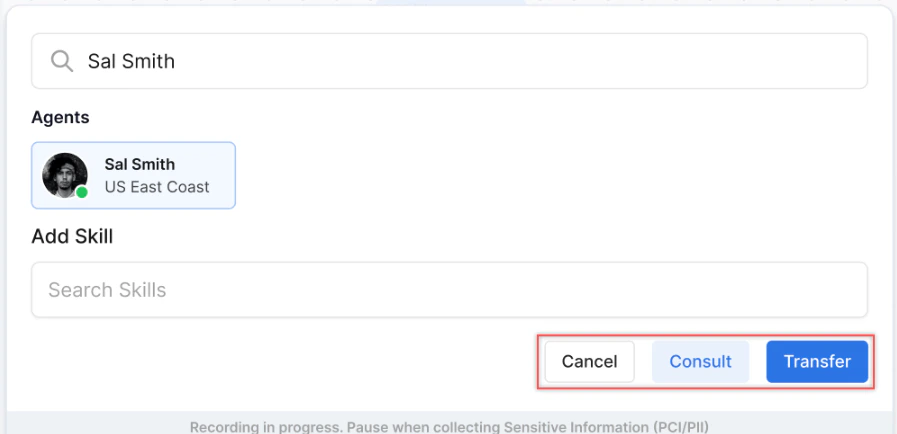
Transfer to a queue:
-
Select Queue and choose one or more conversations. Use Select All or Clear as needed.

-
From the queue dropdown, choose a destination queue.

-
Select Transfer.

Conversations that honor the agent wait time are not available for bulk transfer.
-
Select one or more conversations, then select Force Close from the action bar.

-
In the confirmation pop-up, select Confirm.

- At least one conversation must be selected.
- Force-closing a conversation (individually or in bulk) automatically attaches a system-generated disposition. If an agent had already selected a disposition, it is overwritten by the system-generated one.
From the Agents Tab
- Open the Monitor tab and select the Agents tab.
- Select ⋮ in the top corner and choose Transfer Conversations or Force Close.
Transfer to an agent:
-
Select Agent and choose one or more conversations.

-
From the agent dropdown, choose an agent.

-
Select Transfer.

- Conversations cannot be transferred when the agent is on a live call.
- Conversations cannot be transferred to offline agents.
- Blended agents must be configured to transfer digital and voice conversations together.
- A pop-up appears when transferring to an agent at full capacity. Select Transfer to proceed.
- Conversations in TERMINATED, TRANSIENT_DROPOFF, and TRANSIENT_CLOSED states cannot be transferred. They are excluded when you use Select All.
Agent Actions
Chat with an Agent
Select the Chat option from the agent view. A pop-up chat window opens for sending messages to the agent.

Mark Agent Offline
Mark an agent as offline to stop new conversations from being assigned to them.

Force Logout
Force Logout frees up an agent so their ongoing customer conversations can be reassigned to other agents.

Agent Profile and Settings
Access an agent’s profile by selecting or hovering over the agent. Three tabs are available: Profile, Settings, and Queues & Skills.
Profile Tab
View and edit the agent’s profile, then select Save.
Settings Tab
Configure the agent’s chat and voice experience.

- Chat experience: Enable chat settings and define properties such as max chats, language, and proficiency level.

- Voice experience: Enable voice settings and define properties such as language and proficiency level.
Queues & Skills Tab
Configure queue and skill assignments for the agent.

- Queues: Select the default and preferred queue.

- Skills: Set the proficiency level for each skill.

Agent Management
Go to Contact Center AI > Agent & Supervisors > Agent Management.
Agent Groups
An Agent Group is a collection of agents organized by skills, roles, or other criteria. Groups are used to streamline routing and assign statuses and dispositions.
The Agent Groups section shows each group’s name, description, and agent count. Select a group name to see its agents, along with their role and assigned skills and queues.
Pre-configured Groups
| Group | Description |
|---|
| Unassigned | Default group for new users; not considered for routing |
| Default Group | Standard default group |
Create an Agent Group
-
Select Add Group.

-
In the New Group window, enter:
- Group Name
- Description
- Agent Status (optional) — Statuses selected here appear to agents in this group alongside system-defined ones.
-
Select Save.
Add Agents to a Group
- Go to Agents and create or edit an agent.
- On the agent profile, select the desired group.
- Save the agent record.
See Edit a User for details.
Edit an Agent Group
-
Hover over the group and select the Edit icon.

-
Make changes and select Save.
You cannot rename the pre-configured groups: Unassigned and Default Group.
Delete an Agent Group
- Select the Edit icon next to the group.
- In the Edit Group window, select the Delete Agent Group icon.
Agent Status
Agent statuses show what agents are currently doing — Available, Offline, Busy, Away, and any custom statuses you create.
Go to Contact Center > Agent Management > Agent & Supervisors to manage statuses.
Each status entry shows its Name, Type (Available, Away, Busy, or Offline), and Description.
System Busy Status
Without Blended Mode:
- Digital interactions: triggers when concurrency reaches 100% of available slots.
- Voice interactions: triggers when the single voice slot is occupied.
- Agents on voice are marked System Busy for digital, and vice versa.
With Blended Mode:
| Setting | Trigger |
|---|
| Blended On | All voice + digital slots full |
| Blended Off | 100% digital occupancy or voice slot full |
- Configure slot allocations based on interaction volumes.
- Train agents on blended handling and multitasking.
- Monitor load capacity to optimize staffing levels.
- Use reporting to track blended mode impact on KPIs.
Create an Agent Status
- Select + New Status.
- Enter:
- Status Name
- Status Type — Away or Busy
- Description
- Assign to Agent Groups — Required for custom statuses; makes the status available to agents in those groups.
- Select Add & Exit or Add & Stay.
Edit an Agent Status
-
Select the Edit icon next to the status.

-
Edit the Status Name, Type, or Description, then select Update.
Administrators can rename default statuses (Available, Away, Busy) to match business terminology. The underlying behavior is preserved and applied consistently across existing and historical data. Reserved labels that cannot be used for custom statuses: Available, Away, Busy, Offline, System Busy, System Away, and Login Prep.
Delete an Agent Status
- Default statuses (Available, Away, Busy, Offline) cannot be deleted.
- Deleted statuses cannot be restored.
- Select the Delete icon next to the status.
- Select Yes to confirm.
Configure Login Prep Status
Login Prep prevents agents from receiving interactions immediately after logging in, giving them time to prepare.
- Select Edit next to Login Prep.
- Turn on the Enabled toggle.
- Customize:
- Status Name
- Description
- Message to Agent — includes a configurable rule (default: 30 seconds) and message text.
- Select Update.
When enabled, Login Prep becomes the default status on every new login. Learn more.
Agent Settings
Go to Contact Center AI > Agent & Supervisors > Agent Management > Agent Settings.
Settings appear in collapsed groups. Select any group to expand it.
| Setting | Description |
|---|
| Answer Mode | How conversations are answered on each channel |
| Conversation Status Control | Conversation status behavior and status-triggered messages |
| Call Recording Control | Recording behavior; option to let agents and AI agents pause/resume |
| Transfers | External transfer settings, skill match enforcement, transfer destinations |
| Skill Modification | Whether agents can modify skills on a conversation |
| Auto Logout & Auto Close Conversation | Inactivity timeout for auto logout and ACW transition |
| Snooze | Lets agents temporarily pause conversations awaiting a reply |
| Blended Agents | Enables agents to handle voice and digital interactions simultaneously |
| Additional Routing Configuration | Fairer distribution and queue hold options |
| Enable Dial Tone Until Agent Connects | Plays a dial tone until agent connection is established |
| Total Digital Conversation Limit | Limits total active digital conversations across all channels |
Answer Mode
| Channel | Manual | Auto |
|---|
| Voice | Agent selects Accept | Calls auto-answered |
| Chats | Agent selects Accept; configure acceptance timeout | Chats auto-answered; configure first response timeout |
| Emails | Agent selects Accept; configure acceptance timeout | Emails auto-accepted |
- Enabled: When a conversation enters the agent wait state, the queue wait timeout does not trigger until after the agent wait timeout expires.
- Disabled (default): The queue wait timeout runs in parallel and may close the conversation while it is in the agent wait state.
Conversation Status Control
Conversation statuses trigger messages to agents or customers at key moments. Watch the demo for an overview:
 Live Chat, Messaging, and Voice statuses:
| Status | When It Applies | Channel | Message To | Variables Available |
|---|
On Waiting | User-side chat termination | Messaging | User | {{endChat}}, Agent names, Elapsed Time |
On Connect (Default) | Agent connects | Live Chat, Messaging, Voice | User | Agent names, Elapsed Time, Expired Time |
On Connect (Queue & Skill Specific) | Queue, Skill, or both match; highest-priority mapping applies | Live Chat, Messaging, Voice | User | Agent names, Queue Name, Nick Name |
Due Reminder For Agent | Agent response time exceeds the set percentile | Live Chat, Messaging | Agent | Agent names, Elapsed/Expired Time |
Overdue | Agent has not responded within the set time | Live Chat, Messaging | Agent | Agent names, Elapsed/Expired Time |
Agent Inactivity | Agent has not responded to an overdue conversation | Live Chat | Agent | Agent names, Elapsed/Expired Time |
Snooze | Agent marks customer on Snooze | Live Chat, Messaging | User, Agent | Agent names |
On Agent Interruption | Agent disconnects | Live Chat, Messaging | User | Agent names, Elapsed/Expired Time |
On Customer Interruption after Agent Transfer | Customer disconnects; conversation waits with agent | Live Chat | Agent, User | Agent names |
On Customer Interruption in Queue | Customer disconnects; conversation waits in queue | — | User | Agent names |
Idle Reminder For Customer | Customer response time exceeds the set percentile | Live Chat, Messaging | User | Agent names, Elapsed/Expired Time |
Idle | Customer has not responded within the set time | Live Chat, Messaging | User | Agent names, Elapsed/Expired Time |
Auto Expire | Customer response time exceeds the set limit | Live Chat | User, Agent | Agent names, Elapsed/Expired Time |
On Close | Agent closes the conversation | Live Chat, Messaging | User | Agent names, Elapsed/Expired Time |
| Status | When It Applies | Message To | Variables Available |
|---|
On Connect (Default) | Agent connects | User | Time Left to Inactivity, Time Left to Expiry |
On Connect (Queue & Skill Specific) | Queue/Skill match; optional first-agent-only toggle | User | Agent names, Queue/Skill Name, Time Left to Inactivity/Expiry |
Overdue | Agent has not responded within the set time | Agent | Elapsed/Expired Time, Time Left to Inactivity/Expiry |
Due Reminder for Agent Inactivity | Agent response time is under the set threshold | Agent | Elapsed/Expired Time, Time Left to Inactivity/Expiry |
Agent Offline | Agent disconnects; conversation waits in queue | Agent | — |
Customer Idle | Customer has not responded within the set time | User | Elapsed/Expired Time, Time Left to Inactivity/Expiry |
Due Reminder for Auto Expiry | Customer response time is under the set threshold before expiry | User | Elapsed/Expired Time, Time Left to Inactivity/Expiry |
Auto Expire | Conversation turns idle and customer has not responded | User, Agent | Elapsed/Expired Time, Time Left to Inactivity/Expiry |
On Close | Agent closes the conversation | User | Elapsed/Expired Time, Time Left to Inactivity/Expiry |
-
Set the response time threshold (as a percentage value or in minutes and seconds; email uses hours and minutes).

- Percentage-based thresholds apply to: Due Reminder For Agent, Idle Reminder For Customer.
- No time configuration needed for: On Connect, On Interruption, On Close.
- For email: Overdue, Agent Inactivity, and Auto Expire have a configurable limit of 30 days.
-
Edit the message text, add variables, and select the language.
 To add a variable, place the cursor in the message text, select the Variable field, and choose a variable. The placeholder (for example,
 {{agentFirstName}}) is replaced with actual data when the message sends.

-
Select Save.

Call Recording Control
Allow Agent to Pause/Resume: Lets agents pause call recording during a voice interaction. Disabled by default.
 Allow Assistant to Pause/Resume: Lets AI Agents pause recording when collecting PII data. Not available by default.
 Recorded calls are available in the Dashboard’s Interactions tab. Changes to Call Recording Control settings are logged in Admin Console > Analytics > Audit Report.
Transfers
Transfer to External Contacts: When enabled, agents can transfer calls to the external contacts list via the Agent Console.
 Enforce Skill Match for Transfers: When enabled, the system applies skill matching during queue transfers. When disabled, skills are ignored.
 Transfer Destinations: Controls where agents can send interactions.
| Option | Description |
|---|
| Queues & Agents | Agents can transfer to queues and individual agents |
| Queues only | Agents can transfer to queues only |

Skill Modification
When enabled, agents can modify skills attached to an interaction.
| Option | Description |
|---|
| Live Interaction | Agents can modify skills from the skills bar on the live interaction window |
| Transfer | Agents can modify skills when transferring |

Auto Logout & Auto Close Conversation
Disabled by default. When enabled:

- Auto Logout — Period of inactivity before the system logs out the agent automatically. Default: 8 hours.
- Due Reminder for Auto Logout — Alert time shown to the agent before auto logout triggers.

- Conversation Callback Timeout — When enabled, the conversation automatically moves to ACW mode after timeout if the agent is inactive on the callback screen. Default: 30 seconds; configurable between 10 seconds and 5 minutes.

Snooze
Lets agents temporarily pause conversations that are waiting for a customer reply or a pending action. Disabled by default.
When enabled, the following options are available:
- Make Snooze Notes Mandatory — Agents must add notes before snoozing a conversation.
- Agent Logout with Snoozed Interactions — Agents can log out while conversations are snoozed. Snoozed conversations remain in the agent’s inbox and resume at next login. Applies to selected channels (Live Chat, Messaging, Email).
- Reactivation of Snoozed Interactions on User Message — When enabled, any incoming user message reactivates the snoozed conversation. When disabled, the conversation stays snoozed until the agent manually resumes it.

Blended Agents
When enabled, agents can handle voice and digital interactions simultaneously, optimizing capacity and efficiency. Disabled by default.
 For details on how Blended Mode affects System Busy behavior, see System Busy Status.
Additional Routing Configuration
| Option | Description |
|---|
| Fairer Workload Distribution | Distributes tasks evenly across agents to reduce overload and improve focus |
| Hold interaction in queue until wait time expires | Keeps interactions in queue until the max timeout, regardless of agent availability |
| Omit Language in Routing | Ignores language during routing; skill, proficiency, availability, and other parameters still apply |
The configurable limit for queue max timeout for the Email channel is 30 days.

Enable Dial Tone Until Agent Connects
When enabled, a dial tone plays to the customer until the connection with the agent is established after the user hears a connected tone. Disabled by default.

Total Digital Conversation Limit
Limits the total number of active digital conversations across all channels for an agent. When the limit is reached, the agent moves to System Busy status. Disabled by default.
Set the total conversation limit per user from the User section only. This setting is not available in the user profile under the Monitor tab.
 See User Management for details.
Dispositions
Dispositions are labels agents assign to the outcome of a conversation. You organize them into Disposition Sets containing Disposition Codes.
Go to Contact Center AI > Agent & Supervisors > Dispositions.

Disposition Sets
A Disposition Set groups related disposition codes and can be assigned to queues or agent groups. Agents see and complete disposition sets when ending conversations.
 The Resolution set comes pre-built with codes: Resolved, Requires Supervisor Attention, and Unresolved. It can be edited but not deleted. If disabled or removed from a queue’s assignment, selecting a disposition from it becomes optional.
The Disposition Sets section lets you:
The Resolution set comes pre-built with codes: Resolved, Requires Supervisor Attention, and Unresolved. It can be edited but not deleted. If disabled or removed from a queue’s assignment, selecting a disposition from it becomes optional.
The Disposition Sets section lets you:
| Action | Description |
|---|
| Search | Find sets by name |
| Add | Create a new set |
| Edit | Modify an existing set |
| Delete | Remove custom sets (Resolution cannot be deleted) |
| Reorder | Drag and drop to change display order |
Add a Disposition Set
-
Select Add Set.

-
On the General tab, configure:
| Field | Description |
|---|
| Name | Set name |
| Description | Brief description |
| Campaign-Linked Set | Toggle on to capture campaign call outcomes |
| Display | Dropdown or Button (both single-selection) |
| Is Required | Yes: agents must select a code when closing assigned interactions. No: optional. |
| Assignment | Assign to Queues or Agent Groups |
- Assign to Queues: Select Add Queue and search for queues.

- Assign to Agent Groups: Same process as queue assignment.
-
On the Disposition Codes tab:
- Select Add Code and search for a code. Codes must be created and enabled first.
- Select the bin icon to remove a code.
-
On the Notify tab (visible only when email/toast alerts are enabled):
- Select Add Supervisor and choose a supervisor from the list.
- Alert behavior:
- One code with alerts: a notification triggers when that code is tagged.
- Multiple codes with alerts: one notification is sent for one of the selected codes.
- A secondary email notification can also be enabled.
-
Toggle the set enabled or disabled (enabled by default).

-
Select Create.

Edit a Disposition Set
- Select the Edit icon for the set.

- Make changes and select Save.
Delete a Disposition Set
- Select the Edit icon for the set.
- Select the Delete (bin) icon at the bottom left and confirm.

- Deleted sets are removed from the Agent Console immediately.
- Deleted sets cannot be restored.
- Requires Follow Up — Codes: Pending, Disconnected, Information Required
- Supervisor Required — Codes: Requires Approval, Customer Asked for Supervisor, Complex Case
Disposition Codes
A Disposition Code is a short label for a conversation outcome. Codes must belong to a Disposition Set before agents can use them.
Default codes:
| Code | Use |
|---|
| Resolved | Resolved with no further action needed |
| Requires Supervisor Attention | Needs escalation to a supervisor |
| Unresolved | Closed but not resolved |
Add a Disposition Code
-
Select + Add Code.

-
Select Enable to activate the code.
-
Enter the Code Name and Description.
-
Assign a color and preview it.
-
Optionally turn on Show campaign-specific types to display campaign-associated dispositions.
-
Select Create.

Edit a Disposition Code
- Find the code in the list and select Edit under Actions.
- Make changes and select Save.

Delete a Disposition Code
- Find the code in the list and select Delete under Actions.
- Confirm the deletion.
Deleted disposition codes cannot be restored and no longer appear to agents in the Agent Console.
Agent Experience with Dispositions
Dispositions appear when agents end a conversation in the Agent Console. No code is pre-selected; agents must choose one. If more than one Disposition Set is assigned to a queue or agent group, agents see all sets and must complete all required ones.

Alerts
Configure threshold-based alerts to be notified when contact center metrics exceed targets.
Alerts:
  - name: High Wait Time
    condition: avg_wait_time > 180s
    severity: warning
    notification:
      - dashboard_popup
      - slack: #cc-alerts

  - name: Critical Queue Depth
    condition: queue_depth > 20
    severity: critical
    notification:
      - dashboard_popup
      - email: supervisor@company.com
      - sms: +1234567890

  - name: Low Service Level
    condition: service_level < 70%
    duration: 5m
    severity: warning
    notification:
      - dashboard_popup

  - name: Agent Long Handle Time
    condition: handle_time > 900s
    severity: info
    notification:
      - dashboard_popup
| Action | Description |
|---|
| Acknowledge | Mark alert as seen |
| Assign | Assign to a team member |
| Take Action | Open related tools |
| Snooze | Temporarily silence the alert |
Reports
See Contact Center Analytics.
