Console Layout
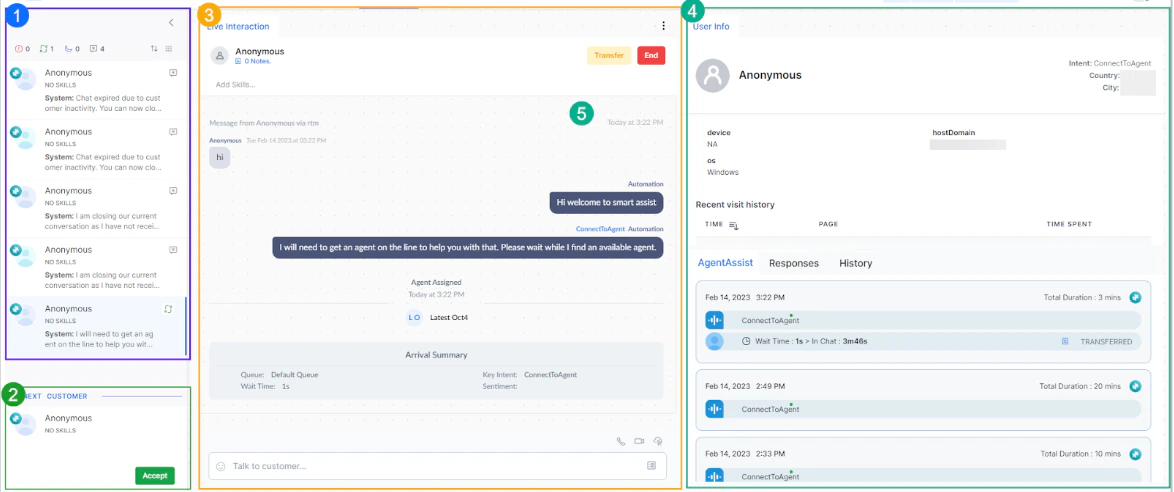
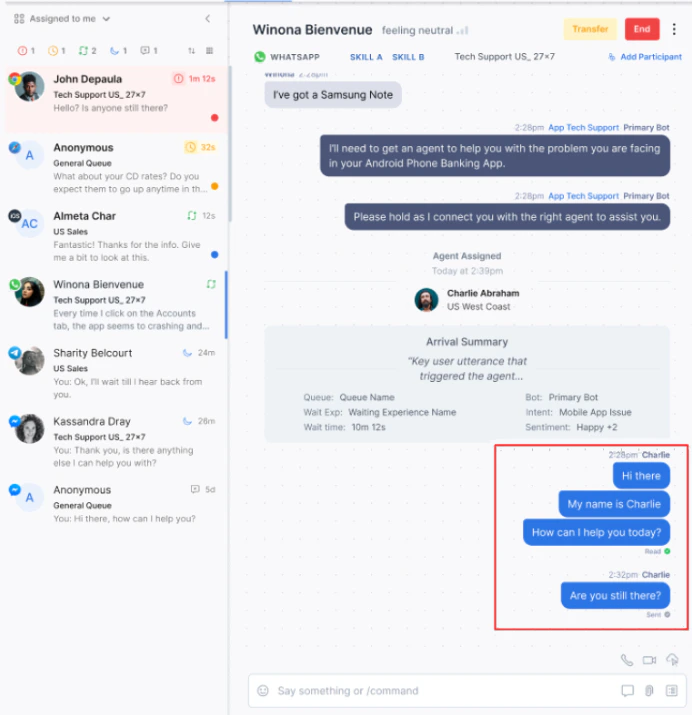
The Agent Console has four main panels:- Conversation Tray — Lists all your assigned conversations with status indicators.
- Incoming Interactions — Shows new interactions waiting for you to accept.
- Live Interaction Pane — Your active workspace for chatting, calling, or emailing customers.
- Additional Tools — Widgets for Agent AI, customer history, canned responses, and user info. You can customize this layout. See Manage Layout.
Agent Status
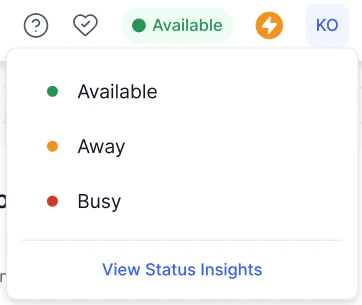
Your status controls whether new interactions are routed to you.| Status | Description | Receives interactions |
|---|---|---|
| Available | Ready for new interactions | Yes |
| Busy | At full capacity | No |
| Away | Temporarily unavailable | No |
| Break | On a scheduled break | No |
| Training | In a training session | No |
| Login Prep | Preparing before going live | No |
| Offline | Logged out | No |
Status Behavior
-
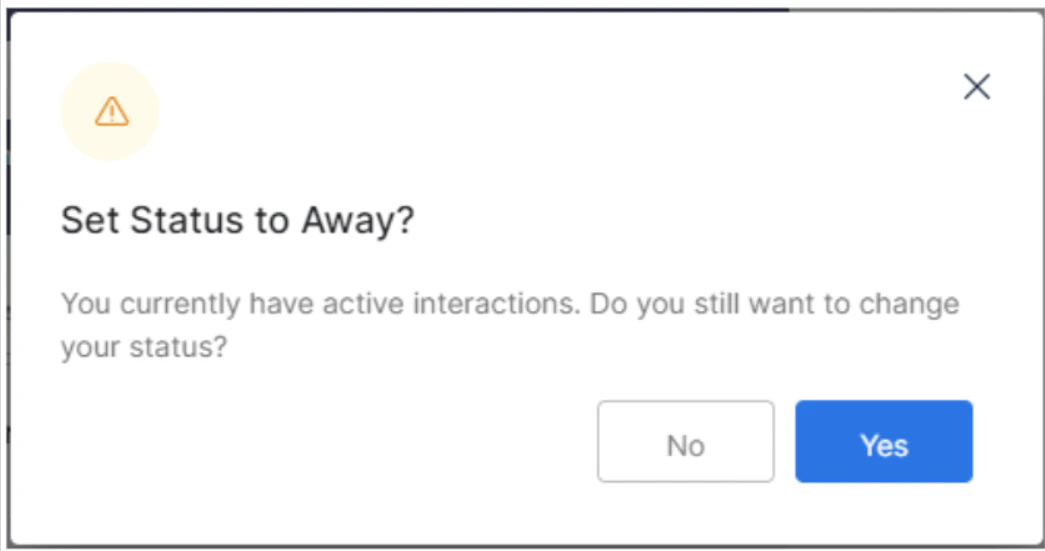
If you change your status to Away during an active interaction, a warning appears.
-
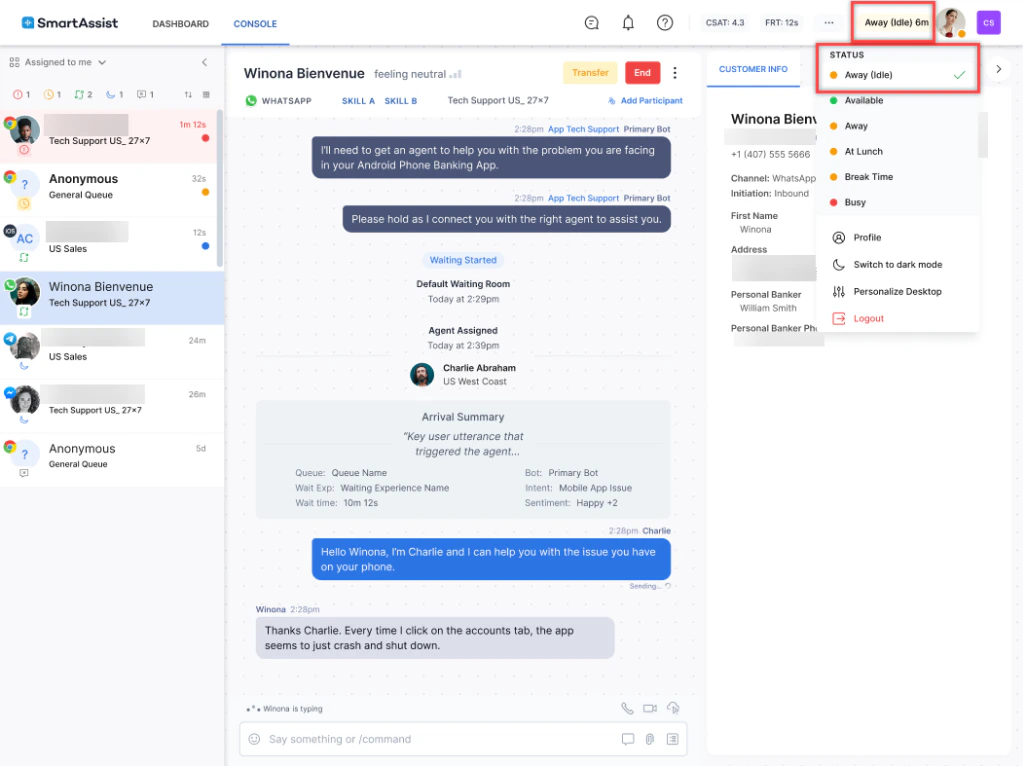
If you do not accept or respond within the configured time, the system automatically sets your status to Away (Idle). This status is not available for manual selection.
-
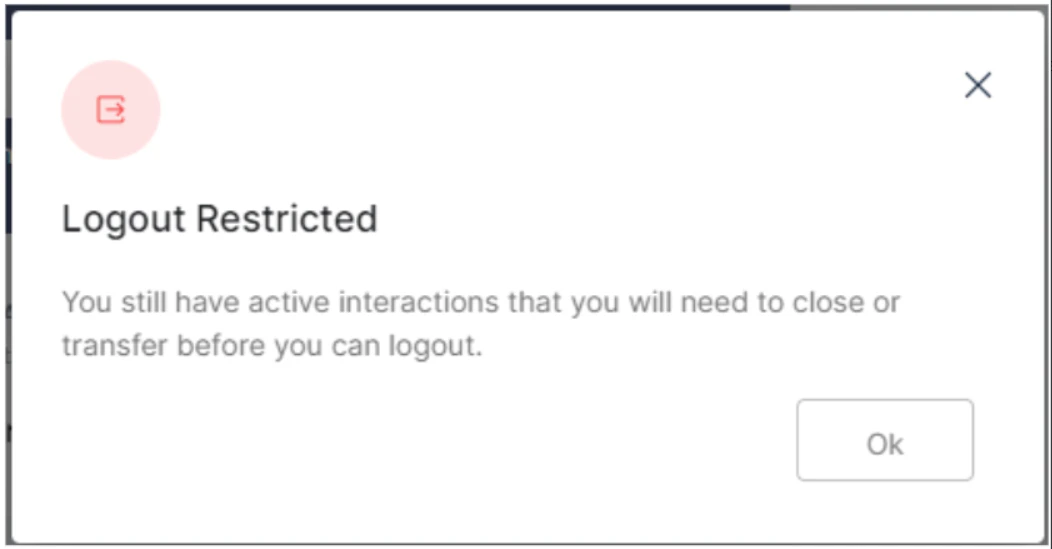
You cannot log out during an active conversation. Transfer or close it first. If your browser closes unexpectedly, active conversations return to the queue after an inactivity threshold.
-
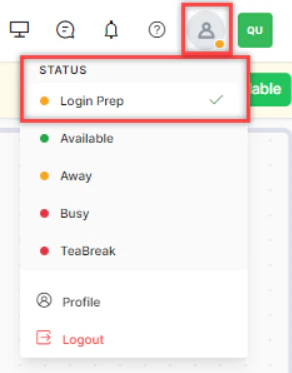
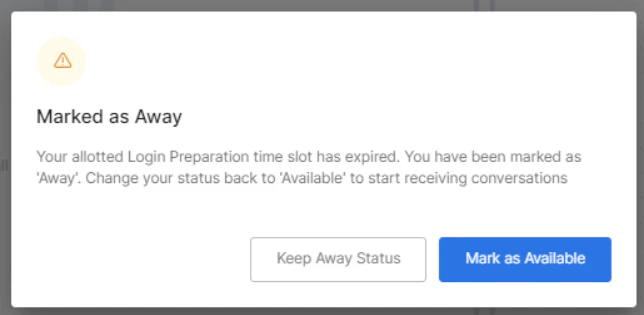
At the end of a Login Prep period, the system marks you as Away.

Status Insights
Select View Status Insights from the status icon to see time spent in each status for the current day. For custom date ranges, select View Detailed Status Insights to go to My Dashboard.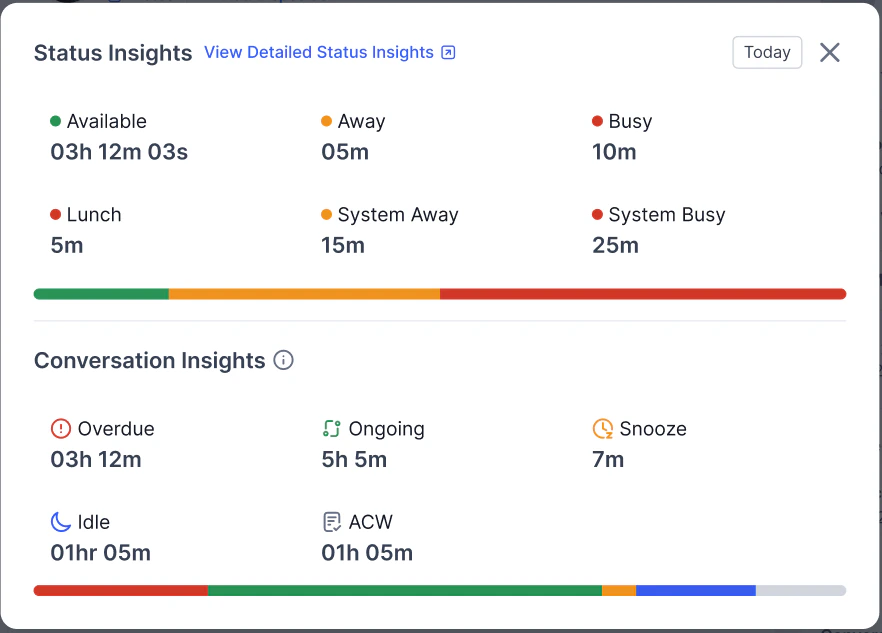
Conversation Tray
The Conversation Tray shows all conversations assigned to you.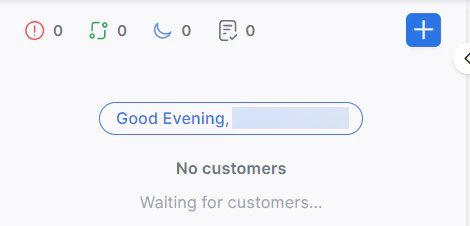
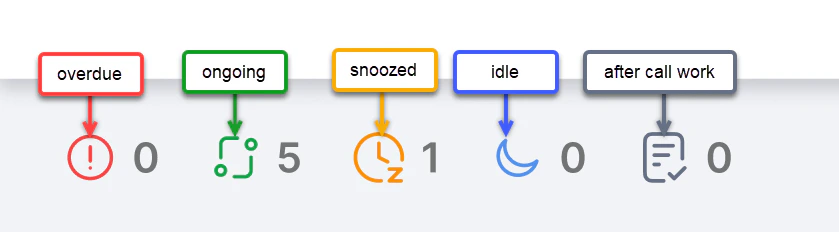
Conversation Statuses
| Status | Description |
|---|---|
| Overdue | No response within the system-specified time |
| Ongoing | Last message within the system-specified time |
| Idle | Last message beyond the system-specified time threshold |
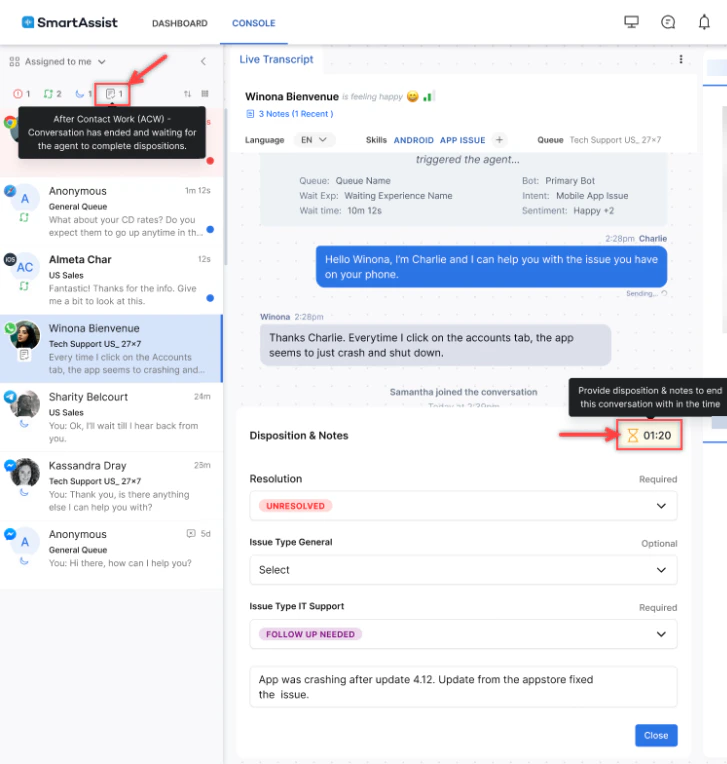
| After Call Work (ACW) | Post-call tasks after ending a conversation |
Channel Icons
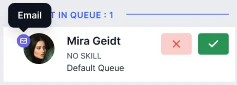
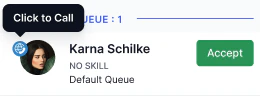
Each conversation displays a unique icon for its channel: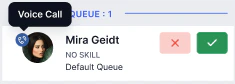
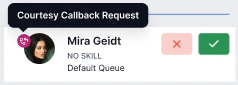
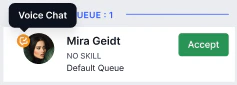
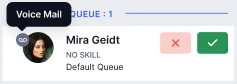
Color Codes
| Color | Meaning |
|---|---|
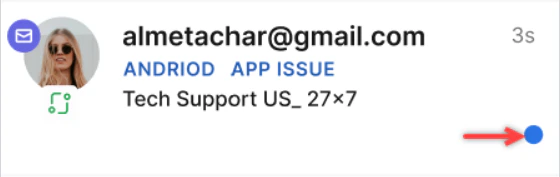
| Blue dot | You are actively engaged in the conversation |
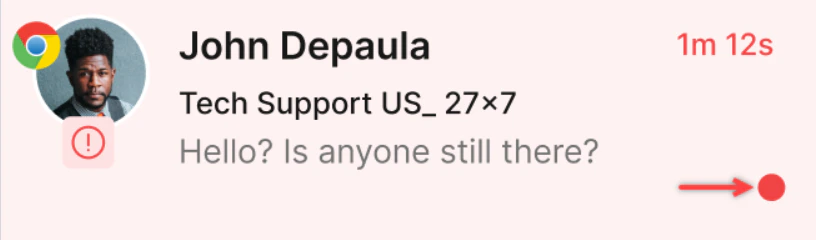
| Red dot | Conversation is overdue |
| Highlighted entry | New email conversation |
Search Conversations
Use the search bar in the Conversation Tray to find conversations by phone number, email address, or customer name. Matching results appear as you type. Select a result to open that conversation.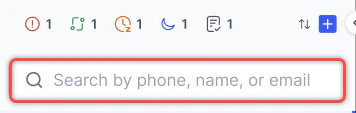
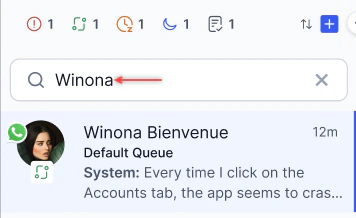
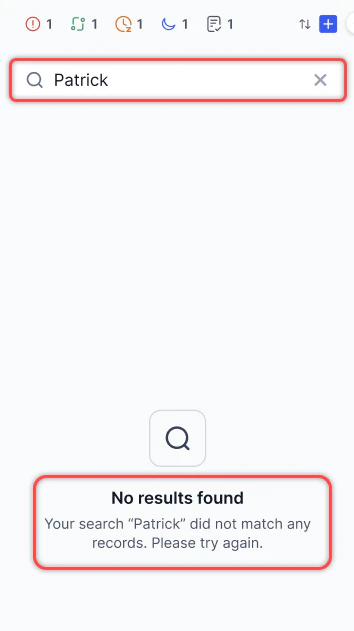
Search supports all configured languages and returns only active conversations.
Customer Sentiment
Digital conversations show the customer’s real-time sentiment, helping you adjust your approach accordingly.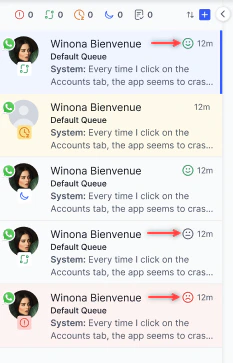
Conversation Information
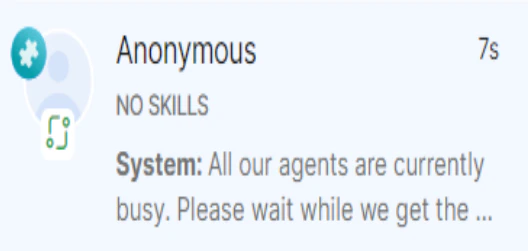
Each entry in the tray shows:- Customer name (if available)
- Skills matched to the customer’s intent
- Last message in the conversation
- Customer profile picture
- Channel icon
- Conversation status icon
Manual Call (Dialer)
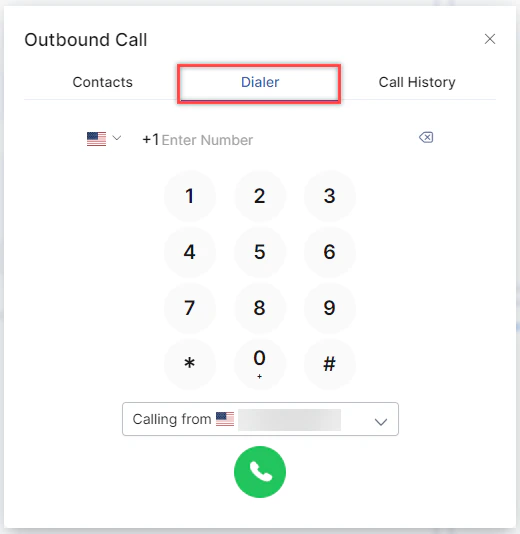
-
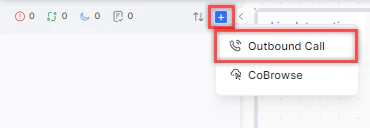
Select the + icon on the Conversation Tray and select Outbound Call.

-
On the Dialer tab, select the country, enter the phone number, and select Call.
Contacts Directory
The Contacts tab shows a public directory published by your administrator. Search by name and select Call to initiate an outbound call.
Call History
Select + > Outbound Call > Call History to view:- Name and phone number
- Date, time, and call duration
- Call type (Incoming, Outgoing, or Transferred)
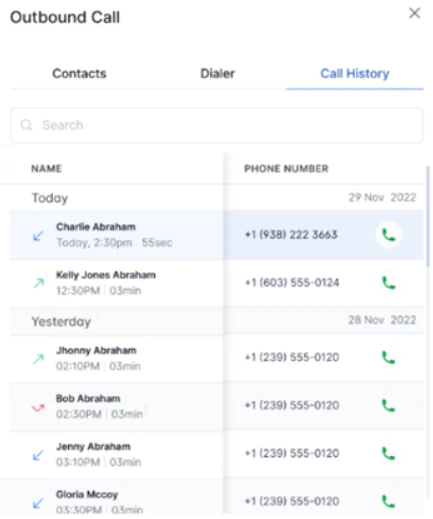
You can only see calls you dialed, received, or had transferred to you.
Incoming Interactions
Queue Notifications
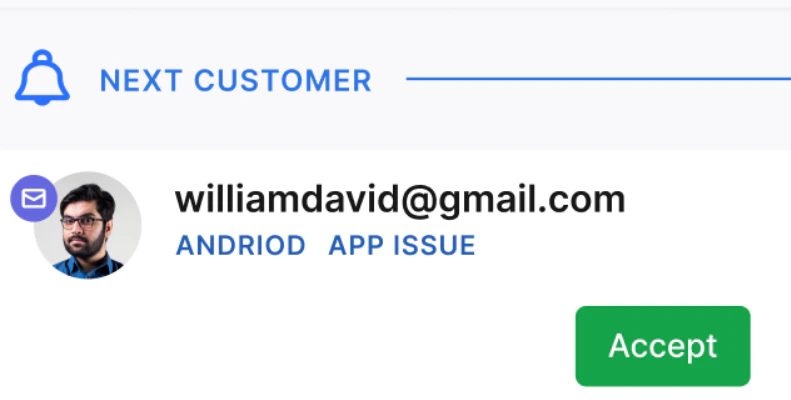
New interactions appear at the bottom-left of the Agent Console with a count indicator.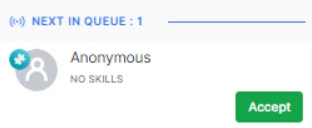
Browser Notifications
The system sends browser push notifications for new interactions, even when the console is minimized. Supported browsers: Chrome, Firefox, Chromium-based Edge, and Safari. Each notification also plays a sound. Allow notifications when prompted to receive them. If you block them, you still hear the sound alert and see the Next in Queue pop-up.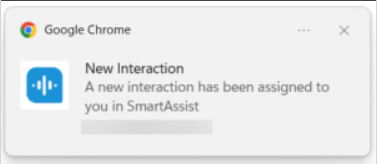
Channel Selection
You can choose which interaction types to receive. This option is available only when blended mode is disabled.| Option | What you receive |
|---|---|
| Voice & Digital (default) | All interaction types |
| Digital | Chat, SMS, and email only |
| Voice | Voice calls only |

Complete all active interactions before switching channel types.
Accepting Interactions
Manual Answer Mode Select Accept to take the next interaction. If you do not accept within the configured time, the conversation returns to the queue and your status changes to Away.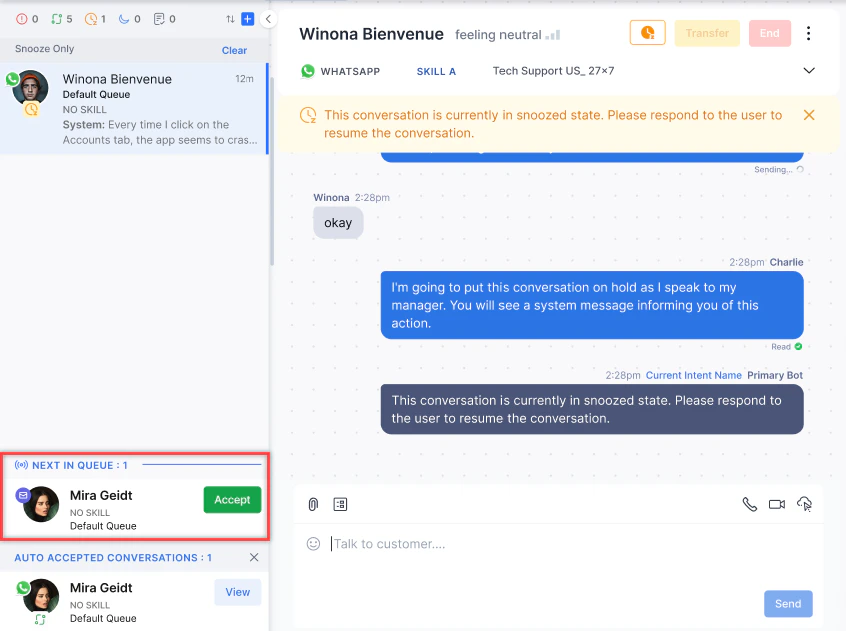
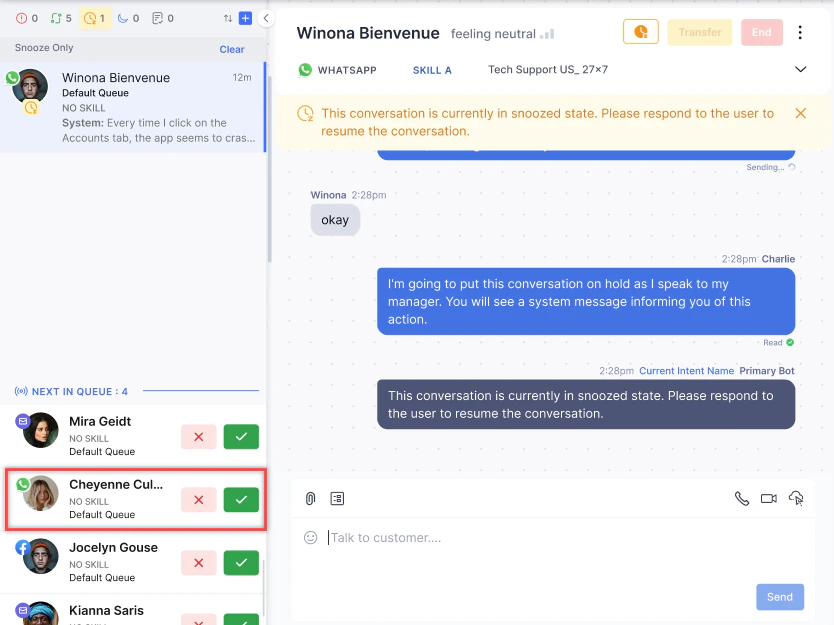
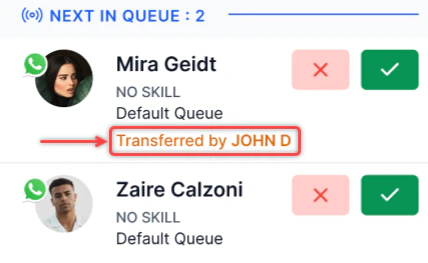
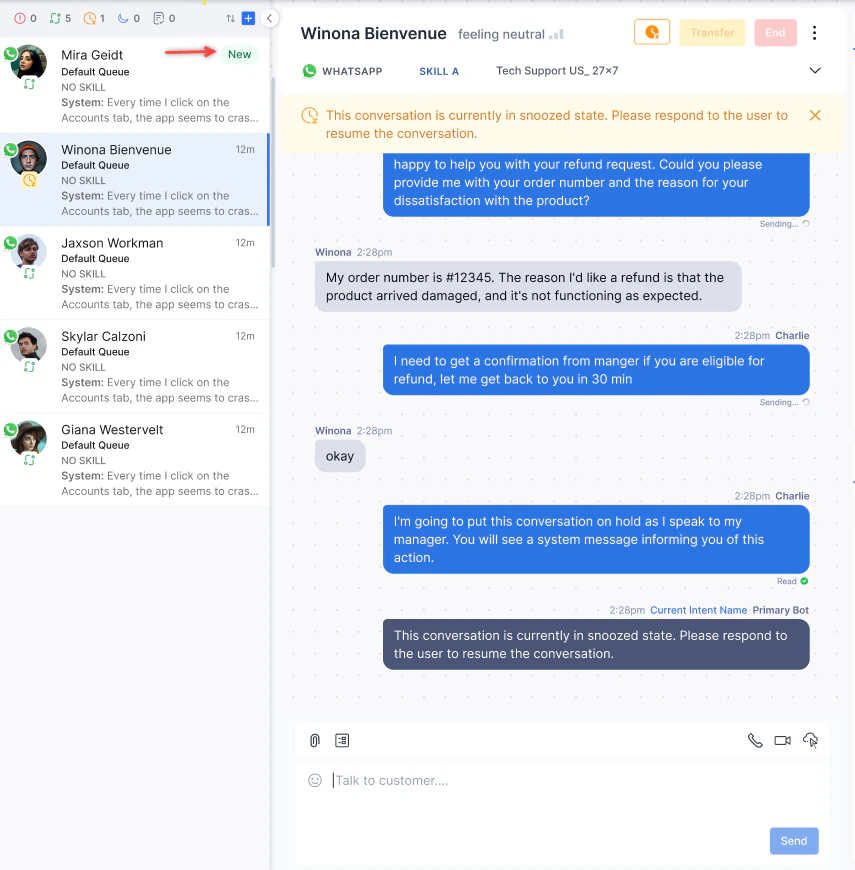
When Auto Answer mode is enabled, the Transfer and End buttons do not appear until you send your first message.
Handling Interactions With Filters Applied
If a conversation status filter is active (for example, Ongoing or Idle), accepted conversations show a View option until you open the conversation and send the first message.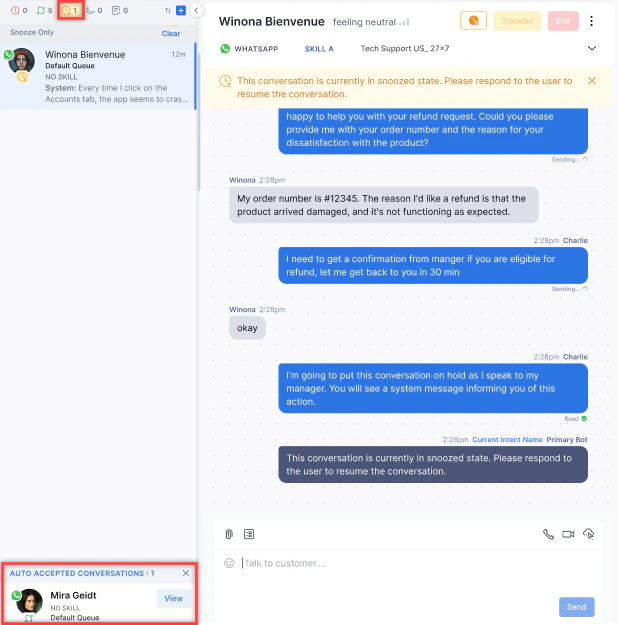
Sorting Interactions
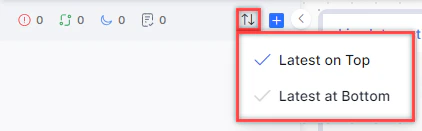
-
Select the ↑↓ icon at the top of the Conversation Tray.

-
Select Latest on Top or Latest at Bottom.
Live Interaction Pane
The Live Interaction Pane is where you communicate with customers.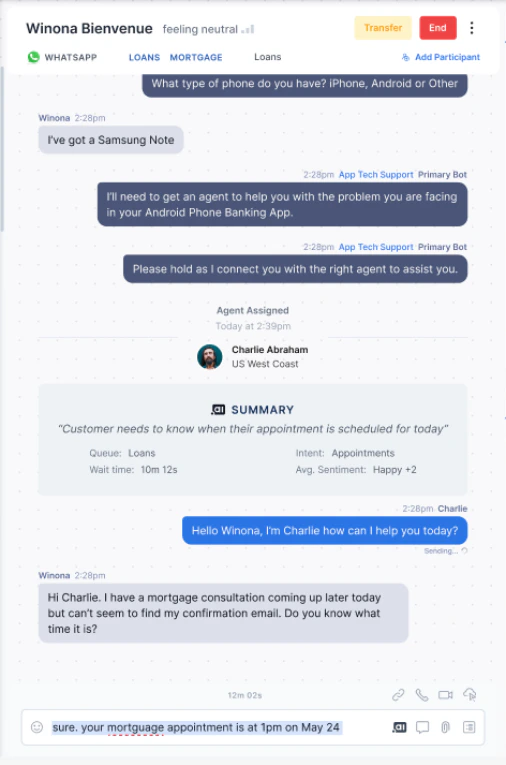
Arrival Summary
Every conversation starts with an Arrival Summary when you accept it. It shows:| Field | Description |
|---|---|
| Agent Name | Your name |
| Summary | Conversation summary, including summaries from prior transfers |
| Queue | The queue that routed the conversation |
| Wait Time | How long the customer waited before you accepted |
| Intent | The customer’s primary reason for contact |
| Sentiment | Customer sentiment based on their messages |
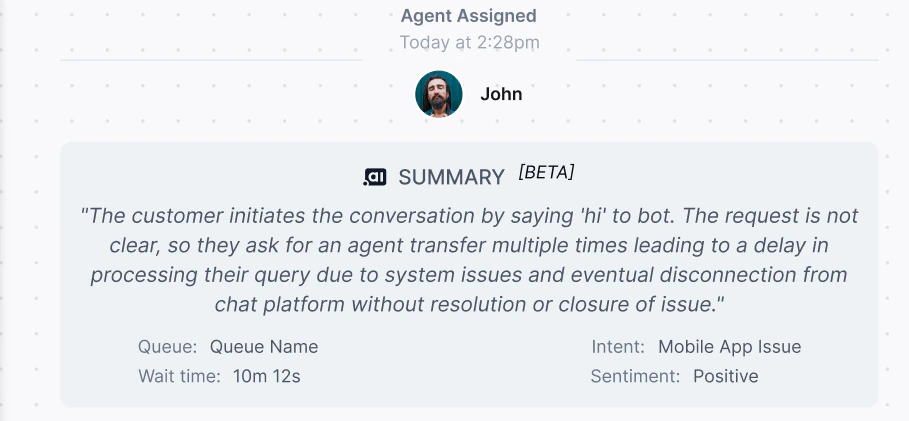
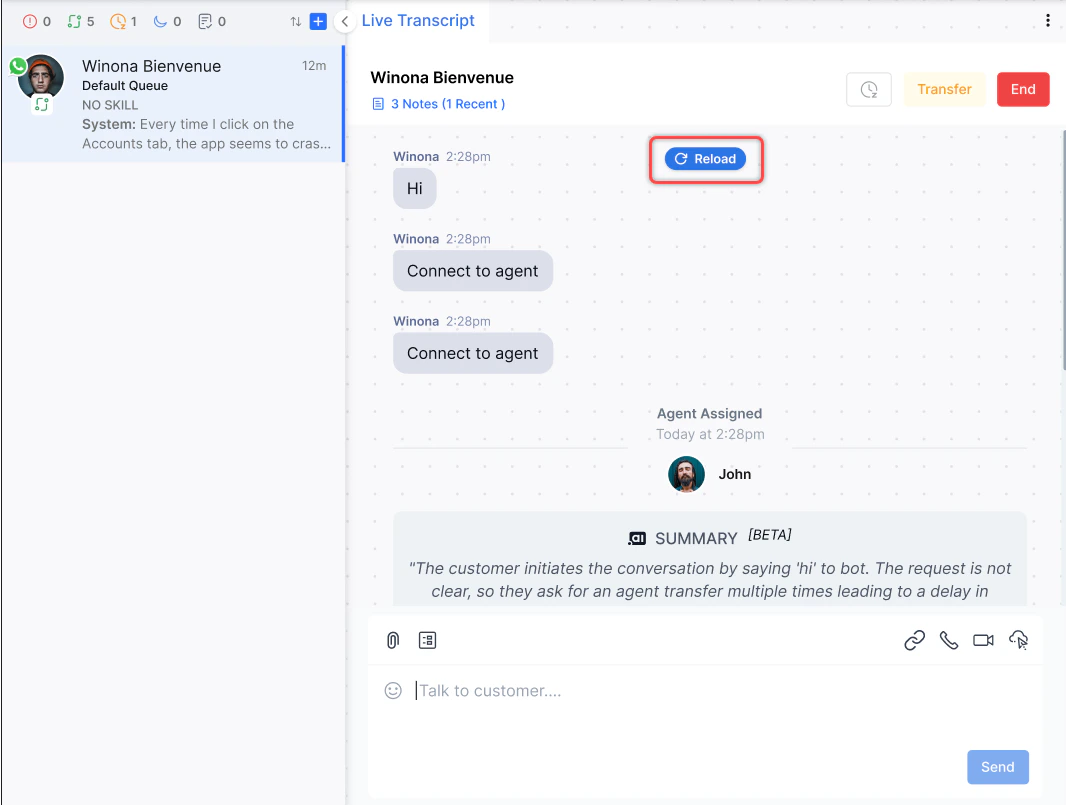
If sentiment analysis is on but no data is available, the Sentiment field shows “Unavailable.”
Composing Responses
Type in the text editor and select Send, or press Tab + Enter.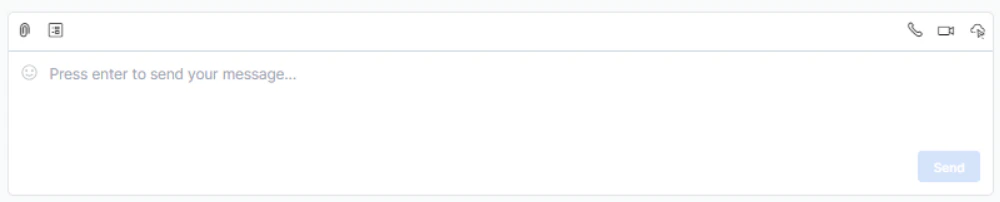
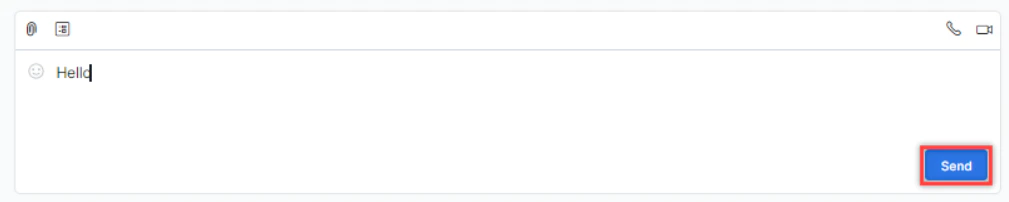
- Press Enter to send. Use Ctrl+Enter or Shift+Enter (Windows) or Ctrl+Return / Shift+Return (Mac) to add a new line.
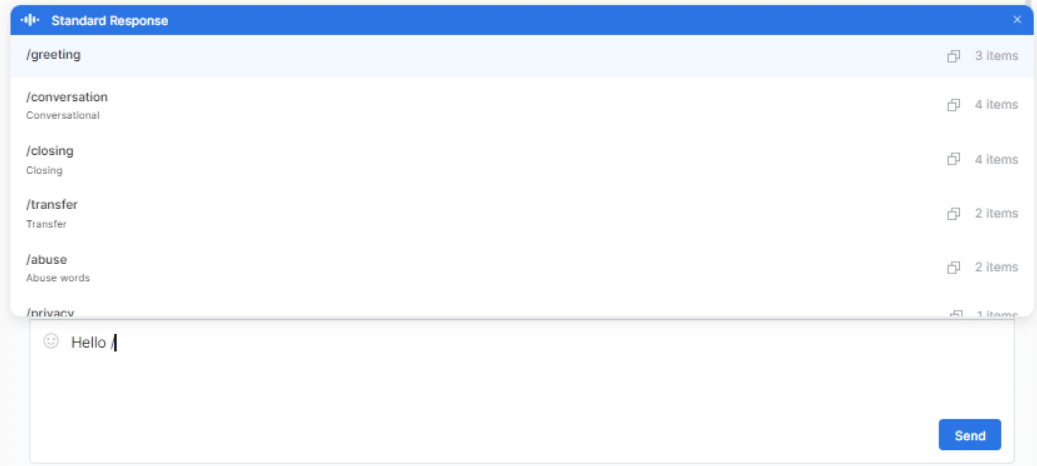
- Press / in the text editor to open the standard response library. Press Escape to close it.
- When translation is enabled, responses appear in your selected target language.
- When translation is disabled, responses appear in the conversation language.
AI-Enhanced Compose
Use the AI options in the compose bar to improve your draft before sending:
| Option | What it does |
|---|---|
| Make more friendly | Rephrases the response to be more informal and warm |
| Make more formal | Expands the response with formal language |
| Expand | Adds more detail to the draft |
| Rephrase | Elevates formality for business contexts |
Adding Hyperlinks
-
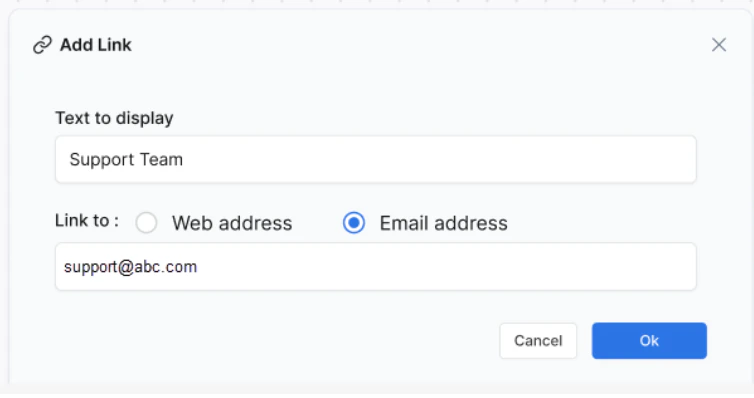
Highlight the text to hyperlink and select the Add Link icon.
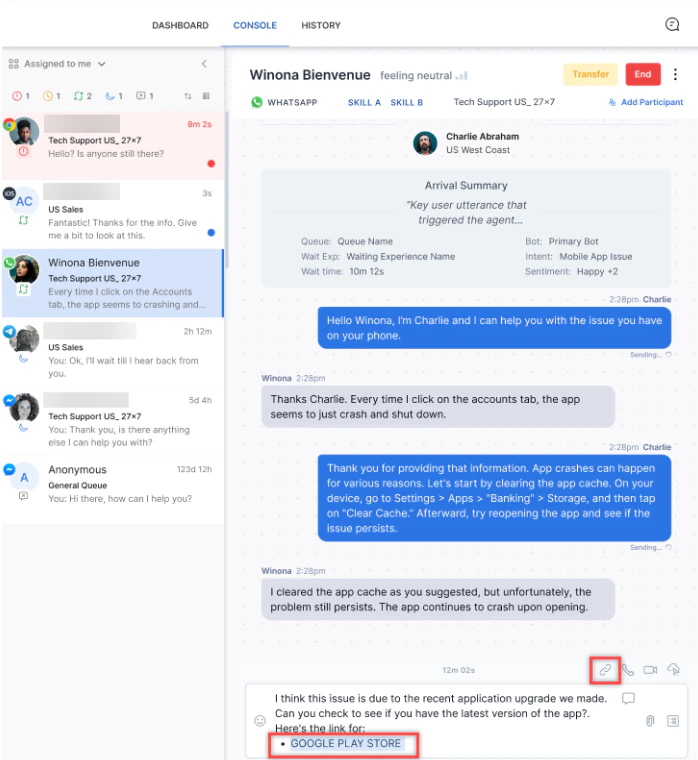
-
Select Web Address and enter the URL, or select Email Address and enter the address.
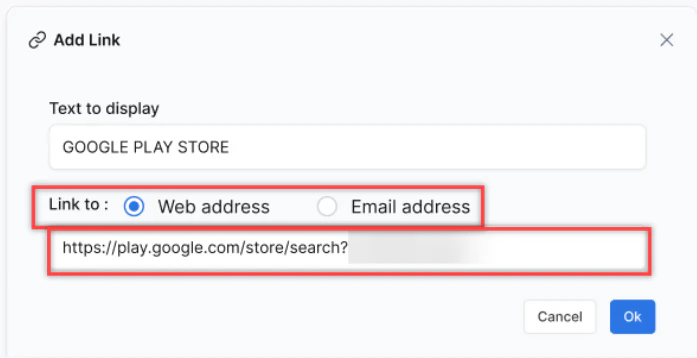
-
Select OK to apply the hyperlink.
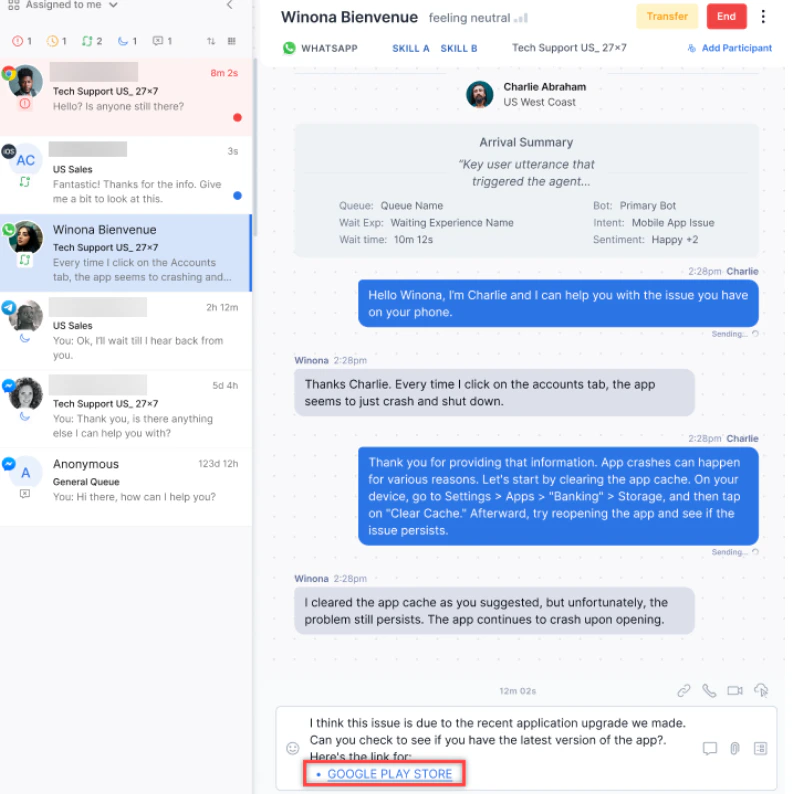
- Hover over the link to access Open, Break Link, or Edit options.
-
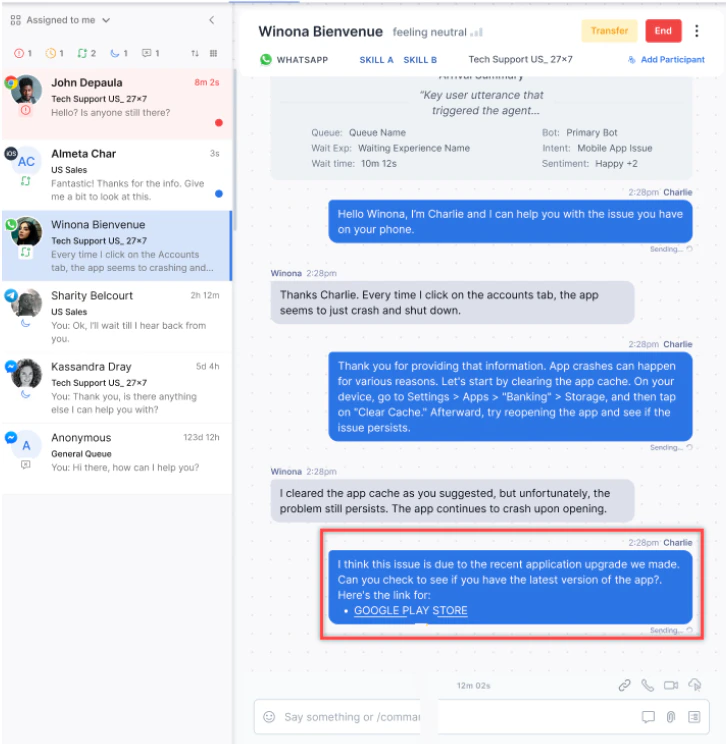
Press Enter to send the message.
Viewing New Messages
If you scroll up during a conversation and a new message arrives, a New Message icon appears at the bottom of the thread showing the unread count. Select it to jump to the latest message.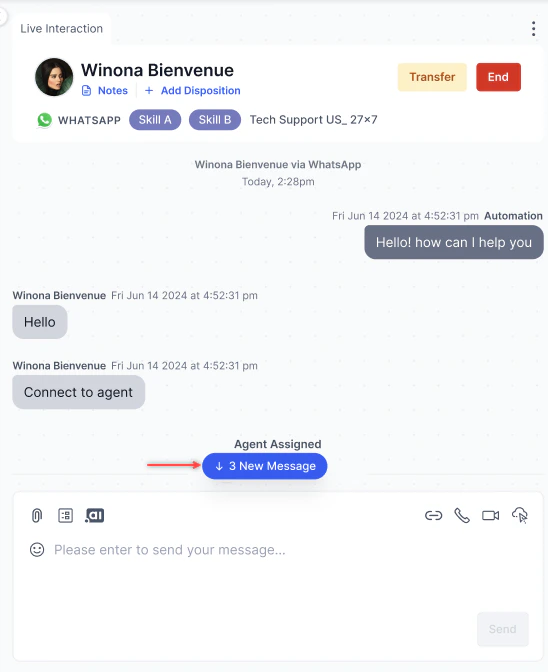
Message Status on Network Disconnect
| Scenario | Result |
|---|---|
| Message sent | ”Sending” appears |
| Message delivered | ”Sent” appears |
| Network disconnects | Chat disabled; undelivered messages show “Not Delivered” with a Resend icon |
| Network restores | Chat re-enabled |
| Resend selected | Message is sent again |
If the conversation ends or the page refreshes, the Resend icon no longer appears.
Typing Indicator
When you type a response during chat, the customer sees three dots indicating you are responding. Requires WebSDK 3.0 with the AgentDesktop plugin installed.Real-Time Sentiment
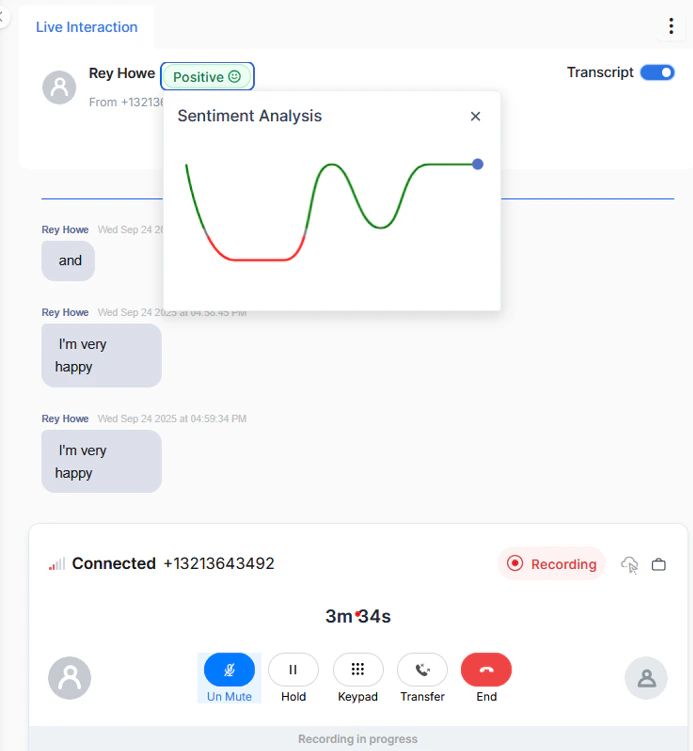
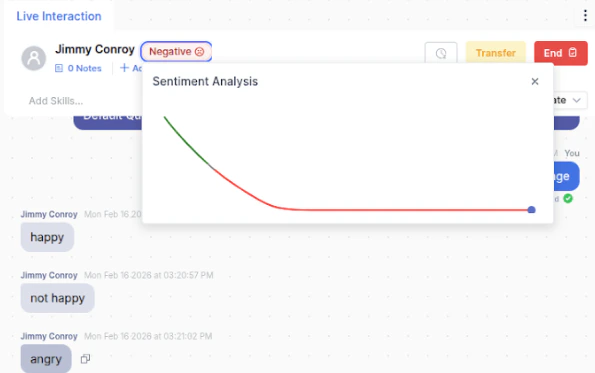
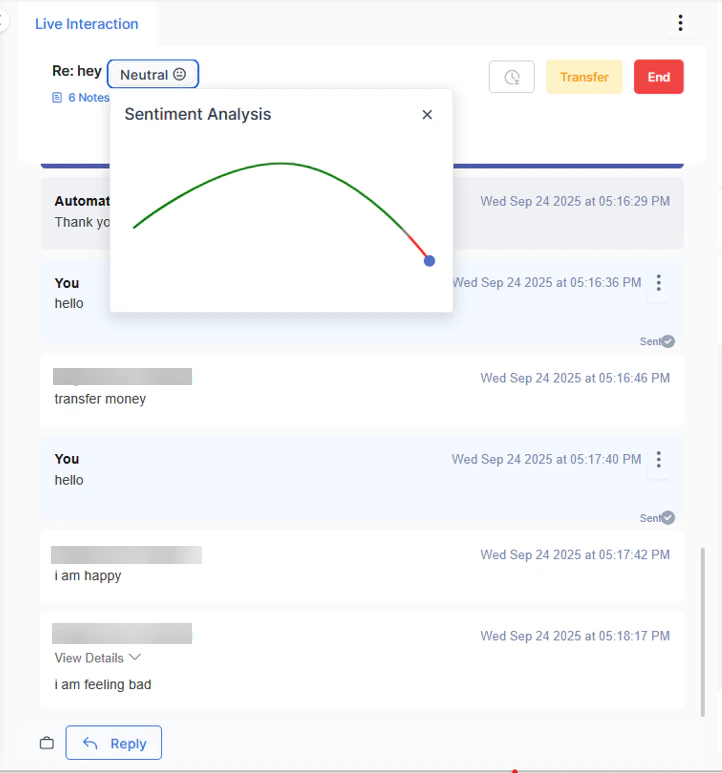
The sentiment indicator (positive, negative, or neutral) reflects the overall sentiment of the full conversation. Select the indicator to view a graph showing emotional fluctuations per message, helping you adjust your tone and approach.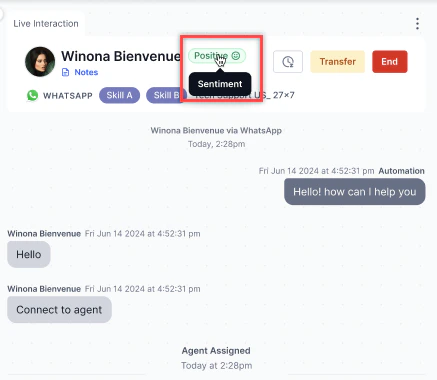
Message Timestamps and Read Status
- All agent messages show a date and timestamp.
- Consecutive messages sent within the same minute are stacked under one timestamp.
- Read status appears against the most recent message in a stack.
Voice Interactions
Audio and Video Calls
During a chat, you can escalate to an audio or video call by selecting the Audio Call or Video Call icon in the Live Interaction Pane.
Video calls require a Kore AudioCodes-enabled account. You must close the chat interaction and the audio/video call separately, each with its own disposition.
Virtual Backgrounds (Video Calls)
During an active video call, open the Virtual Background option to apply a static image or blurred background. The background applies to your video feed only and saves at the browser level for future calls.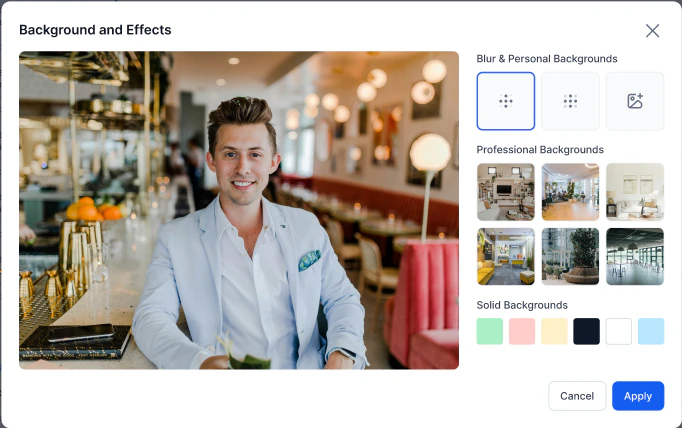
This feature is in Beta. Contact Support to enable it. Safari is not recommended for video calls.
Agent-to-Customer Screen Sharing
- Start a video interaction.
-
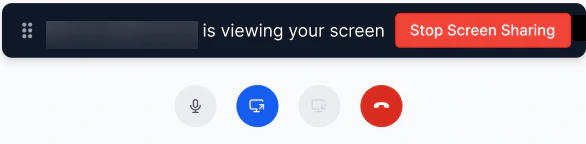
Select Start Screen Sharing and review the disclaimer.

- Choose an application window or browser tab to share.
-
To stop, select Stop Screen Sharing or end the interaction.
Outbound Calls
You can initiate outbound calls from the Conversation Tray. Rules for outbound calls:| Condition | Can make outbound call? |
|---|---|
| Any status except System Away or System Busy (Voice) | Yes |
| Handling digital interactions | Yes |
| System Away (Chat or Voice) | No |
| System Busy (Voice) | No |
| Currently on an inbound voice call | No |
| Currently on an active outbound call | No |
-
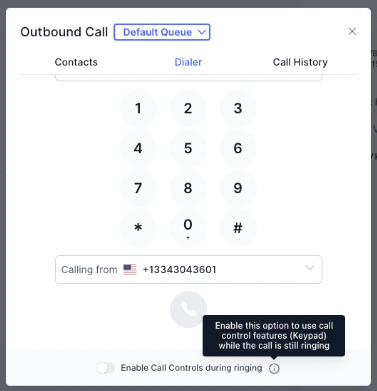
Select + on the Conversation Tray and select Outbound Call.
-
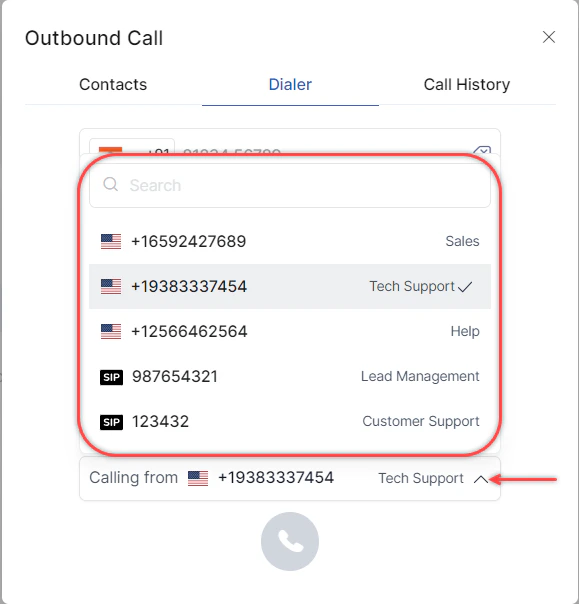
On the Dialer tab, select the number to call from (phone number or SIP trunk).
-
Enter the phone number with the country code and select Call, or select the country from the dropdown, enter the number, and select Call.
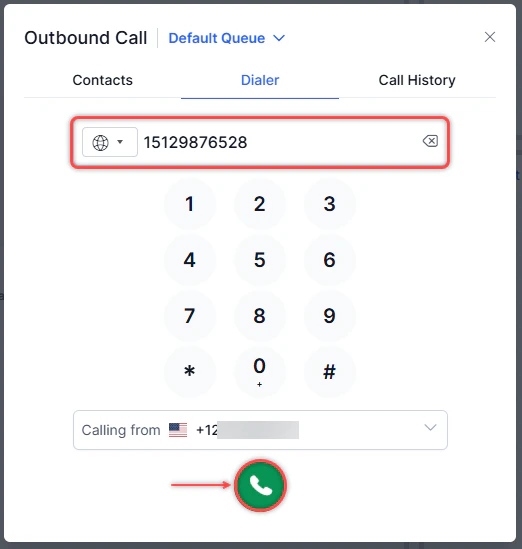
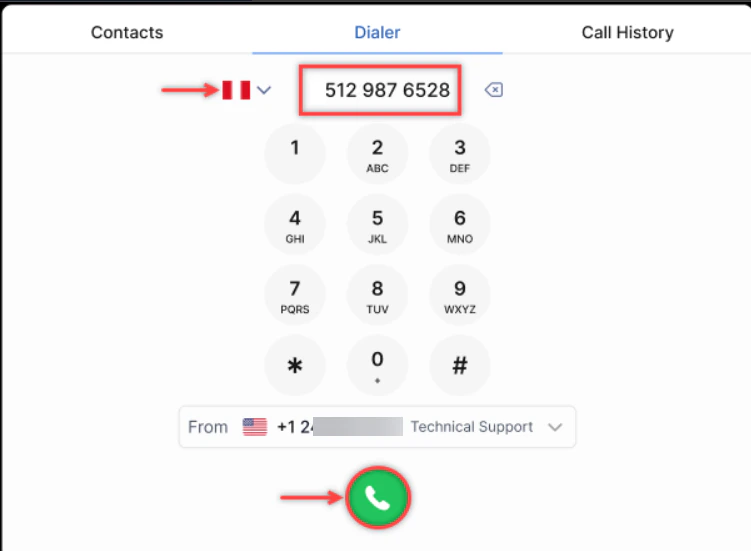
- The ISD code auto-adjusts to the last-used country code.
- Numbers auto-format to a standard format.
-
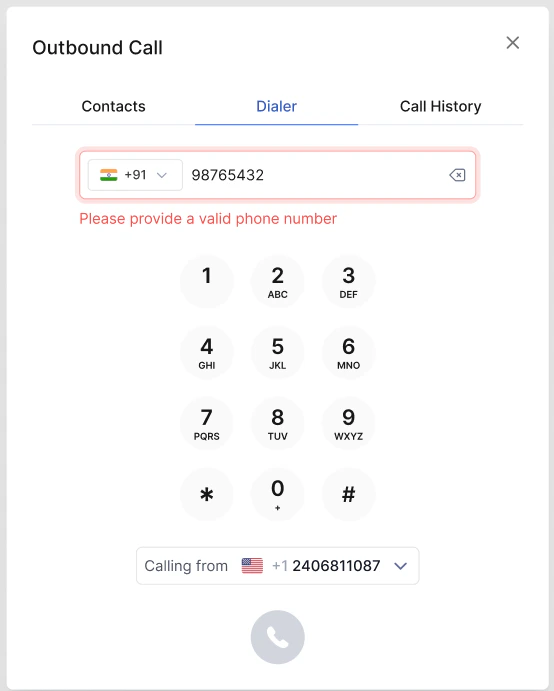
Invalid numbers display an error and disable the Call button.
-
Enable call controls during ringing: Turn on this toggle to use Mute, Hold, Keypad, and Transfer during the dialing phase.
| Scenario | What happens |
|---|---|
| Number entered without a country code | System places the call directly. Change country to Unknown for US numbers without a code. |
| Pasted number without a country code | Validation error appears. Change country to Unknown to proceed. |
| Valid international number (for example, +91987654321) | System detects and selects the correct country automatically. |
| Invalid international number (for example, +919876543) | Validation error appears; the call button is disabled. |
The country code defaults to the last dialed country. If no calls have been made, the default is US.
Click-to-Call (Inbound)
Inbound Click-to-Call interactions appear in the Live Interaction Pane like a standard voice call. The system provides the customer’s metadata and prior chat transcript.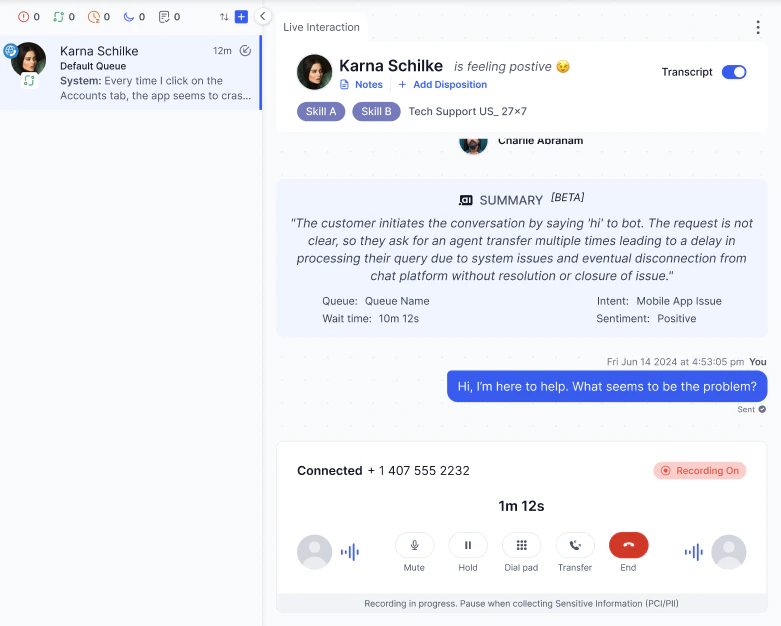
Supported only in the External SDK.
Voicemail
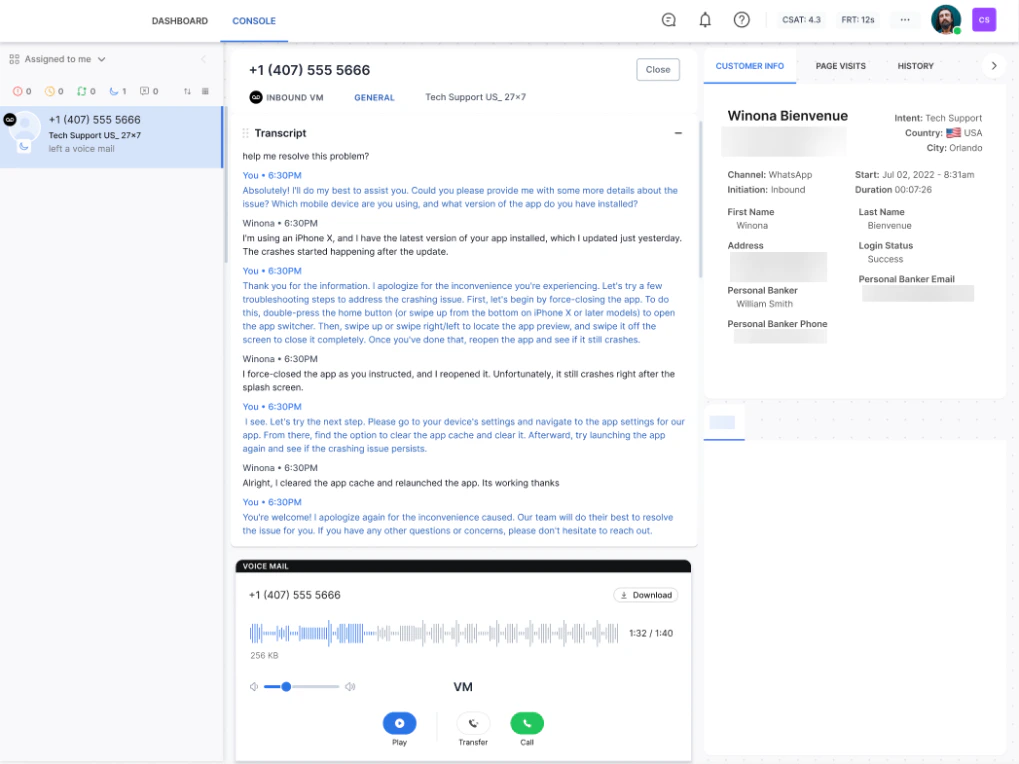
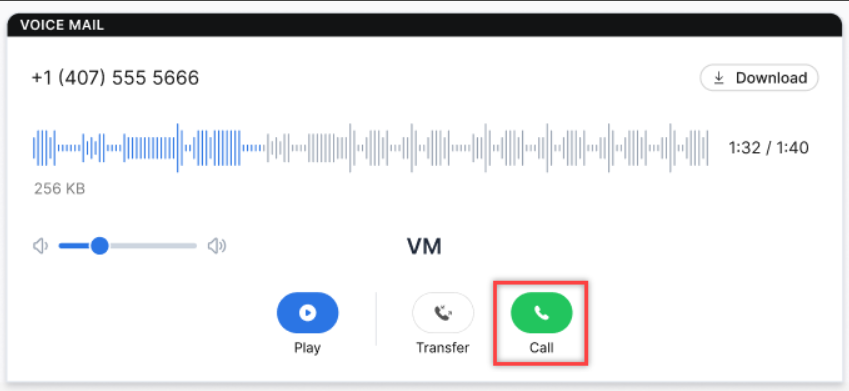
If auto answer mode is on, voicemails appear automatically in your Conversation Tray. If manual mode is on, you receive a notification and must accept the voicemail (no inbound slot is consumed).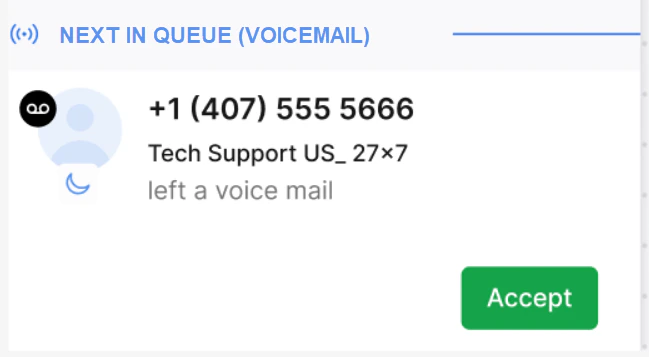
-
Select Call in the VOICEMAIL panel.
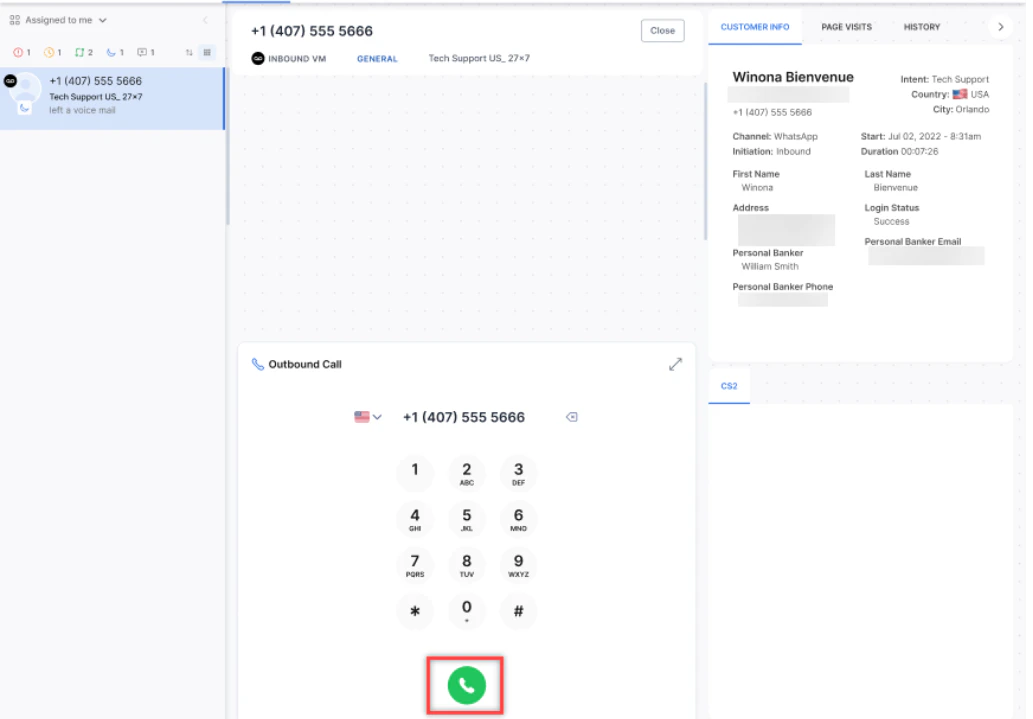
-
The outbound dialer opens. Select Call to initiate the call.
Consult, Conference, and Warm Transfer
Consult Call
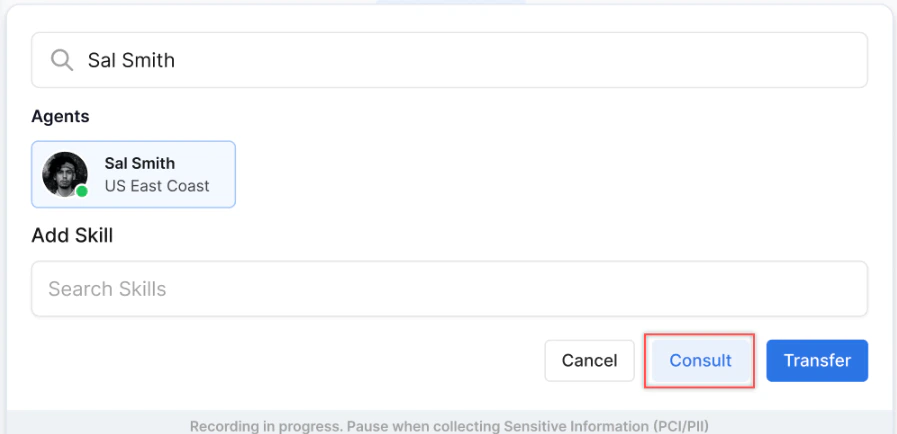
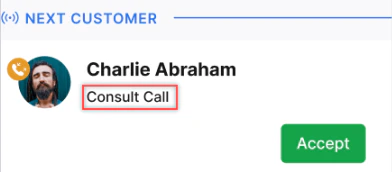
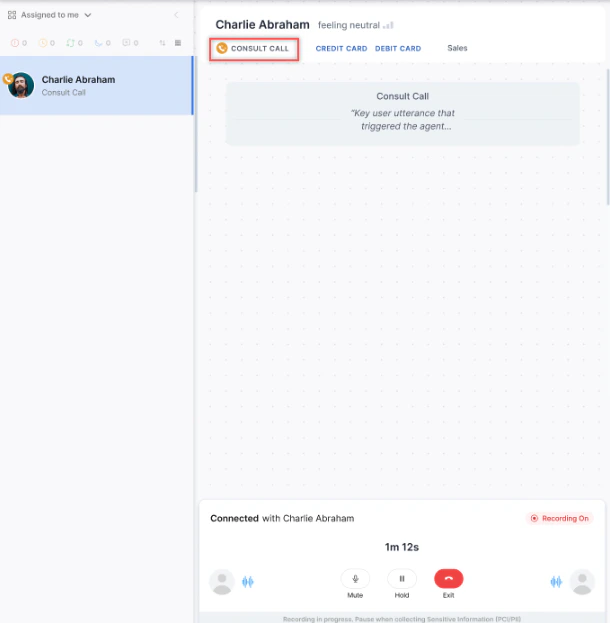
A consult call lets you speak privately with another agent while the customer is on hold.-
Select Transfer, search for an agent, and select Consult.
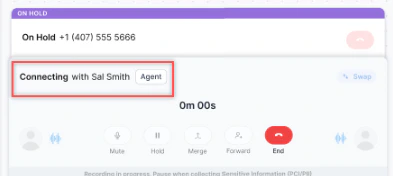
-
The customer is placed on hold and the consult call connects.
-
The following options are available to the initiating agent:

-
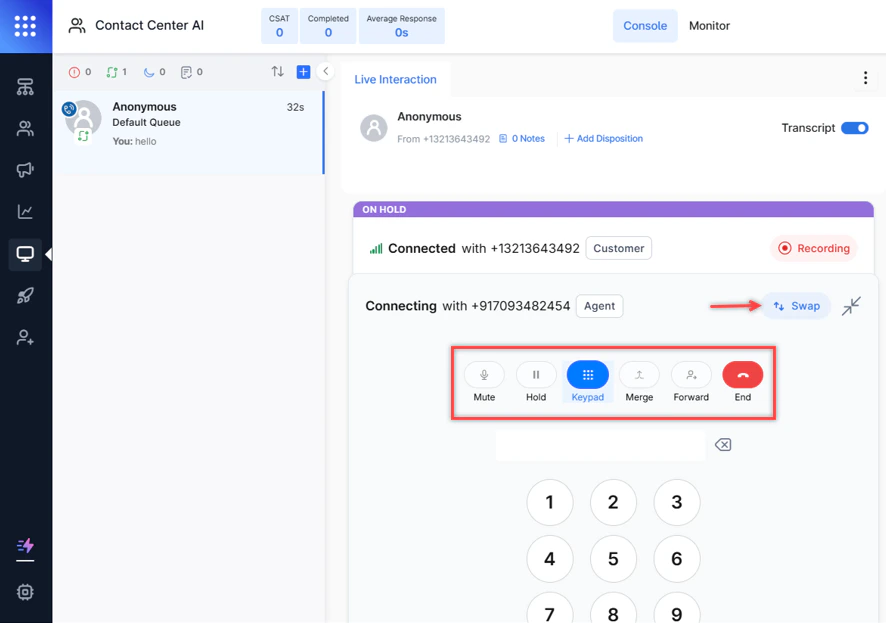
Use Swap to switch between the customer call and the consulting agent. Switching to the customer call places the consult on hold.
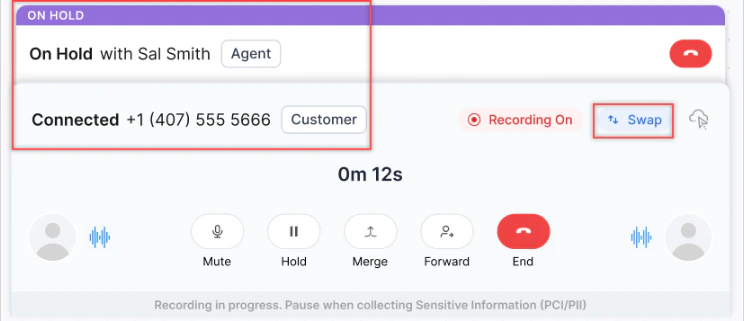
- After the consult, select Merge to start a conference or Forward for a warm transfer.
-
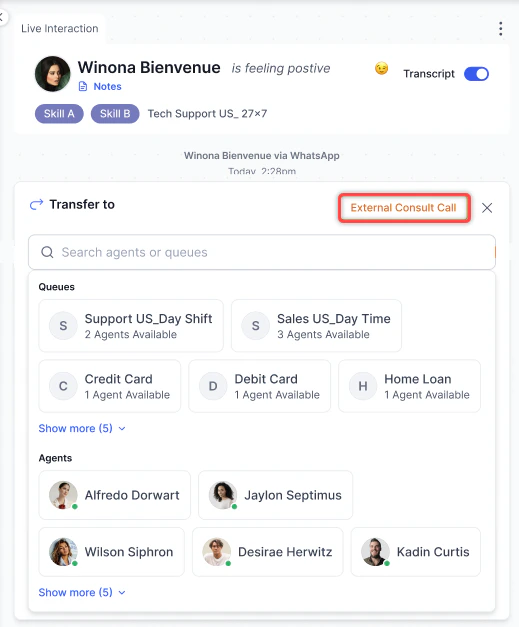
During an active interaction, select External Consult Call.
-
Select a queue.
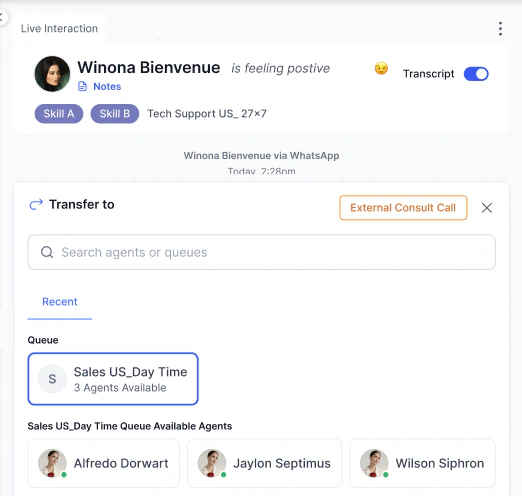
- Optionally select a specific agent.
- Select Queue Consult to initiate the call.
The consulting agent must be Available with zero load. A consult cannot be started during an ongoing conference, and a conference cannot be started during an ongoing consult.
Conference Call
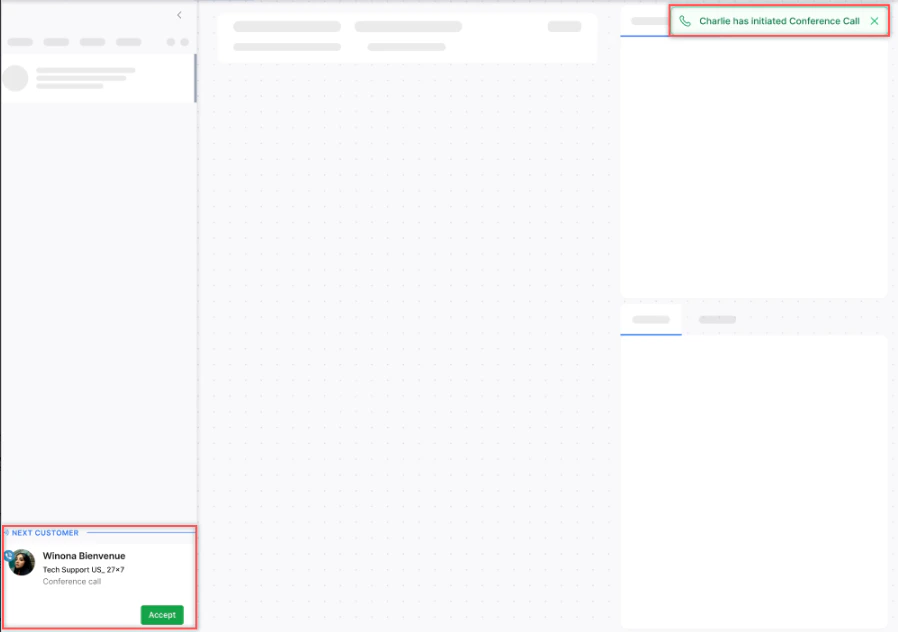
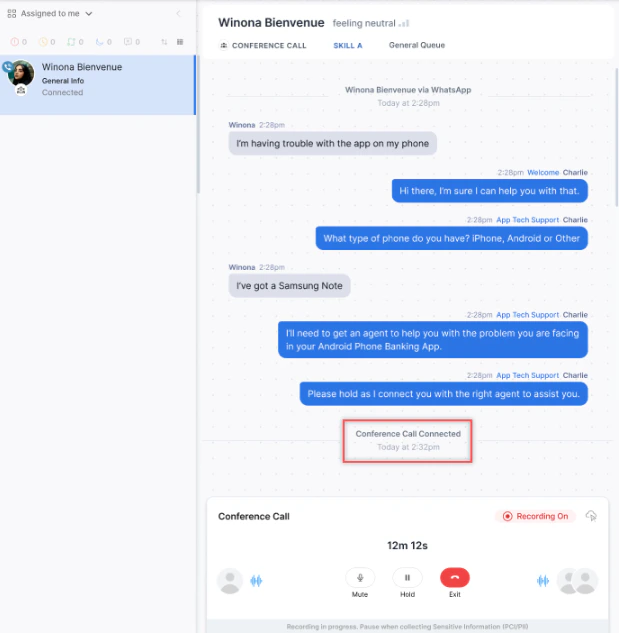
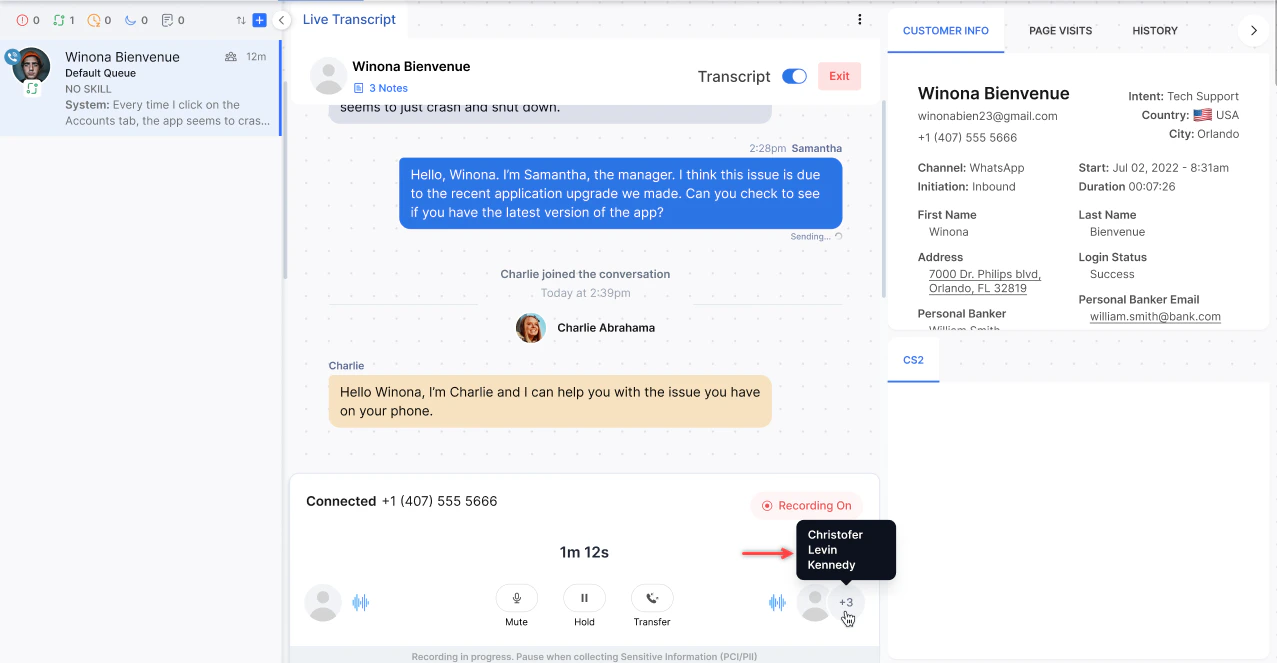
Select Merge during a consult to bring the customer into the conversation. Up to 4 supervisors and the primary agent can join the same conference call.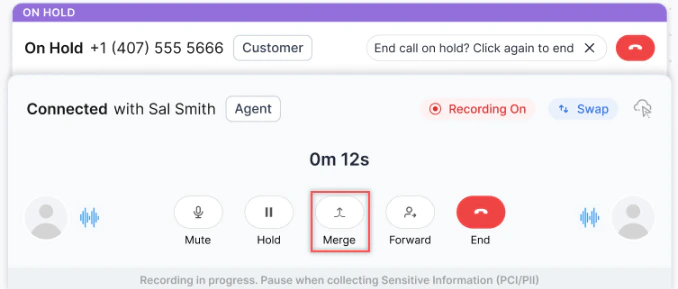
-
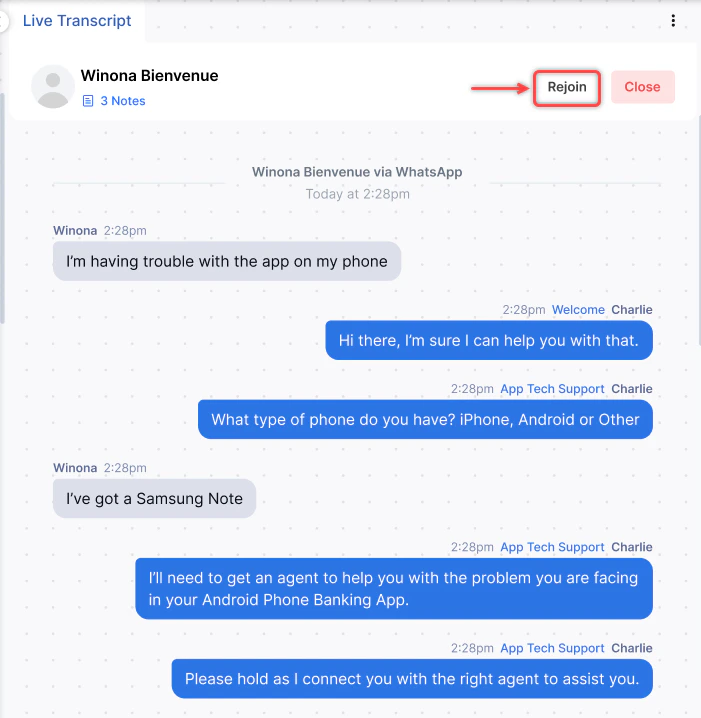
If a participant drops due to network issues, they can Rejoin.
- If you leave the call, the supervisor takes full control.
- Each participant can transfer the conversation or exit independently.
- CSAT links to the last agent who handled the conversation.
-
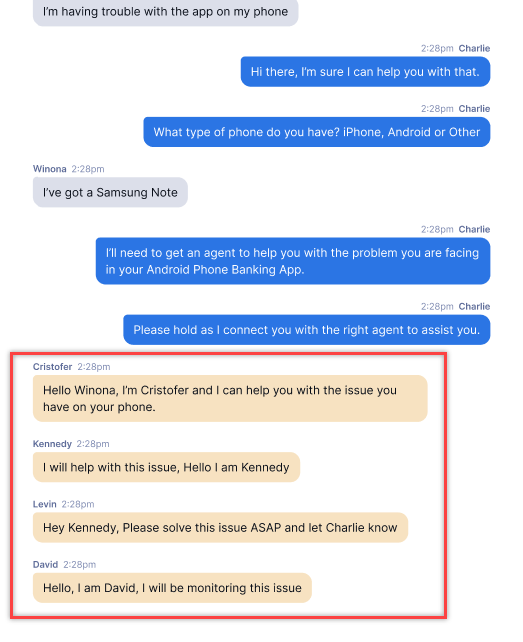
All chat transcripts from supervisors appear in yellow.
-
A notification appears if the customer drops off during the conference call.

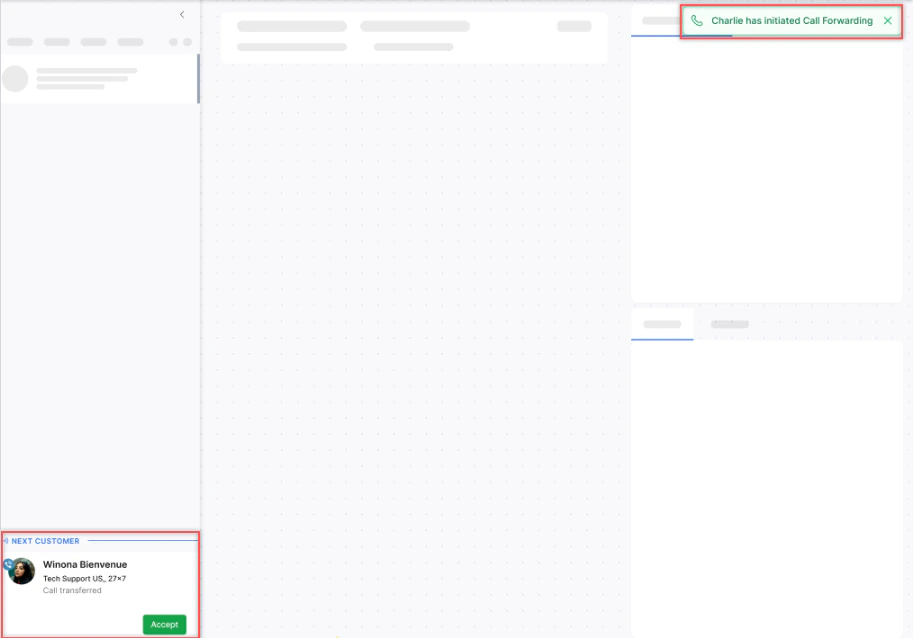
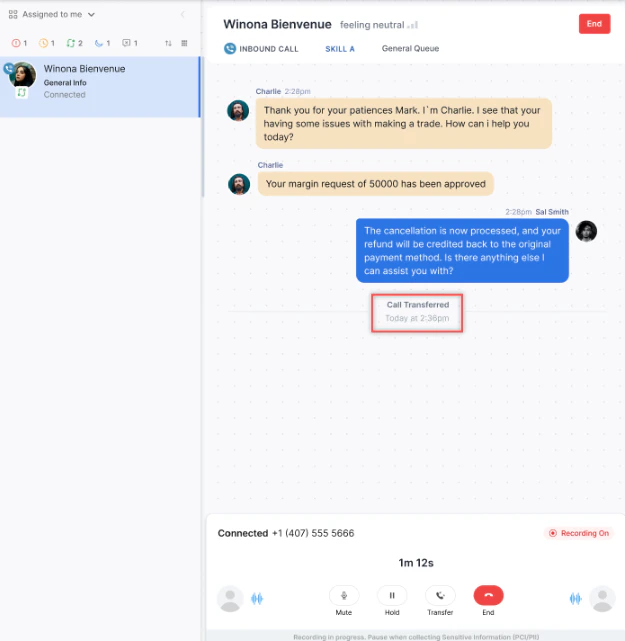
Warm Transfer
After a consult or conference, select Forward to transfer the call to the other agent and disconnect yourself.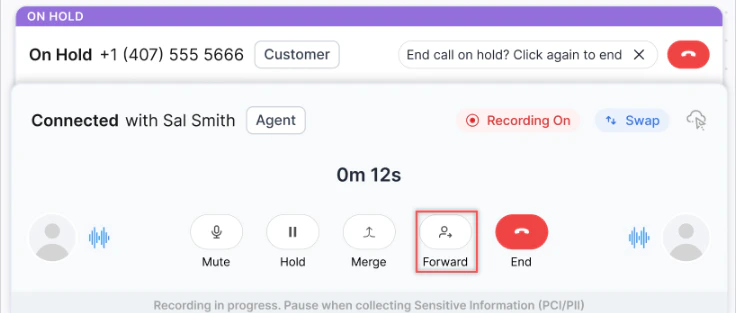
Consult and Conference Limitations
| Limitation | Detail |
|---|---|
| Conference during an ongoing consult | Not permitted |
| Consult during an ongoing conference | Not permitted |
| Consult/transfer on outbound calls | Not permitted |
| Agent AI during a conference or consult call | Not available |
Call Transfer (Voice)
-
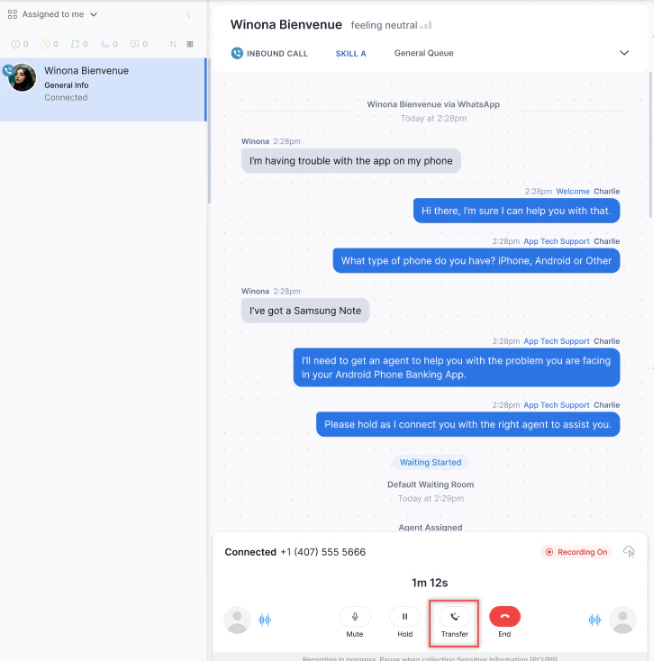
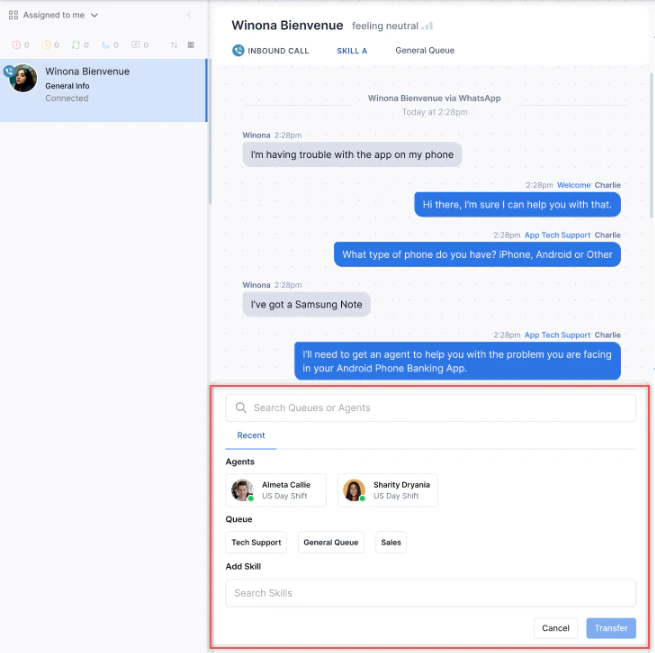
Select Transfer (or press Alt + Shift + T) and search for an Agent or Queue.
-
Search for an Agent or Queue.
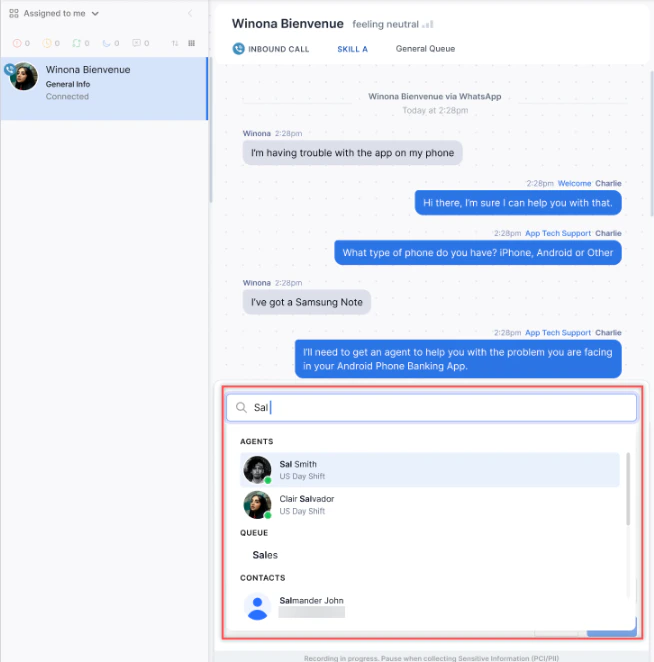
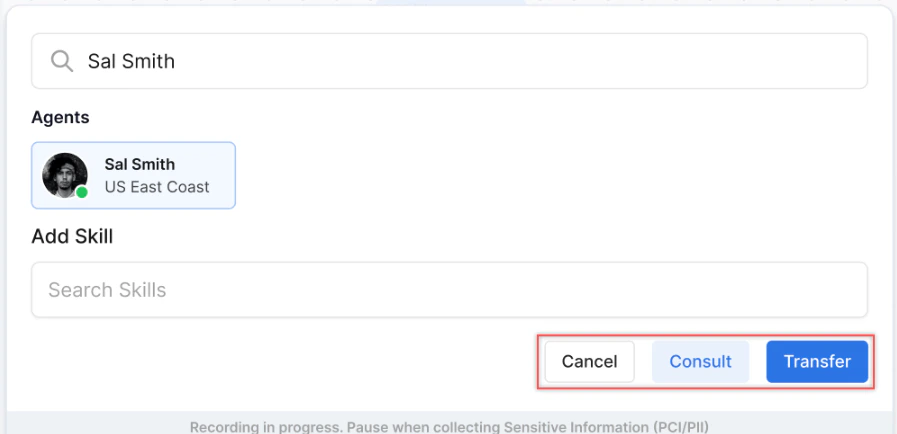
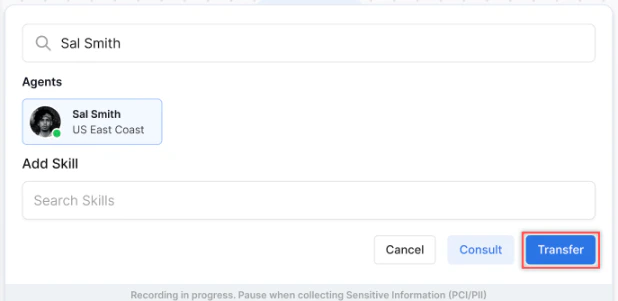
Agents with zero Chat/Email slots are not listed in agent transfers.
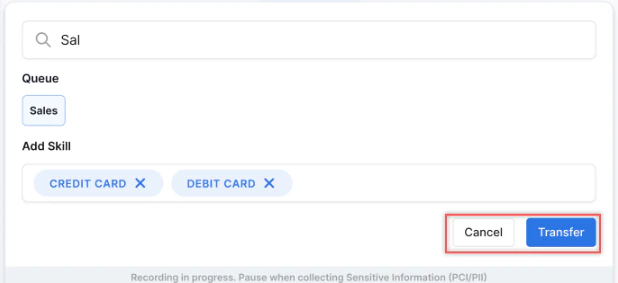
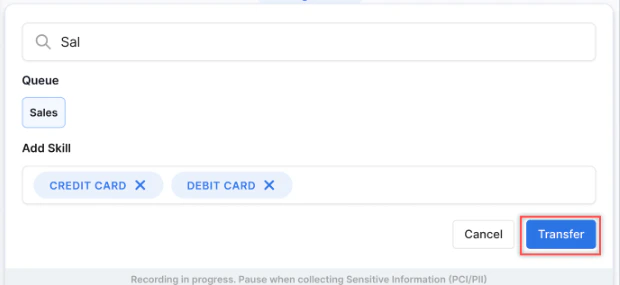
External Consult During a Live Interaction
If you need to consult an external number during an active call:-
Select the Dialpad icon in the Live Interaction Pane.
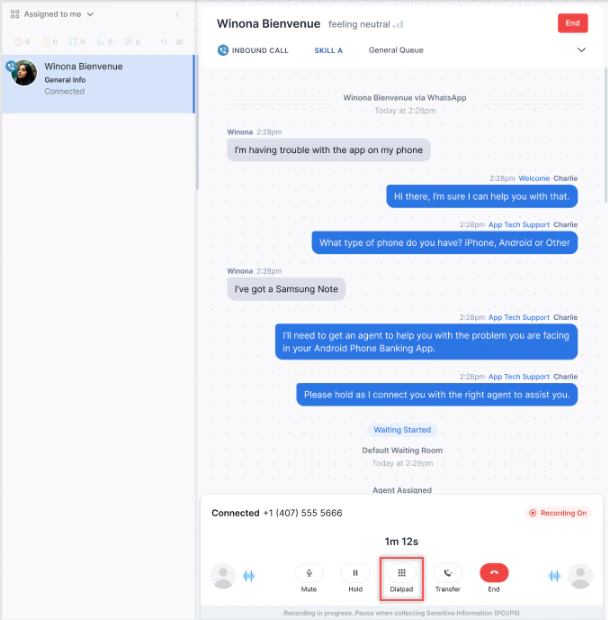
-
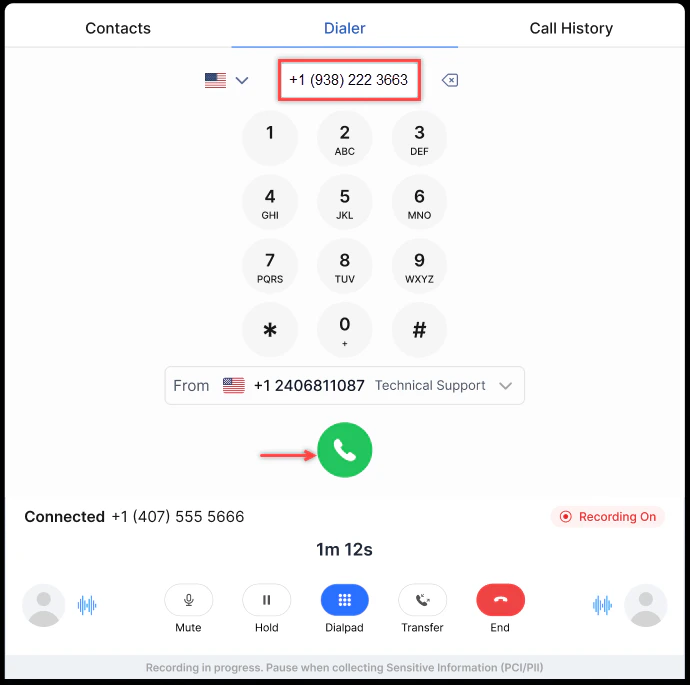
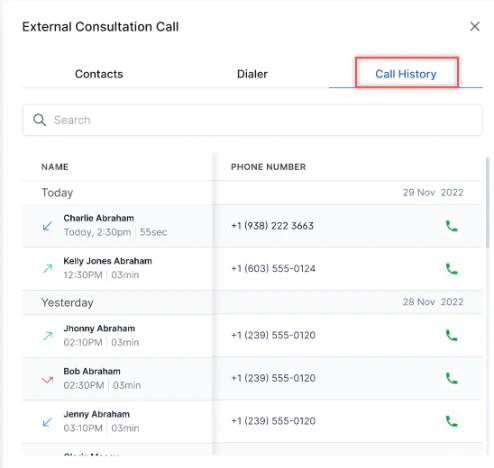
In the External Consultation Call window, dial the number using one of three methods:
-
Manual Dialer: Enter the phone number with the country code and select Call.
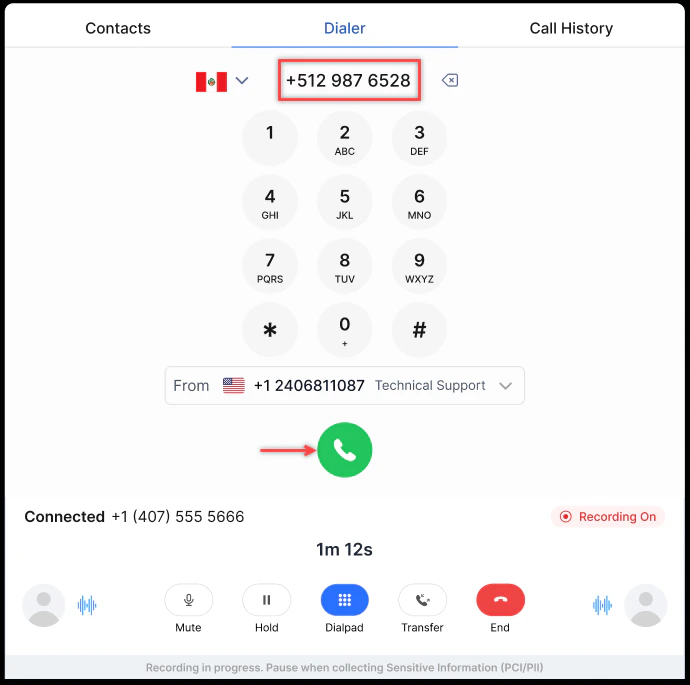
-
Contacts Tab: Search for the contact, select Call, then select Call on the dialer tab.
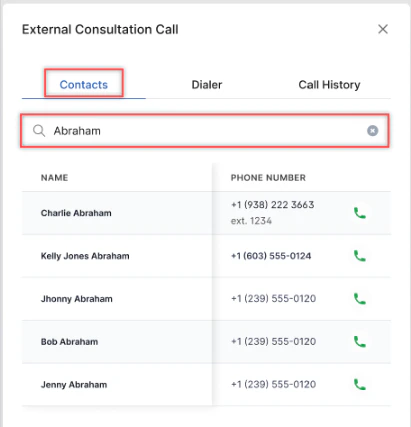
.png)
-
Call History Tab: Select the number from history and select Call to dial.
.png)
-
Manual Dialer: Enter the phone number with the country code and select Call.
-
The external call connects and the customer is placed on hold.
Chat and Digital Interactions
Translate Conversations in Real Time
-
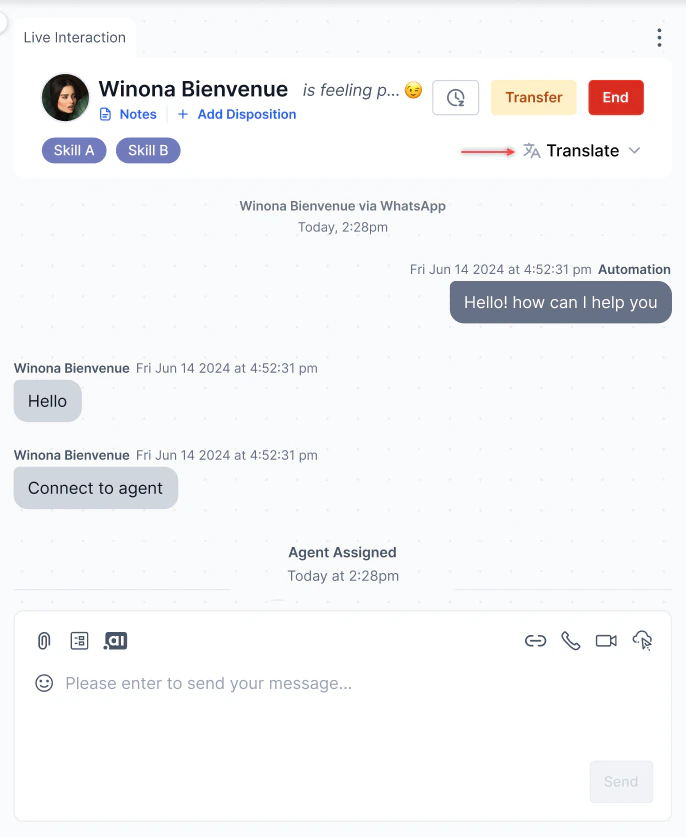
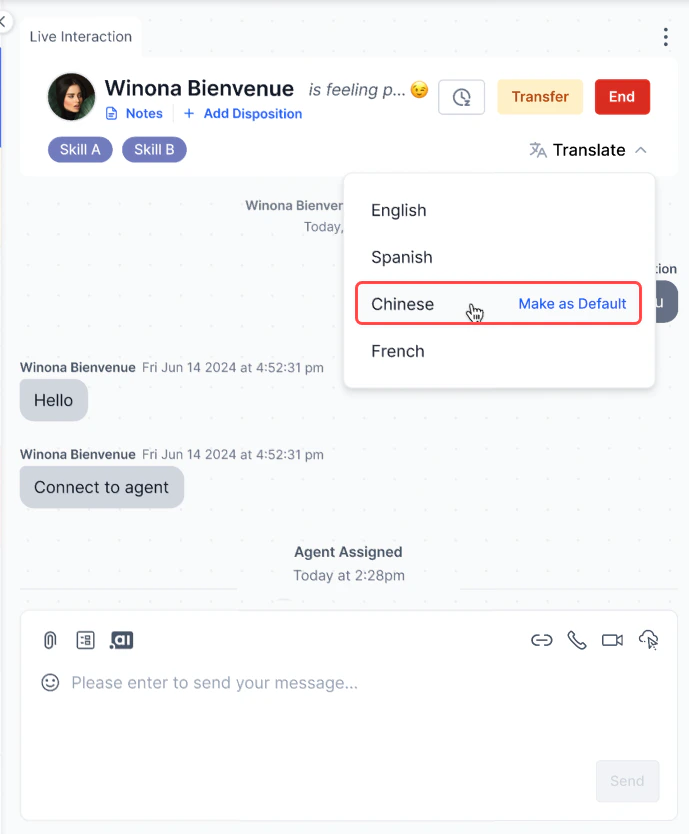
Select Translate on the Live Interaction Pane.
-
Select a language from the dropdown. Select Mark as Default to save it as your default language.
-
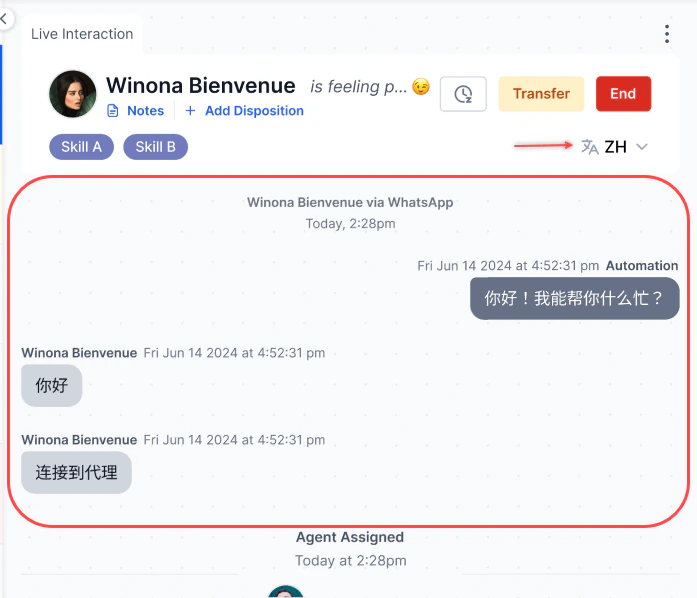
The conversation appears in the selected language.
Emojis
Select the Emoji icon in the compose bar to add emojis to your message.
Attachments
Select the Attachments icon to share files with the customer. Files are stored in Amazon S3.
Files with malicious content (such as embedded HTML scripts) are blocked regardless of file extension.
Co-Browse
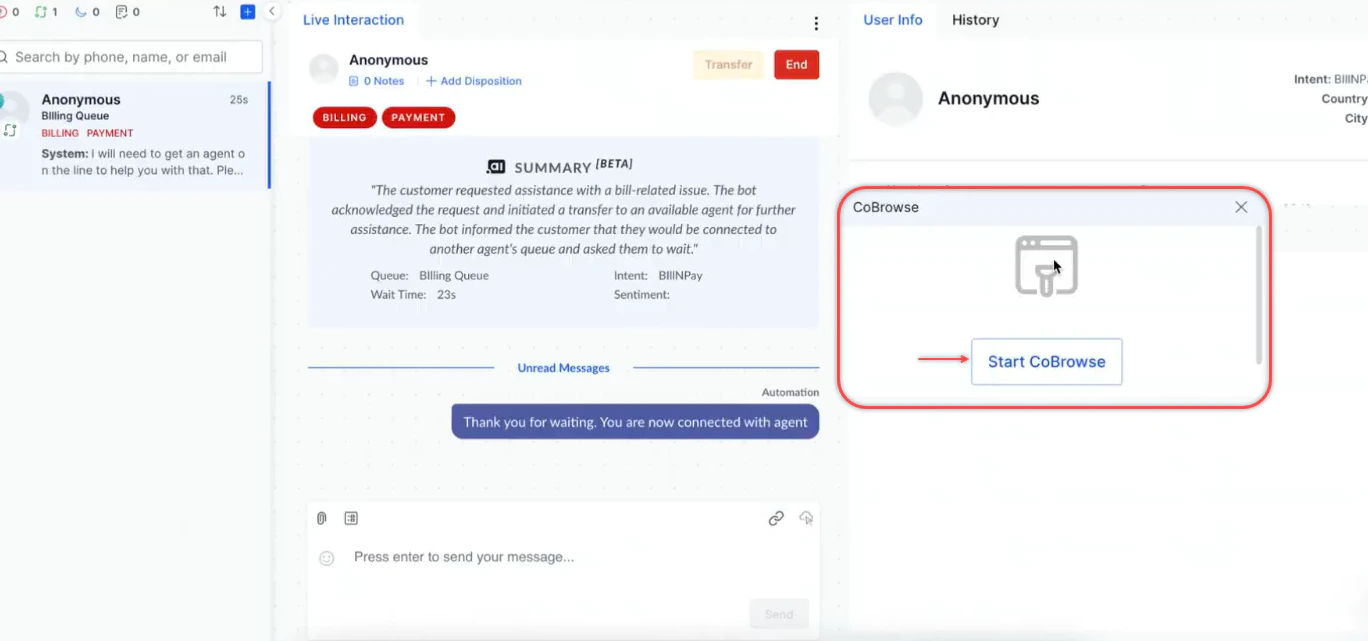
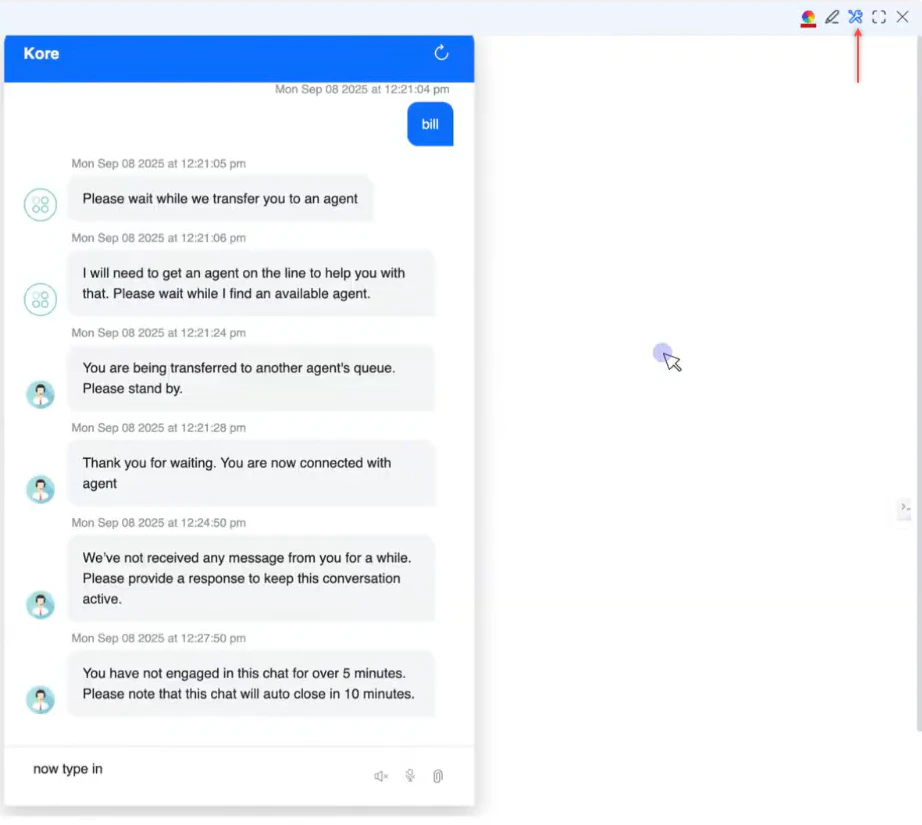
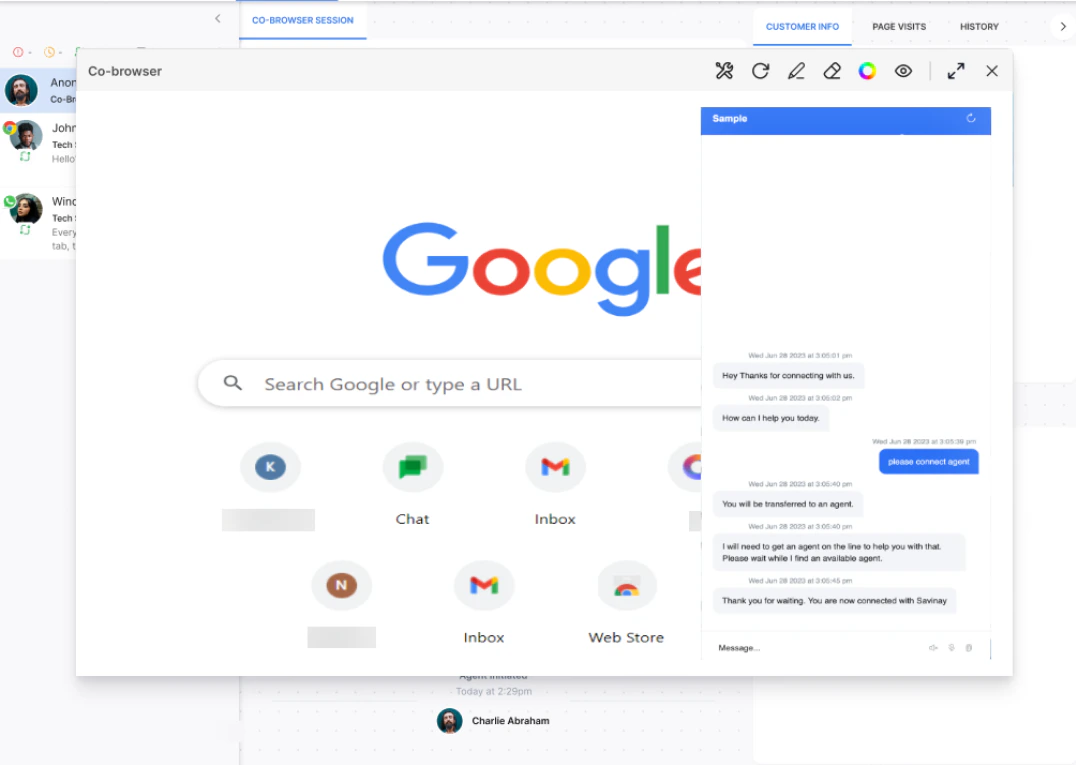
Co-browse lets you view and optionally control a customer’s web session in real time. The customer remains in control at all times.Co-browse works only on websites with the Web SDK embedded. Not available on Telegram, WhatsApp, or other non-web channels. Co-browse shows a reconstructed DOM view, not a live screen capture.
-
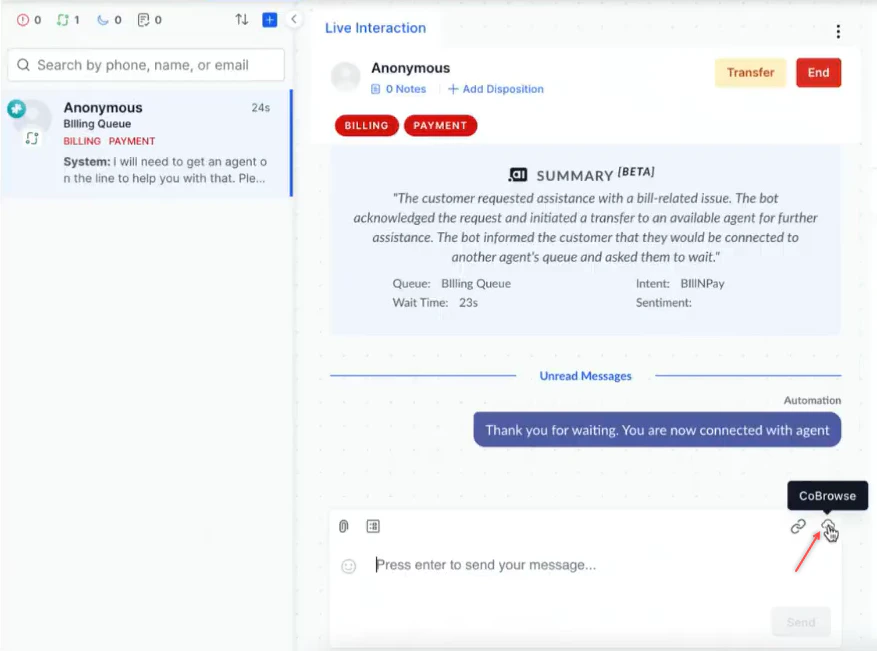
In the Console, select CoBrowse.
Chat:
-
Select Start CoBrowse. A request is sent to the customer.
-
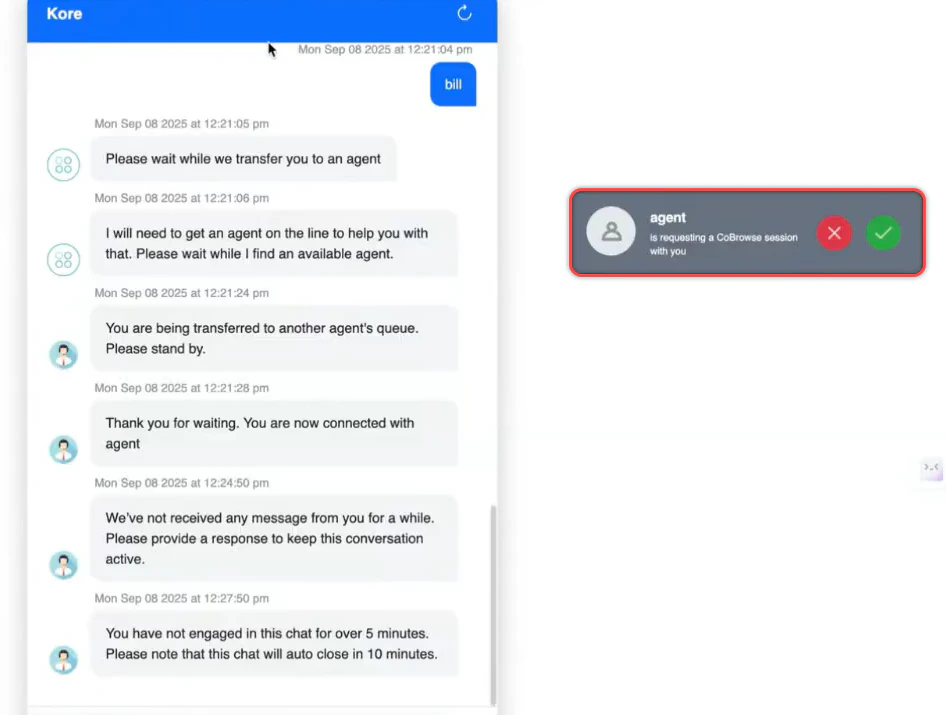
The customer selects Accept or Reject on the pop-up.
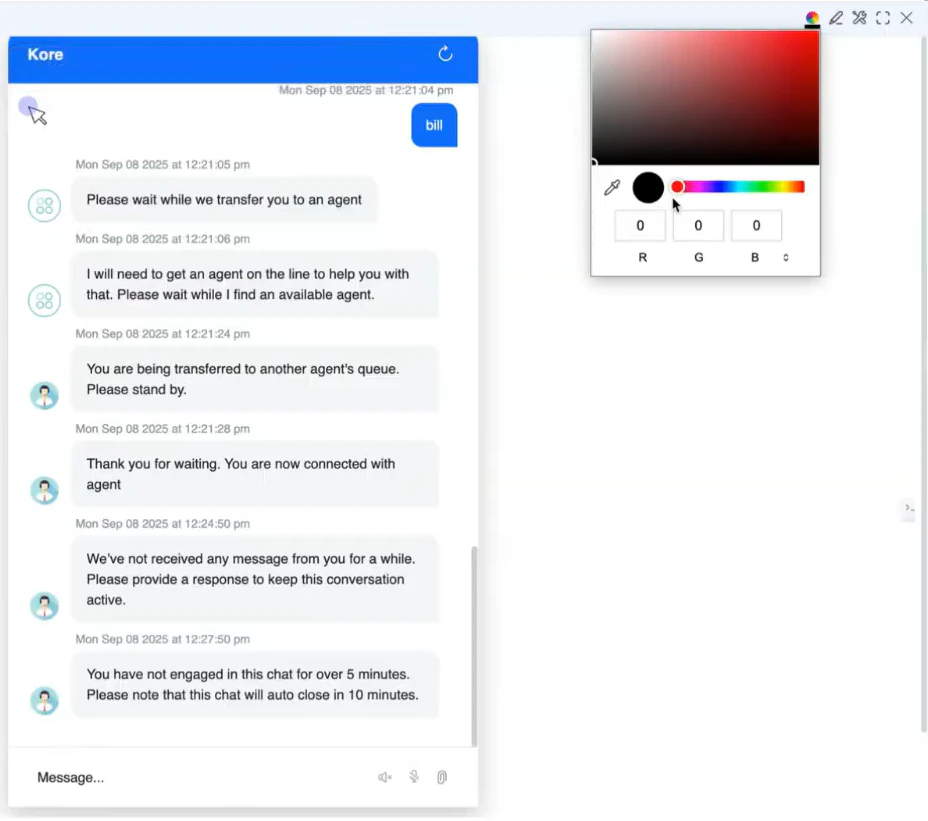
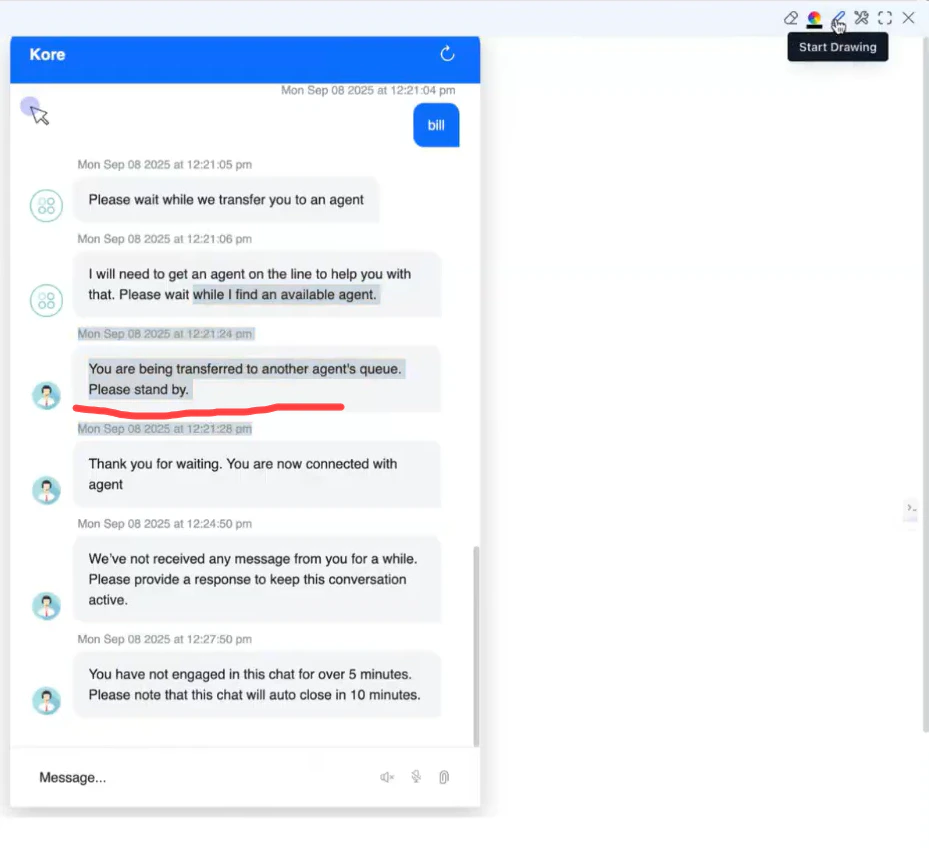
| Option | What it does |
|---|---|
| Color Selection | Choose annotation colors |
| Annotate | Draw or highlight on the customer’s screen; use Eraser to undo |
| Request Control | Ask permission to navigate the customer’s screen |
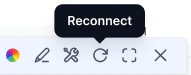
| Reconnect | Re-establish the session after a connectivity issue |
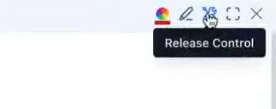
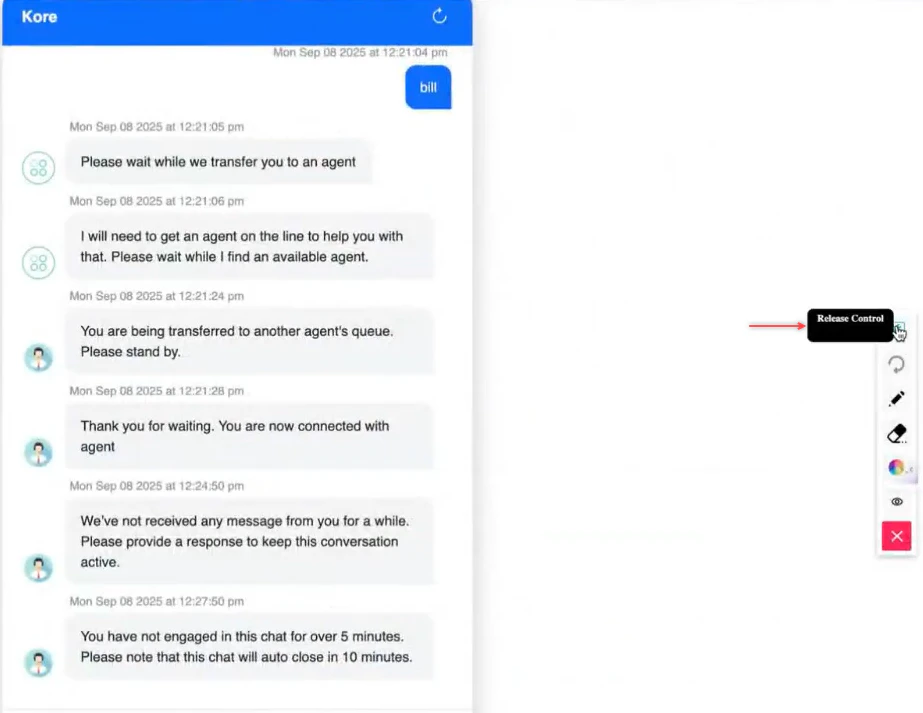
| Release Control | Give control back to the customer |
| Option | What it does |
|---|---|
| Release Control | Withdraw agent control at any point |
| Reconnect | Re-establish the session |
| Annotate | Mark areas on the screen to show you what needs attention |
| Mask/Block Input | Hide sensitive fields (passwords, payment details) from you and the logs |
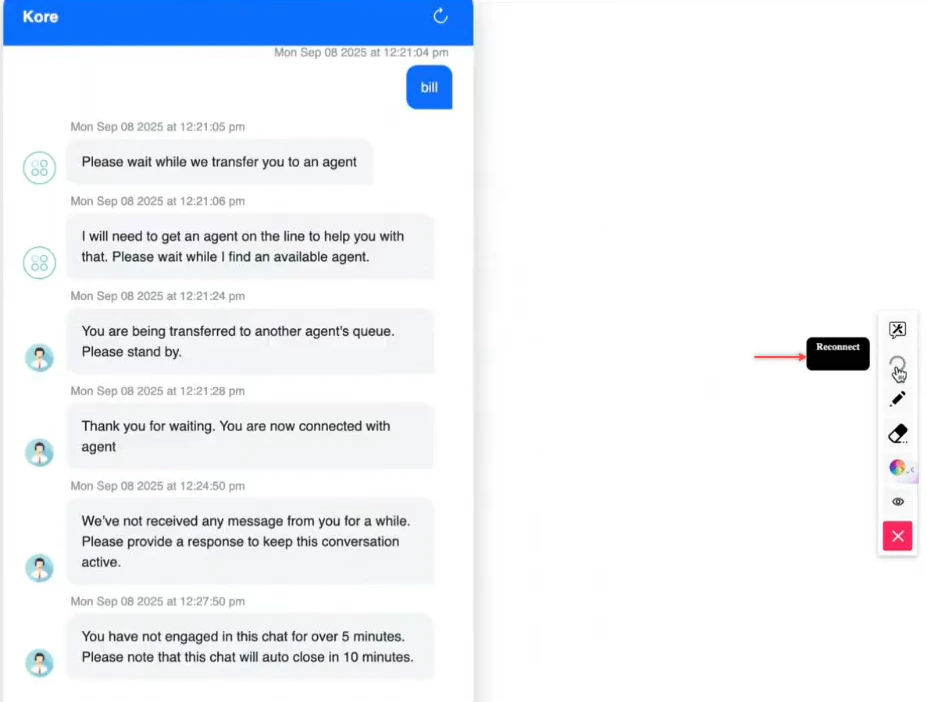

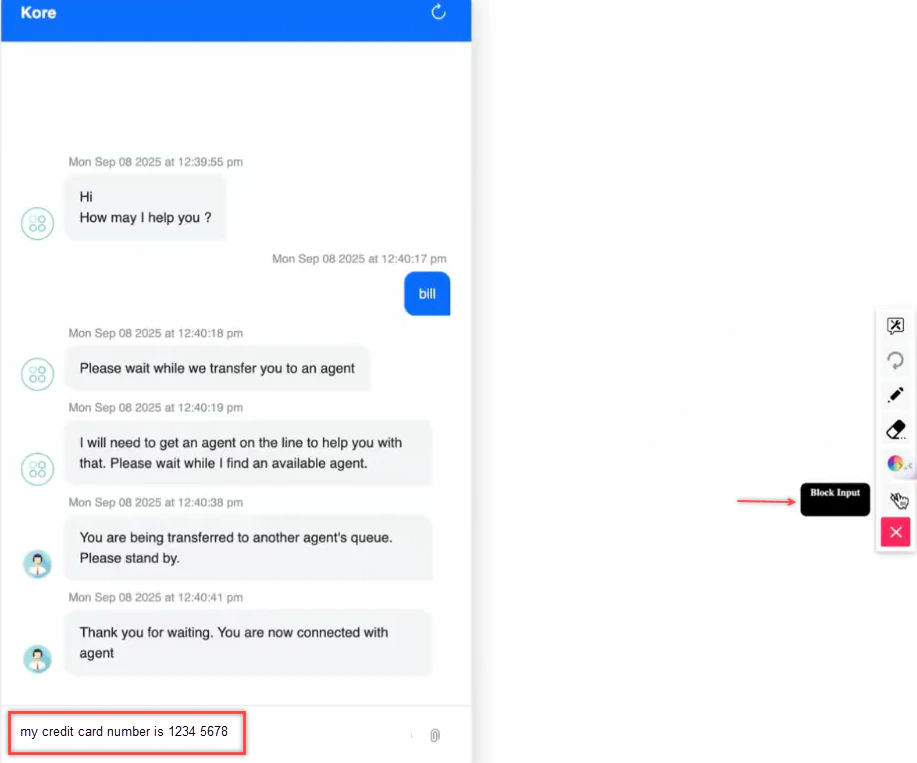
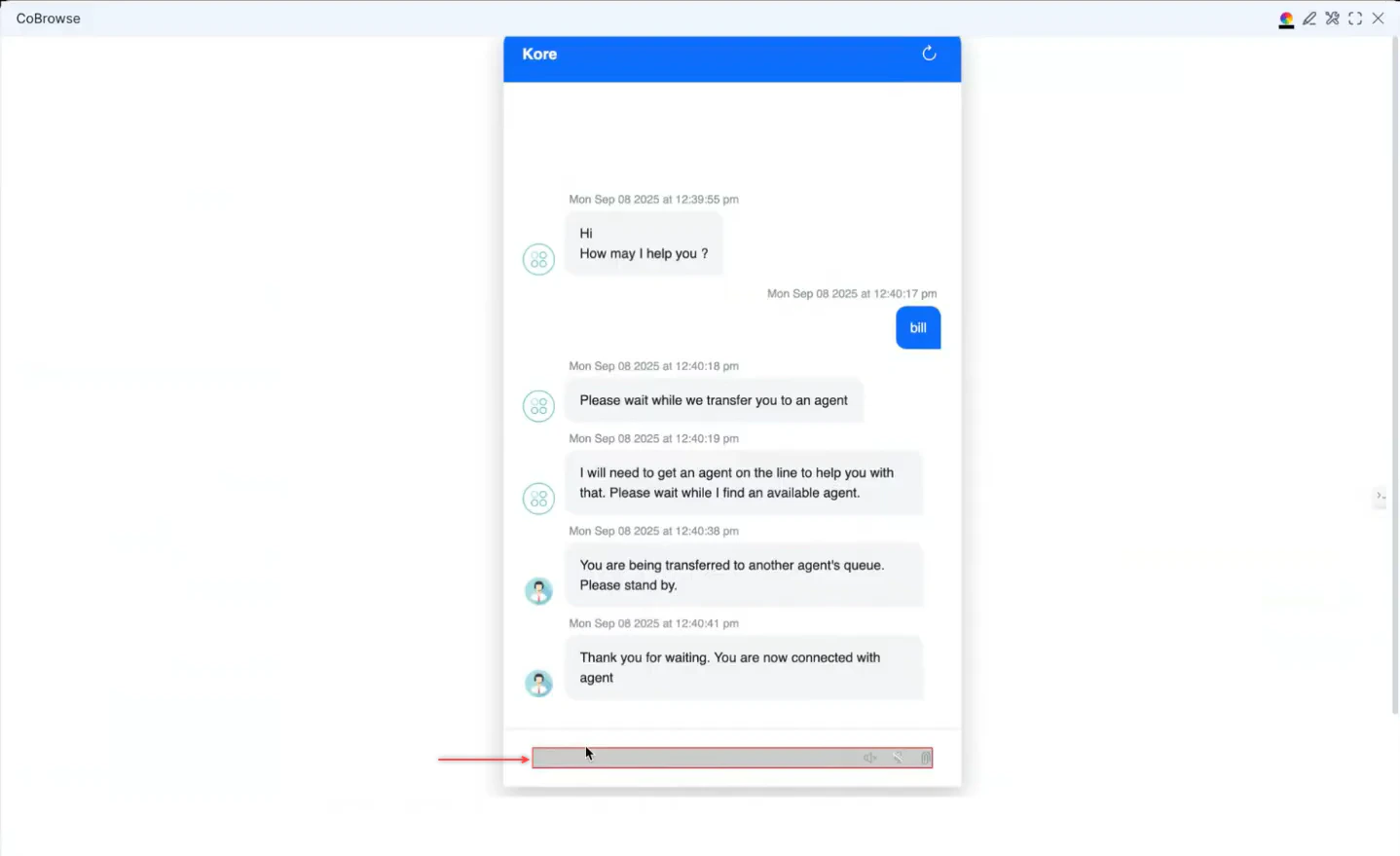
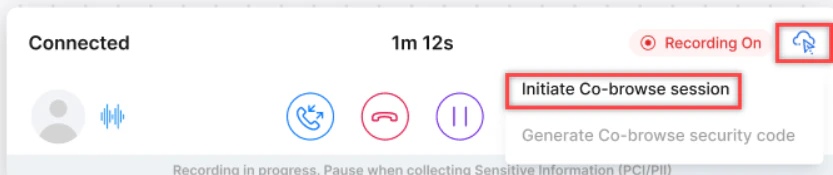
- In the Console, select CoBrowse.
-
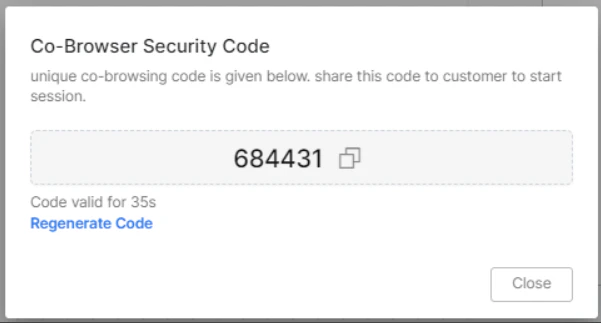
Generate a security code and share it with the customer verbally.
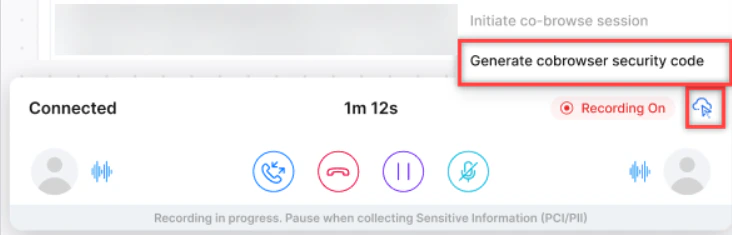
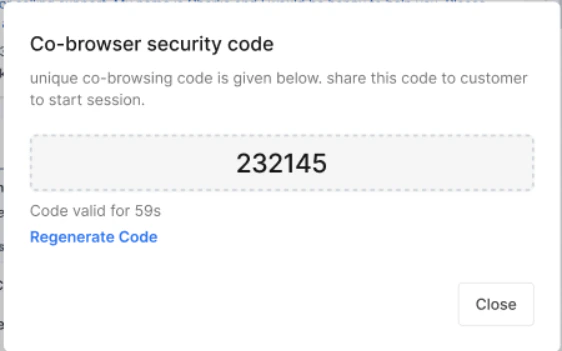
-
The customer enters the code on the website.
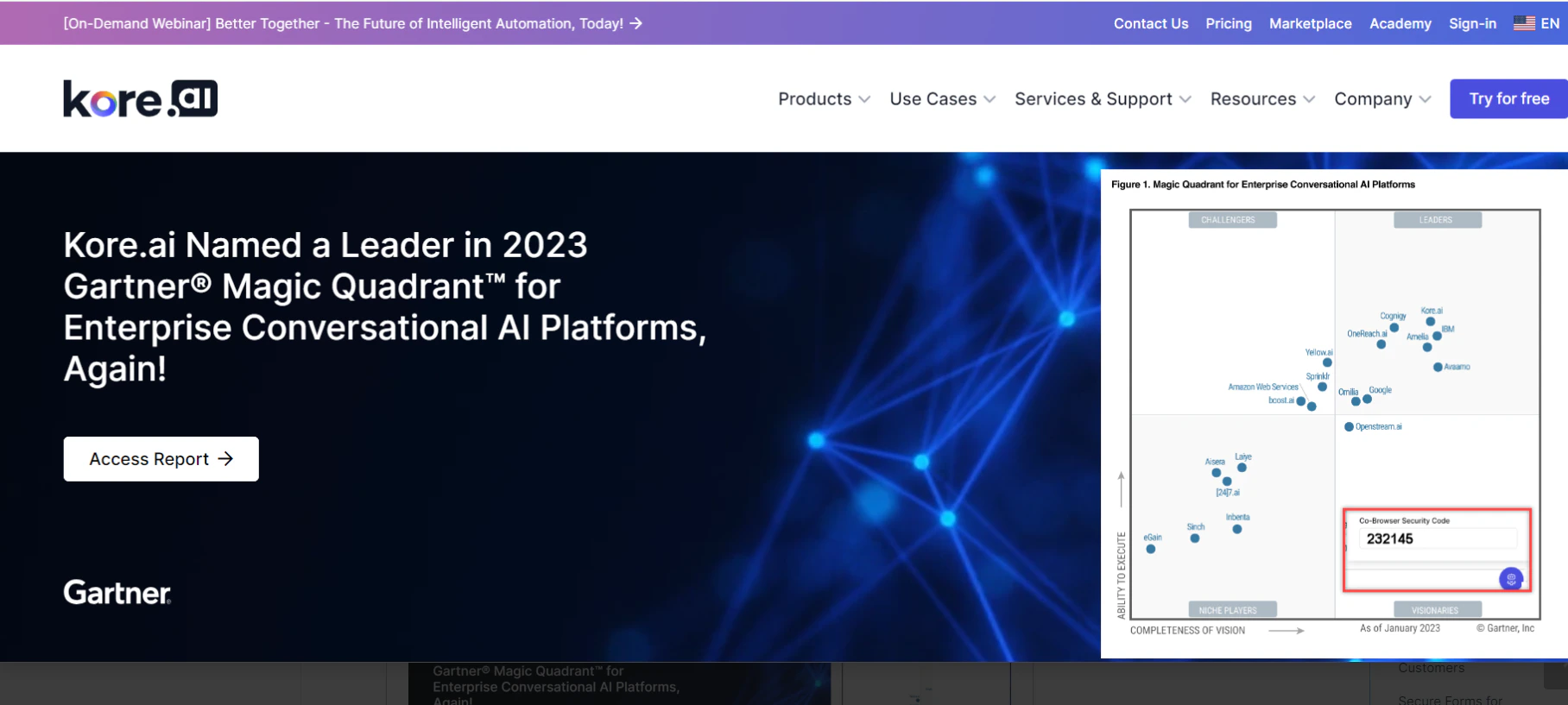
-
The session starts after the customer enters the code.
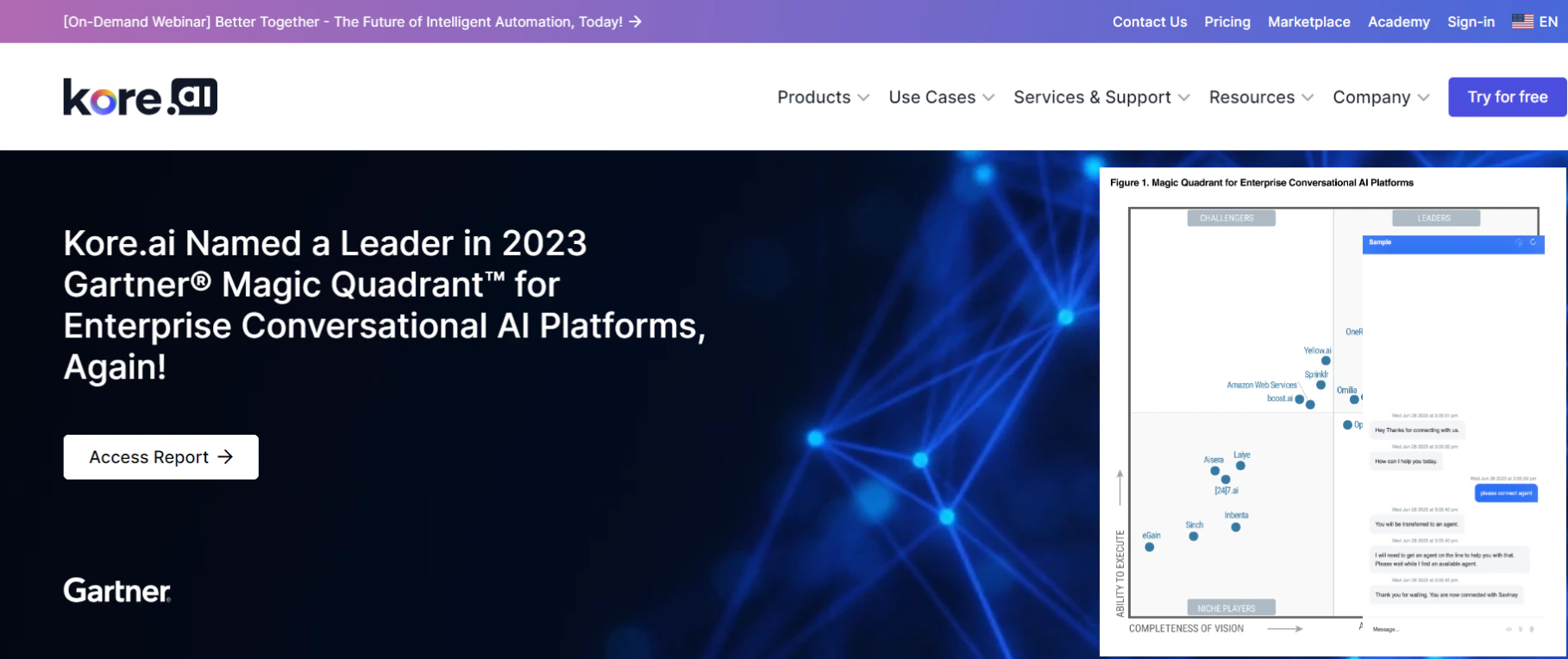
-
Select Co-browse on the Conversation Tray.
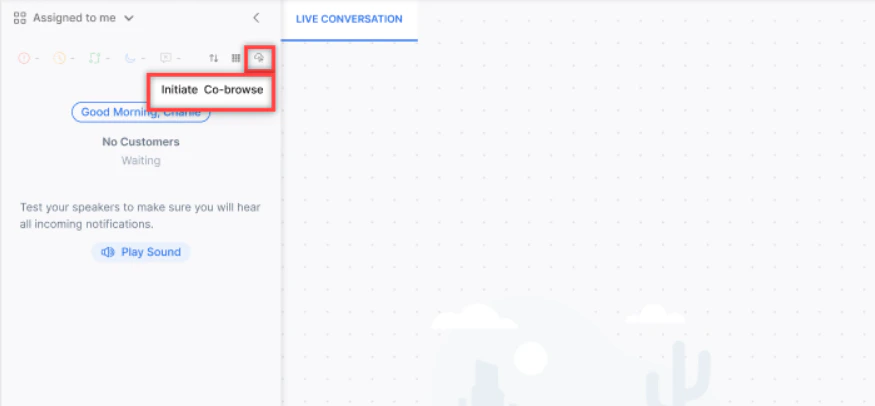
-
Share the generated security code with the customer.
- Cannot capture native browser dialogs, OS-level UI, other tabs, or desktop applications.
- Agent controls are limited to: click, hover, scroll, and HTML form input.
- Agent and customer views may occasionally fall out of sync due to DOM-based technology limitations.
Email Interactions
Email Display
Emails appear as threaded conversations. Key display features:-
Threaded structure — Replies link to the original email chain for seamless context.
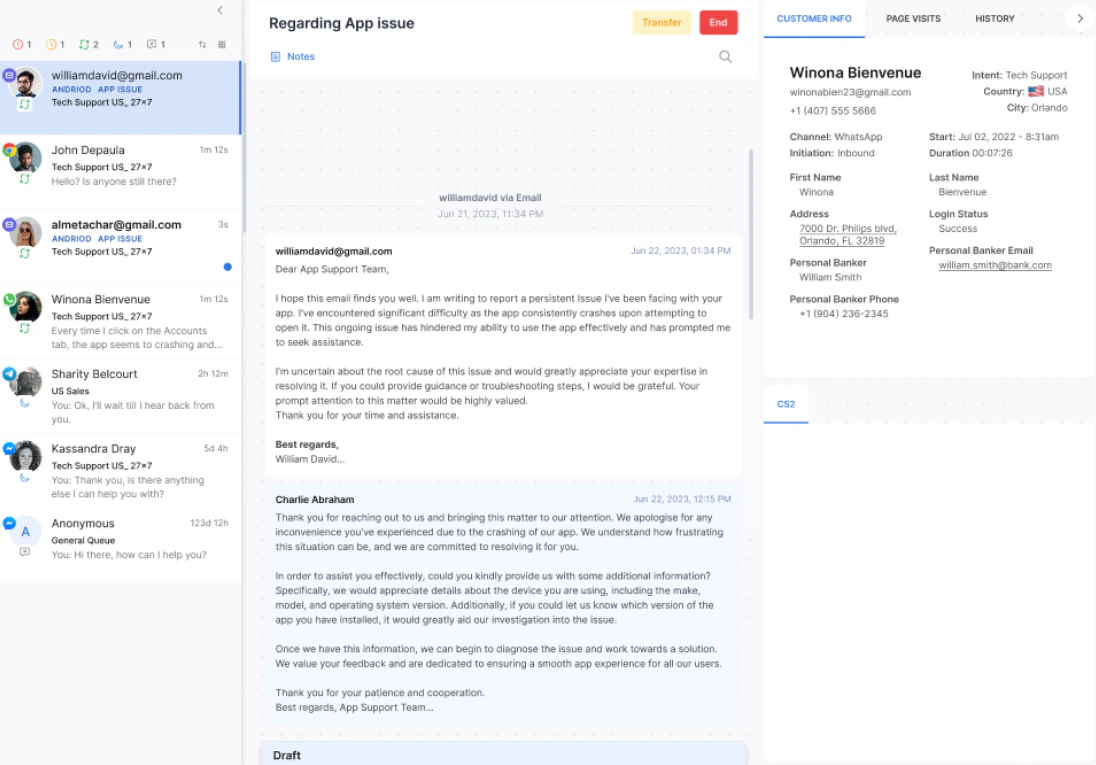
-
Collapsible tiles — Minimize or expand email threads to reduce clutter.
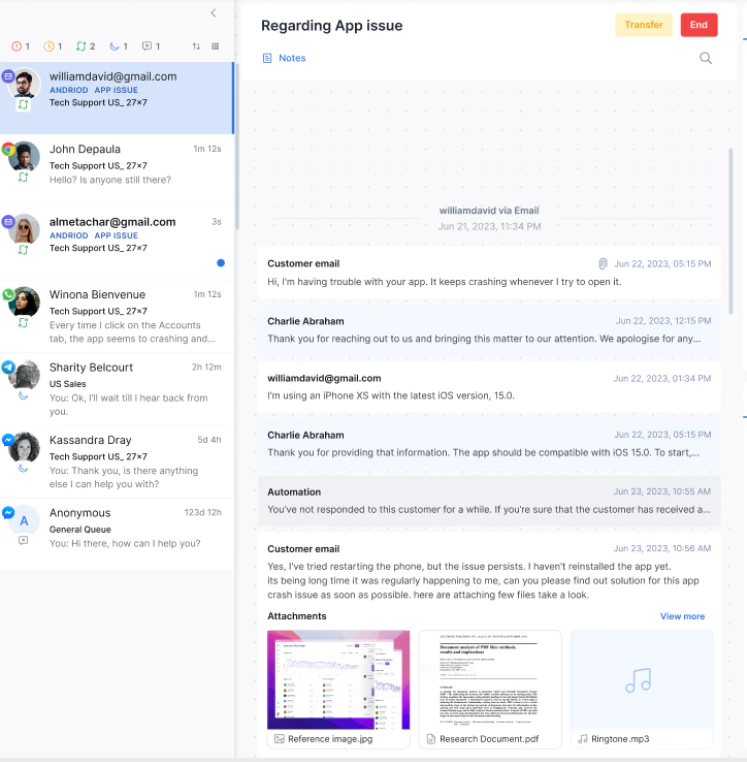
-
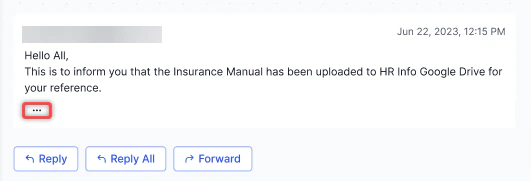
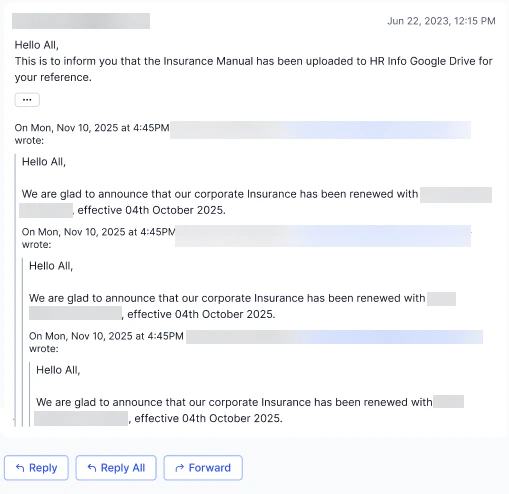
Collapsible thread view — During Reply, Reply All, and Forward, only the latest email shows by default. Select the ellipsis to expand the full thread.
Replying to Emails
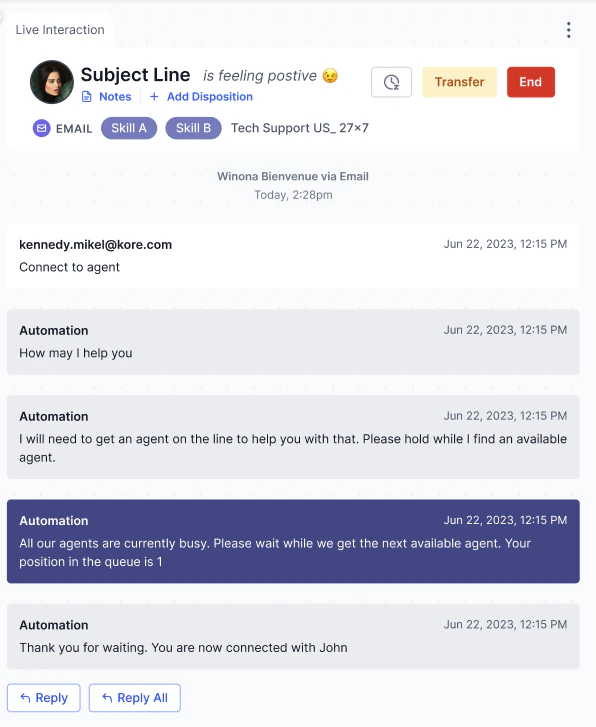
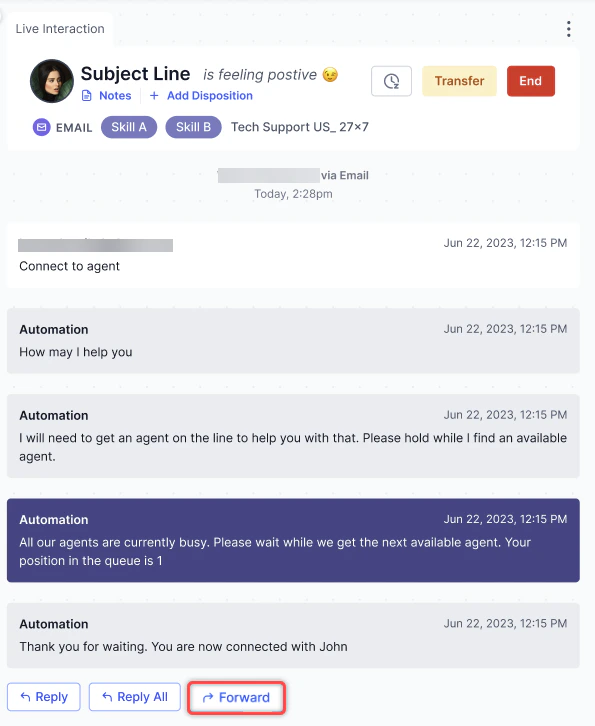
| Action | Result |
|---|---|
| Reply | Opens a response window addressed to the most recent sender only |
| Reply All | Opens a response window addressed to all participants, including CC recipients |
| Forward | Opens a new draft with subject prefixed by Fwd: and all prior attachments included |
Resending Emails
-
Open the email interaction and select Resend.
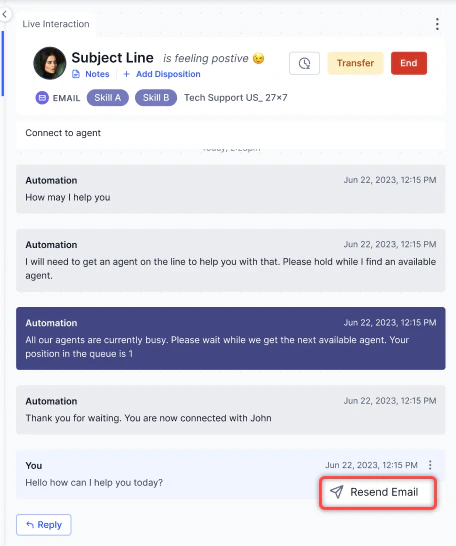
- The composer opens with recipient details and original content prefilled. Optionally edit the content.
- Select Send. The resent email links to the original and is marked Resent in the interaction log.
CC and BCC
Add recipients in the CC and BCC fields. You can add or remove recipients dynamically and use comma-separated email IDs.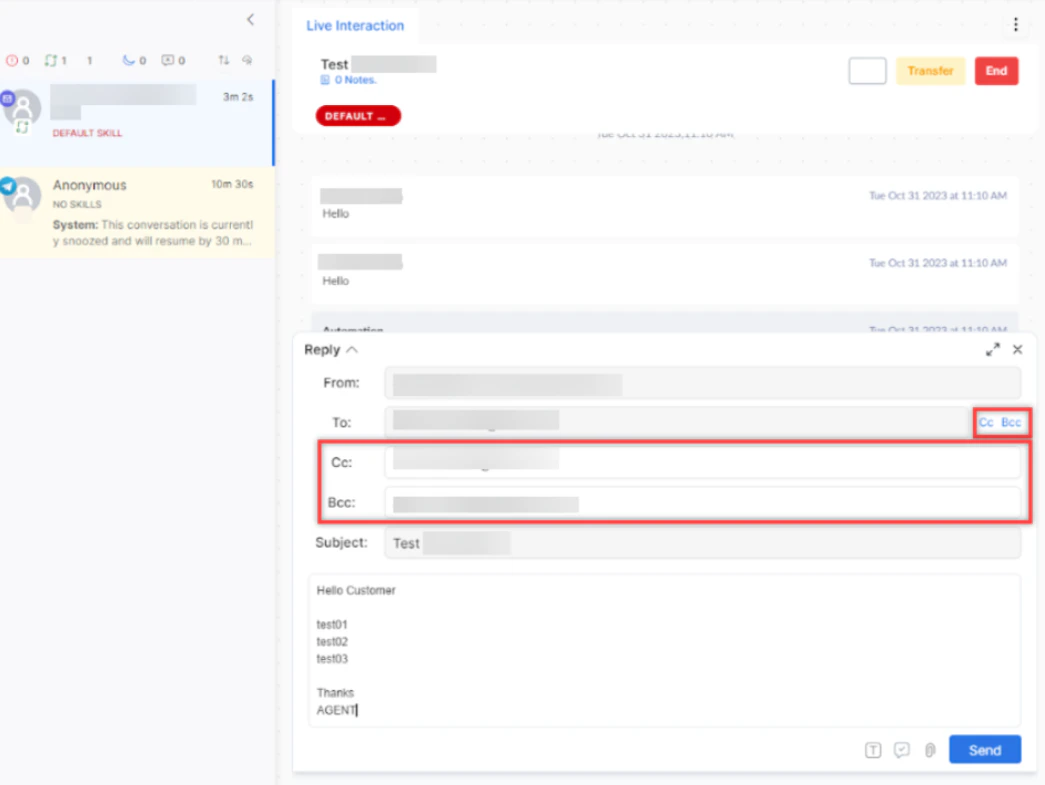
Standard Responses in Email
From the text editor:-
Select the Standard Response icon at the bottom of the email editor.
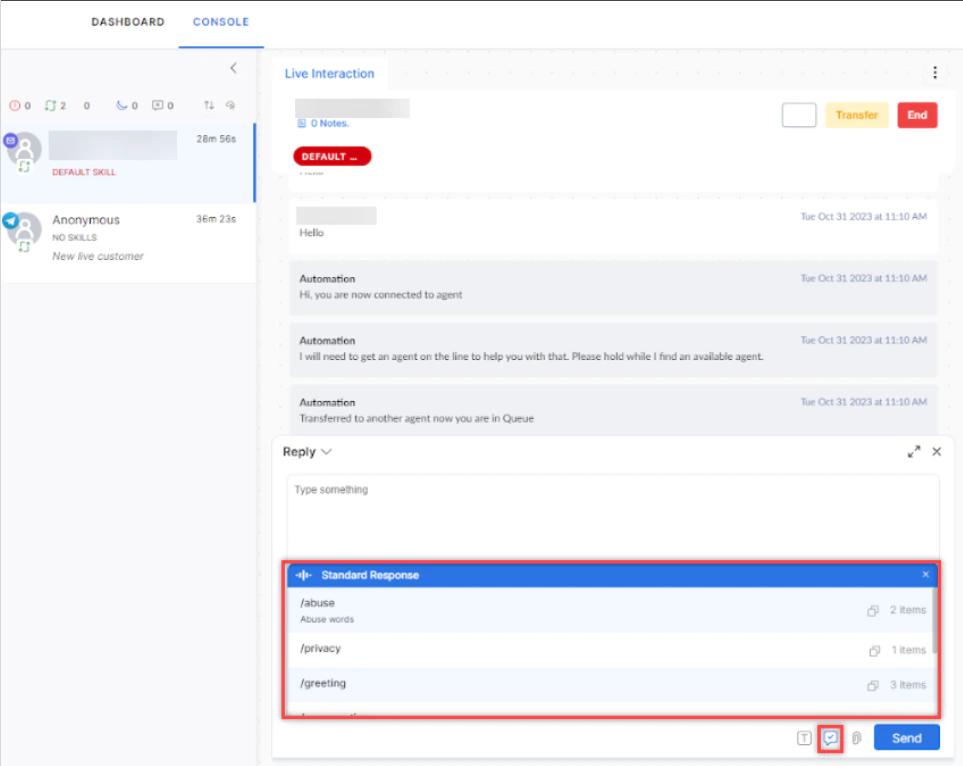
-
Select a category and then the response template.
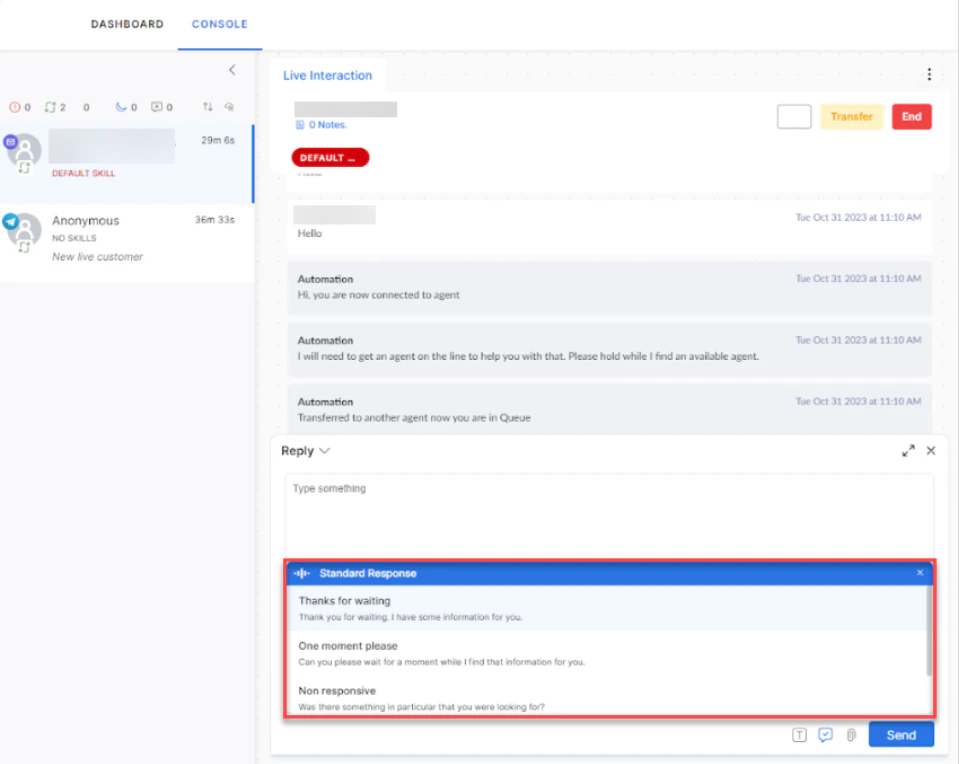
-
Select the response to use it.
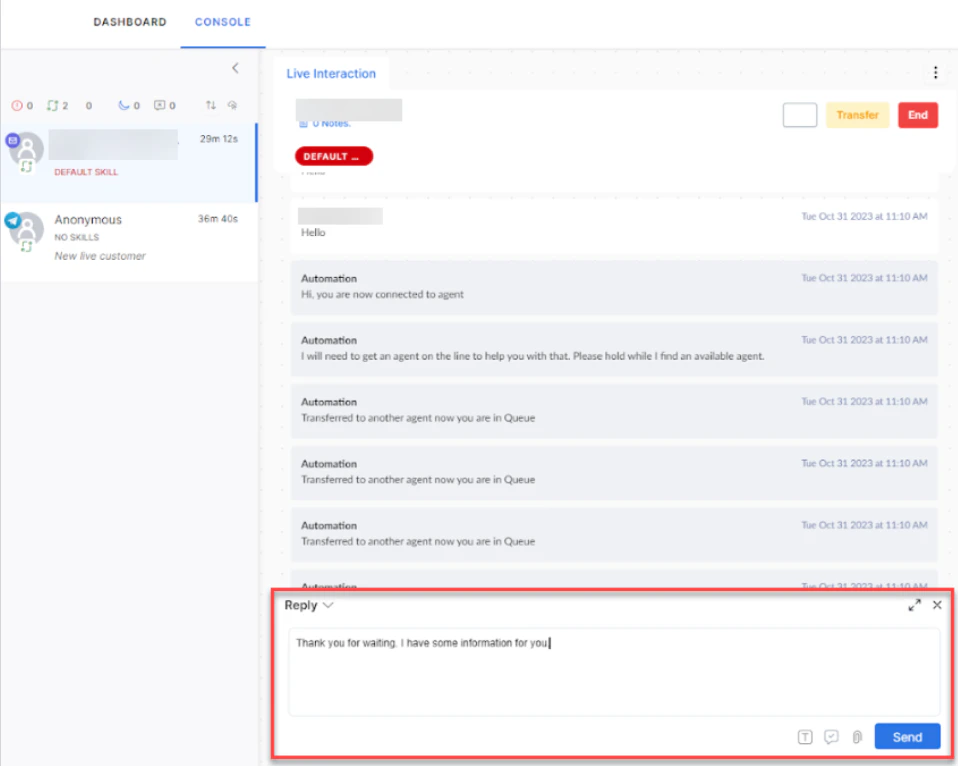
- Select Send and confirm.
| Option | Behavior |
|---|---|
| Replace | Overwrites the entire editor content with the selected response |
| Append | Inserts a line break and adds the response as a new paragraph |
| Copy | Available only when the editor is empty |

Attachments in Email
Select the Attachment icon to upload files. Attachments appear as a list. If there are more than three, a View More option appears. Files are stored in Amazon S3.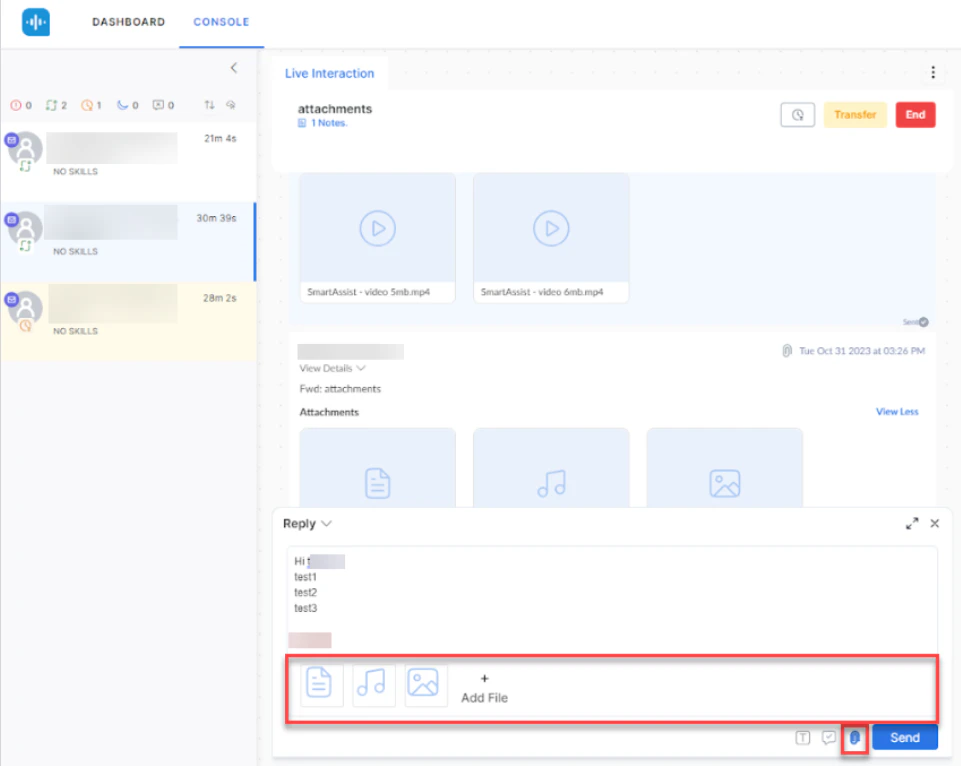
Notes
Add notes for key points, customer feedback, next actions, or suggestions. Previous notes from other agents also appear here.-
Select Notes.
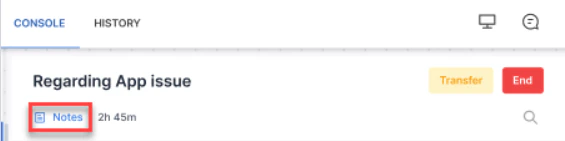
-
Select + Add New Note.
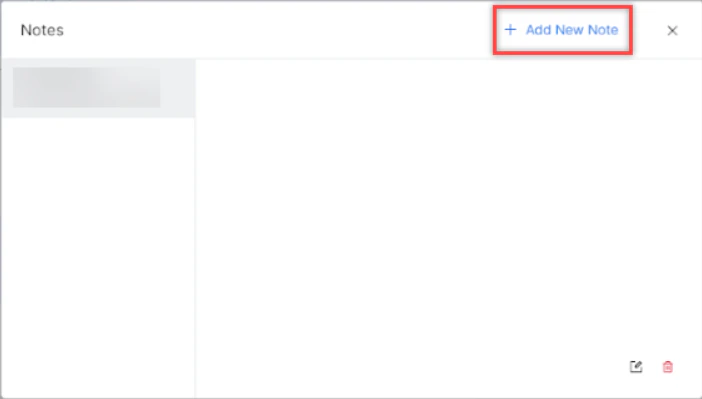
-
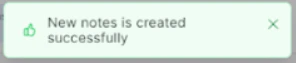
Type the note and select Save. A confirmation appears.
Drafts
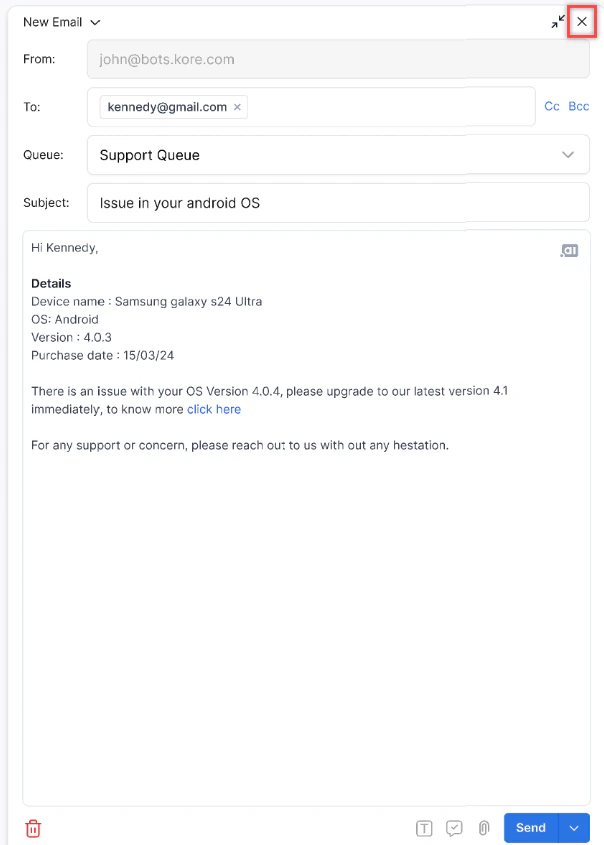
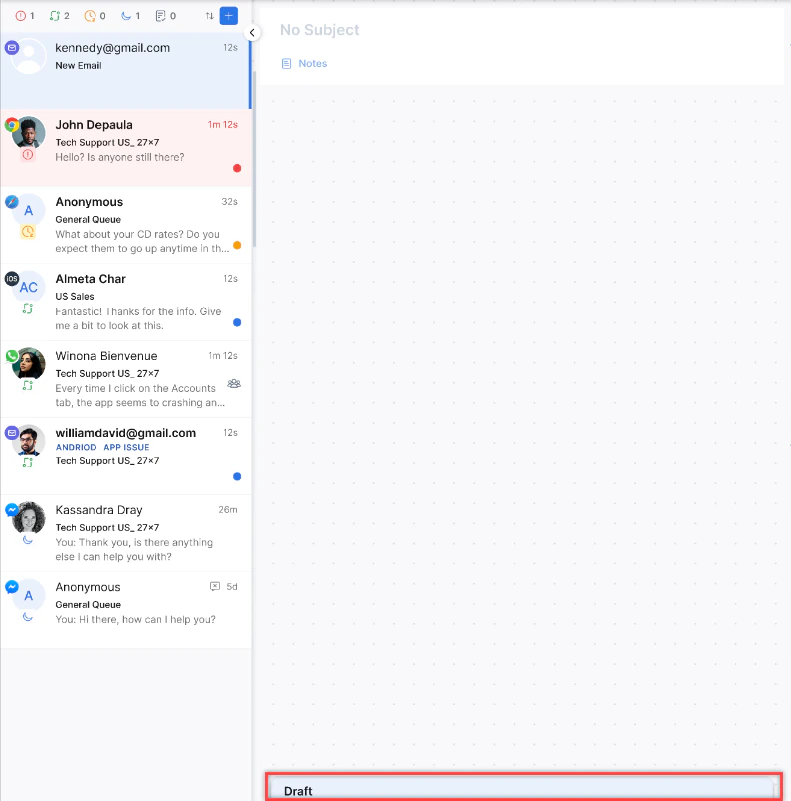
If you close the email editor with unsaved content, the system saves it as a draft automatically. Drafts persist through logouts and network interruptions. Multiple drafts per email thread are supported.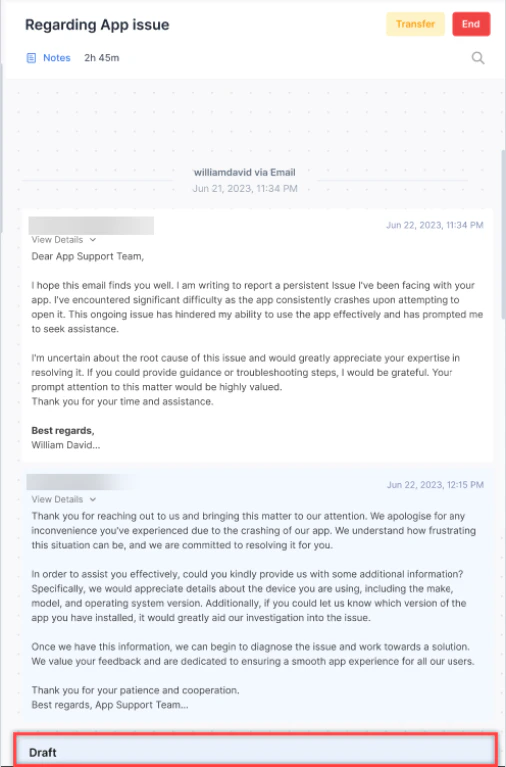
Outbound Email
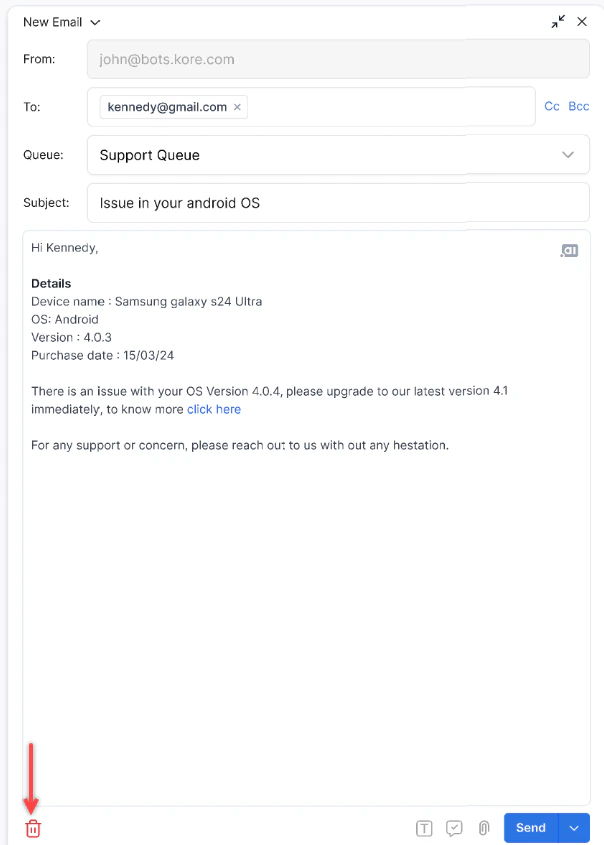
-
Select + on the Conversation Tray and select New Mail.
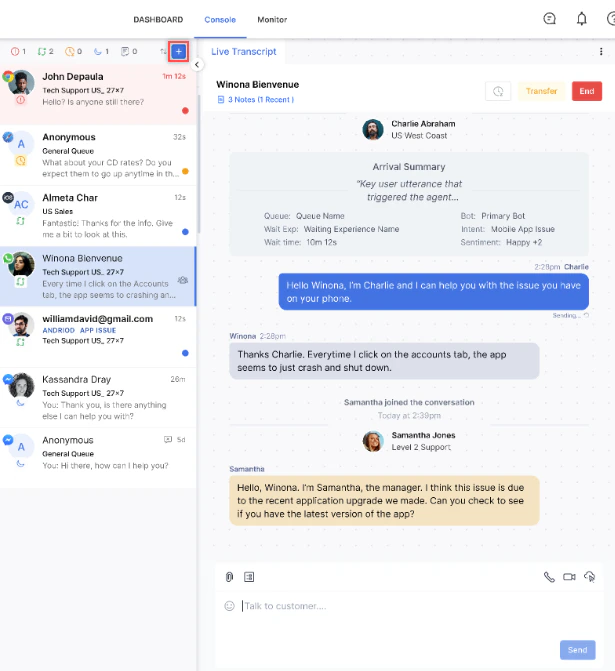
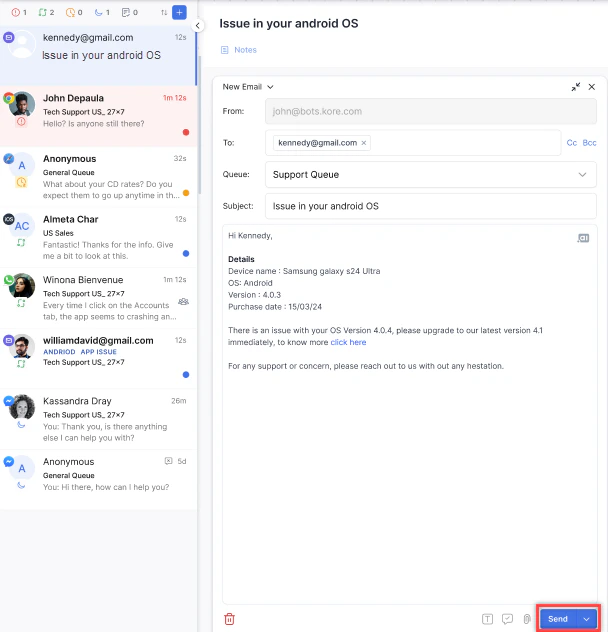
- Enter the recipient’s email address, select a queue, and enter the subject and body.
-
Choose an action:
-
Send — Sends the email immediately.
-
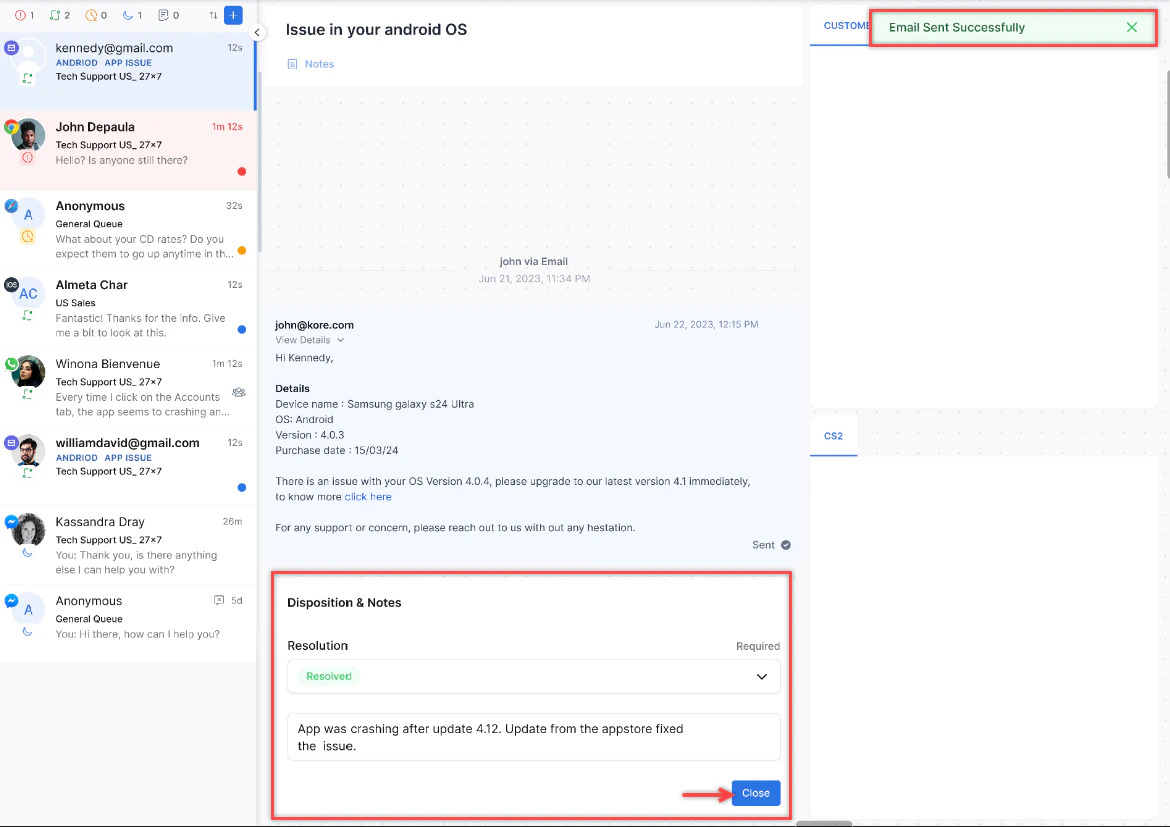
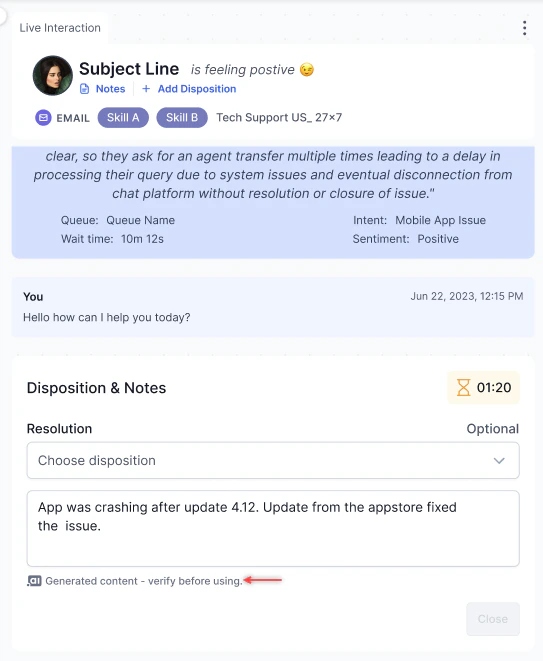
Send & Close — Sends the email and opens the disposition window.
-
X — Minimizes and saves as a draft.
-
Delete — Deletes the draft after confirmation.
-
Send — Sends the email immediately.
The Send button activates only when all required fields (recipient, subject, queue, and body) are filled. Each outbound email consumes one slot from your allocation.
Email Work Bin
Work Bin lets you park an email conversation temporarily, freeing your slot while waiting for a customer reply. Administrators must enable this feature. To park a conversation: Select Work Bin in the email interaction header. The conversation leaves your active tray and your slot is released immediately.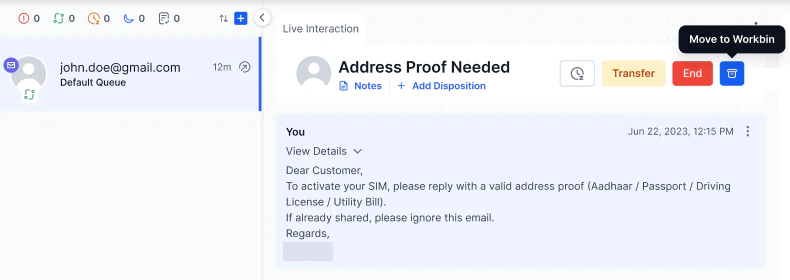
- The system attempts to route back to you (the last handling agent).
-
If you are unavailable, it waits for the configured duration, then routes to the queue.
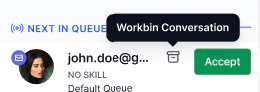
- If no wait behavior is configured, the system applies standard queue routing immediately.
- Assign the conversation directly to an agent.
- Transfer the conversation to a queue (does not wait for you).
Agent Forms (Secure Forms)
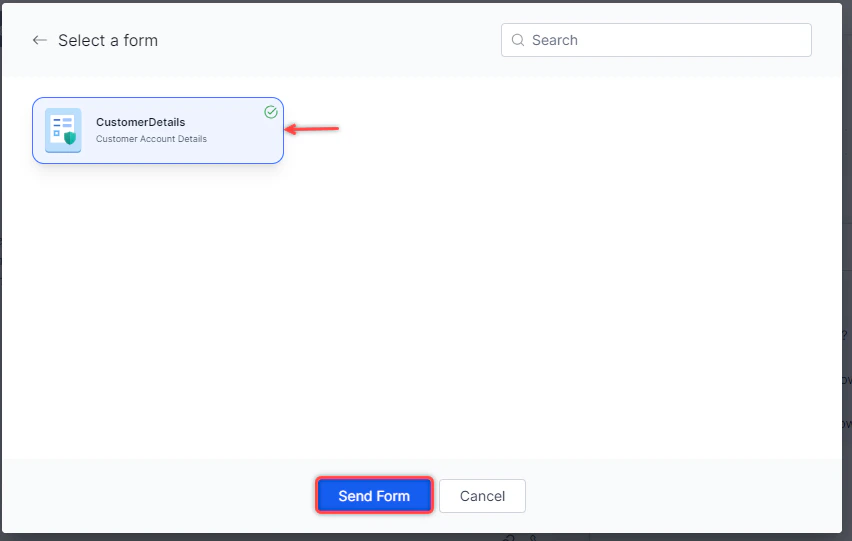
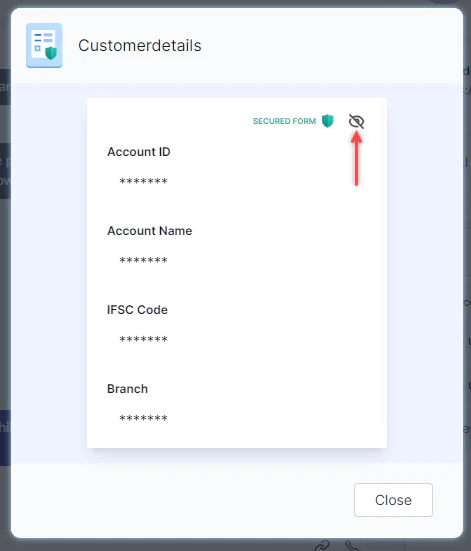
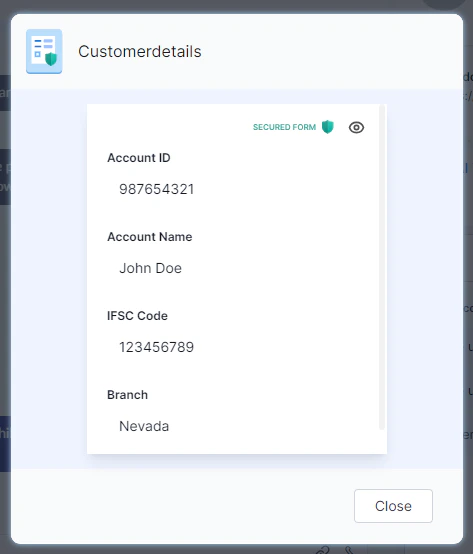
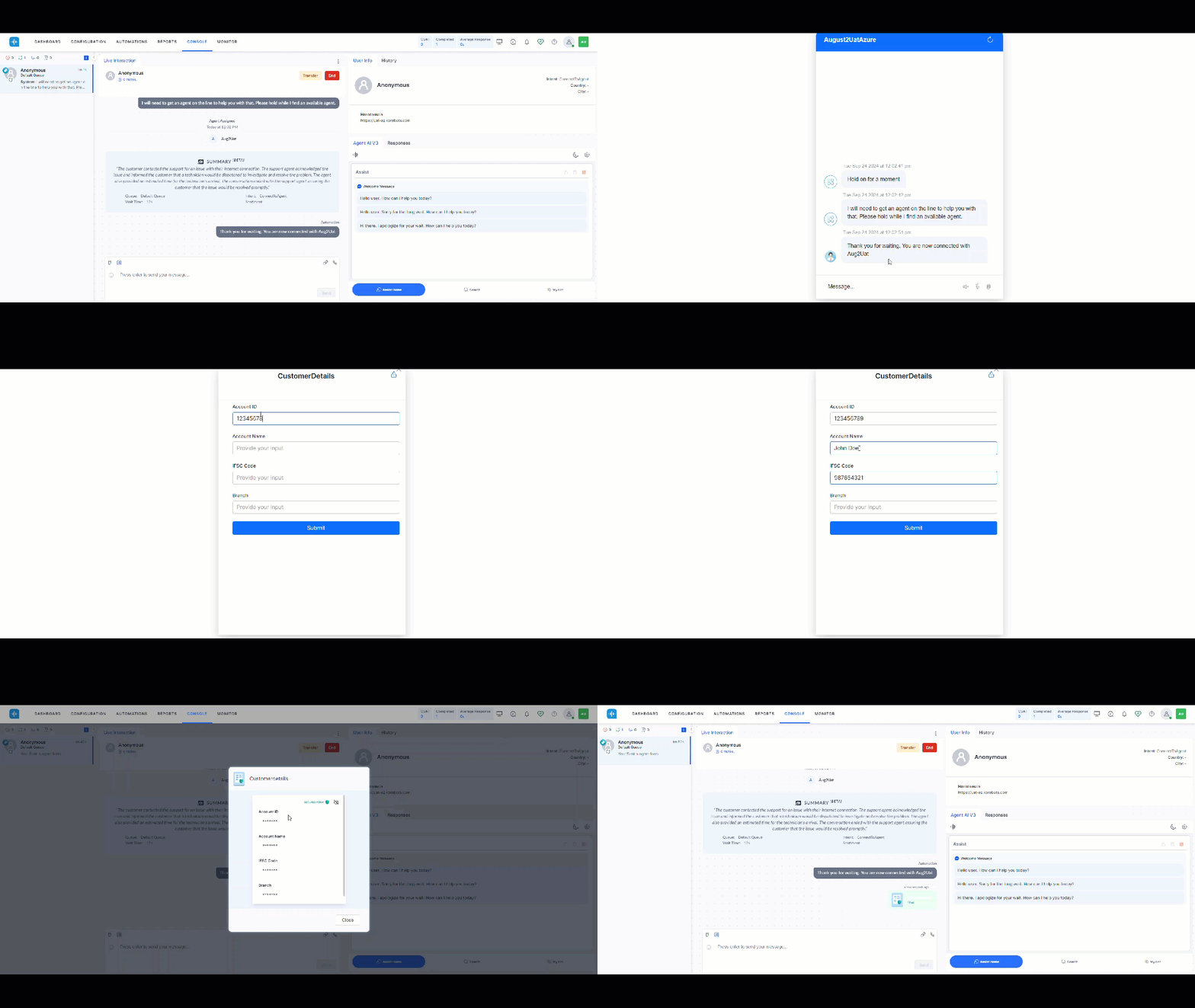
Agent forms let customers submit sensitive information securely. When a customer submits a form, the data is masked in your console by default.
-
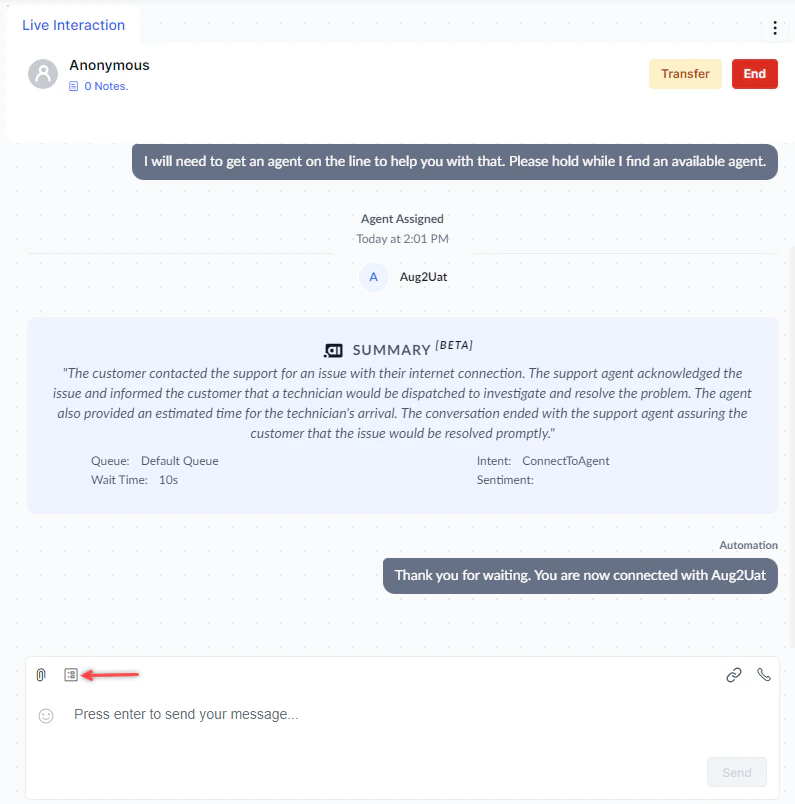
Select Agent Form.
-
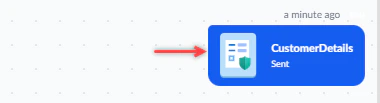
Select the form and select Send Form. The form status shows Sent.
-
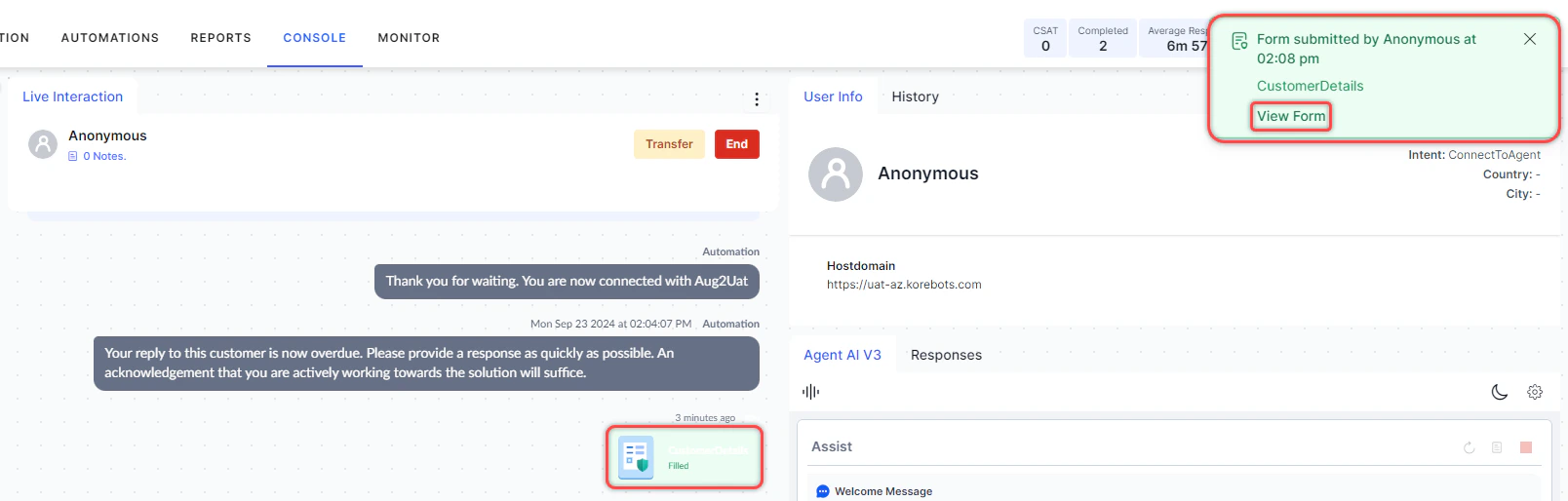
When the customer submits it, the status changes to Filled. Select the form to view it.
-
Select Unmask to view masked fields (applies only when masking was enabled during form creation).
Manual PII Redaction
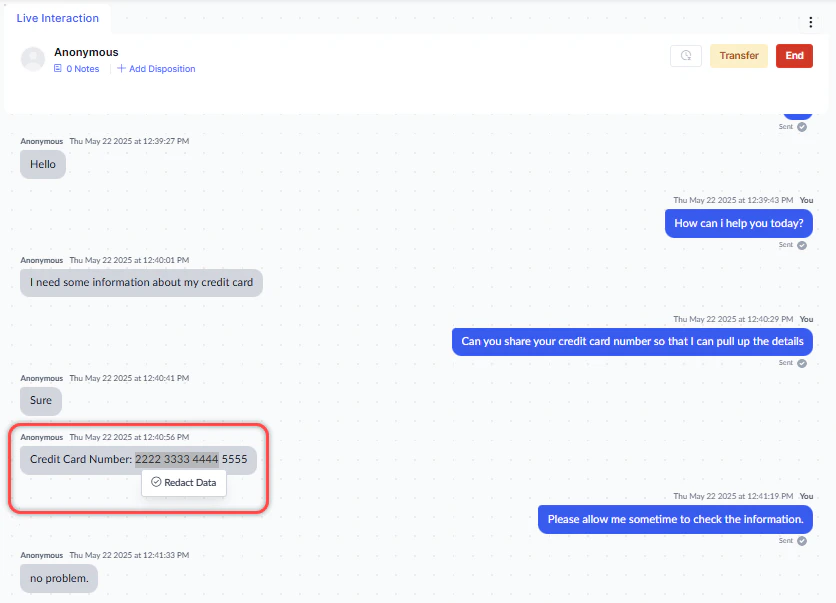
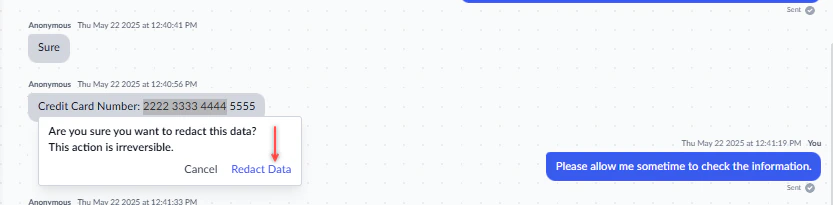
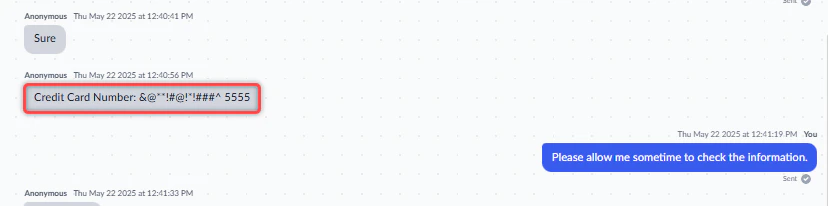
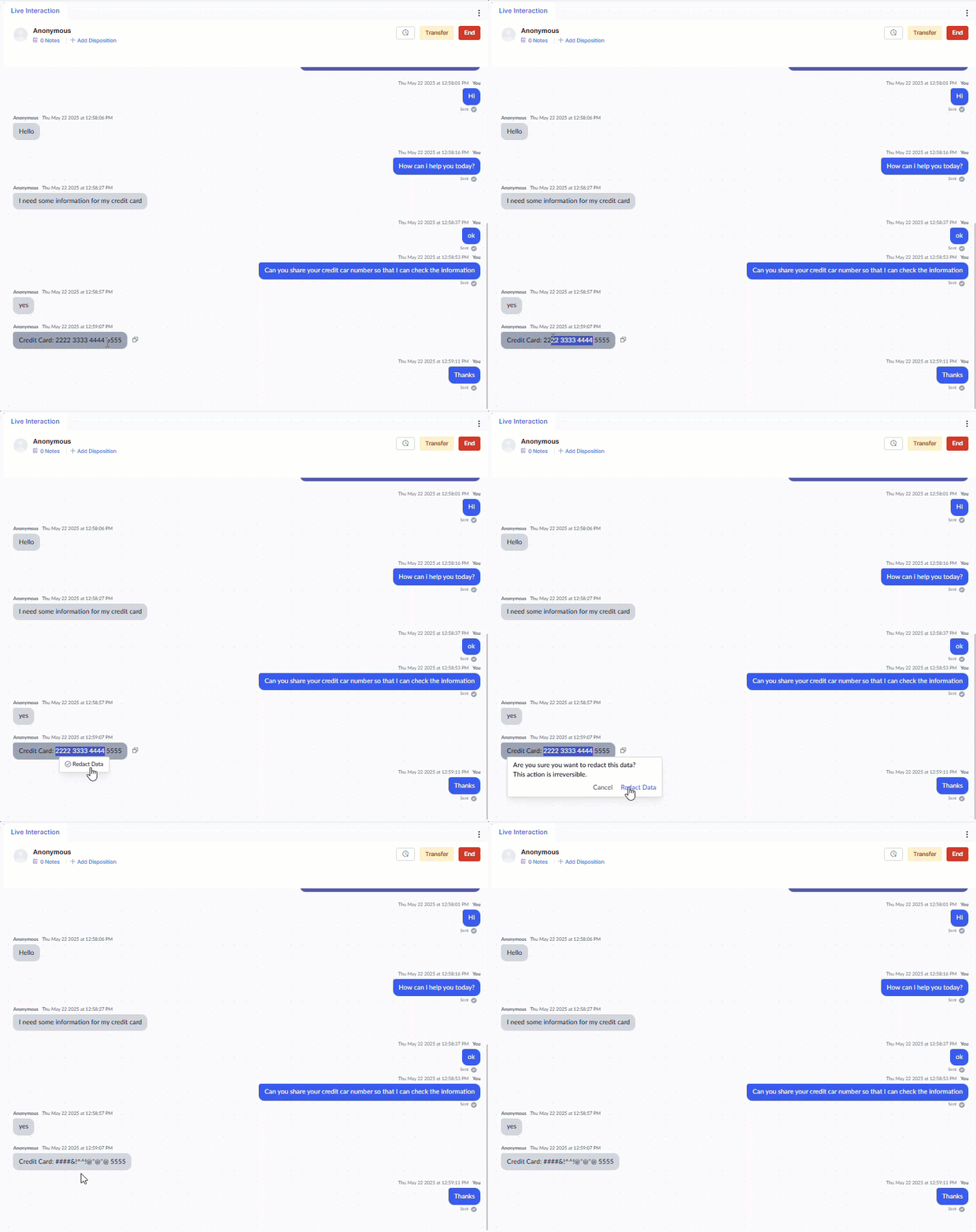
During a live chat, you can redact sensitive (PII) data from the conversation transcript.-
Highlight the text to redact. Select Redact Data.
-
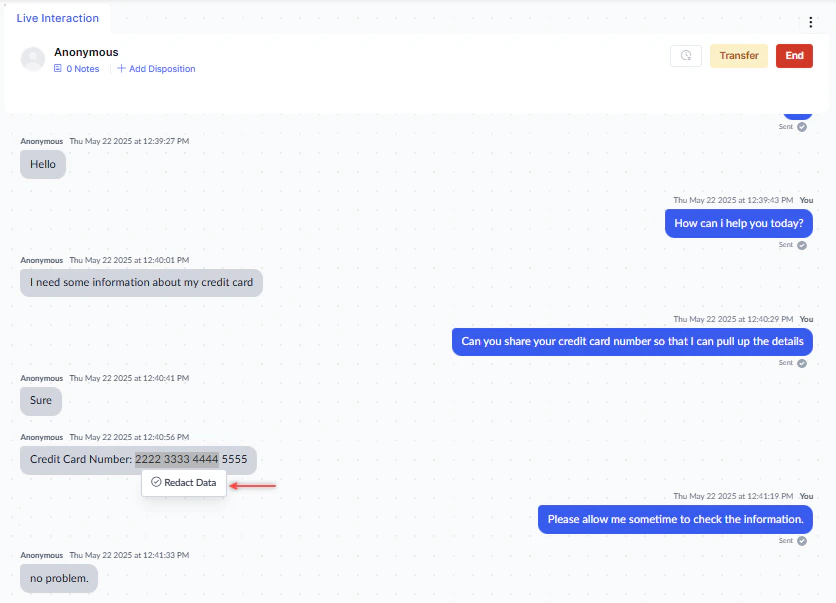
Select Redact Data.
-
Confirm by selecting Redact Data again. The text is permanently masked.
- You can select only one user message at a time (multiple lines within that message are permitted).
- Available on all digital channels except email.
- Does not apply to messages in the user’s console.
Snooze
Snooze pauses a conversation timer and frees your slot for other conversations while you wait for a customer response or retrieve information.-
Select Snooze at the top of the Live Interaction window.
 Snooze is unavailable if the conversation is overdue or you have a reply pending.
 -
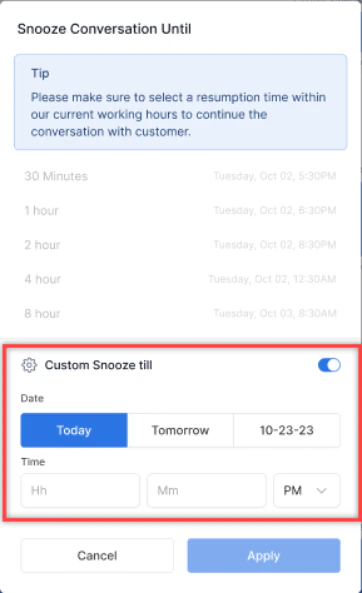
Select a snooze duration: Today, Tomorrow, Day After, or Custom (up to 30 days in advance).

-
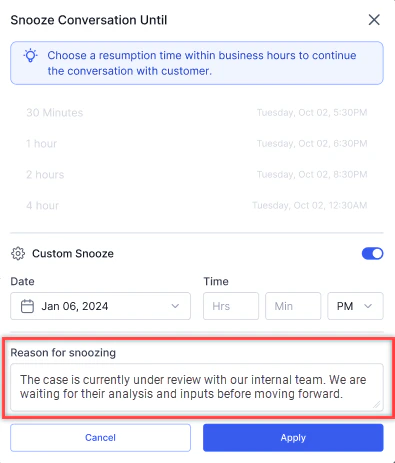
If your administrator has made snooze notes mandatory, add a reason.
-
For a custom duration, turn on the Custom Snooze toggle and set the date and time.
- Select Apply.
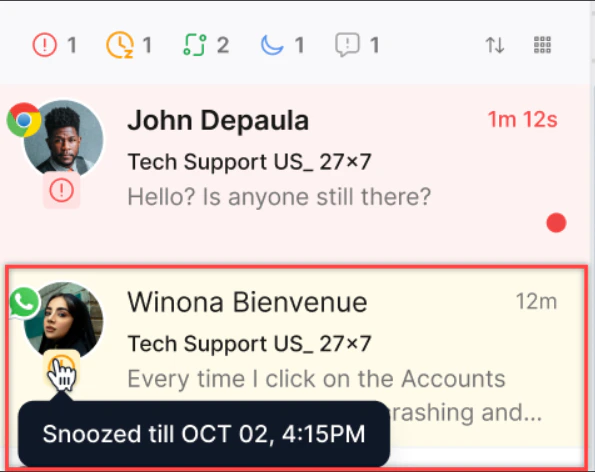
- If Agent Logout with Snoozed Interactions is enabled, you can log out and snoozed conversations remain in your inbox for your next login.
- If Reactivation on User Message is enabled, a new customer message automatically wakes the conversation. If disabled, you must resume it manually.
- If a supervisor transfers a snoozed conversation, it opens when the new agent accepts it.
Transferring Interactions
Transfer to Another Queue
-
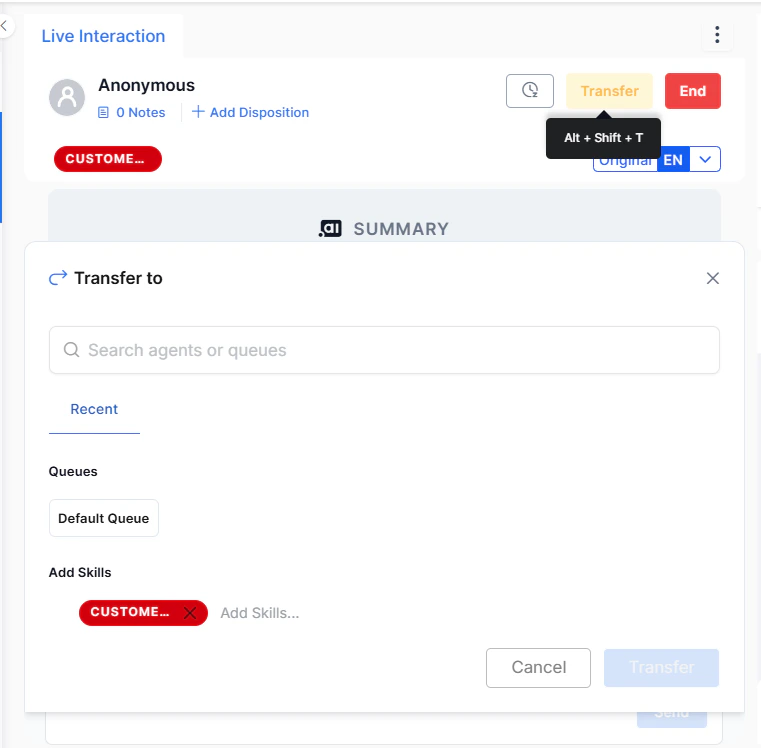
Select Transfer at the top of the Live Interaction Pane, or press Alt + Shift + T.
-
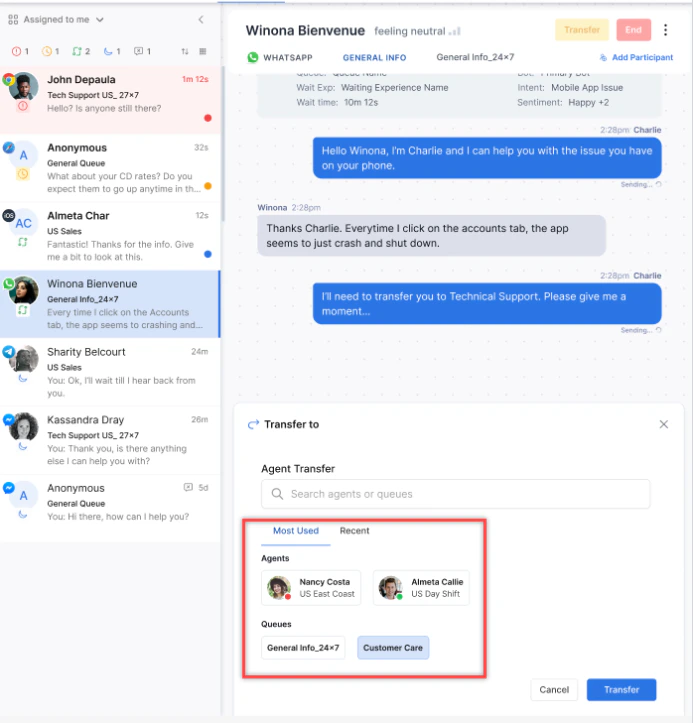
Search for and select a queue.
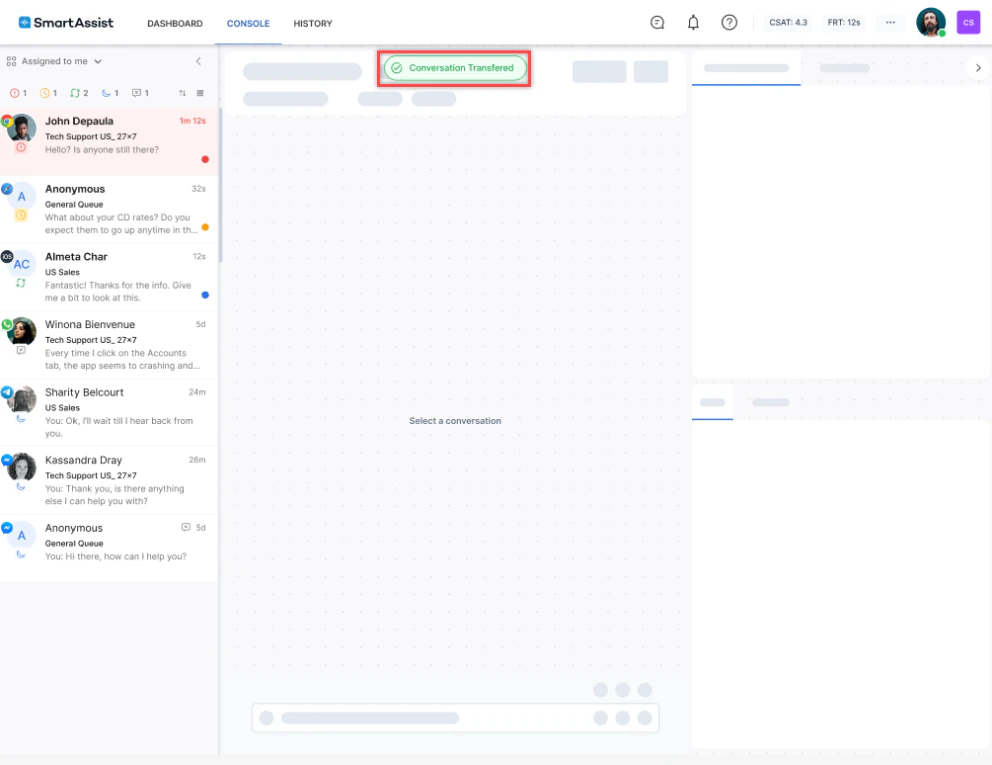
-
If Skill Modification is enabled, select Next, then add or remove skills.
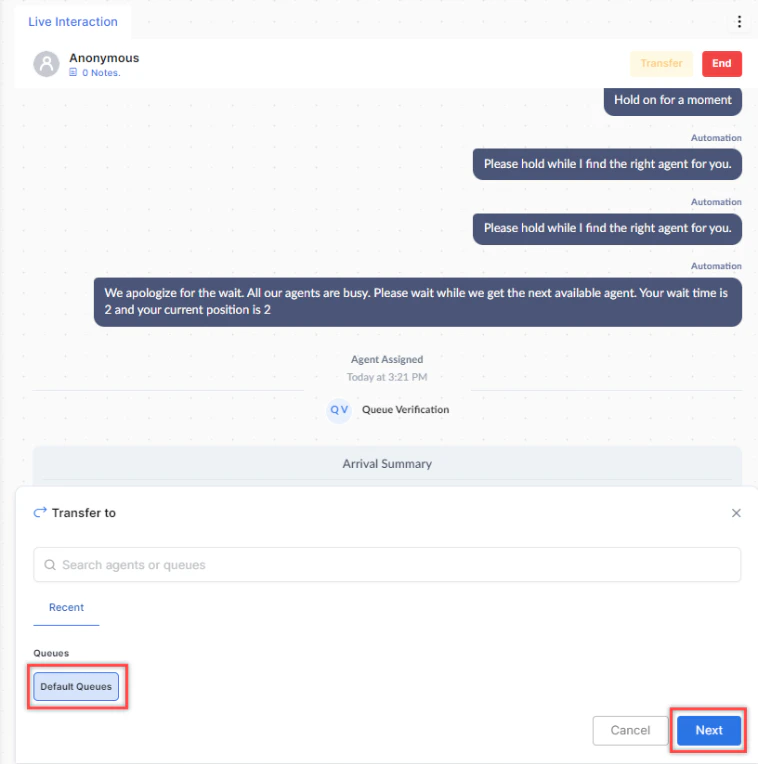
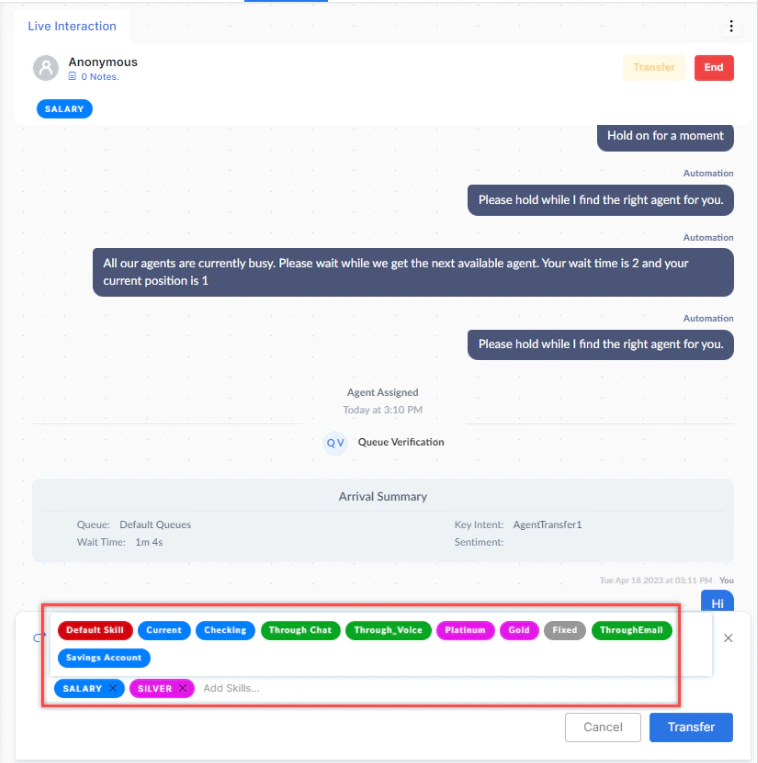
-
Select Transfer.

The system shows only queues within valid hours of operation. If skill match is required, the destination queue must have agents with the needed skills.
Transfer to Another Agent
- Select Transfer or press Alt + Shift + T.
- Search for and select an available agent.
-
Select Transfer.
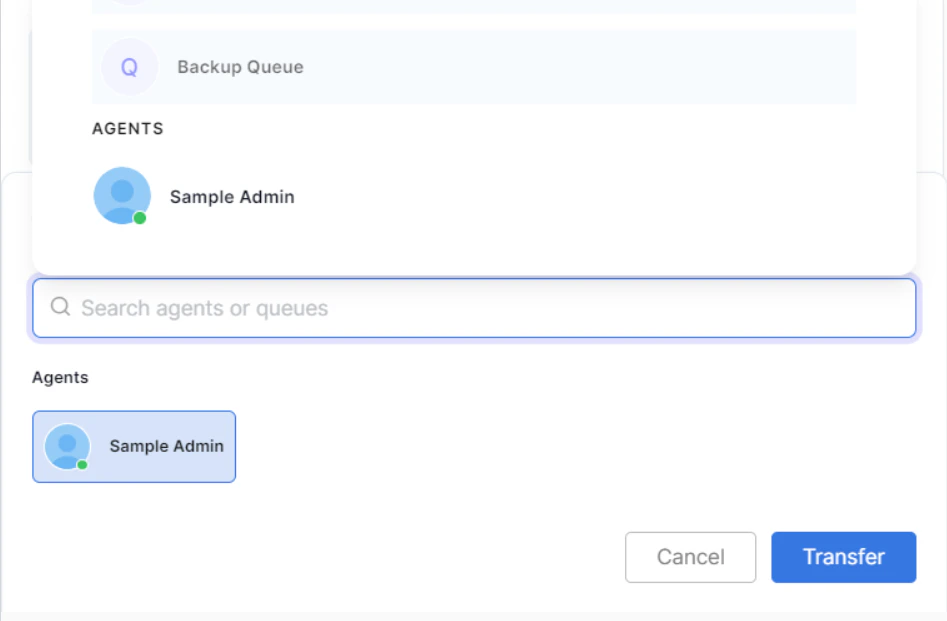
If the customer ends the chat before the transfer completes, the transfer is dropped and the conversation is not assigned to any queue or agent.
- Select Transfer or press Alt + Shift + T.
- Search for and select an external contact.
-
Select Transfer.
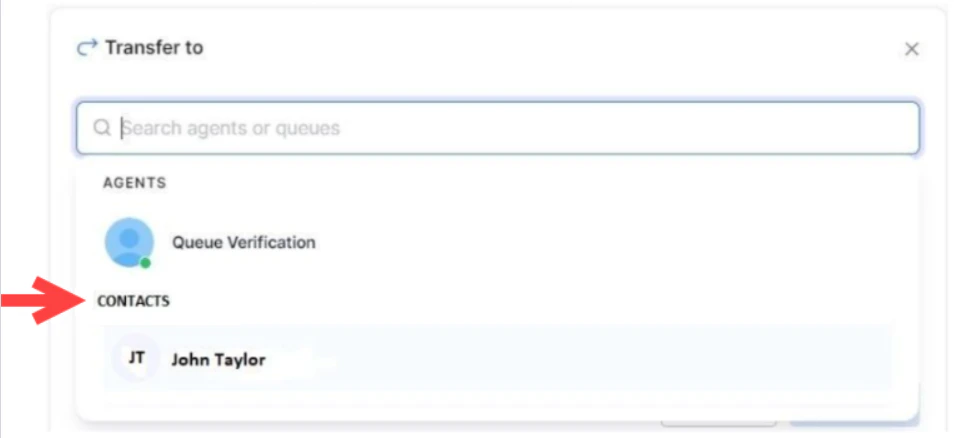
External transfers are blind transfers. The call ends for you like a normal interaction. Complete ACW after the transfer. Administrators must enable this in Agent Settings.
Modify Skills Before Transferring
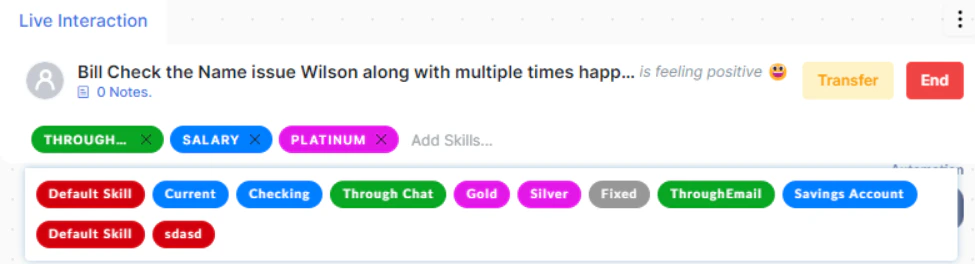
If Skill Modification is enabled, you can add or remove skills on the interaction before transferring it to another queue.-
Select the Add Skills option on the Skills bar.

-
Select or remove skills from the dropdown.
Ending Interactions
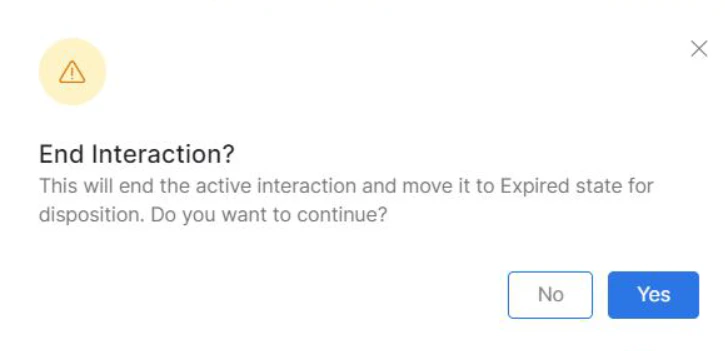
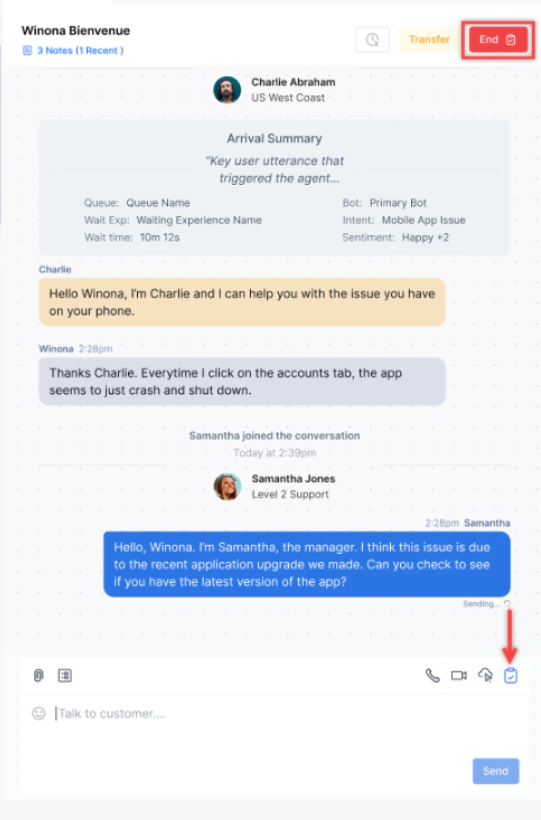
-
Select End in the Live Interaction Pane.

-
Confirm by selecting Yes. The interaction moves to After Call Work (ACW).
Timer After Caller Disconnects
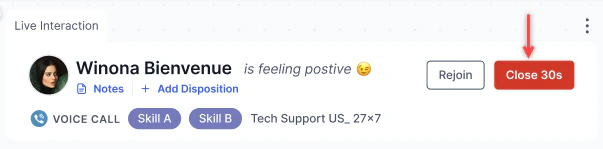
When a caller disconnects, a depleting timer appears with options to End the call or Call Back. If no action is taken, the call moves to ACW when the timer expires.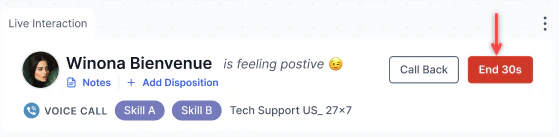
After Call Work (ACW)
| ACW Mode | Behavior |
|---|---|
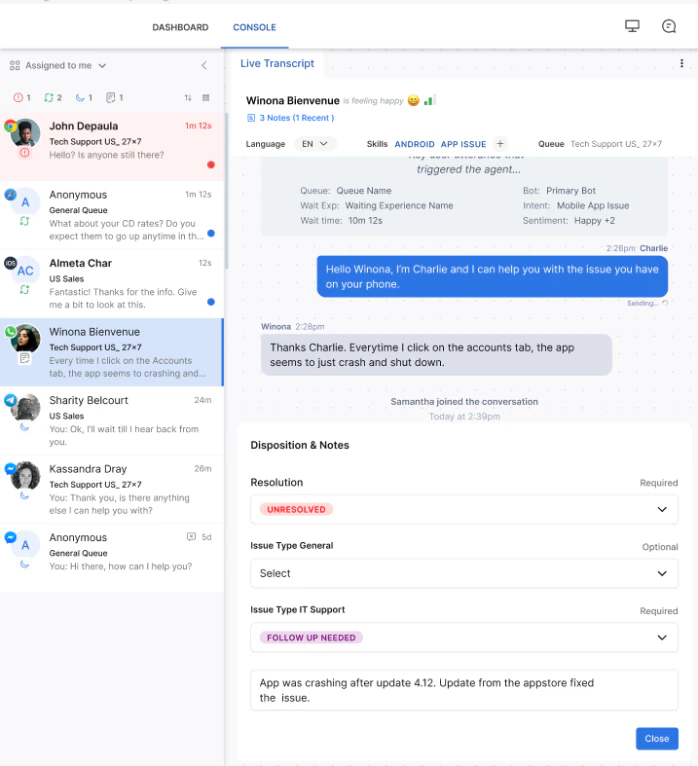
| Immediate Slot Release | Your slot frees immediately. The conversation stays open until you select a disposition and close it manually. No time limit. |
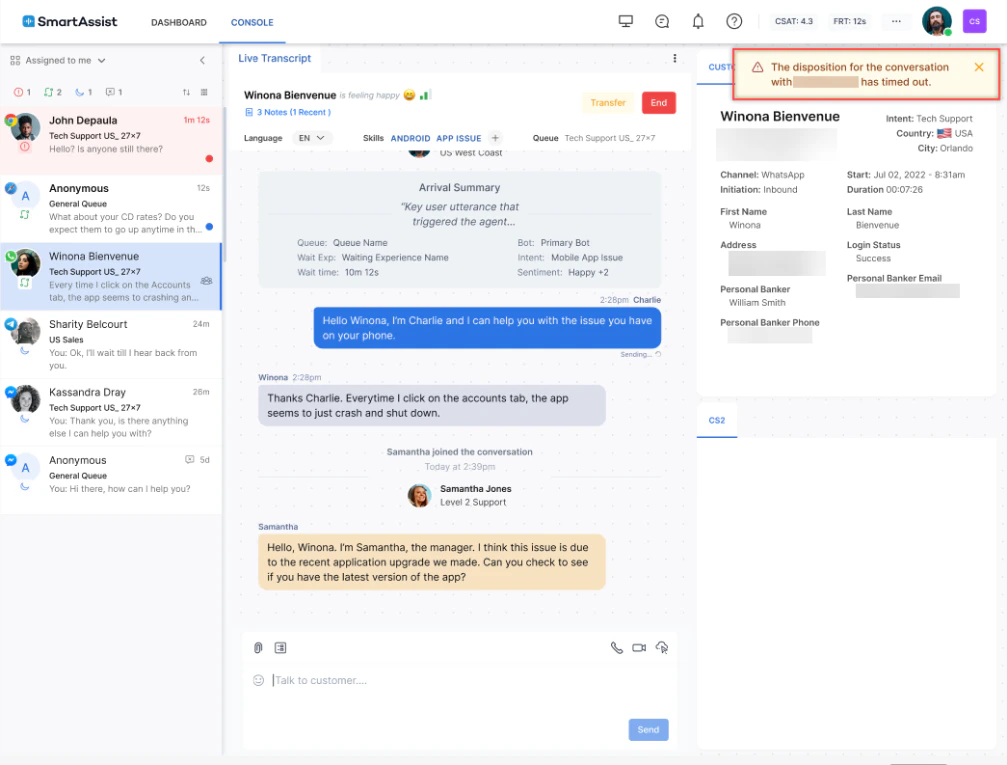
| Timed Slot Release | A countdown timer appears. Your slot frees when you submit a disposition or the timer expires. If the timer expires, the system auto-fills the disposition. |
| Disabled | The conversation disappears immediately. No disposition or notes are required. |
Dispositions
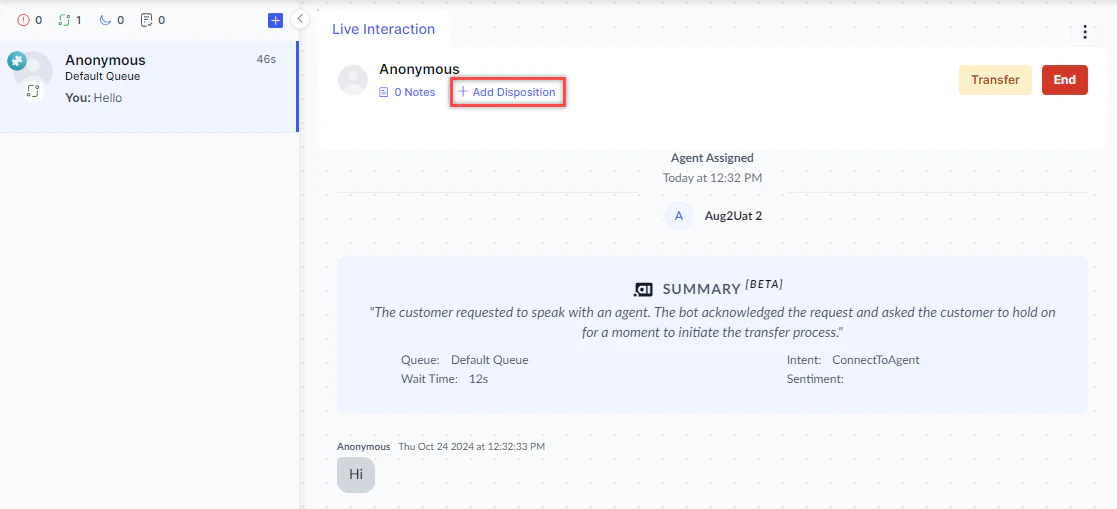
A disposition code labels the outcome of an interaction. During the conversation:-
Select + Add Disposition.
-
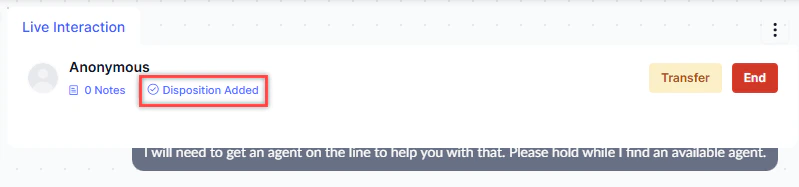
Select a code from the dropdown and select Save.
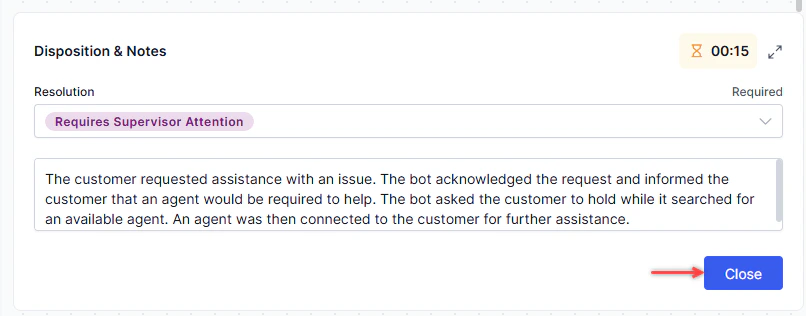
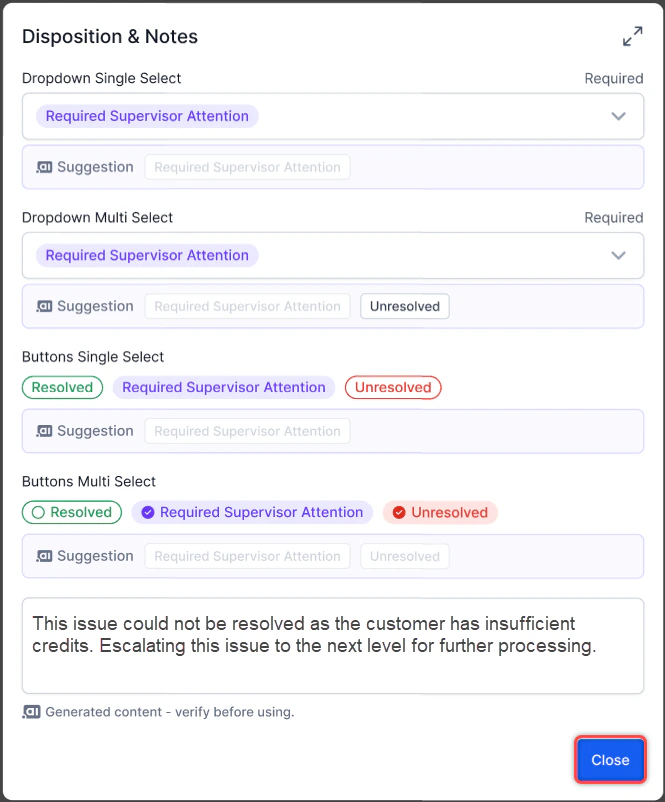
- Select End and confirm. The Disposition & Notes window appears.
-
Make changes if needed, then select Close.
- Select the conversation in your tray.
- Select a status: Resolved, Abandoned, Pending, or a custom code set by your administrator.
- Optionally add a description, then select Close.
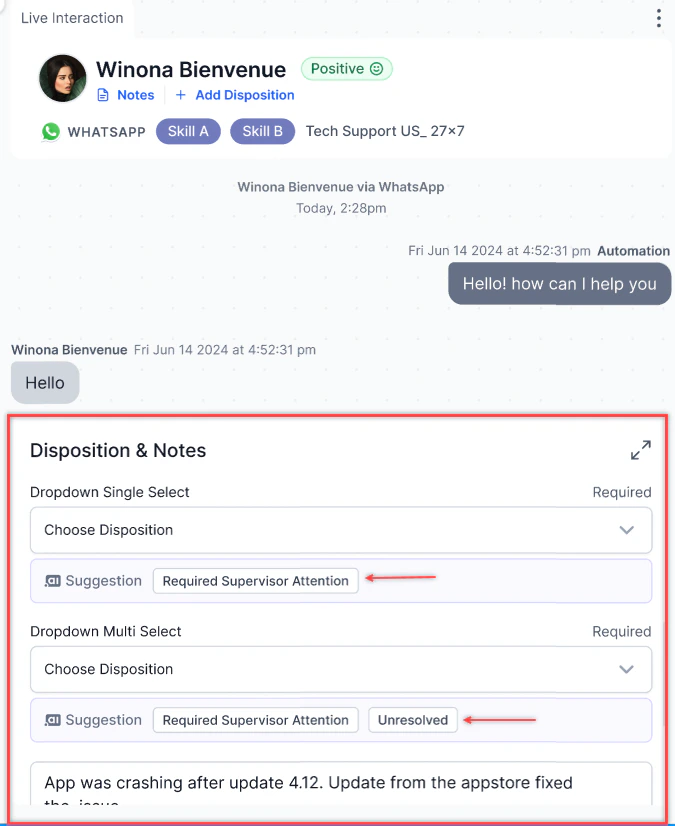
If you do not complete the disposition and notes during the ACW period, the system automatically closes the conversation with a system-generated disposition.
Feedback Surveys
After interactions end, the platform can send a feedback survey to the customer. Only one feedback type can be active per channel at a time.| Type | Scale |
|---|---|
| CSAT | 1 (extremely poor) to 5 (extremely good) |
| NPS | 0–10 (Detractors: 0–6, Passives: 7–8, Promoters: 9–10) |
| Like or Dislike | 1 = Like, 0 = Dislike |
| Scenario | Trigger |
|---|---|
| Inbound and outbound calls | End of any standard voice interaction |
| Calls with internal agent transfer | After the final agent interaction |
| Calls with agent-initiated callback | After the callback interaction completes |
| Calls with internal consult | After the interaction ends |
| Conference calls (multiple agents/supervisors) | After the interaction concludes |
| Courtesy callback | At the end of the callback interaction |
CSAT does not apply when the customer interacts with external agents or when an external consult occurs.
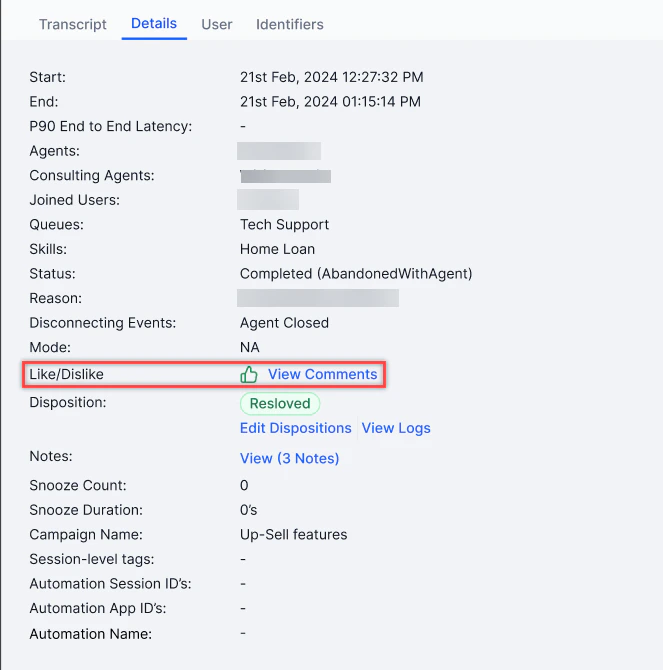
- Go to the Conversations Dashboard.
- Open the interaction and select the Details tab.
-
If the customer completed a survey, the Feedback field (CSAT/NPS/Like/Dislike) appears.
Request Supervisor Support
-
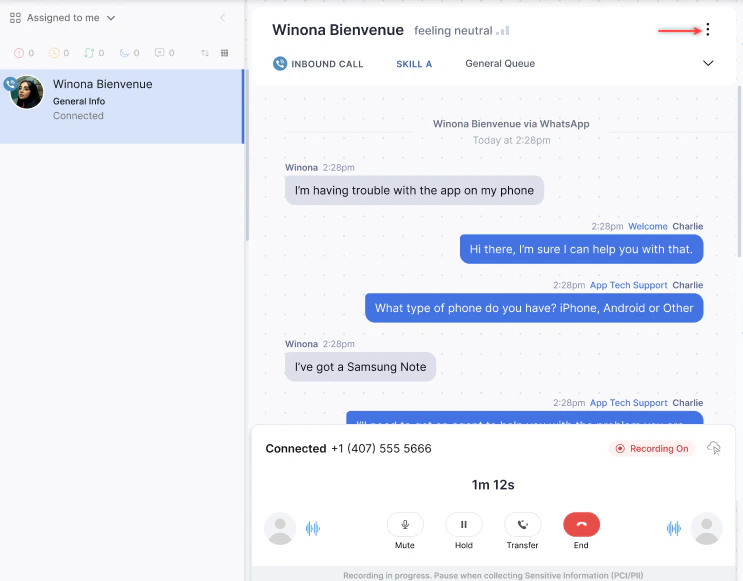
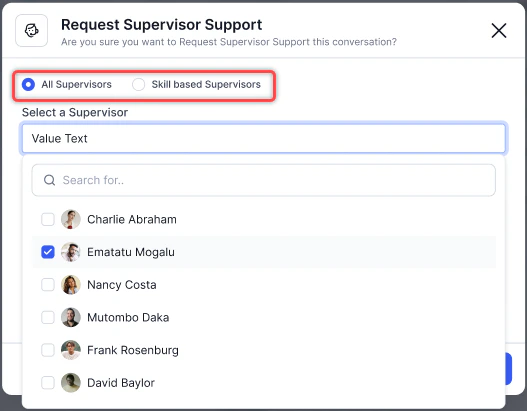
Select ⋮ (more options) on the Live Interaction Pane and select Request Supervisor Support.
-
Select one or more supervisors from the list.
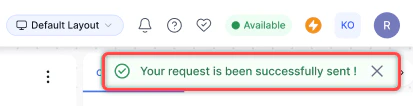
-
A notification is sent to all selected supervisors with Available status.
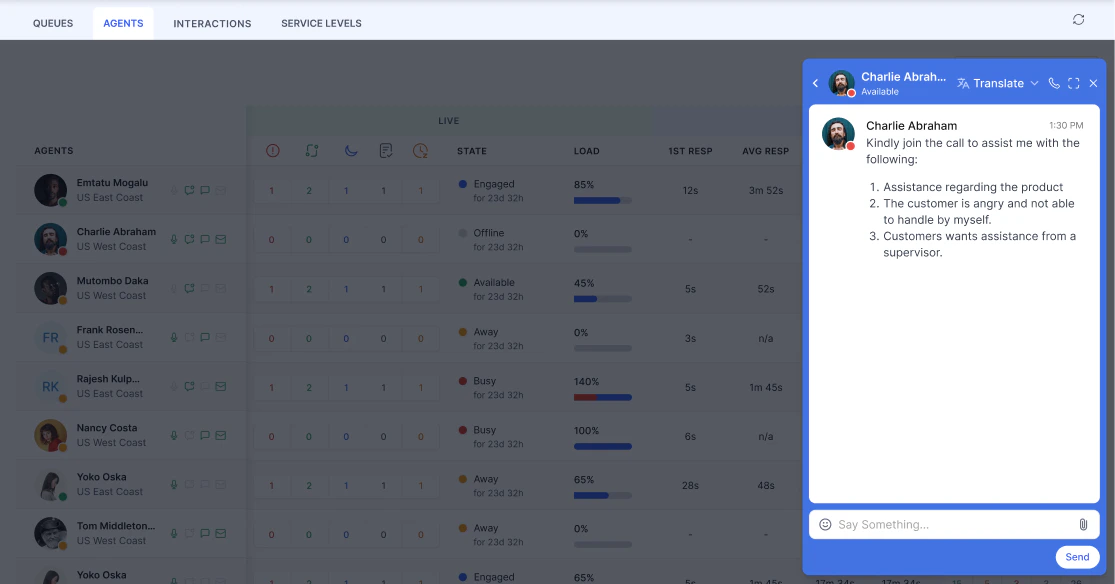
-
The supervisor receives the notification.

-
When a supervisor accepts, an Internal Chat window opens for you to communicate with them.
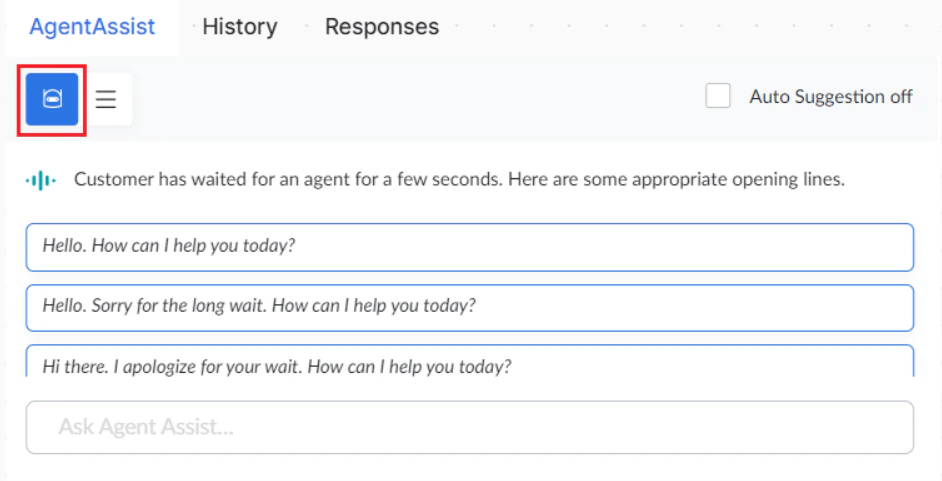
Agent AI Assist
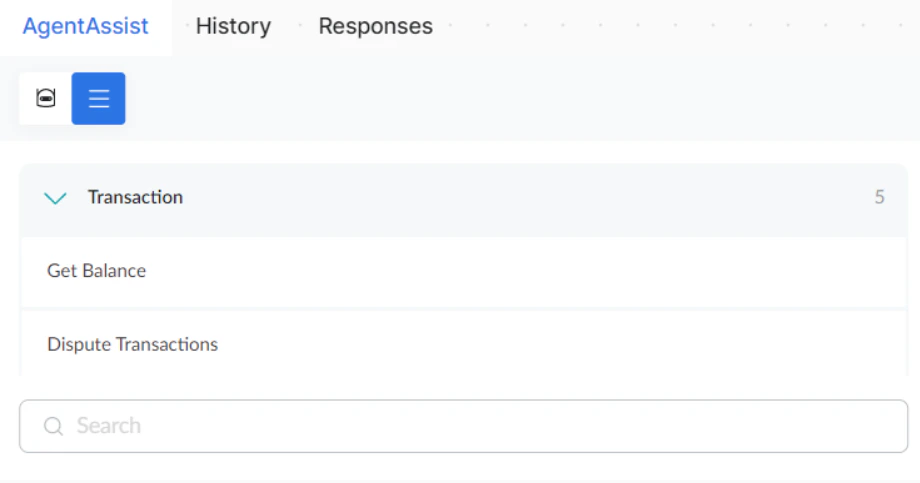
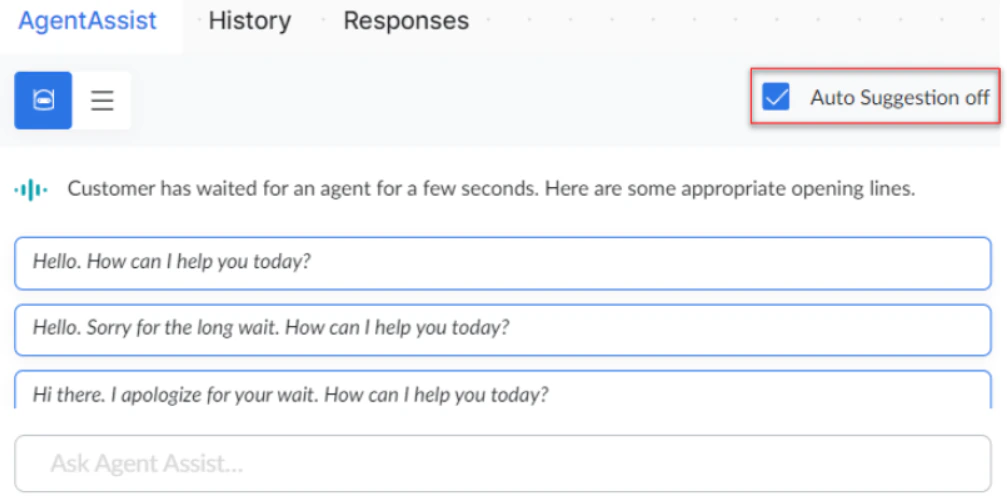
The Agent AI panel provides real-time assistance during conversations.| Feature | Description |
|---|---|
| Agent Bot | Shows Next Action suggestions based on the current conversation status |
| Automations | Lists pre-configured messages based on customer intent (for example, Welcome, Bill Payment Status) |
| Proactive Suggestions | Toggle to enable or disable auto-suggestions for the next action |
Responses Widget
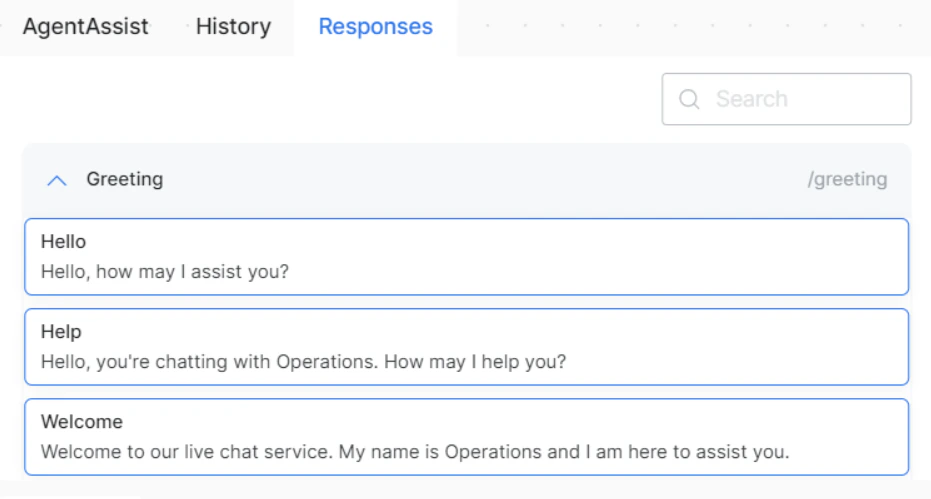
Use canned responses to send standard messages quickly. Default categories:| Category | Purpose |
|---|---|
| Greeting | Welcome messages |
| Conversational | Follow-up and delay responses |
| Closing | Closing statements, survey requests, thank-you messages |
| Transfer | Messages for transferring to a manager or alternate group |
| Abuse | Fair and final warning messages for abusive language |
| Privacy | Permission-based service responses |
User Info Widget
Displays additional customer information. Your administrator can customize this widget to include more fields.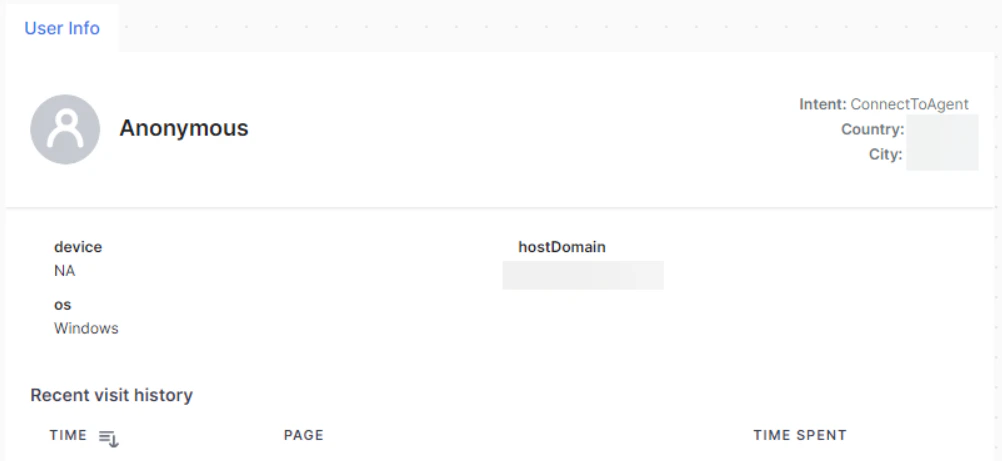
History Widget
The History widget shows past inbound and outbound conversations linked by phone number. Audio files include download links. Each history entry shows:- Date, year, and time
- Total duration
- Channel icon
- Automation use case and total wait time
- Per interaction: duration, wait time, final status, and direction (Inbound/Outbound)
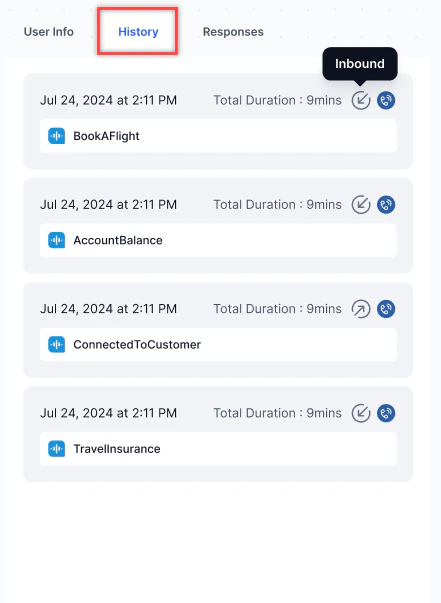
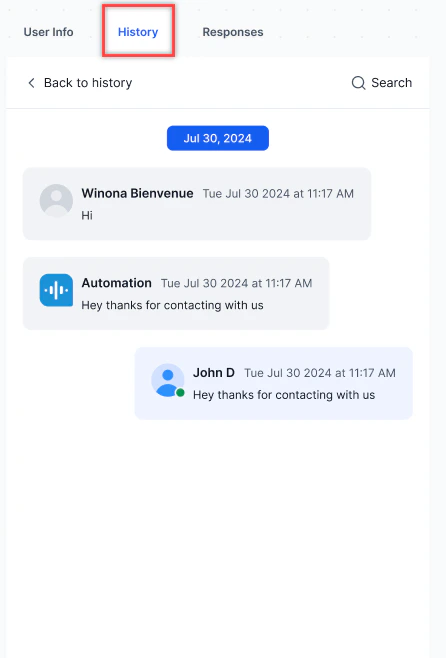
Wait time includes the initial queue wait plus any additional waits from agent or queue transfers.
- Select the History tab and open the conversation.
-
Select Translate on the Live Interaction Pane and choose a language.
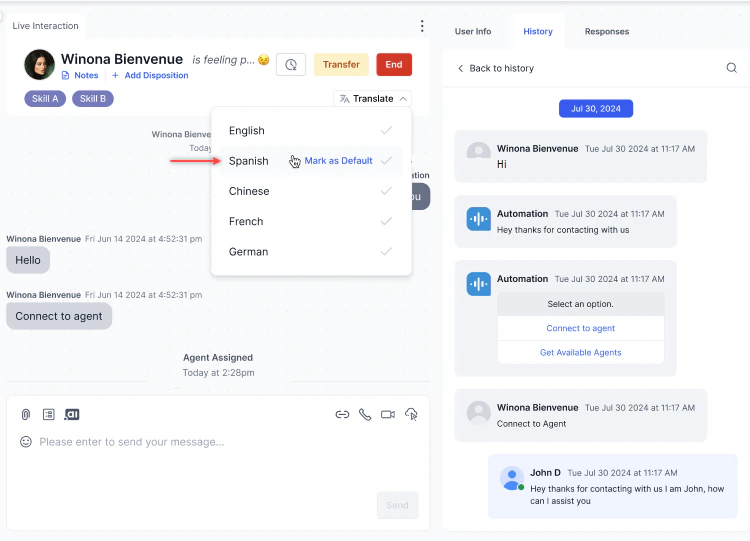
-
The conversation appears in the selected language.
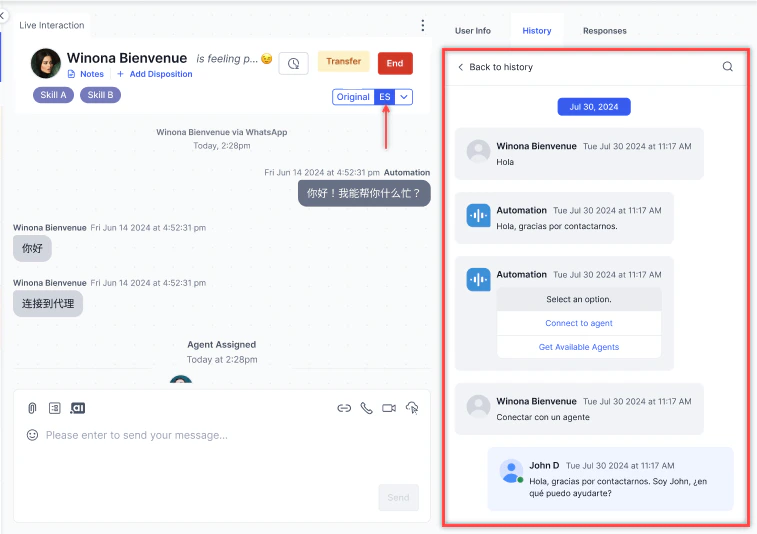
-
Select Original to revert to the original language.

Internal Chat
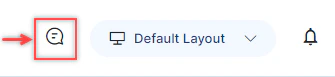
Use Internal Chat to communicate with other agents or supervisors while handling a customer interaction.-
Select the Internal Chat icon in the upper-right corner of the console.
-
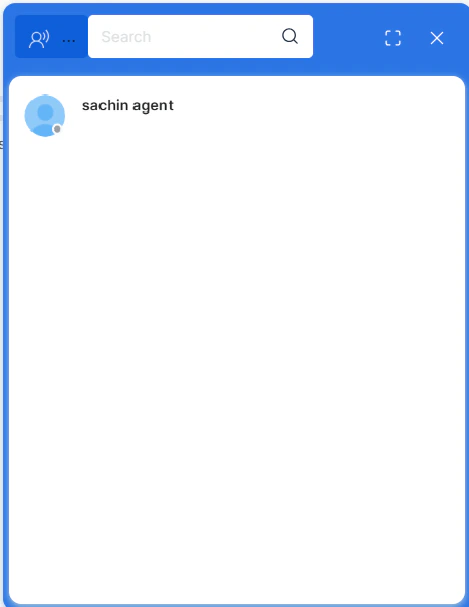
Select an available agent or supervisor from the list.
-
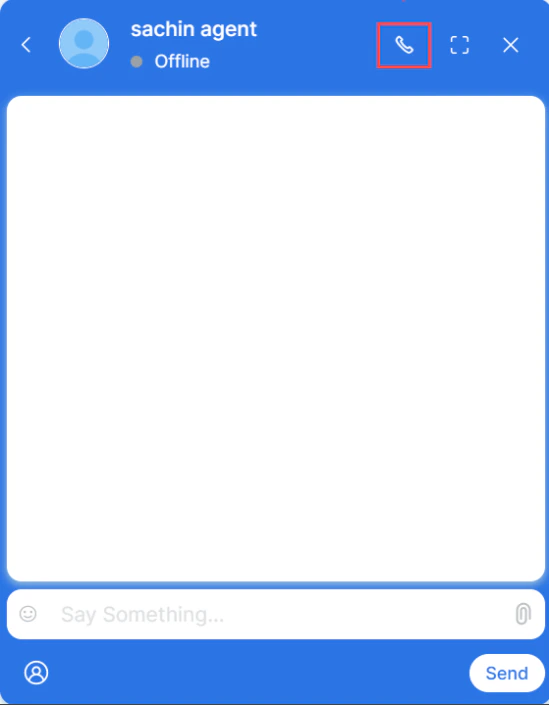
Send messages, attachments, or initiate an internal call.
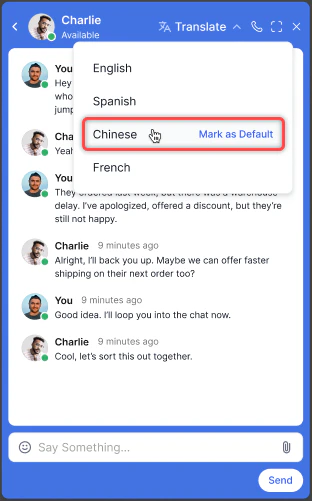
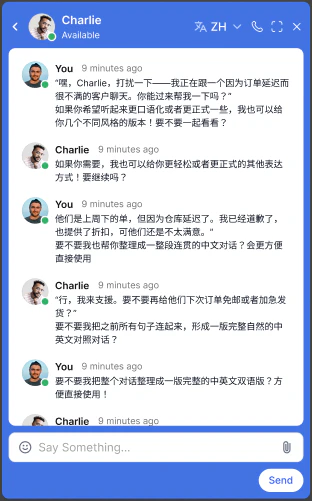
-
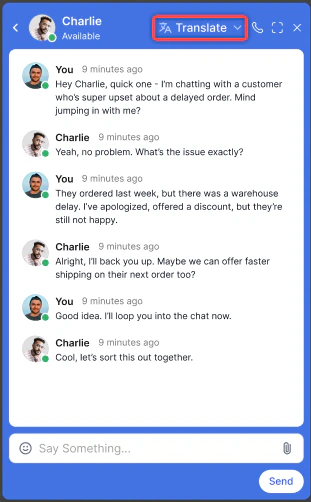
Select Translate.
-
Choose the language and optionally select Mark as Default.
Manage Layout
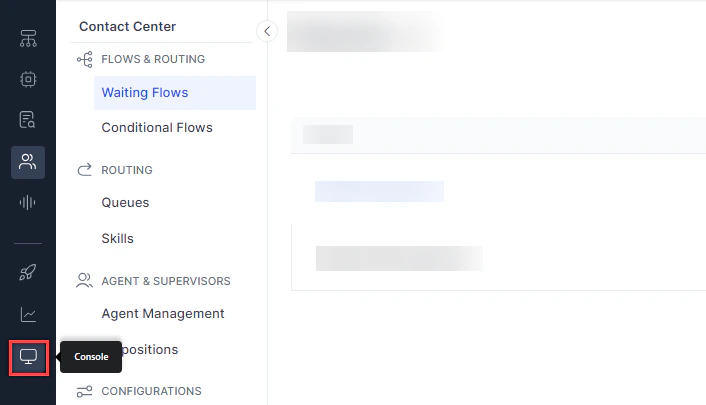
Go to Console > Manage Layout to add, delete, or switch between layouts.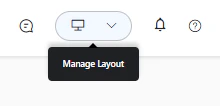
-
Select + Create New. The layout page opens with available widgets on the left panel.

-
Drag the required widgets to the layout area.
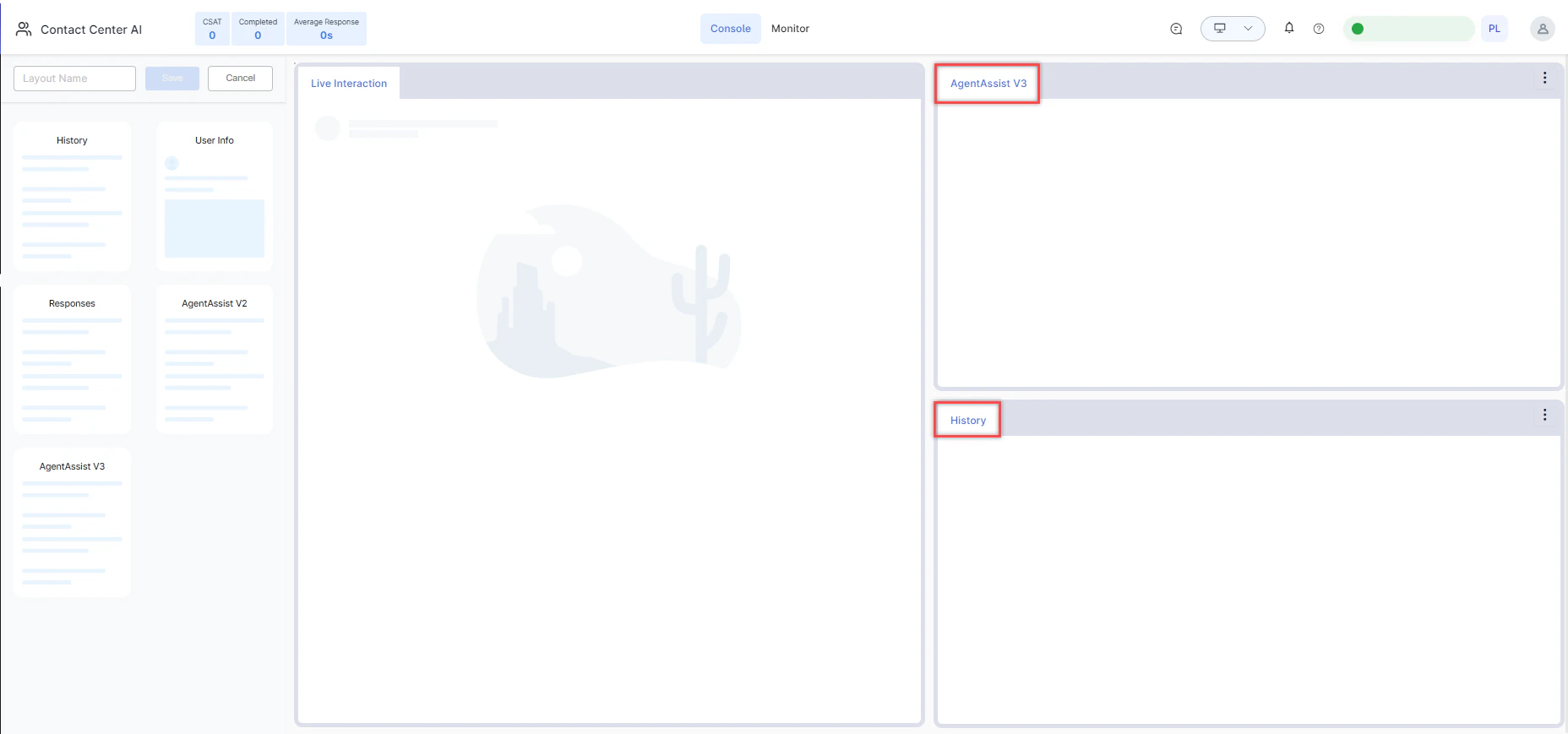
-
Enter a Layout Name and select Save.
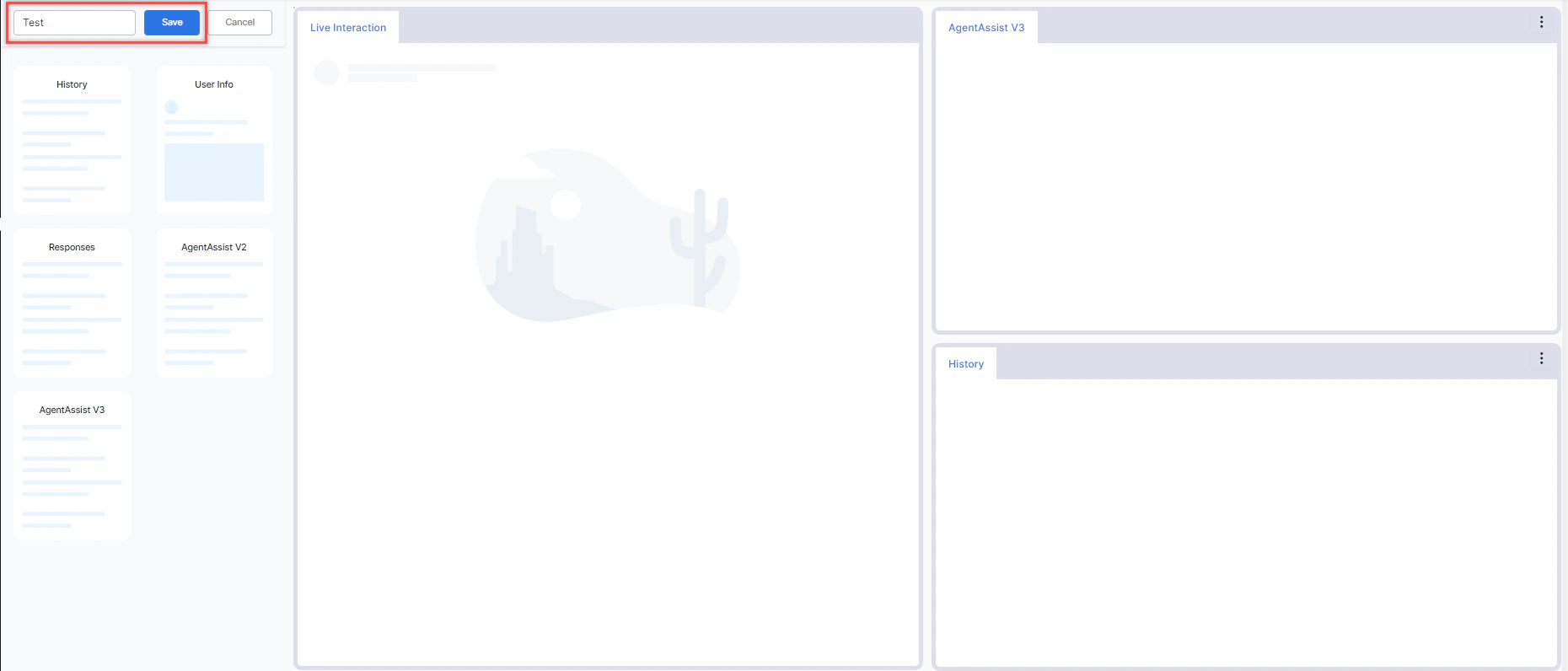
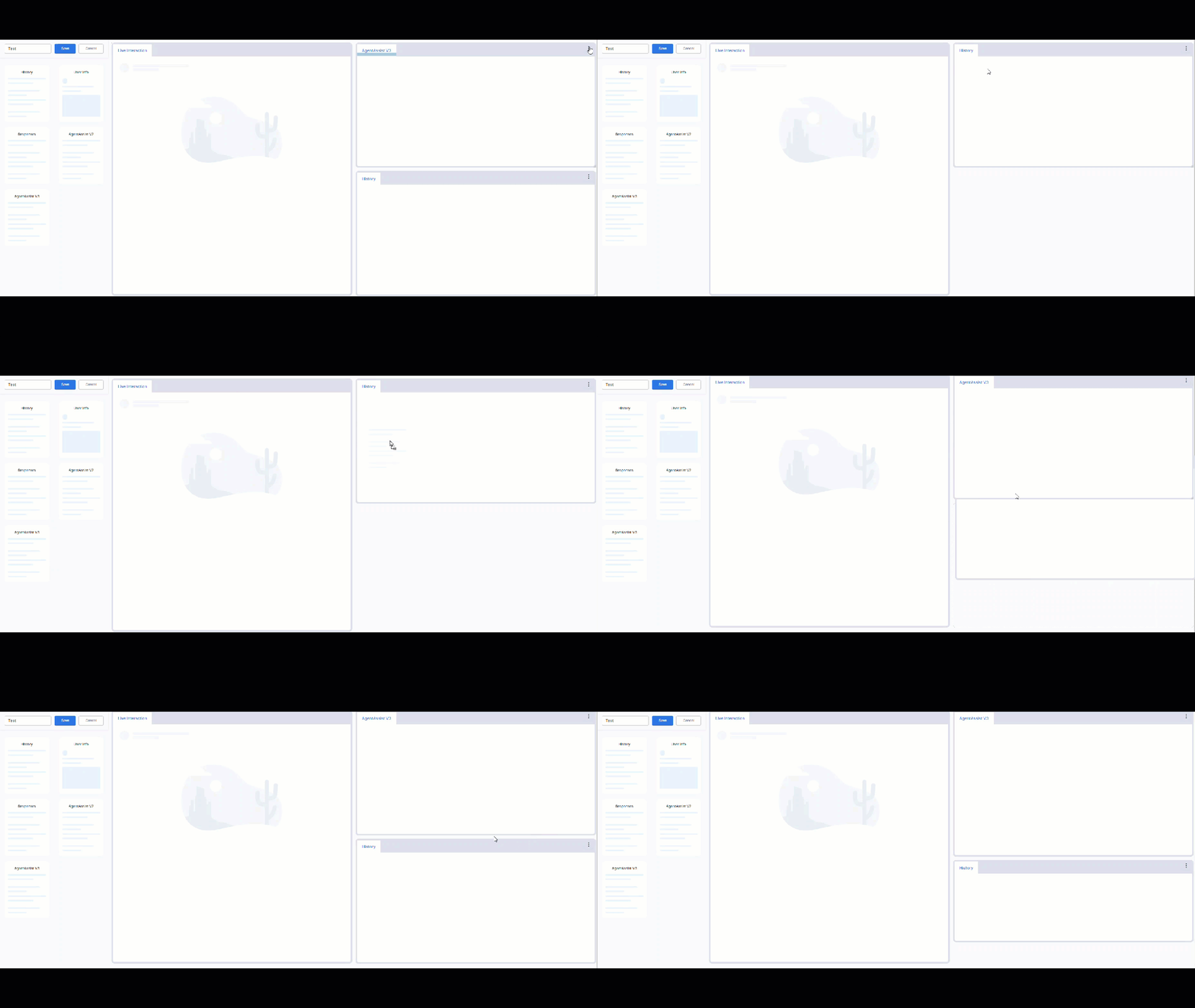
External Widgets
External widgets in your layout have a Maximize icon. Select it to expand the widget to a full-page view within the console.-
Select the Maximize icon on an external widget.
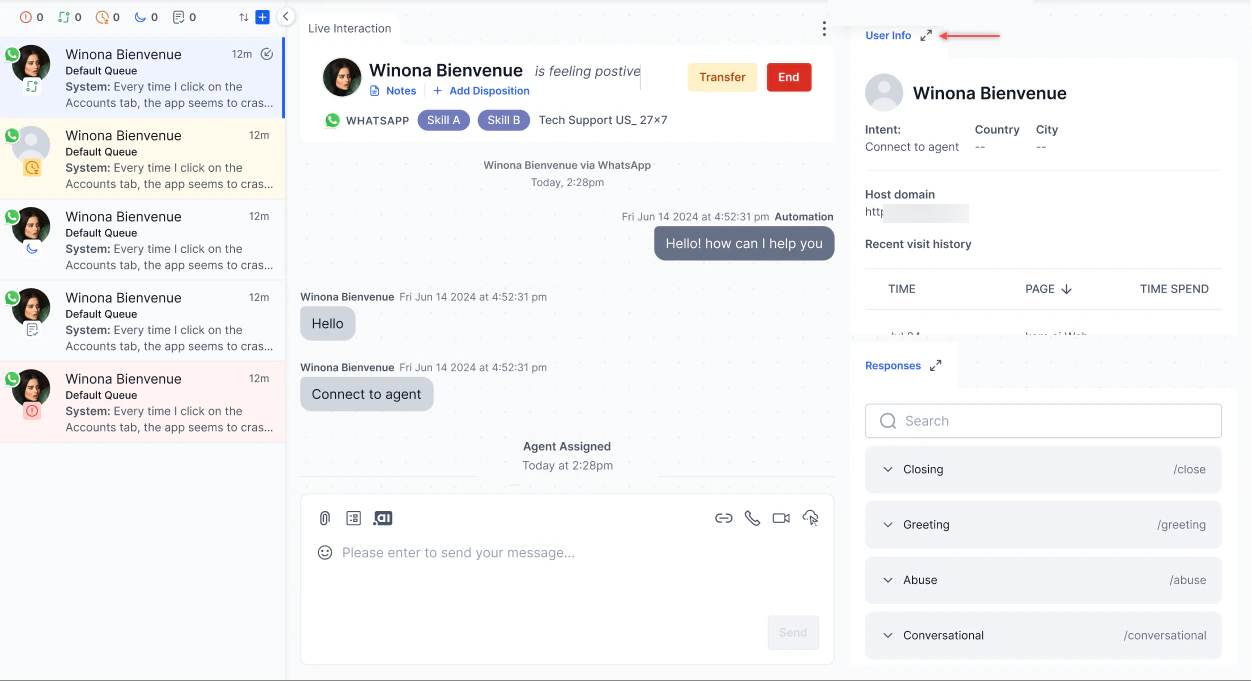
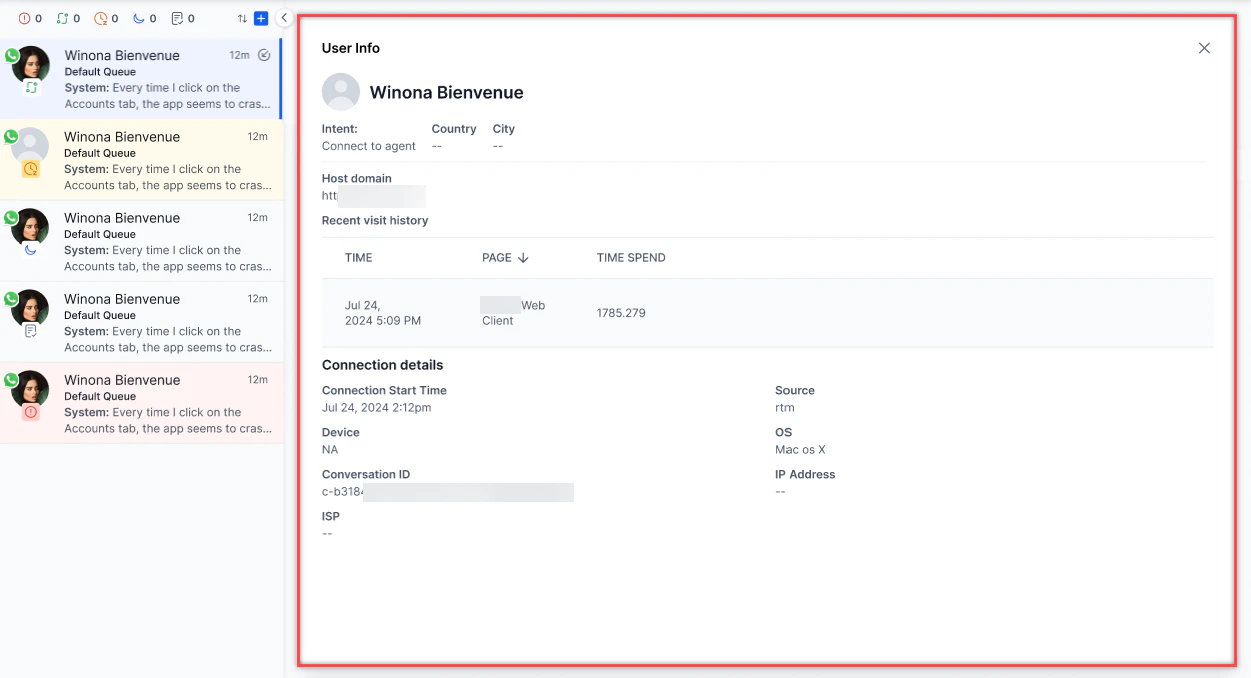
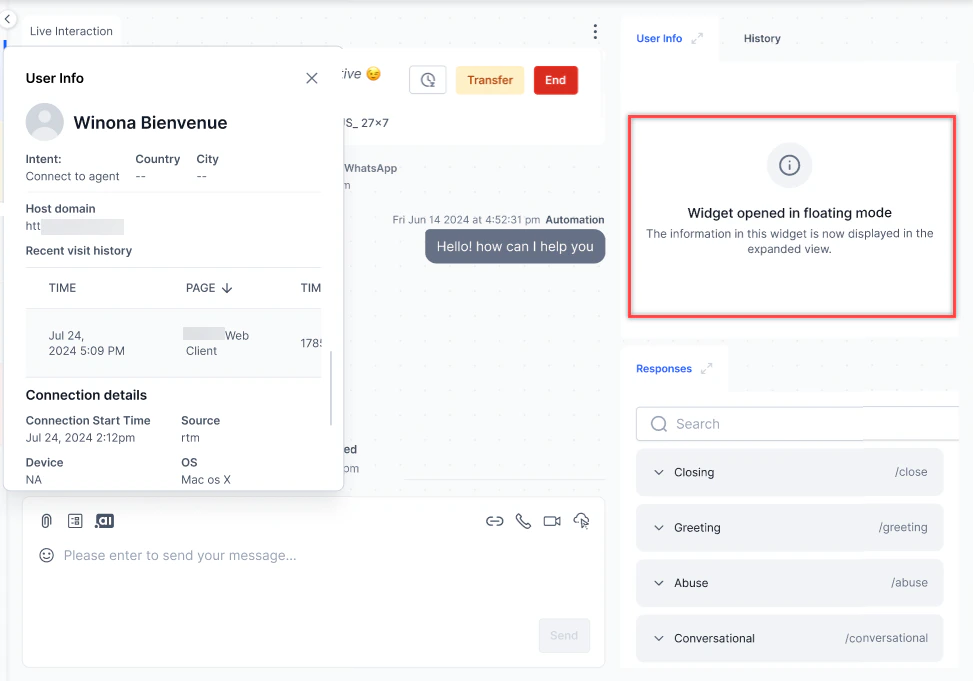
- Interact with the widget. It automatically refreshes when you switch conversations.
- Select Close or Minimize to return the widget to its original size.
Only one widget can be maximized at a time.

Notifications
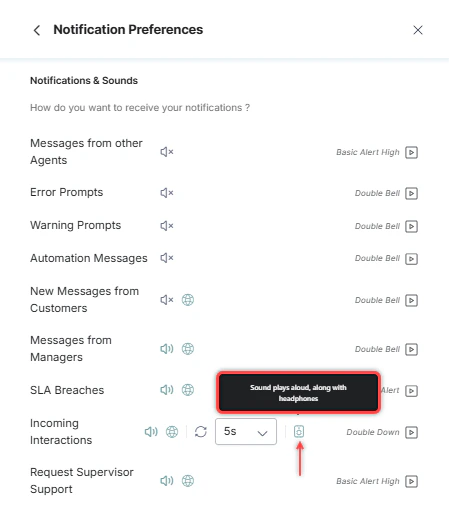
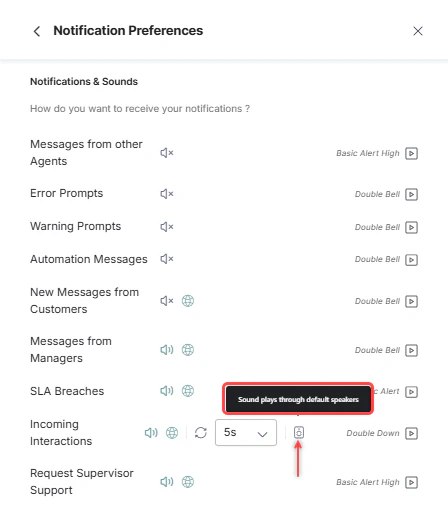
Select the Bell icon in the top-right corner, then select Settings to manage notification preferences.

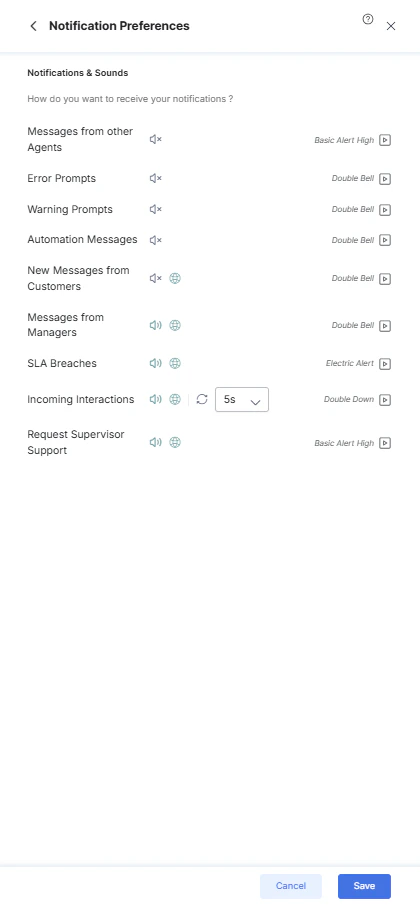
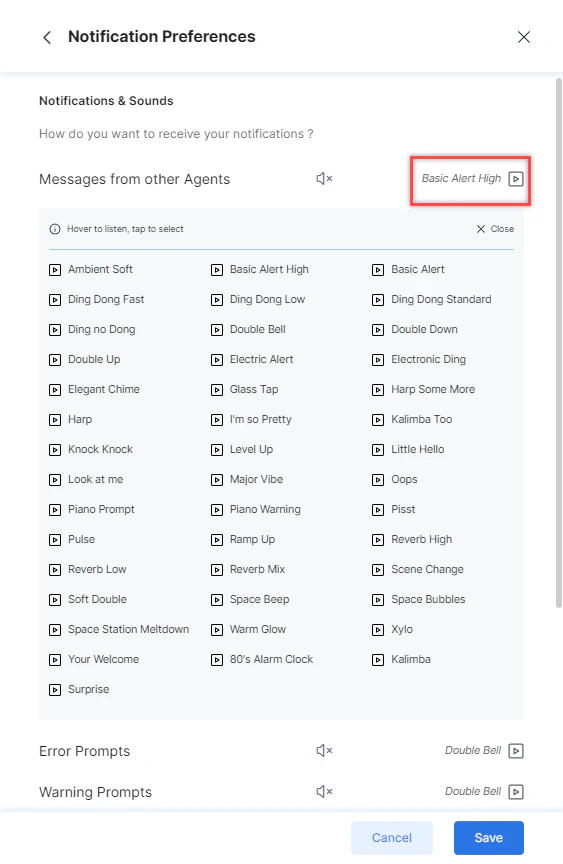
Error prompt sounds apply only to console runtime errors, not configuration validation errors.
-
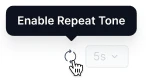
Select the Repeat icon next to Incoming Interactions to enable it.
-
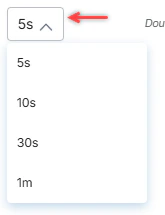
Set the repeat interval (default: 5 seconds).
- Select Save.
User Diagnostics
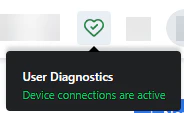
Select the User Diagnostics (♡) icon in the top-right corner.
-
Green icon — Device permissions are active.
-
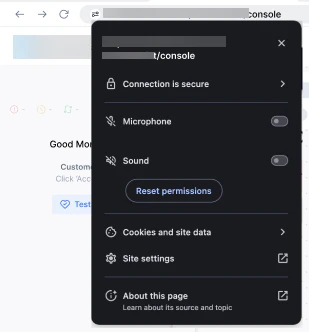
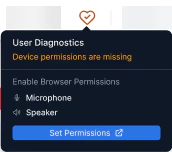
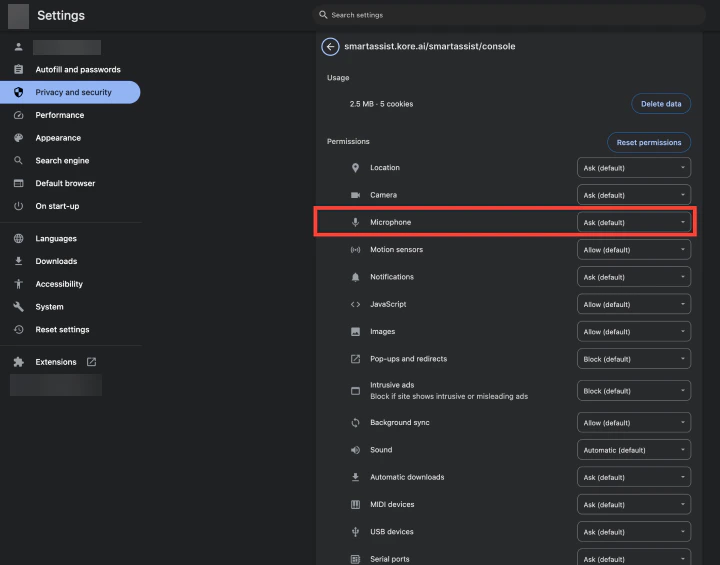
Orange icon — Device permissions are missing. A pop-up appears prompting you to enable settings.
-
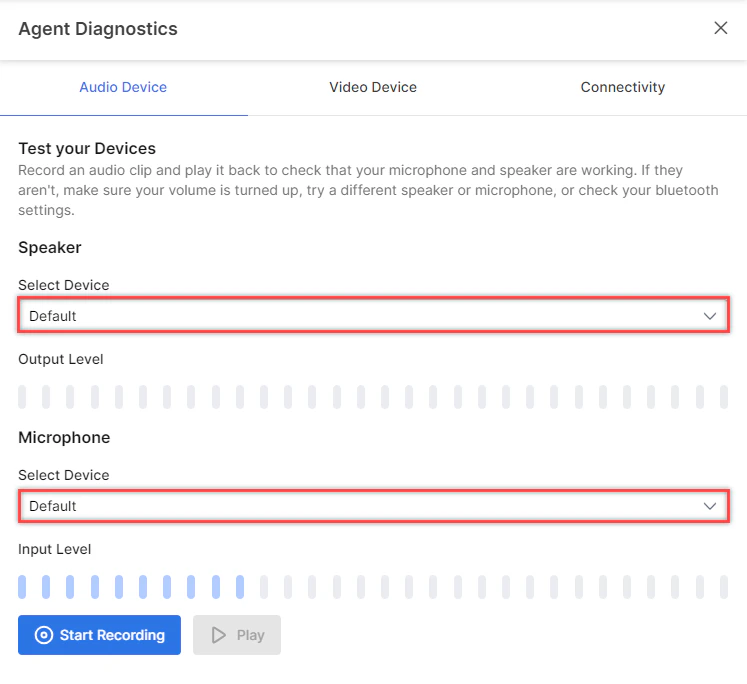
Select your Speaker and Microphone from the dropdowns.
-
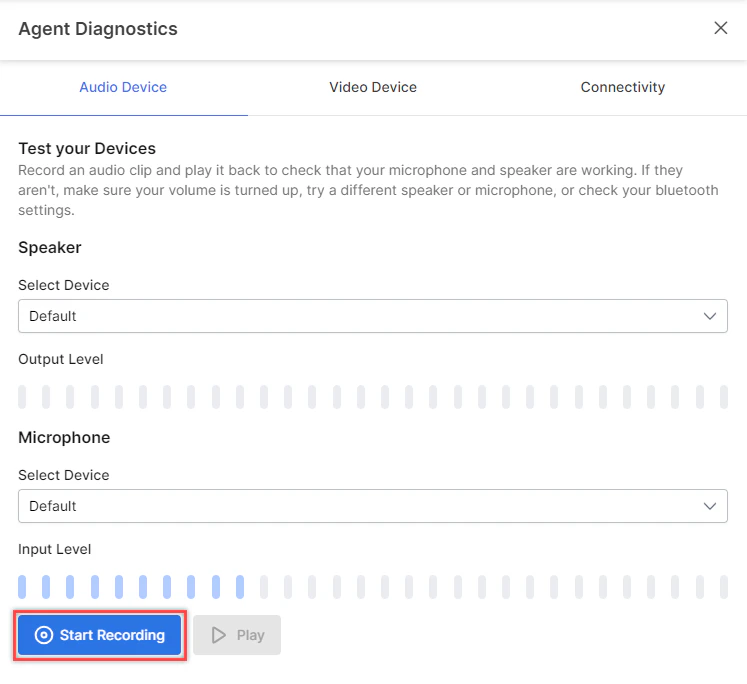
Select Start Recording to record a clip.
-
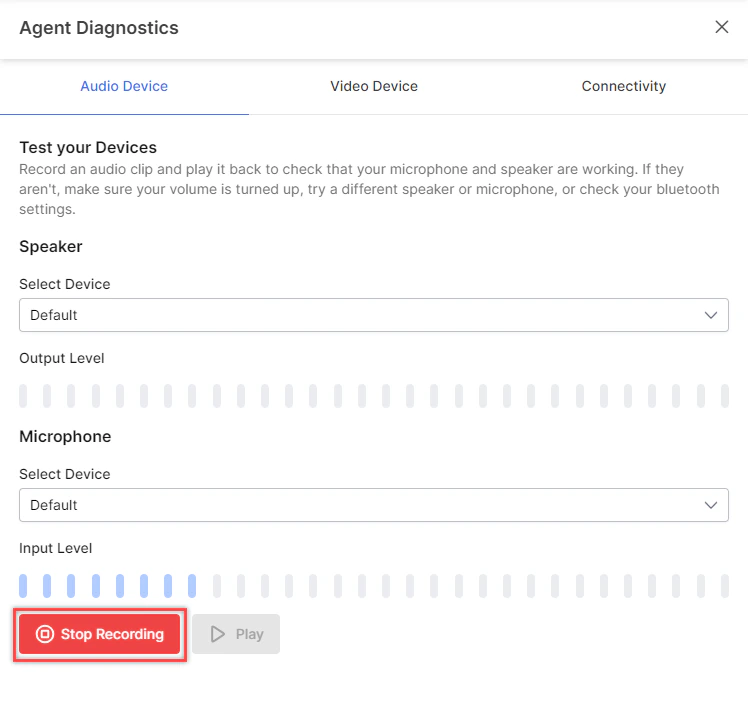
Select Stop Recording to stop.
-
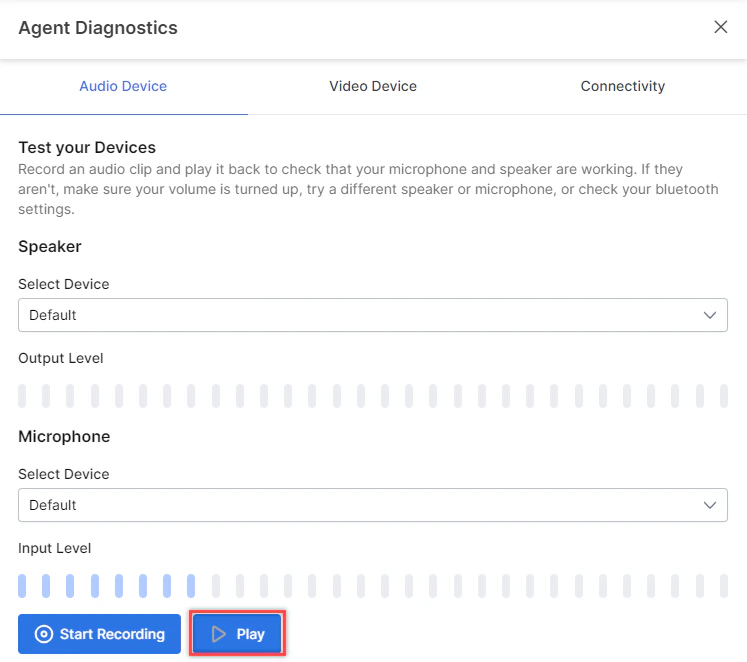
Select Play to test the recording. Maximum recording length: 12 minutes.

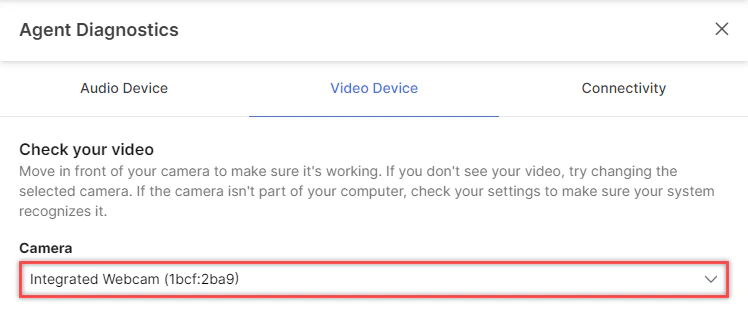
-
Select your Camera from the dropdown.
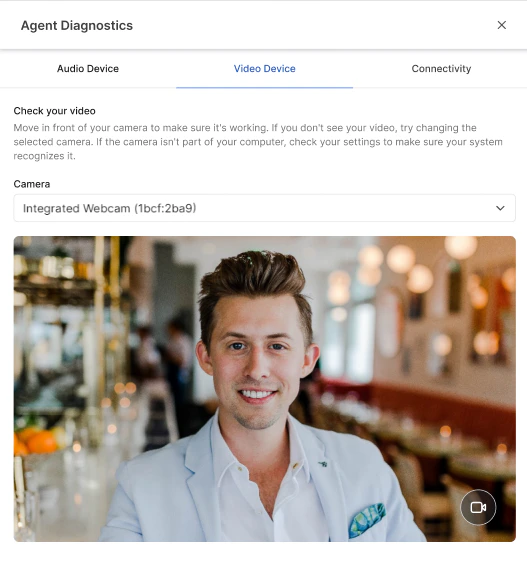
-
Verify the video feed is visible.
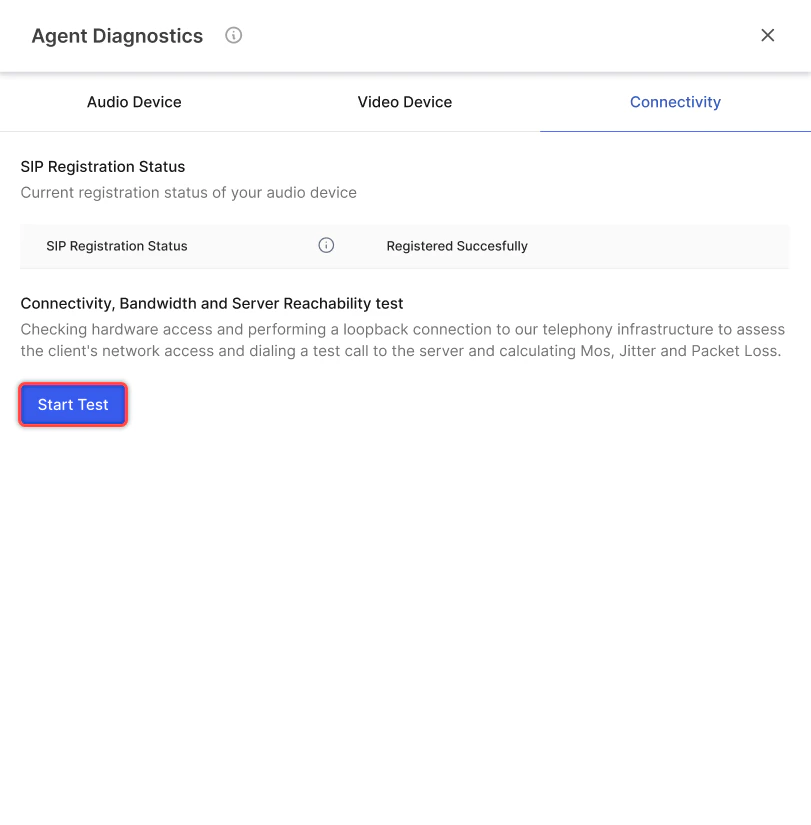
-
Select Start Test to run connectivity, bandwidth, and server reachability tests.
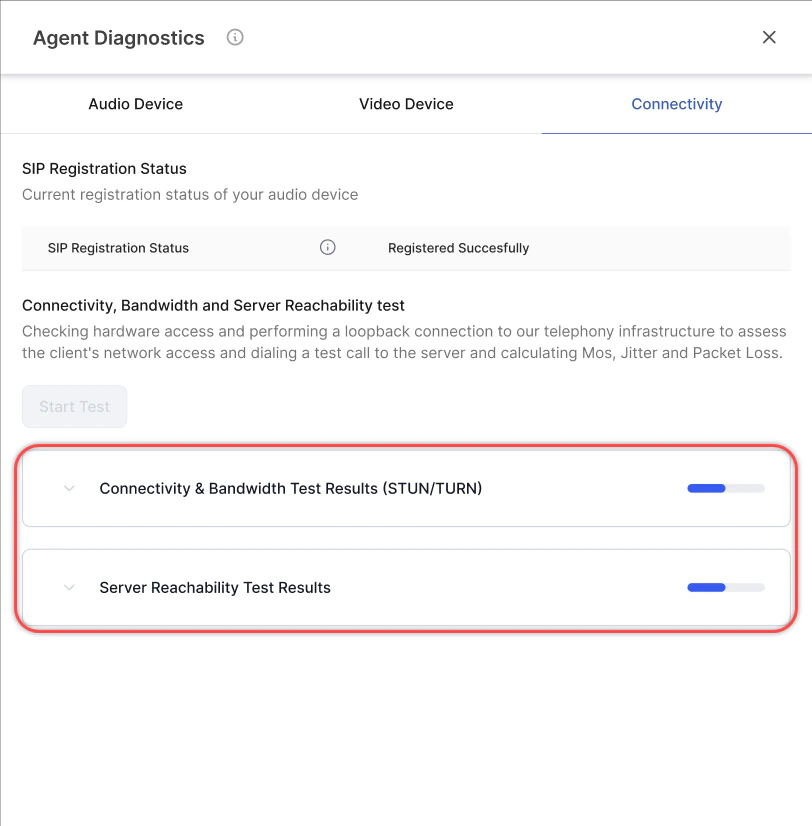
-
When complete, view the results. Select Copy Results to share the output.
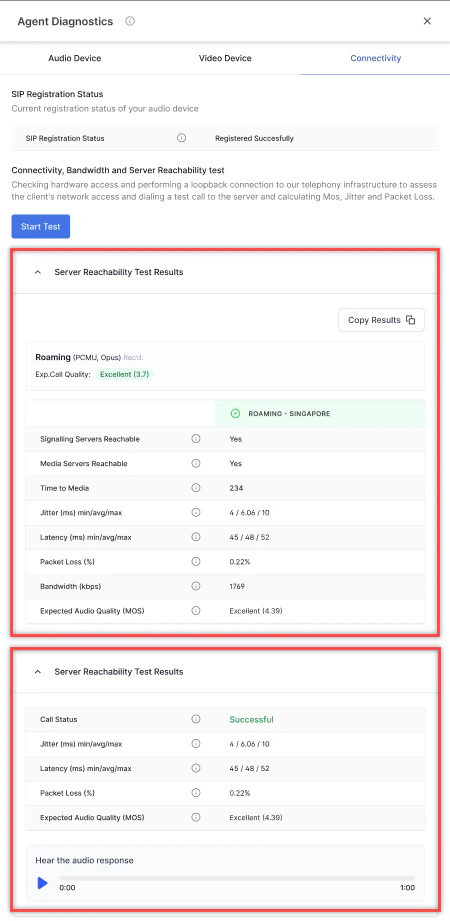
Connectivity tests are available only with a Kore Twilio account. Not supported for SIP trunk setups.
Connection Handling
If your internet connection drops, a message appears at the top of the console. The system attempts to reconnect automatically. If reconnection fails after several attempts, you are prompted to reload the page.
Proactive Network Monitoring
During active calls, the system monitors network performance (packet loss, speed, and MOS score). If metrics exceed the 300 ms threshold, a warning banner appears on the Console.
Analytics
The analytics section shows your daily performance metrics: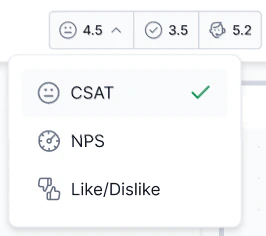
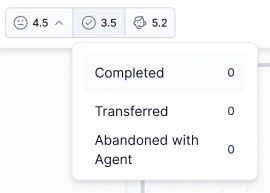
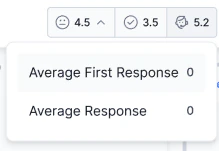
- Feedback survey scores
- Average conversations completed, transferred, and abandoned
- Average first response time and average response time
Agent Profile
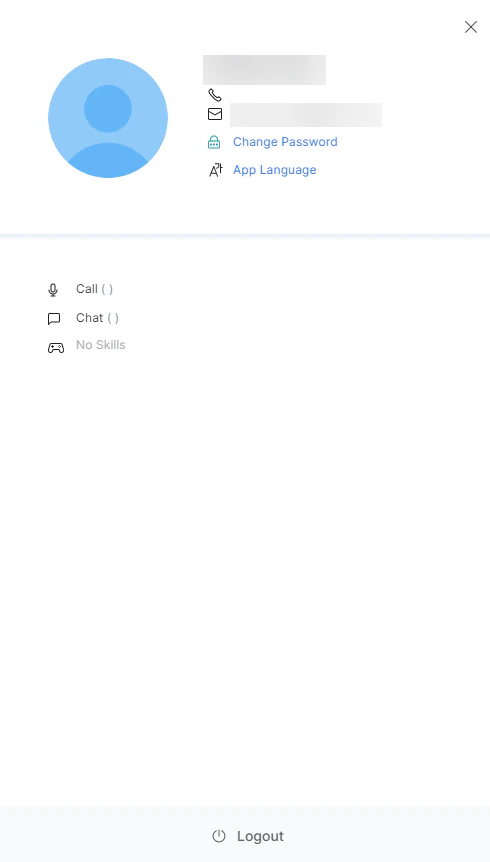
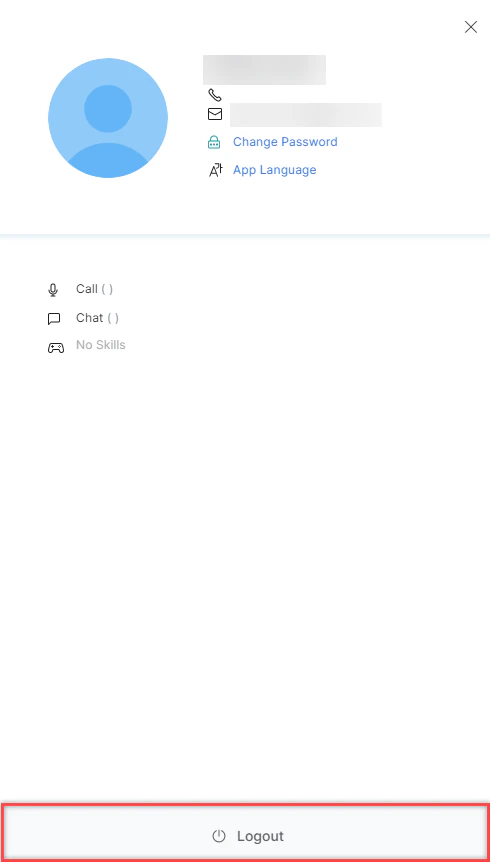
Select your Profile icon in the top-right corner to update your login and contact details, or to log out.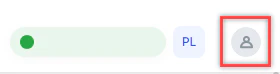
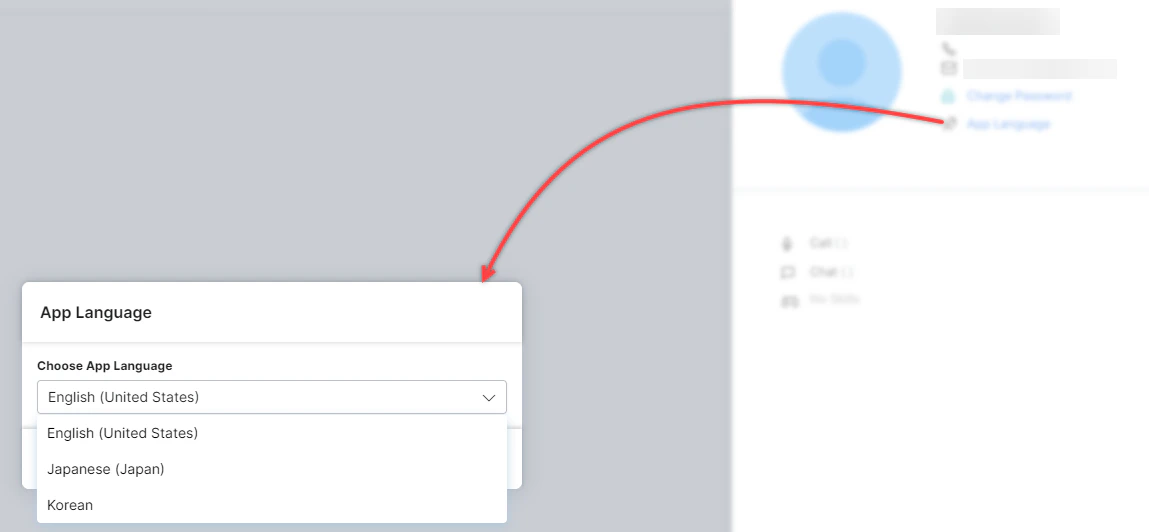
App Language
Choose the display language for the Agent Console:- English (United States)
- Japanese (Japan)
- Korean (South Korea)
-
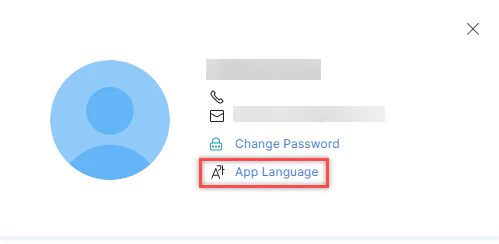
Select App Language.
-
Choose your language.
-
Select Save.
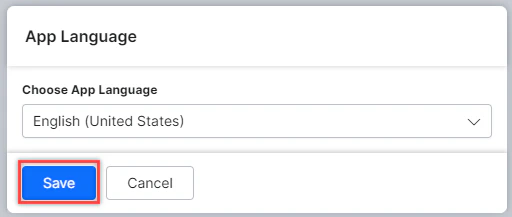
Language selection does not apply to the XO Platform.
Multi-Account Access
If you belong to multiple accounts, you can select an account at sign-in and mark one as your default. After signing in, switch between accounts from the top-right corner.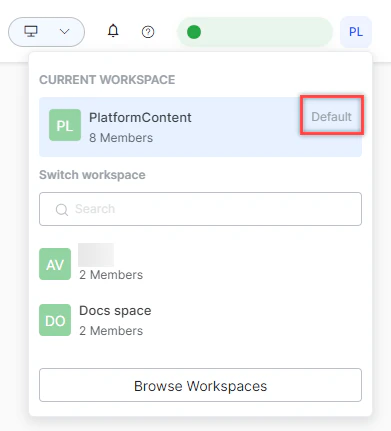
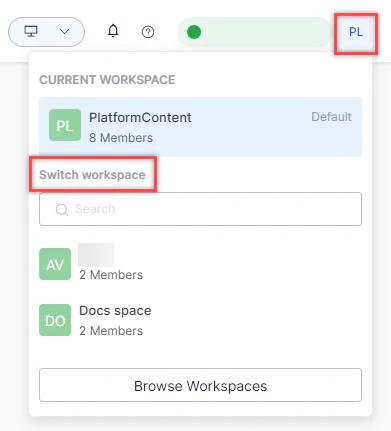
Help
Select the Help icon in the top-right corner to access support resources.
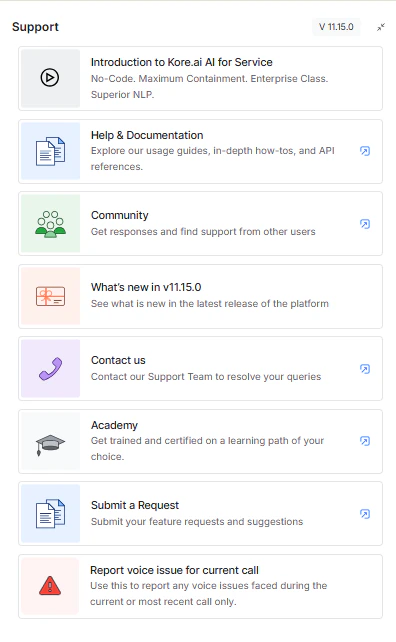
- Introduction to AI for Service
- Help & Documentation
- Community
- What’s New in v11.x.x
- Contact Us
- Academy
- Submit a Request
- Report a voice issue for the current call
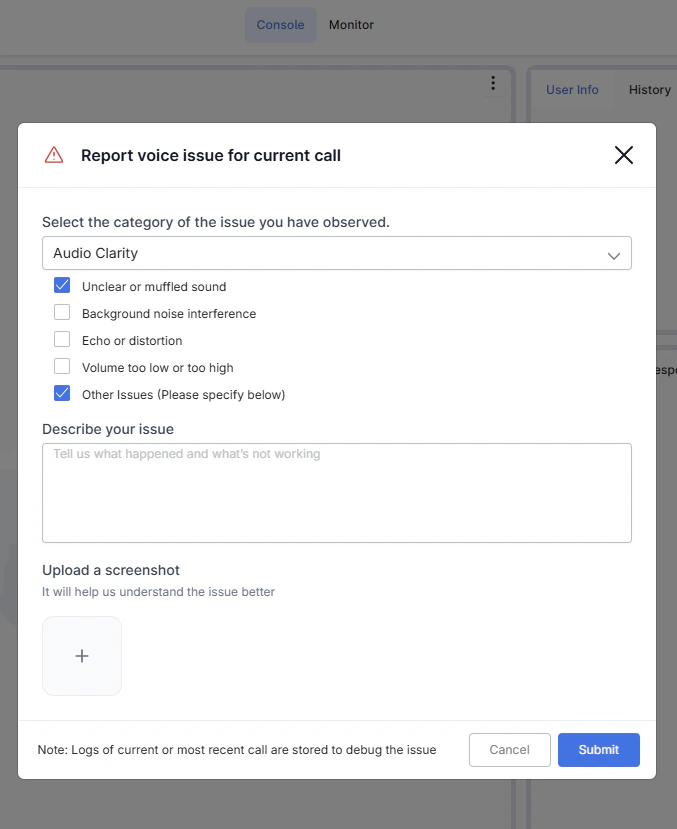
- Select Report voice issue for the current call.
-
Select the issue category: Audio Clarity, Connection Problems, Voice Transmission, or Other.
-
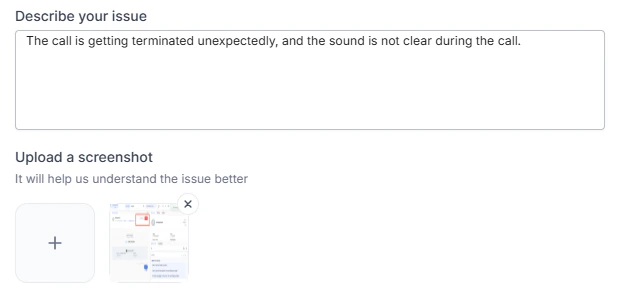
Add a description and optionally upload a screenshot.
-
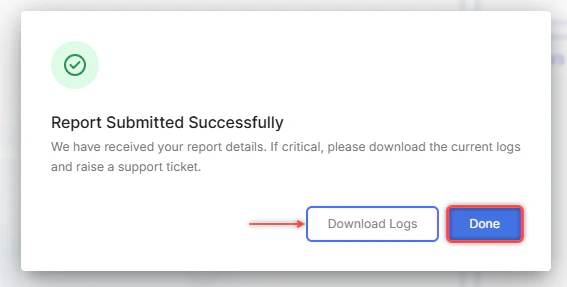
Select Submit. Select Done to close or Download Logs to export logs.